

 English
 Lietuvių
 Latviešu
 Eesti
Eesti Русский
 Polski
 Українська
 Deutsch
 Italiano
 Español
 Français
 Português
 Čeština
 Magyar
 Română
 Ελληνικά
 Türkçe
 日本語
日本語 العربية
 हिन्दी
 Bahasa Indonesia
 Bahasa Melayu
 ไทย
ไทย Tiếng Việt
 বাংলা
বাংলাWordPress Plugin Selection: How to Choose Plugins Safely
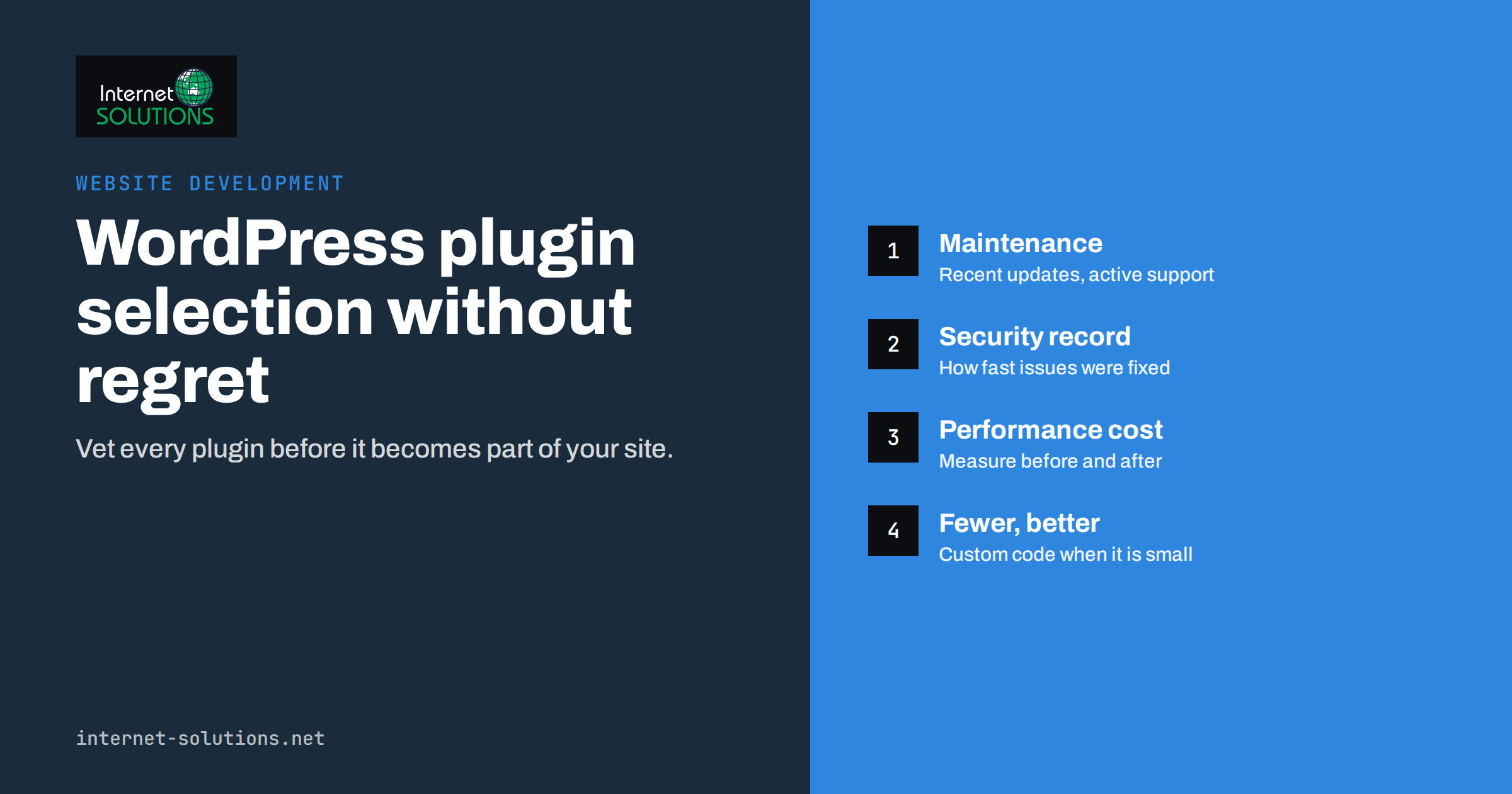
WordPress plugin selection is one of the decisions with the longest consequences on a website, and it is usually made in a few minutes. Someone needs a slider, a form or a redirect, searches the plugin directory, installs the first result with good stars and moves on. Two years later, the site runs forty plugins, several are no longer maintained, two do the same job, one slows every page and nobody remembers why half of them were installed. Most of the WordPress security incidents and performance problems we see in maintenance work trace back to plugins.
This guide gives a practical process for choosing plugins safely: what to check before installing, how to measure the cost of a plugin, when a small piece of custom code is the better option, and how to review the plugins you already have. It is written for business owners, marketers and developers who look after WordPress sites.
Why Plugins Deserve Careful Selection
Plugins are what make WordPress so flexible. The official WordPress plugin directory lists tens of thousands of free plugins, and many more are sold commercially. But every plugin you install becomes part of your website’s code. It runs with the same permissions as WordPress itself, it can read and write your database, and it can add scripts and styles to every page.
That means each plugin brings three kinds of risk:
- Security risk. A vulnerability in any active plugin can expose the whole site. Abandoned plugins are particularly dangerous because known issues are never fixed.
- Performance risk. Plugins that load heavy scripts, run slow database queries or call external services on every request slow down the site for every visitor.
- Maintenance risk. Each plugin must be updated, tested and kept compatible with WordPress core, your theme and other plugins. Conflicts between plugins are a common cause of broken pages after updates.
The number of plugins matters less than their quality. A site with thirty well-maintained, lightweight plugins can be faster and safer than one with ten poorly written ones. The goal is not a minimum count but deliberate choices.
Step One: Decide Whether You Need a Plugin at All
Before searching, describe the requirement precisely. “We need a contact form that sends to two addresses and stores entries” is a requirement. “We need a form plugin” is not. A precise requirement often reveals simpler options:
- WordPress core may already do it. The block editor includes many layout features that once needed plugins, and core provides XML sitemaps, lazy loading of images and basic embeds.
- Your theme or an existing plugin may cover it. Many sites install a second plugin for a feature the first one already offers.
- A few lines of code may be enough. Removing a menu item, adding a tracking snippet or changing an excerpt length rarely justifies a whole plugin.
- The requirement may belong elsewhere. Caching, image optimisation and security filtering are sometimes better handled at the server or CDN level than inside WordPress.
Step Two: Vet the Candidates
When a plugin really is the right tool, compare two or three candidates against the same criteria. The table summarises what to look for.
| Criterion | Where to check | Good sign | Warning sign |
|---|---|---|---|
| Maintenance | “Last updated” and changelog | Regular releases, tested with the current WordPress version | No update for a year or more |
| Support | Support forum or vendor help desk | Questions answered and issues resolved | Many unanswered threads |
| Security history | Vulnerability databases and changelog | Issues fixed quickly and disclosed openly | Repeated serious issues, slow fixes |
| Developer | Plugin page and website | Identifiable company or established developer | Anonymous author, no website |
| Scope | Feature list and settings | Does what you need without huge extras | Dozens of unrelated modules |
| Performance | Your own measurements on staging | Loads assets only where used | Scripts on every page, slow queries |
| Data handling | Documentation and privacy notes | Clear explanation of stored and sent data | Unexplained calls to external servers |
| Exit path | Documentation | Data can be exported, uninstall cleans up | Content locked into proprietary shortcodes |
Active Installs and Ratings
Install counts and star ratings are useful but limited. A popular plugin is more likely to be maintained and to have its problems discovered quickly, but popularity also makes it a bigger target for attackers. Ratings often reflect ease of setup more than code quality. Read recent reviews and support threads rather than relying on the average score.
Security Track Record
Every widely used plugin has had vulnerabilities at some point; that alone is not a reason to avoid it. What matters is how the developer responded. Check public vulnerability databases such as WPScan for the plugin’s history, and look in the changelog for security fixes. Fast, transparent fixes are a good sign. Silence or months of delay are not.
Nulled and Unofficial Copies
Never install “nulled” versions of commercial plugins downloaded from unofficial sites. They frequently contain hidden backdoors and malware, and they receive no updates. If a commercial plugin is worth using, it is worth paying for a licence.
Step Three: Test Before Installing on Production
Install new plugins on a staging copy first. Our guide to WordPress staging sites explains how to set one up. On staging, check:
- Function. Does the plugin actually meet the requirement you wrote down?
- Compatibility. Do the main pages, forms, checkout and admin screens still work?
- Front-end weight. Compare the number and size of scripts and stylesheets loaded on key pages before and after activation.
- Server time. Measure the time to first byte of uncached pages and admin screens. Query monitoring tools show which plugins add slow database queries.
- Database changes. Note new tables and options, and check whether the plugin stores large amounts of data such as logs.
- Deactivation and uninstall. Confirm what remains after removing it.
Performance changes are easiest to see in Core Web Vitals metrics; our article on website speed and Core Web Vitals explains which numbers to watch.
Plugin Categories That Need Extra Care
Some types of plugins carry more risk than others because of what they touch. Apply stricter checks to these:
- Page builders. They shape every page of the site and often store content in their own format. Switching away later can mean rebuilding pages by hand, so choose one only after considering the block editor and the long-term exit path.
- Forms and file uploads. Anything that accepts input or files from visitors is a common attack surface. Prefer well-established form plugins with active security maintenance and built-in spam protection.
- Membership, login and user management. These control who can access what. A flaw can expose customer accounts or grant administrator rights to strangers.
- E-commerce and payments. Use the core shop plugin and payment gateways from established vendors, and keep extensions to a minimum.
- Backup and migration tools. They have access to your entire database and file system, and some store backups in publicly reachable folders by default. Check where backups go.
- Caching and optimisation. Powerful but easy to misconfigure, and running two at once is a frequent cause of broken layouts and stale content.
Questions to Ask a Commercial Plugin Vendor
Paid plugins can be excellent, but the licence model matters as much as the code. Before buying, find out:
- What happens when the licence expires: does the plugin keep working, and do security updates stop?
- How updates are delivered and whether they can be managed from the WordPress dashboard or a central tool.
- Whether the vendor publishes a changelog and security advisories.
- Which data, if any, the plugin sends to the vendor’s servers, for example for licence checks or usage statistics.
- How support works and what response times to expect.
Record the licence owner, renewal date and account details in the same place as your plugin list, so renewals do not lapse when the person who bought the licence leaves.
When Custom Code Is the Better Choice
Custom code is not always more work. For small, stable requirements, a few lines in a site-specific plugin or the theme’s functions file can be safer and faster than a general-purpose plugin. Consider custom code when:
- The requirement is narrow and unlikely to change, such as adding a custom field to a post type.
- Available plugins are heavy, bundling many features to cover one small need.
- The feature is central to your business and you want full control over how it works.
- You have access to a developer who documents the code and keeps it in version control.
Choose a well-maintained plugin instead when the feature is complex and security-sensitive, such as e-commerce, membership, payment integrations or form spam protection, where a dedicated team maintains and tests the code for thousands of sites. The WordPress hardening guide is a useful reference for both approaches.
Reviewing the Plugins You Already Have
Most sites need a clean-up more than better selection. A plugin audit once or twice a year keeps the list under control:
- List every plugin, active and inactive, with its purpose, owner and last update date.
- Delete inactive plugins. Deactivated plugins are still files on the server and can still be exploited in some cases. If you do not use it, remove it.
- Find duplicates. Two SEO plugins, two caching plugins or several page builders are common and cause conflicts.
- Flag abandoned plugins that have not been updated for a long time and plan replacements.
- Check licences for commercial plugins. An expired licence often means no updates.
- Measure the heaviest plugins and decide whether their value justifies their cost.
Updates then need a routine of their own. Our article on patch management for servers and WordPress describes how to keep plugins current without breaking production.
Replacing a Plugin Without Breaking the Site
Sooner or later, a plugin has to go: it is abandoned, too slow or replaced by something better. Plan the change rather than simply deactivating it:
- List everything the plugin does on the site, including shortcodes, widgets, blocks, redirects and scheduled tasks.
- Set up the replacement on staging and migrate settings and data, using export tools where available.
- Search the database for the old plugin’s shortcodes so no page is left showing raw code.
- Test key pages, forms and checkout, then switch on production during a quiet period with a fresh backup in place.
- Remove the old plugin completely, including leftover tables or options if its uninstall routine does not clean them up.
A Simple Plugin Policy for Teams
When several people can install plugins, problems multiply. A short written policy helps:
- Only administrators can install plugins; editors and marketers request them.
- Every request states the requirement, not just the plugin name.
- New plugins are tested on staging and recorded in the plugin list with an owner.
- Plugins are reviewed when a project or campaign that needed them ends.
Our website development team builds custom WordPress themes and provides ongoing support, maintenance and improvements for the sites we host.
Frequently Asked Questions
How many plugins are too many?
There is no fixed number. Quality matters more than quantity. Remove anything unused or duplicated, and measure the performance cost of the rest.
Are premium plugins safer than free ones?
Not automatically. Some free plugins are maintained by large, professional teams. Judge each plugin by its maintenance, support and security history rather than its price.
Should I delete or just deactivate unused plugins?
Delete them. Deactivated plugins still exist on the server, still need updating and add clutter.
What should I do if a plugin I rely on is abandoned?
Plan a replacement soon, test it on staging and migrate before a vulnerability is discovered. Until then, keep the site behind a firewall and watch security advisories.
Can a plugin slow down pages where it is not used?
Yes. Many plugins load scripts and styles on every page. Good plugins load assets only where needed; others can be restricted with careful configuration.
Is it safe to edit plugin files directly?
No. Changes are lost at the next update. Use hooks in a separate site-specific plugin or child theme instead.
The Bottom Line
WordPress plugin selection is a long-term decision about security, speed and maintenance. Start with a precise requirement, check whether core, your theme or a small snippet already solves it, and compare candidates on maintenance, support, security history, scope and measured performance. Test on staging, record every plugin with an owner, delete what you do not use and review the list regularly. Fewer, better plugins make a WordPress site faster, safer and cheaper to run. If you would like help auditing your plugins or building a cleaner setup, contact our team.