

 English
 Lietuvių
 Latviešu
 Eesti
Eesti Русский
 Polski
 Українська
 Deutsch
 Italiano
 Español
 Français
 Português
 Čeština
 Magyar
 Română
 Ελληνικά
 Türkçe
 日本語
日本語 العربية
 हिन्दी
 Bahasa Indonesia
 Bahasa Melayu
 ไทย
ไทย Tiếng Việt
 বাংলা
বাংলাChat Widget Not Showing? A Troubleshooting Checklist for Talkmio
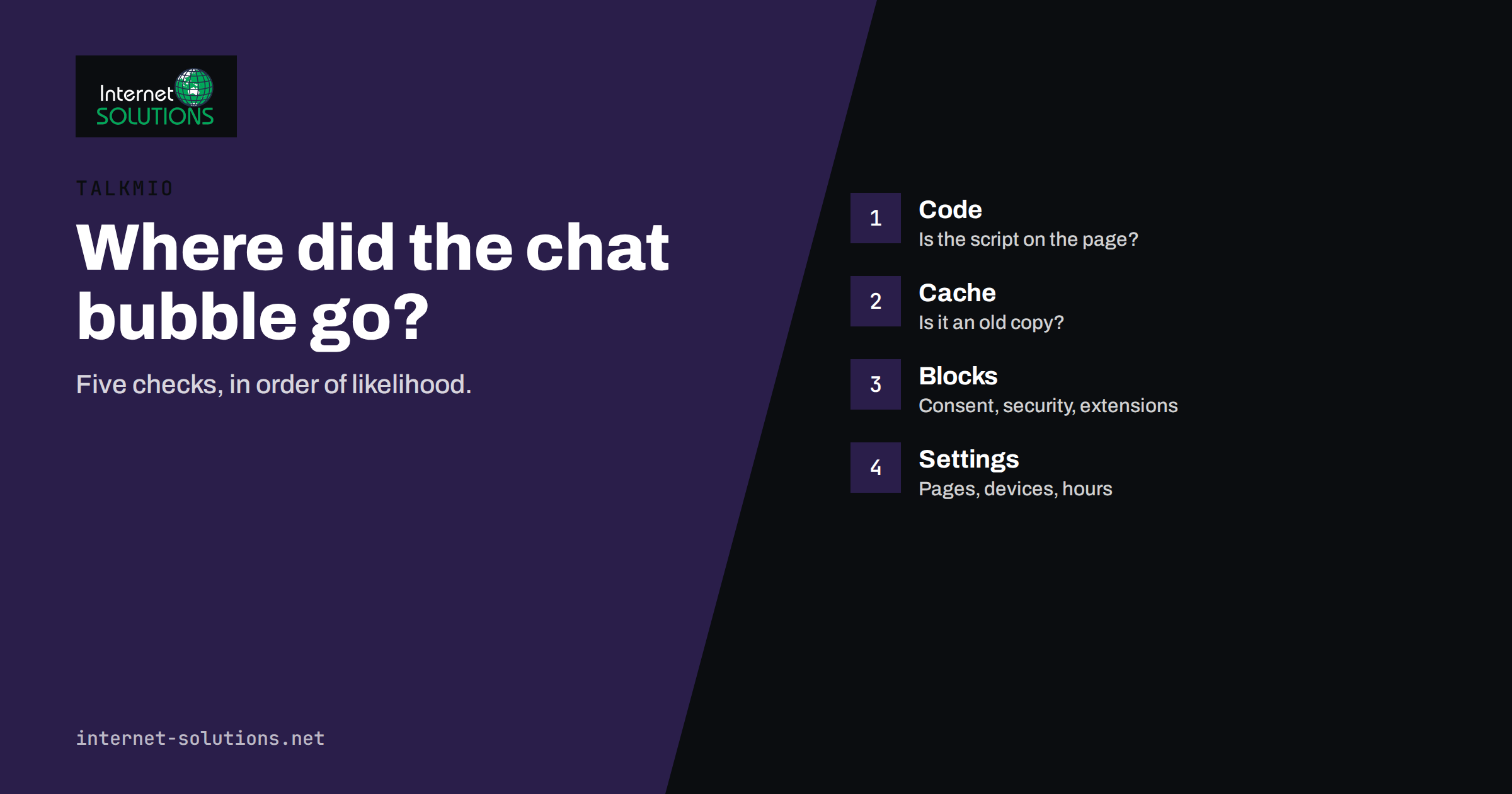
A chat widget not showing on your website is one of the most common live chat problems, and one of the easiest to fix once you know where to look. The bubble works on your test page, then a colleague says they cannot see it. It appears on the home page but not in the shop. It shows for you but not for visitors on their phones. Because the widget is a small script that loads from outside your site, many things between the page and the visitor’s screen can stop it: a missing code snippet, a cache that serves an old page, a security rule, a cookie banner that blocks scripts or a browser extension on one person’s computer.
This checklist walks through those causes in the order they are most likely, with quick tests for each. It is written around Talkmio, which installs with one script tag or the WordPress plugin, but the same logic applies to almost any chat script. Work through the steps from top to bottom and stop when the widget appears; most cases are solved within the first five.
How the Widget Reaches the Page
Understanding the chain makes troubleshooting faster. When a visitor opens a page, the browser downloads your HTML. If that HTML contains the chat script tag, the browser requests the script from the chat provider, runs it, and the script then asks for your widget settings, such as colours, greeting and business hours, and draws the bubble on the page. A failure at any link breaks the whole chain without any visible error for the visitor.
- The page must include the script tag, or the plugin must output it.
- The page that the visitor receives must be the version that includes it, not an older cached copy.
- Nothing may block the script request: consent tools, content security rules, extensions, firewalls.
- The script must run without errors, including conflicts with other scripts on the page.
- The widget settings must allow it to appear for that page, device and time.
Step One: Confirm the Basics
Is the code on the page you are testing?
Open the page, use the “view page source” option and search for the chat script. If it is not in the source, the problem is installation, not display. Check that you pasted the snippet on every template you need, not only the home page. On many platforms, a footer or “custom code” area applies sitewide, but a theme change, a page builder template or a landing page tool may use a separate layout that skips it.
Is the website set up in your Talkmio account?
The widget is tied to the website you added in your account. If the domain in the account differs from the domain the visitor sees, for example a version with and without “www”, a staging copy or a second domain redirecting to the main one, the widget may not recognise the site. Check the website entry and add any extra domains your site uses. Our Talkmio setup guide shows the first steps in order.
Is the widget turned on?
It sounds obvious, but a widget can be switched off or restricted in its settings, hidden outside business hours or limited to certain pages. Open the widget settings and check the visibility options, the business hours behaviour and any page rules. Then test in a private browser window so that your own account state does not interfere.
Step Two: Rule Out Caching
Caching is the most common reason that a widget exists in one view and not in another. A caching plugin, a server cache or a content delivery network may serve a stored copy of the page made before you added the script. You, logged in as an administrator, may see a fresh page, while visitors see the cached one.
- Clear the page cache in your caching plugin, then the server or hosting cache, then the CDN cache, in that order.
- Test in a private window and on a different device and network.
- If you use “minify” or “combine” options for JavaScript, exclude the chat script, because merging it into a larger file can break it or delay it.
- If you use “delay JavaScript until interaction”, the widget may appear only after the visitor scrolls or clicks. Exclude the chat script, or accept the delay knowingly.
Our guide to website caching explains the layers and how to clear each one safely.
Step Three: Look for Blocks and Errors
Open the browser’s developer tools (usually F12 or the right-click inspect option). The Chrome DevTools documentation explains the panels. Two are enough here.
The console
Reload the page with the console open. Red messages tell you what went wrong. A message saying a script was blocked, refused to load or violated a security policy points to blocking. A message about an error inside another script, thrown before the chat script runs, may point to a conflict that stops everything after it.
The network panel
Reload with the network panel open and filter for the chat provider’s name or for “script”. You should see a request for the chat script with a success status. If the request is missing, the tag is not on the page or was removed by a tool. If it is present but red or blocked, something stopped it. If it succeeded but no bubble appears, the problem is in settings or a script conflict.
Common Causes and Fixes
| Symptom | Likely cause | Quick test | Fix |
|---|---|---|---|
| Script not in page source | Not installed on that template | View source and search | Add the snippet sitewide or to the missing layout |
| Visible to you, not to visitors | Stale cached page | Private window, other device | Clear page, server and CDN caches |
| Appears only after scrolling or clicking | Delayed JavaScript setting | Disable delay and retest | Exclude the chat script from delay |
| Blocked message in console | Content security policy or firewall rule | Read the console message | Allow the provider’s domains |
| Missing until visitor accepts cookies | Consent tool blocking the script | Accept all and reload | Categorise the chat script correctly |
| Missing only in one browser | Extension or ad blocker | Disable extensions | Test elsewhere; adjust the extension |
| Missing on one page type | Widget page rules or template | Compare working and failing pages | Edit page rules or add the code |
| Error from another script before chat | Script conflict | Check first red error | Fix or defer the conflicting script |
Security Rules and Content Security Policy
Many sites now send a content security policy header that lists which domains may load scripts, frames and connections. If the chat provider’s domains are not on the list, the browser refuses to run the script, and the console shows a policy violation. The fix is to add the provider’s domains to the relevant directives for scripts, connections, frames and images, using the exact domains named in the console message. The MDN guide to content security policy explains the directives. Our article on security headers covers how to write a policy that protects the site without breaking useful third-party tools.
Firewalls and web application firewalls can also block outside scripts or requests. If the widget works from your office but not from other networks, or the network panel shows a blocked request with a security vendor’s name in the response, check the firewall logs and allow the provider’s domains.
Cookie Banners and Consent Tools
Many consent tools block scripts classified as non-essential until the visitor agrees. If the chat script is held back until consent, the bubble appears only after the visitor clicks accept, and visitors who decline never see it. Decide how you want to treat chat. Some businesses classify it as a functional tool that is loaded for everyone, with information in the privacy policy, while others place it behind consent. That is a legal and policy decision for your business, and you should take advice where needed. What matters for troubleshooting is knowing which choice your site has made: in your consent tool, check which category contains the chat script, and test by accepting all and reloading.
Platform-Specific Notes
WordPress
If you use the Talkmio plugin, check that it is active, that the connection to your account is complete and that no other plugin removes scripts from the footer. Optimisation plugins that strip, defer or combine scripts are the usual suspects. A theme that does not call the standard footer function will also prevent plugins from adding scripts there. Test by switching to a default theme on a staging copy; our guide to WordPress staging sites shows how to do this safely.
Shopify, Wix, Webflow and Squarespace
These platforms usually have a custom code or header and footer scripts area. Check that the snippet was saved in the sitewide area, published after saving and not limited to a single page. Some platforms do not run custom code in the editor preview, so test on the live published site. Our guide to adding live chat to Shopify, Wix, Webflow and Squarespace lists where the code goes on each.
Custom sites and single-page applications
In applications that change pages without a full reload, the script may load once and not re-initialise on route changes, or it may load before the element it needs exists. Place the snippet in the main layout that persists between views, and follow the provider’s instructions for single-page applications if they exist.
Mobile Problems
If the widget shows on desktop but not on phones, check the widget settings for device visibility, then look for mobile-specific rules in your theme or optimisation plugin. On small screens, the bubble can also be covered by a cookie banner, a sticky footer bar or another floating button, which hides it even though it loads. Test on a real phone and compare screen positions; move or resize conflicting elements, or change the widget position to the other corner.
When It Works but Nobody Replies
A related problem is a widget that appears but conversations go unanswered. Check business hours, offline behaviour, notification settings for operators and what the assistant is taught to answer. Our Talkmio page describes how Mio answers first from your content and hands over to your team when it cannot, so a widget that looks silent is often a notification or routing issue, not a display one.
A Fast Troubleshooting Routine
- Open the failing page in a private window on a different network or device.
- View the page source and search for the chat script.
- If missing, add it to the correct layout and republish. If present, continue.
- Clear the page, server and CDN caches and retest.
- Open the console and network panel; note any blocked request or first error.
- Check the content security policy, firewall and consent tool for the provider’s domains.
- Disable extensions or test another browser.
- Check widget visibility rules, business hours and device settings.
- Test on a real phone.
- Write down the cause and fix so the next change does not repeat it.
After the fix, add a recurring check: once a month, open key pages in a private window and confirm the widget appears. Make it part of every release or theme change as well, since that is when scripts most often vanish.
Frequently Asked Questions
Why can I see the chat widget but my customers cannot?
Usually a cached page, a consent tool, a browser extension or a different template. Test in a private window on another device and network to see what a visitor sees.
Why does the chat bubble appear only after I scroll?
An optimisation setting that delays JavaScript until interaction is the usual cause. Exclude the chat script from that setting if you want the bubble visible immediately.
Can a cookie banner hide the chat widget?
Yes. Consent tools can hold back scripts until the visitor accepts. Check which category your chat script is in and test after accepting all cookies.
How do I find out whether something is blocking the script?
Open the browser developer tools, reload the page and check the console and network panel. Blocked or failed requests and policy messages name the cause.
Does the widget need to be on every page?
Not necessarily, but it must be on every template where you want it. Check page rules in the widget settings and the layouts used by your landing pages, shop and blog.
What should I do if the widget broke after a site update?
Compare the page source before and after, check the plugin or theme changes, clear caches and look at the console for new errors. Restore the snippet or exclusion rule that the update removed.
The Bottom Line
When a chat widget is missing, the cause is almost always in one of five places: the code is not on that page, a cached page hides it, a consent tool or security rule blocks it, another script breaks it, or a setting limits who sees it. Check the page source first, test in a private window on another device, clear every cache layer and read the console and network panels before changing anything else. Fix the specific cause, record it and make a monthly check part of your routine, so a theme update or a new policy cannot silently turn off the channel your customers use to reach you.