

 English
 Lietuvių
 Latviešu
 Eesti
Eesti Русский
 Polski
 Українська
 Deutsch
 Italiano
 Español
 Français
 Português
 Čeština
 Magyar
 Română
 Ελληνικά
 Türkçe
 日本語
日本語 العربية
 हिन्दी
 Bahasa Indonesia
 Bahasa Melayu
 ไทย
ไทย Tiếng Việt
 বাংলা
বাংলাMicrosoft 365 and Google Workspace Security: An Admin Checklist
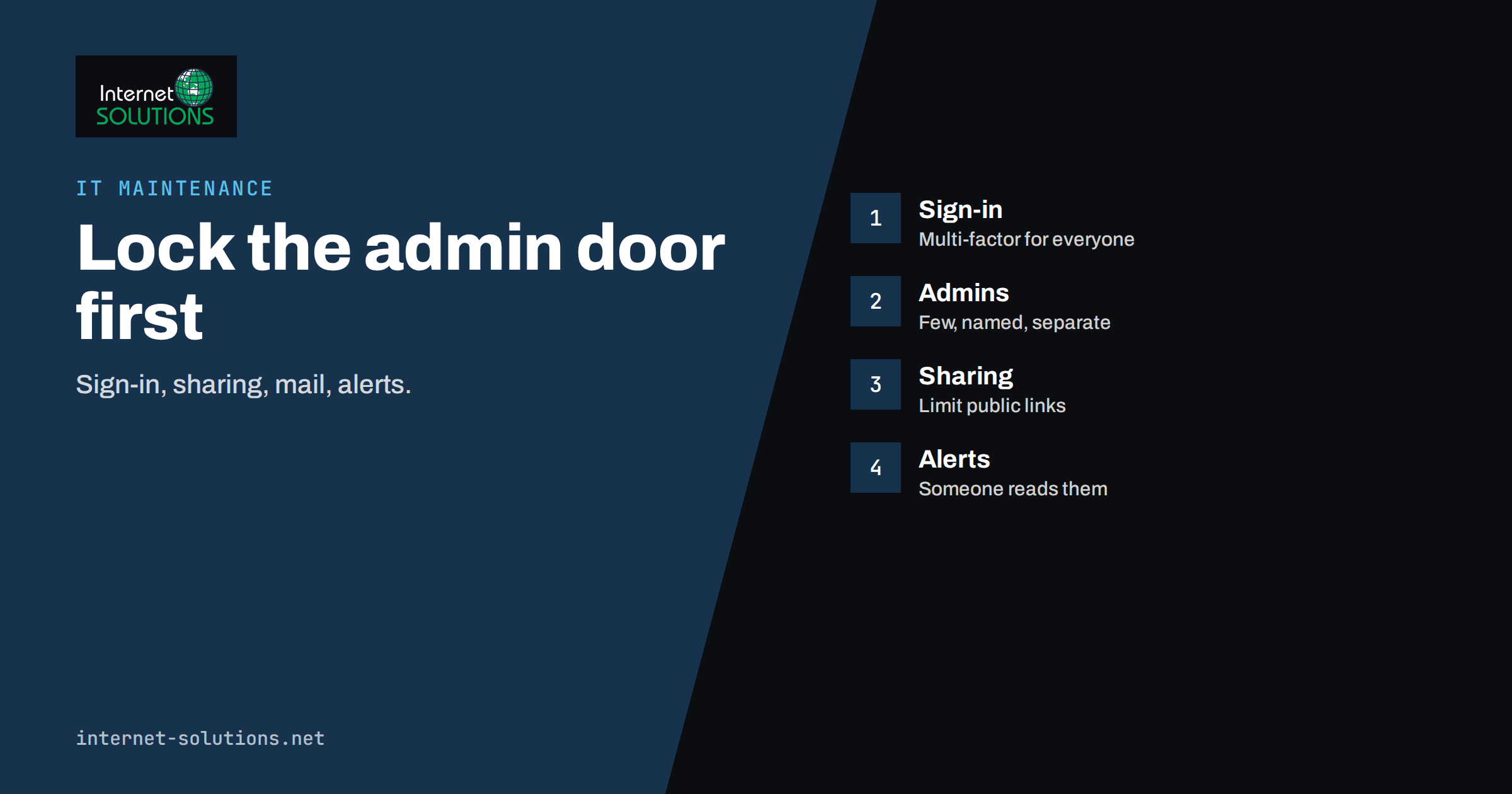
Microsoft 365 and Google Workspace security is mostly a matter of settings that nobody changed after the account was created. Both platforms ship with sensible defaults for a first day, but a business that has grown from three people to thirty usually ends up with extra administrators, old accounts, files shared with “anyone who has the link”, mail forwarding rules nobody remembers, and sign-in rules that depend on every user choosing a good password. Attackers know this, which is why a stolen mailbox in a small company so often turns into fake invoices sent to customers.
This checklist is written for the person who looks after the admin console in a small business, whether that is an owner, an office manager or an external IT partner. It lists the settings that matter most, explains why they matter, and gives an order of work, so that an afternoon of effort removes the most common risks. Menu names change from time to time, so use this as a map and confirm the details in each vendor’s current documentation.
Start With the People Who Hold the Keys
Administrator accounts are the most valuable targets in the tenant, so protect them first.
- Keep the number of full administrators small. Two or three named people are normally enough, so that one absence does not lock you out. Use narrower roles, such as billing, user management or helpdesk, for everyone else.
- Use separate admin accounts. An administrator should read email and browse with a normal account and use a dedicated admin identity only for admin tasks.
- Protect admin accounts with phishing-resistant sign-in where possible, such as security keys or passkeys, and at minimum with an authenticator app.
- Keep a break-glass account. A long, random password stored offline lets you recover if a sign-in policy goes wrong. Monitor its use.
- Record who holds which role, and review the list every quarter.
Turn On Strong Sign-In for Everyone
Passwords alone are the weakest link. Multi-factor authentication, sometimes called two-step verification, blocks the great majority of automated account takeovers. In Microsoft 365, the free security defaults setting requires users to register for multi-factor authentication, asks administrators for a second factor and blocks older sign-in protocols; the Microsoft page on security defaults explains exactly what it does. Businesses with more complex needs can use Conditional Access policies, which require a suitable licence. In Google Workspace, administrators can enforce 2-Step Verification for the whole organisation or for specific groups, with a grace period for enrolment, as described in Google’s 2-Step Verification guide for administrators.
- Prefer authenticator apps, security keys and passkeys over text messages. They are harder to intercept.
- Disable legacy protocols that cannot do multi-factor authentication, such as old IMAP or POP clients and app passwords, unless a specific system needs them and you have accepted the risk.
- Plan recovery. Decide how a user who loses a phone proves identity, and who approves it. Attackers often target this step.
Our article on multi-factor authentication and password managers gives practical rollout advice for small teams.
Control Sharing and External Access
Collaboration features are what make these suites useful, and also what leaks data when they are left wide open.
- Limit anonymous links. Decide whether “anyone with the link” sharing is allowed, and if so, require expiry dates or restrict it to selected folders.
- Review external sharing defaults in SharePoint, OneDrive and Teams, or in Google Drive. For many small businesses, sharing with named external people is sensible and open public links are not.
- Manage guest access. List guests every quarter and remove the ones whose project has finished.
- Control third-party apps. Both platforms allow apps to request access to mail and files. Restrict who can approve them, and keep an approved list.
- Label sensitive folders, such as finance, HR and contracts, and give them tighter sharing rules than the rest.
Protect Email From Impersonation and Abuse
Email is where most attacks begin. Set up SPF, DKIM and DMARC for every domain you send from, which makes it harder for criminals to forge your address and improves your own deliverability. Our guide to SPF, DKIM and DMARC walks through the records. Then review the mailbox-level settings:
- Block automatic forwarding to external addresses unless it is a documented need. Silent forwarding rules are a favourite tool of attackers who have compromised a mailbox.
- Alert on new inbox rules that delete, hide or forward messages.
- Turn on the built-in protection features for attachments, links and impersonation, within the limits of your licence.
- Tag external mail with a visible warning so staff pause before replying to a message that claims to be from the director.
- Add payment-change procedures. Any change of bank details requested by email must be confirmed by phone with a known number.
Devices, Logs and Alerts
Account security also depends on the devices that sign in and on how quickly you notice something odd. Require screen locks and encryption on laptops and phones that access company data, and use the device management features in your plan to wipe a lost phone. Make sure audit logging is on, and know how long your plan keeps the logs. Set up alerts for events such as a new admin role assignment, a sign-in from an unusual country, mass file downloads or a disabled security policy, and send them to a mailbox that more than one person reads. The practices in our article on employee onboarding and offboarding make sure that accounts are created with the right access and removed promptly when people leave.
Priority Table
| Priority | Setting | Microsoft 365 | Google Workspace |
|---|---|---|---|
| 1 | Multi-factor sign-in for all users | Security defaults or Conditional Access | Enforced 2-Step Verification |
| 2 | Few, separate admin accounts | Role-based admin roles | Delegated admin roles |
| 3 | Block legacy sign-in | Disable legacy authentication | Disable less secure access and app passwords where possible |
| 4 | Limit external and public sharing | SharePoint, OneDrive and Teams sharing settings | Drive sharing and link settings |
| 5 | Email authentication and forwarding control | SPF, DKIM, DMARC, outbound policies | SPF, DKIM, DMARC, Gmail routing settings |
| 6 | App and OAuth control | Restrict user consent to apps | API controls and trusted app list |
| 7 | Logs and alerts | Audit log and alert policies | Alert center and audit logs |
| 8 | Device rules | Intune or basic mobile policies | Endpoint management |
A Four-Hour Hardening Plan
- Hour one: inventory. List all users, admins, guests, shared mailboxes and connected apps. Remove accounts that belong to people who left.
- Hour two: sign-in. Enable multi-factor authentication, create the break-glass account and give admin roles to named individuals.
- Hour three: sharing and mail. Tighten link sharing, block external auto-forwarding, check SPF, DKIM and DMARC and set up the key alerts.
- Hour four: people. Write a one-page note for staff on what is changing and why, run a short phishing example in a team meeting and explain how to report a suspicious message.
Roll out changes in a pilot group first, tell users beforehand and keep a support person available on the day. A well-meant policy that locks the sales team out on a Monday morning is a good way to lose support for the next one. The advice in our phishing awareness guide helps with the human side.
What to Do If an Account Is Compromised
Even a well-run tenant will see an account taken over eventually, so write the response before you need it. The first priority is to cut off the attacker without destroying evidence. Reset the password, revoke active sessions and tokens, remove any multi-factor methods the attacker added, and then check the mailbox for forwarding rules, delegated access and connected apps. Look at the sign-in history to see when the first suspicious login happened and from where, and review what the account could reach during that window: shared drives, customer files, the finance mailbox. Tell the people who may have received malicious messages from the account, and warn customers if the attacker sent anything to them. Keep a short record of what you found and what you changed, because you may need it for an insurer, a client or a regulator.
Afterwards, ask what allowed it. If the cause was a phished password with no second factor, enforce multi-factor authentication. If it was an approved malicious app, restrict app consent. If it was a reused password found in a breach, add a password manager and block known weak passwords. Each incident that leads to a specific improvement makes the next one less likely, which is the real value of writing things down. For a broader plan, see how to build a security incident response plan.
Handling Leavers and Role Changes
Most tenants accumulate risk through people movement. When someone leaves, disable the account on the day, convert a mailbox to a shared one if colleagues need the history, transfer files to a manager and remove the person from groups, shared drives and external services connected through single sign-on. When someone changes role, remove the access they no longer need as well as adding the access they do. A short checklist per role keeps this consistent, and a quarterly review of group membership catches the exceptions that slipped through. Treat contractors and agencies the same way, with an end date set when the account is created, so that access expires without anyone having to remember.
Review Rhythm
- Monthly: check the security score or recommendations dashboard, new admin assignments and any alerts.
- Quarterly: review admins, guests, connected apps and shared folders. Test the break-glass account.
- Yearly: run a recovery exercise. Restore a deleted file, simulate a lost phone and confirm that you can regain control of a locked admin account.
The UK National Cyber Security Centre publishes a clear guide to cyber security for small organisations that complements this checklist with advice on backups, devices and staff habits. If you prefer to have a specialist review your configuration, our IT maintenance services include tenant reviews and ongoing care.
Common Mistakes
- Giving everyone full administrator rights because it avoids requests.
- Enforcing multi-factor authentication for staff but not for shared or service accounts.
- Leaving legacy protocols open for a printer or an old app that nobody uses.
- Allowing public link sharing by default for the whole company.
- Never reviewing mailbox forwarding and inbox rules.
- Keeping accounts for leavers active “just in case”.
- Making changes without telling staff.
Frequently Asked Questions
Is multi-factor authentication enough on its own?
It is the most effective single step, but not the only one. Attackers also use phishing that tricks users into approving prompts, so combine it with training, sensible sharing rules and alerts.
Do small businesses need Conditional Access or context-aware rules?
Not at the start. Security defaults or enforced 2-Step Verification cover the basics. Add conditional rules when you need location, device or risk-based decisions, and have the licence for it.
How many administrators should we have?
Few, but not one. Two or three named administrators with narrower roles for everyone else is a common pattern for small teams.
What should we do about shared mailboxes?
Give access through delegation instead of sharing the password, and review who has access regularly. Never use a shared password for a mailbox that holds sensitive messages.
Can we manage this ourselves?
Yes, if someone has the time to learn the console and keep checking it. Many small companies prefer an IT partner for the initial review and a periodic check.
How often should we review settings?
Look at alerts monthly and do a full review every quarter. Settings drift as people join, leave and request exceptions.
The Bottom Line
The biggest gains come from a short list: multi-factor sign-in for everyone, few and separate admin accounts, no legacy sign-in, tighter sharing, protected email and alerts someone actually reads. Do the inventory first, change settings in a controlled way, tell your staff and repeat the review every quarter. These steps cost little compared with the cost of a hijacked mailbox, and they make every other security investment more effective. For help with a review or with ongoing care of your accounts, see our IT maintenance page.