

 English
 Lietuvių
 Latviešu
 Eesti
 Русский
 Polski
 Українська
 Deutsch
 Italiano
 Español
 Français
 Português
 Čeština
 Magyar
 Română
 Ελληνικά
 Türkçe
 日本語
 العربية
 हिन्दी
 Bahasa Indonesia
 Bahasa Melayu
 ไทย
 Tiếng Việt
 বাংলা
Passkeys for Small Teams: Replacing Passwords Step by Step
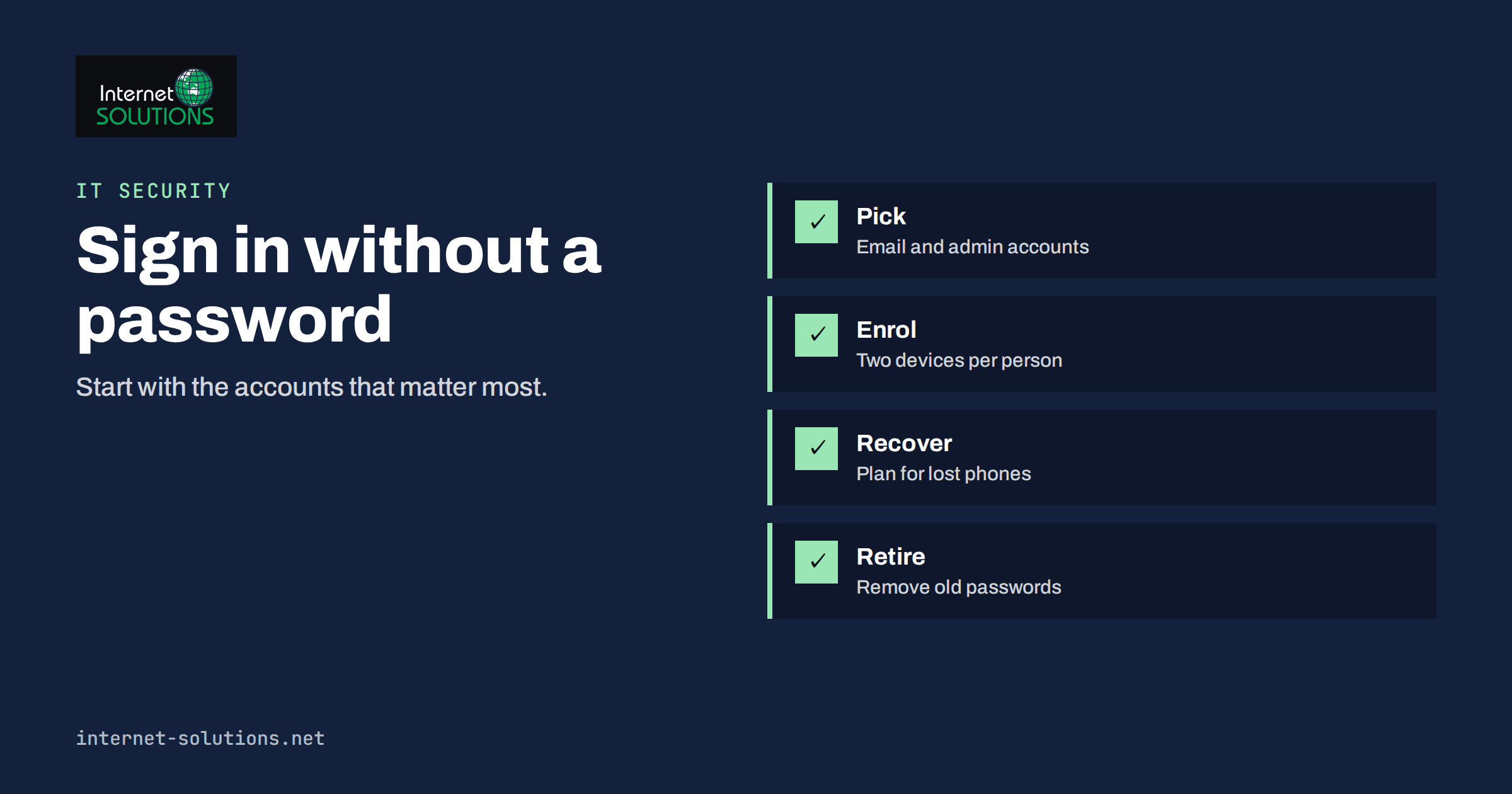
Passkeys are a way to sign in to an account without typing a password. Instead, your phone, laptop or security key proves that it is you, usually with a fingerprint, a face scan or a device PIN, and the website checks the proof without ever receiving a secret that could be stolen and reused. For a small team, passkeys can remove a large share of everyday security trouble: reused passwords, phishing pages that collect credentials and the constant resets that fill the helpdesk queue. They are not a magic switch, though. This guide explains how passkeys work, which accounts to move first, how to handle lost devices and how to roll them out in a way that people actually follow.
It is written for owners and office managers who handle accounts for a team of five to fifty people. It builds on the ideas in our guide to multi-factor authentication and password managers, and you do not need to be a security specialist to follow it.
What a Passkey Actually Is
A passkey is a pair of cryptographic keys created when you register with a website or app. One key, the public key, is stored by the service. The other, the private key, stays on your device and never leaves it, unless you choose to sync it through a trusted account such as the one built into your phone or password manager. When you sign in, the service sends a challenge, and your device signs it with the private key after you unlock the device. The service checks the signature with the public key and lets you in.
Three properties make this useful for a business.
- There is no shared secret to steal. A breach of the service leaks public keys, which are useless to an attacker, not passwords.
- Phishing does not work in the usual way. A passkey is tied to the real website address. A convincing fake page on another domain cannot ask your device to sign in, because the device checks where the request comes from.
- Nothing to remember or reuse. Because there is no password, nobody can pick a weak one, write it on a note or reuse it on a personal site.
The technical standards behind passkeys are developed by the FIDO Alliance and the World Wide Web Consortium. If you want the detailed background, the FIDO Alliance page on passkeys is the best starting point, and the encyclopedia article on WebAuthn describes the web standard.
Where Passkeys Live: Device, Cloud and Security Key
Passkeys come in a few storage forms, and the difference matters when you plan for a team.
- Device-bound passkeys. The private key stays on a single device, such as a laptop with a secure chip. It is very secure but is lost when the device is lost, so a second method must exist.
- Synced passkeys. The platform or a password manager stores an encrypted copy that is available on your other devices. This is convenient and recovers well from a lost phone, and the security depends on the account that does the syncing.
- Hardware security keys. A small physical key that you plug in or tap. It is strong and independent from phones, which suits administrators and shared sensitive accounts.
Most small teams end up with a mix: synced passkeys for general staff and hardware keys for the people who manage domains, hosting, payments and email administration.
Which Accounts to Move First
You do not need to convert everything in one week. Start where a compromise would hurt most and where passkeys are already supported.
- Email and identity accounts. A mailbox is the key to password resets for everything else, so protect it first. Our guide to single sign-on for small teams explains how one login can lead to many services.
- Administrator accounts. The domain registrar, hosting panel, website admin, advertising accounts, payment provider and accounting software.
- The password manager. If your team uses one, protect its sign-in with the strongest method available.
- Cloud storage and collaboration tools. Places that hold customer files and internal documents.
Check each service’s security settings, since support differs. Some services offer passkeys as the main sign-in, some as a second step and some not at all. Where passkeys are not available, keep strong, unique passwords with multi-factor authentication until they are.
A Step-by-Step Rollout Plan
- Take stock. List the services your team uses, who owns each account and which sign-in methods each supports. A spreadsheet or the asset list described in our article on IT asset inventory is enough.
- Check devices. Passkeys need reasonably current operating systems and browsers, and a screen lock on every device. Staff who share one computer or use an old phone may need an alternative such as a hardware key.
- Pick a pilot group. Start with two or three willing people, including one administrator, and move their email and main work accounts.
- Write a one-page guide. Show where to find the passkey setting, what the prompt looks like and whom to contact. Screenshots from your own accounts work better than generic ones.
- Enrol at least two methods. Each person should have a passkey on their main device and a second way to get in, such as a second device or a hardware key.
- Move the rest in waves. Make a short session for each department, and give people a week to complete it.
- Retire the old passwords. Where the service allows it, remove the password or set it to a long random value stored in the password manager.
- Review after a month. Ask what went wrong, fix the guide and update the remaining accounts.
Plan for Lost Phones and Departing Staff
The question every team asks is what happens when a phone is lost. The answer must exist before the rollout, not after.
- Synced passkeys recover when the person signs in to a new device with their platform account. Make sure that account itself is protected with a strong method and a recovery option held by the person, not only by the company.
- A second registered method is the safest recovery. Two hardware keys, one kept in a safe place, work well for administrators.
- Recovery codes that services provide should be stored in the password manager or in a sealed place with limited access.
- Administrator reset procedures should be written down, including how to verify that the person asking is really who they say, and who may approve it. Attackers like to phone the helpdesk pretending to be a locked-out employee.
When someone leaves, remove their passkeys from company accounts, revoke access and review shared accounts. Our employee onboarding and offboarding checklist lists the steps. Also decide who owns a passkey that sits in a personal platform account. A good rule is that company data must be reachable through company-managed accounts, so personal ones alone are never the only route.
Passwords, Passkeys and Other Methods Compared
| Method | Phishing resistance | Ease of use | Recovery | Good for |
|---|---|---|---|---|
| Password only | Low | Easy until forgotten | Email reset | Nothing sensitive |
| Password plus text message code | Low to medium | Moderate | Phone number | Accounts with no better option |
| Password plus authenticator app | Medium | Moderate | Backup codes | Most accounts today |
| Synced passkey | High | Very easy | Platform account | General staff accounts |
| Device-bound passkey | High | Easy | Second method needed | Sensitive accounts |
| Hardware security key | Very high | Moderate | Spare key | Administrators, shared critical accounts |
What Passkeys Do Not Fix
Passkeys remove one kind of risk. Others remain. A stolen unlocked laptop, malware on a device, a user tricked into approving a request or an administrator who grants too many permissions can still cause harm. A passkey proves that the right device and person are present; it does not decide what that person may do. Keep following good habits such as least privilege, device encryption, patching and awareness training. Our phishing awareness guide still applies, because attackers will move to other tricks, such as asking for a recovery code or a one-time password.
Keep a device screen lock turned on, because the lock is what protects the passkey if the device is lost. Keep operating systems updated, and remove devices from accounts when they are retired. If you manage computers for the team, our IT maintenance service can include account and device reviews as part of regular checks.
Common Objections and Honest Answers
- “I will not be able to log in when I travel.” Synced passkeys and a second device or key make travel as easy as before, and in some cases easier.
- “My old computer cannot do it.” Many services also accept a phone as the authenticator for a sign-in on another computer, or a hardware key.
- “What if the provider shuts down?” Keep recovery methods and export options in mind, and avoid placing everything in a single platform account.
- “It is too new.” Support has become widespread among large services, but not universal. Mixed methods are normal during the transition.
Costs and Time
Passkeys themselves are usually free, since support is built into modern phones, computers and browsers. The real costs are the time to take stock of accounts, the hardware keys for administrators, at about the price of a business lunch each, and the minutes each person needs to enrol. Budget for two keys per administrator, one in use and one stored safely. Set aside an hour for each person in the first month, including the guide and a short chat for questions, and a few hours a year to review who has access to what. Compared with the time spent on password resets and the cost of a single compromised mailbox, the investment is small.
A Worked Example
An eight-person marketing studio uses a shared mailbox system, a project tool, a social media scheduler, an accounting service and a domain registrar. The owner takes stock and finds that the mailbox system and the project tool support passkeys, the accounting service supports them as a second step and the registrar supports hardware keys only. Two people use old phones that cannot create passkeys.
The owner starts with a pilot of three people, moves the mailbox and project tool to synced passkeys and buys two hardware keys for the registrar and the accounting service, one kept in the office safe. The one-page guide has screenshots from the studio’s own accounts. Within a month, everyone has a passkey and a second method, and the helpdesk questions about forgotten passwords drop sharply. The two staff members with old phones get a pair of low-cost security keys. The owner schedules a review every six months.
Common Mistakes
- Switching on passkeys with no recovery method for lost devices.
- Keeping the only copy in a personal platform account that the company cannot reach.
- Forgetting shared accounts and administrator roles.
- Removing passwords everywhere before checking that each service works properly.
- Skipping the screen lock on phones and laptops.
- Letting the helpdesk reset access based on a phone call alone.
- Treating passkeys as a replacement for patching and training.
Frequently Asked Questions
Are passkeys safer than passwords with an authenticator app?
They are generally stronger against phishing, because the device checks the website address and there is no code to type into a fake page. An authenticator app is still much better than a password alone.
What happens if I lose my phone?
If your passkeys are synced through your platform account, you can restore them on a new device after signing in to that account. Keep a second method registered, such as another device or a hardware key.
Do I still need a password manager?
Yes, for the many services that do not support passkeys yet, and for notes such as recovery codes. Some password managers can store passkeys as well.
Can several people share one passkey?
Shared accounts are better avoided. Where a service demands one, use a company-managed account with a hardware key kept securely, and log who uses it.
Do passkeys work on every device?
Support is broad on current phones, laptops and browsers, but older systems may not support them. Check your devices, and keep an alternative such as a hardware key.
How long does a rollout take for a small team?
A pilot can take a week, and the whole team can usually be moved within a month if the guide is clear and the first accounts are chosen well.
The Bottom Line
Passkeys let a small team sign in without passwords that can be stolen, guessed or reused, and they resist phishing far better than codes typed into a page. Start with email and administrator accounts, enrol two methods per person, write a short guide and plan recovery for lost devices before you begin. Keep multi-factor authentication where a service has no passkeys, keep devices locked and updated and review access when people join or leave. Done in stages, the change is quiet, and it removes a whole class of everyday problems.