

 English
 Lietuvių
 Latviešu
 Eesti
 Русский
 Polski
 Українська
 Deutsch
 Italiano
 Español
 Français
 Português
 Čeština
 Magyar
 Română
 Ελληνικά
 Türkçe
 日本語
 العربية
 हिन्दी
 Bahasa Indonesia
 Bahasa Melayu
 ไทย
 Tiếng Việt
 বাংলা
Wi-Fi Security for Small Offices: WPA3, Guest Network, Router
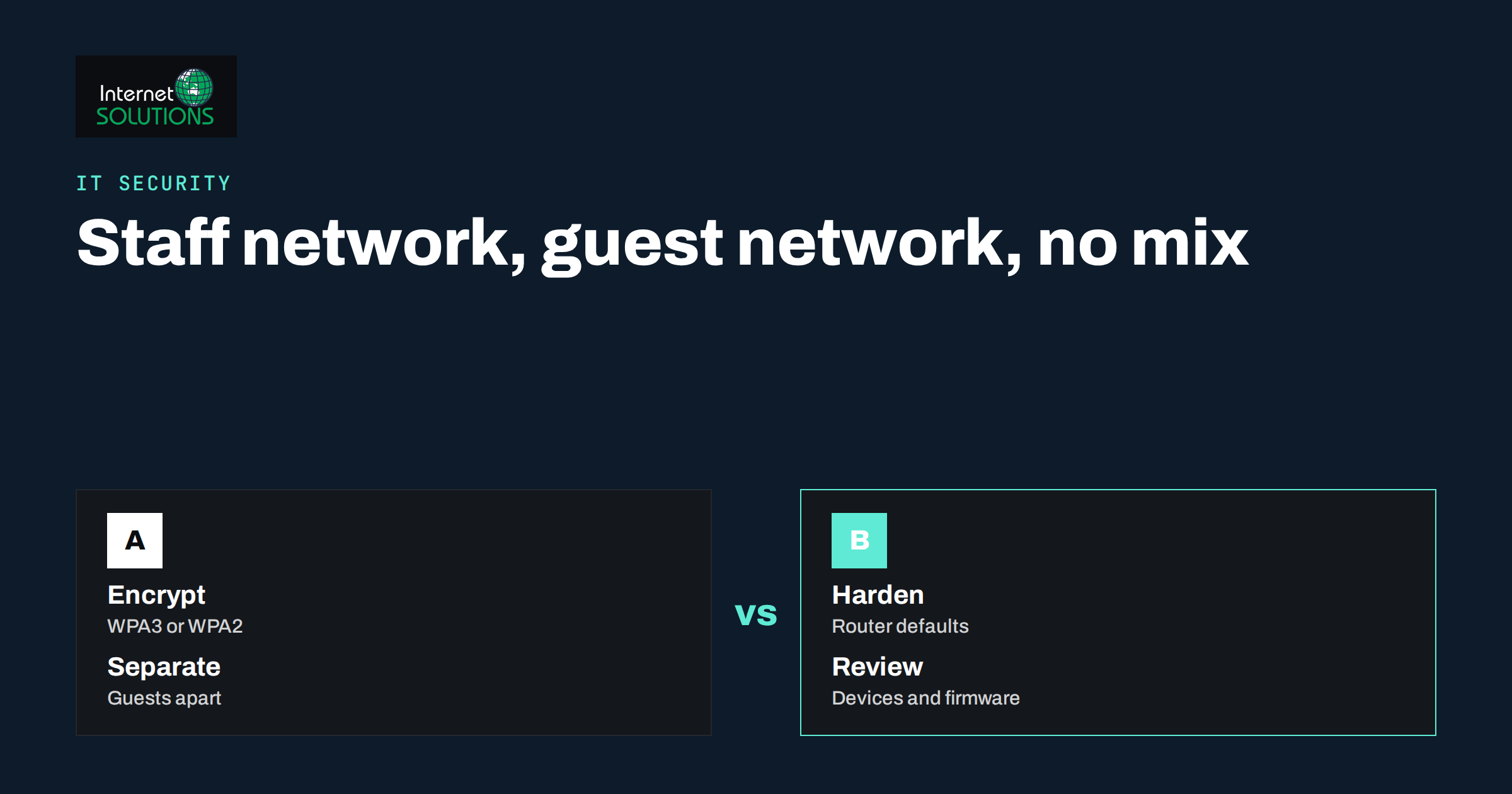
Wi-Fi security is easy to neglect in a small office because the network seems to work, and nobody wants to disturb it. A router is set up once, a password is written on a sticky note, and years later the same device, with the same password and the same default settings, serves staff laptops, visitors’ phones, a printer, a camera and a smart speaker. Anyone who has ever shared that password, from an ex-employee to a cleaner to a client, can still join the network. A little structured work closes the biggest gaps without needing an expert.
This guide covers the Wi-Fi security settings that matter most for an office of two to fifty people: choosing the right encryption, separating staff and guest networks, hardening the router, handling devices that cannot be protected well, updating firmware and checking who is connected. It focuses on settings you can change in an afternoon.
Start by Understanding the Risks
Most attacks on small office Wi-Fi are not clever. They use weak passwords, shared passwords, default admin logins, outdated firmware and unmanaged devices. A compromised wireless network lets an intruder see traffic between devices, reach shared drives and printers, attack other computers and, in some cases, use your internet connection for illegal activity that points back to you.
- Weak or shared passphrases that spread to people who no longer need access.
- Old encryption that can be broken or downgraded.
- Router administration exposed with default usernames and passwords.
- Everything on one network, so a guest phone sits beside the file server.
- Unpatched devices, including the router itself.
- Rogue access points added by staff to extend coverage without telling anyone.
Choose the Right Encryption
Wi-Fi encryption has improved over the years. WPA3 is the current standard and offers stronger protection, including better resistance to password-guessing attacks. WPA2 with AES is still considered acceptable when WPA3 is not available, provided you use a long passphrase. Older modes such as WEP and the original WPA are broken and should never be used, and the older TKIP mode should be switched off.
| Setting | Recommendation | Notes |
|---|---|---|
| Security mode | WPA3-Personal, or WPA2/WPA3 mixed if some devices are older | Pure WPA2 with AES if WPA3 is unavailable |
| Cipher | AES (CCMP) | Disable TKIP |
| Passphrase | Long and random, 16 characters or more | A string of unrelated words works well |
| WEP / open network | Never for staff | Open networks are for captive-portal guest use only |
| WPS | Turn off | The push-button and PIN methods have known weaknesses |
| Larger offices | WPA2/WPA3-Enterprise with individual logins | Removes the shared password problem |
If your office has many people, a single shared password becomes a liability, since you cannot revoke one person’s access without changing it for everyone. Enterprise mode, where each user logs in with their own credentials through a central server, solves this and is supported by many business-class access points.
Separate Staff and Guest Networks
A guest network is the single most valuable change for most offices. Guests, visitors and personal phones should reach the internet and nothing else. Most business and many consumer routers offer a guest network with client isolation, which prevents devices on that network from seeing each other or the internal network.
- Create a separate SSID named clearly, such as “Office-Guest”.
- Turn on client isolation and block access to the internal network.
- Use a different passphrase from the staff network, and change it on a schedule or use a landing page with a daily code.
- Limit bandwidth or hours if the router supports it.
- Put unmanaged devices there if they only need internet, such as smart TVs and personal phones.
For larger setups, use VLANs to separate staff, guests, servers and devices such as cameras and printers. Our guide to small business network setup, Wi-Fi, switches and guest access explains how to plan this.
Harden the Router
The router is the gatekeeper, so protect it first. Many compromises happen through the administration interface, not the Wi-Fi password.
- Change default admin credentials to a unique, strong password stored in a password manager.
- Disable remote administration from the internet unless you truly need it, and then restrict it by address and use a VPN.
- Turn off services you do not use, such as UPnP, old protocols and unused ports.
- Update the firmware and enable automatic updates if the device offers them.
- Use HTTPS for the admin page and limit it to the internal network.
- Change the default network name if it reveals the router model.
- Back up the configuration after changes, and store it safely.
Replace routers that no longer receive security updates from their manufacturer. A device in that state cannot be fully secured, however carefully it is configured. Our guide to small office firewall rules, updates and remote access covers the firewall side in more detail.
Handle Devices You Cannot Fully Protect
Offices contain devices that are hard to secure: printers, cameras, door controllers, smart displays, old laptops and personal phones. Put them on their own network segment or on the guest network if they need only internet. Change default passwords, disable features you do not use, update firmware and keep a list of them. If a device cannot be updated and holds data, consider replacing it.
Personal devices raise policy questions about what they may access. Our article on a BYOD policy for personal phones and laptops at work shows how to write simple rules.
Control Who Joins and Review Regularly
Security is also procedural. Decide who may receive the staff Wi-Fi details and how they are shared; avoid sending the password through chat groups that include external people. Change the staff passphrase when someone with access leaves under difficult circumstances, and at least once a year. Review the list of connected devices monthly: unknown devices deserve a question, and an unexpected router or access point that a colleague plugged in is a risk.
- Export or view the connected devices list and compare it with your inventory.
- Remove or block devices you cannot identify.
- Check that firmware versions are current on the router and access points.
- Test the guest network from a phone to confirm it cannot reach internal devices.
- Review administrator accounts and remove those that are no longer needed.
Connection quality is a separate subject, and our guide to office Wi-Fi troubleshooting covers coverage, speed and dropouts.
Protect Traffic Beyond the Network
Strong Wi-Fi encryption protects the wireless link, not everything beyond it. Keep devices updated, use HTTPS and multi-factor authentication for business accounts, and use a VPN or secure remote access for staff working outside the office. Staff who work in cafes or hotels should avoid open networks for sensitive work, or use a VPN. For this, see our guide to VPN and secure remote access for small teams. For standards and general concepts, the overview of WPA and the Wi-Fi Alliance’s page on Wi-Fi security explain the current protocols.
A Worked Example
A ten-person accounting practice uses one consumer router and one Wi-Fi network for staff, visitors and a networked printer. The office manager has the same password in her notes since the practice opened. An audit shows that the router still has its default admin login, remote administration enabled, WPS on and firmware three years old. The password has been shared with two former interns and a cleaning company.
Over an afternoon, she changes the administrator password, disables remote administration and WPS, updates the firmware and sets WPA2/WPA3 with a new long passphrase. She creates a guest network with client isolation for visitors and moves the printer and a wireless camera to a separate network name with limited access. The new staff password is shared only with current staff, in person. A monthly calendar reminder prompts her to check connected devices and firmware. Within a month, she identifies and removes two unknown devices, and the practice has a simple written note that explains the setup for the next person.
A Quarterly Wi-Fi Security Checklist
Put these checks in the calendar every three months, and record the date and the person who did them. Each takes only a few minutes.
- Firmware. Check the router and every access point for updates, apply them outside business hours and confirm that the network works afterwards.
- Admin access. Review who has administrator accounts, and confirm that passwords are unique and that multi-factor authentication is used where supported.
- Connected devices. Compare the device list with your inventory, and investigate unknown names or addresses.
- Guest network. From a phone on the guest network, try to reach the printer or a shared drive. You should not be able to.
- Passphrases. Decide whether the staff and guest passphrases need changing, because of staff changes or wide sharing.
- Remote access. Check that remote administration is still off, and that port forwarding rules are only for services you still need.
- Backups of the configuration. Save a fresh copy of the router settings so that you can restore them after a reset or replacement.
- Equipment age. Note any device that no longer receives updates, and plan its replacement.
This routine takes less than an hour and catches most of the drift that weakens a network over time. Combined with the initial hardening, it turns Wi-Fi security into a maintained part of the office instead of a one-time setup that slowly decays.
Common Mistakes
- Leaving the router’s default administrator password in place.
- Using one network for staff, guests and smart devices.
- Keeping WPS, TKIP or outdated encryption modes enabled.
- Sharing the same passphrase for years.
- Never updating firmware or using unsupported equipment.
- Allowing staff to add their own access points or extenders without approval.
- Believing Wi-Fi encryption makes every business account safe.
Document the Setup
Write down the network design on one page: the network names and their purposes, where the routers and access points are, who administers them, where credentials are stored and when the last review took place. Store the page with your other IT documents and keep a copy off the network. When something fails, or a person leaves, this page saves hours and prevents mistakes, such as resetting the wrong device or losing the only administrator password.
If you rely on an external IT supplier, ask for the same documentation and a clear statement of who is responsible for updates and monitoring. Responsibility that is not written down tends to belong to nobody.
Frequently Asked Questions
Should a small office use WPA3?
Yes, if your router and devices support it. WPA3 offers stronger protection. If some older devices do not support it, use a mixed WPA2/WPA3 mode or WPA2 with AES and a long passphrase.
Do I really need a guest network?
Almost always. It keeps visitors and personal devices away from your internal systems and lets you change its password without affecting staff.
How often should I change the Wi-Fi password?
At least once a year and whenever someone with access leaves or the password has been shared widely. Enterprise mode with individual logins avoids the need for frequent changes.
Is hiding the network name a good security measure?
Not really. Hidden names are easy to discover and can cause connection problems. Strong encryption and a good passphrase matter much more.
What should I do with an old router?
If it no longer receives security updates, replace it. If it is still supported, update the firmware, change admin credentials and disable unneeded features.
How can I tell if an unknown device is connected?
Check the connected devices list in the router or access point, compare it with your inventory and block or investigate anything unfamiliar. Changing the passphrase will remove unknown devices that rely on it.
The Bottom Line
Good Wi-Fi security in a small office comes from a few deliberate settings: WPA3 or WPA2 with AES and a long passphrase, no WPS, a separate guest network with client isolation, a hardened router with unique admin credentials and current firmware, careful handling of devices that cannot be protected and a monthly check of connected devices. Treat the network as a system with an owner and a review schedule, and replace unsupported equipment. An afternoon of work removes the most common ways attackers get in.