

 English
 Lietuvių
 Latviešu
 Eesti
Eesti Русский
 Polski
 Українська
 Deutsch
 Italiano
 Español
 Français
 Português
 Čeština
 Magyar
 Română
 Ελληνικά
 Türkçe
 日本語
日本語 العربية
 हिन्दी
 Bahasa Indonesia
 Bahasa Melayu
 ไทย
ไทย Tiếng Việt
 বাংলা
বাংলাAsk Mio Everyday Tools: Currency, Working Days, Holidays, QR Codes
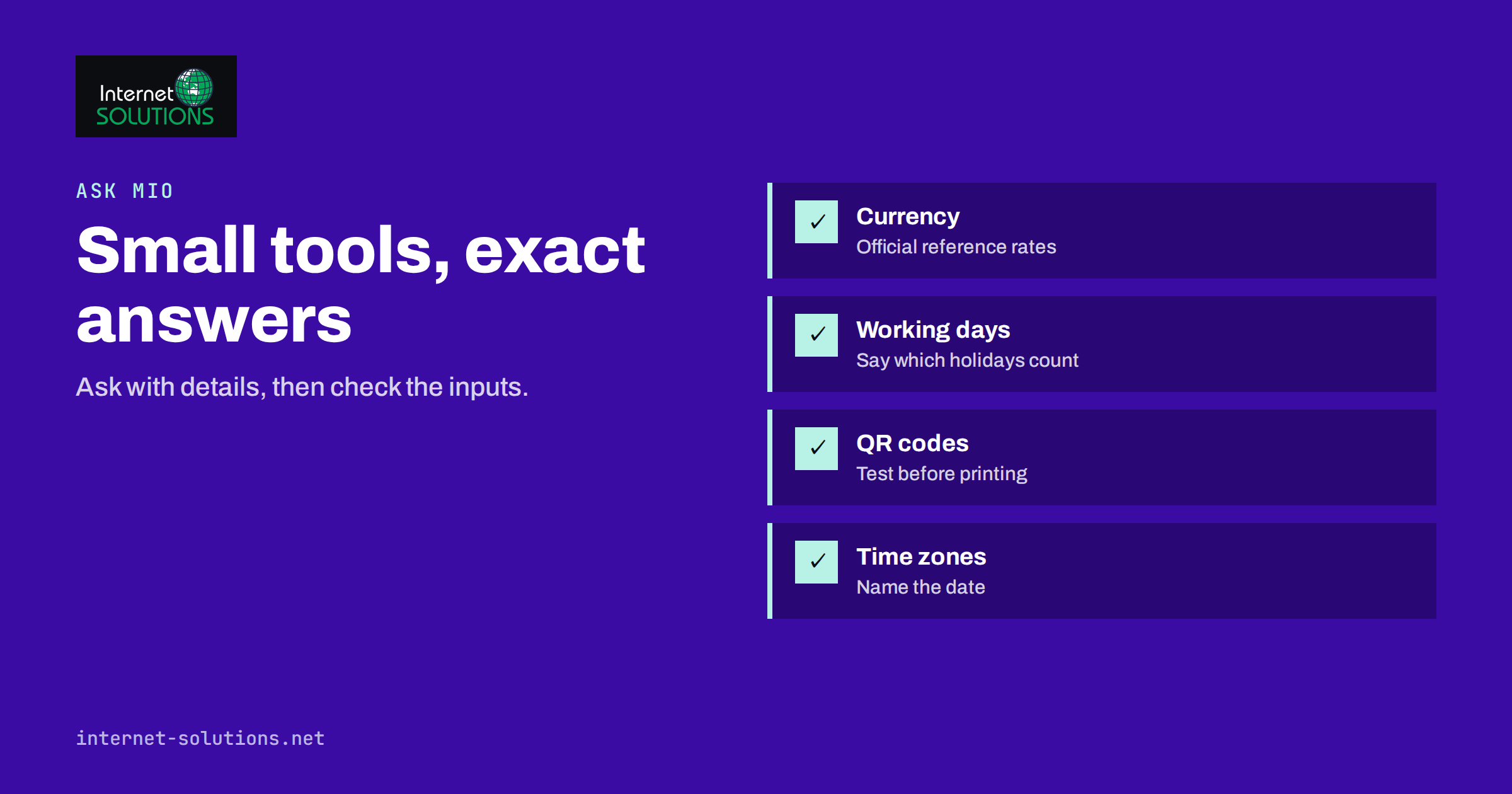
Ask Mio everyday business tools are the small utilities that the assistant can use while it answers: a currency converter, a working-day calculator, a public holiday lookup, a QR code generator, a calculator, a time zone clock and a few others. They are easy to overlook next to headline features such as writing, research or design, yet these small tasks eat a surprising share of a working week. Converting a quote into another currency, counting the working days before a deadline, checking whether a client’s country has a public holiday on the delivery date or making a QR code for a leaflet are all jobs that take a few minutes each and are easy to get wrong when done by hand.
This guide explains which of these tools Ask Mio lists on its features page, what each one is good for, how to ask for the result you want, and how to check the answers. It also covers a handful of realistic workflows that combine several tools in one conversation. Tool availability can differ between accounts and plans, so confirm what is enabled in your own account before you plan a process around it.
How Tools Work Inside a Chat
When you ask Ask Mio a question that needs fresh data or an exact calculation, it can call a tool instead of guessing from memory. The assistant decides when a tool is useful, runs it, reads the result and writes the answer in plain language. The features page describes this as Mio searching, calculating, opening pages and checking facts by itself while answering. At the time of writing the page lists twenty tools, including a web search, a web page reader, a page and SEO audit, a domain and DNS check, an RSS reader, a news headlines tool, a code runner and a translator, along with the everyday utilities covered here.
You do not need to name the tool. Ask for the result and, where it matters, state the details that make the answer exact: the currency pair, the date, the country, the time zone. If you are curious which tool was used, ask the assistant to say how it got the figure. That habit is useful for any numbers you plan to put into a document, and it fits the verification routine described in our guide to fact-checking AI answers at work.
The Everyday Tools at a Glance
| Tool | What it does | Typical business use |
|---|---|---|
| Currency rates | Converts money between currencies using official European Central Bank rates, for today or a past date | Quotes, invoices, expense reports, supplier comparisons |
| Date and time | Gives the current date and time in any time zone and the difference between two dates, including working days | Deadlines, notice periods, meeting planning across zones |
| Public holidays | Lists the public holidays of a country for a year | Delivery dates, project plans, support rotas |
| QR code | Creates a QR code image for a link, text, Wi-Fi details or a contact | Leaflets, menus, event signs, guest Wi-Fi cards |
| Calculator | Evaluates arithmetic exactly, including percentages, roots and logarithms | Margins, discounts, loan or growth figures |
| Weather | Gives current weather and a seven-day forecast for a place | Outdoor events, deliveries, site work |
| Translator | Translates a text into another language and keeps formatting | Short customer messages, labels, instructions |
| Domain and DNS check | Looks up address, mail, text and name server records and checks whether a site responds | Quick checks before and after a website change |
Currency Conversion You Can Defend
Currency questions look simple, but the details matter. Which rate applies, and on which day? The currency tool uses the reference rates published by the European Central Bank, which are available for today and for past dates. The bank explains how these rates are produced on its euro foreign exchange reference rates page. Reference rates are published once per working day and are intended for information, so they will not match the exact rate your bank or card provider gives you. They are, however, a clear and consistent basis for internal documents.
Good prompts name the amount, the currencies and the date:
- “Convert 12,400 euros to US dollars at today’s reference rate and show the rate used.”
- “What was the euro to pound rate on the last working day of March? Convert the three invoices below and total them.”
- “Compare the average of the reference rate for the first and the last day of the quarter and tell me the difference as a percentage.”
Ask the assistant to show the rate and the date alongside each result. Then a colleague can reproduce the figure, and your accountant can see which rate you applied. For anything with legal or tax consequences, such as booking foreign invoices, follow the method your accountant or national tax authority requires, which may specify a particular rate source or date.
Working Days, Deadlines and Notice Periods
Counting days is where small errors creep in. Do you include the start day? Are weekends excluded? Which holidays apply? The date tool can give the number of calendar days and working days between two dates. To get a reliable answer, state your rules in the question:
- “How many working days are there between 3 November and 18 December, excluding weekends?”
- “If a notice period is 30 calendar days from 12 January, what is the last day?”
- “If I promise delivery within 10 working days of 5 June, what date is that, if I exclude weekends and the public holidays of Lithuania?”
The third example combines two tools, which is where an assistant is more useful than a calculator. It looks up the holidays for the country, applies them and returns a date. Always ask it to list the holidays it excluded, so you can see whether the result matches what your contract assumes. Contracts sometimes define working days in a specific way, for instance by counting only the customer’s holidays, or excluding Saturdays as well, so check the wording before relying on any calculation.
Public Holidays for Planning
The holiday tool lists the public holidays of a country for a given year. It is handy for a few recurring planning tasks.
- Delivery and project dates. Check the holidays of the sender’s, the carrier’s and the receiver’s countries before promising a date.
- Support and on-call rotas. List the holidays in the next quarter and plan cover for the dates that need it.
- Campaign calendars. Avoid launching an email campaign or a promotion on a day when the target audience is away, or choose that day deliberately for a holiday offer. Our guide to planning a marketing content calendar shows how to build a quarter plan.
- International teams. Compare holidays across several countries in one table and mark dates when half the team is away.
Remember that some holidays are regional rather than national, and that rules for shops and services can differ from the general calendar. Treat the list as a starting point and confirm local rules when a date is critical. Public sources such as the open Nager.Date holiday service show what data of this kind looks like and can be used to cross-check a result.
QR Codes for Print and Screens
A QR code turns a printed item into a link. The Ask Mio tool creates an image of a code for a web address, a piece of text, Wi-Fi details or a contact card. Typical business uses include a code on a leaflet that opens a landing page, a code on a table card that opens the menu, a code at reception that shares guest Wi-Fi, and a code on a business card that saves your details.
Several practices make codes work reliably:
- Use a short, stable address. Long addresses create dense codes that are harder to scan. A short redirect on your own domain is easier to print, and you can change its destination later without reprinting.
- Add tracking sensibly. A campaign parameter on the link lets analytics show how many visitors came from the print item.
- Keep contrast and size. Dark code on a light background, with a clear margin around it. Do not stretch or recolour it so that it loses contrast.
- Test it. Scan the final printed version with two or three different phones, in the lighting where it will be used.
- Explain it. Add a short line such as “Scan for the menu” so people know what will happen.
The background on how the format was developed and standardised is on the official QR code website. When the code is for Wi-Fi, think about security: a guest network that is separate from your office network protects your devices, and our article on small business network setup explains how to arrange it.
Time Zones Without Mistakes
Scheduling across time zones is an easy way to arrive an hour early or an hour late, particularly when daylight saving changes happen on different dates in different regions. The date and time tool returns the current time in any zone, so you can ask: “It is 15:00 in Vilnius on Thursday. What time is that in Chicago and in Singapore?” For future dates, name the date, because the offset between two places can change during the year. In Europe the clocks change on the last Sunday of October, while in the United States the change happens on a different weekend, so for a few weeks the gap between the two is not what you expect.
When you send a meeting invitation, state the time with its zone and, where possible, in the recipient’s zone. A calendar invitation does the conversion automatically, but a message in chat or an email does not.
Calculator, Weather and Translator for Quick Tasks
The calculator evaluates an expression exactly, which matters for percentages and compound figures where a language model might otherwise approximate. Ask for margins, discounts, VAT, loan repayments and growth rates, and ask the assistant to show the formula so you can check it. The weather tool gives current conditions and a seven-day forecast for a place, which is useful when planning an outdoor installation, a delivery route or an event. The translator handles short texts such as a label, a customer message or an instruction sheet while keeping the formatting. For legal or safety-critical wording, have a fluent speaker review the result.
Three Workflows That Combine Tools
A quote for a customer in another country
Ask the assistant to convert your price list into the customer’s currency at today’s reference rate, add VAT or sales tax at the rate you specify, calculate a delivery date in working days that excludes the holidays of the customer’s country, and draft the covering email in the customer’s language. You review the result, correct the tax rule if needed and send it.
A monthly planning sheet
List the public holidays for the month in each country where you have staff or customers, work out the working days left before the month end, and produce a short table with the dates when cover is thin. Ask for the output as a table you can paste into your planning document.
An event leaflet
Create a QR code for the registration page with a campaign parameter, check the weather forecast for the outdoor part of the event, and ask for two versions of a short announcement, one for print and one for social media. The same chat can then convert the ticket price into the currencies you need.
Check the Answers
An assistant that uses a tool is more reliable than one that guesses, but you should still verify anything that matters.
- Ask for the inputs the tool used: the rate and its date, the holidays excluded, the time zone assumed.
- Repeat one calculation by hand or in a spreadsheet to confirm the method.
- For legal, financial or contractual dates, check against the official source or your adviser.
- Do not paste confidential customer lists into any assistant without checking your internal rules. Our guide to AI at work and data privacy lists what to leave out of prompts.
To see the complete list of tools and experts, visit the Ask Mio page, and read our overview of how tools and experts extend one assistant.
Frequently Asked Questions
Which currency rates does Ask Mio use?
The features page says the currency tool uses official European Central Bank rates, for today or a past date. These are reference rates published on working days, so they differ from the rate a bank or card provider will apply to an actual payment.
Can Ask Mio count working days between two dates?
Yes, the date and time tool can give the difference between two dates in days and in working days. State your rules, such as whether to exclude public holidays, so the result matches your contract.
Can it make a QR code for Wi-Fi?
The QR code tool lists links, text, Wi-Fi details and contacts as supported content. Test the code with several phones before printing, and use a separate guest network.
Are the tools available on every plan?
Plans and tool availability can differ, so check your account and the current pricing and features pages rather than assuming. This article describes what the features page lists at the time of writing.
Can I rely on the result for tax or legal purposes?
Use the results as a fast, transparent working figure, and confirm anything with legal or tax consequences against the official source or with your adviser.
Do I have to name the tool in my question?
No. Describe the task with the details that make it exact, and the assistant chooses a tool when one is useful. You can ask it to explain how it reached the answer.
The Bottom Line
The small utilities inside Ask Mio save time precisely because they are small: a converted price, a counted deadline, a checked holiday, a printed code. Ask for results with clear inputs, request the rate, the date and the list of excluded days, and verify anything that carries legal or financial weight. Used this way, the everyday tools turn many ten-minute chores into one short conversation, and leave more time for the work that needs your judgement.