

 English
 Lietuvių
 Latviešu
 Eesti
Eesti Русский
 Polski
 Українська
 Deutsch
 Italiano
 Español
 Français
 Português
 Čeština
 Magyar
 Română
 Ελληνικά
 Türkçe
 日本語
日本語 العربية
 हिन्दी
 Bahasa Indonesia
 Bahasa Melayu
 ไทย
ไทย Tiếng Việt
 বাংলা
বাংলাAsk Mio for Teachers and Trainers: Lesson Plans, Quizzes and Feedback
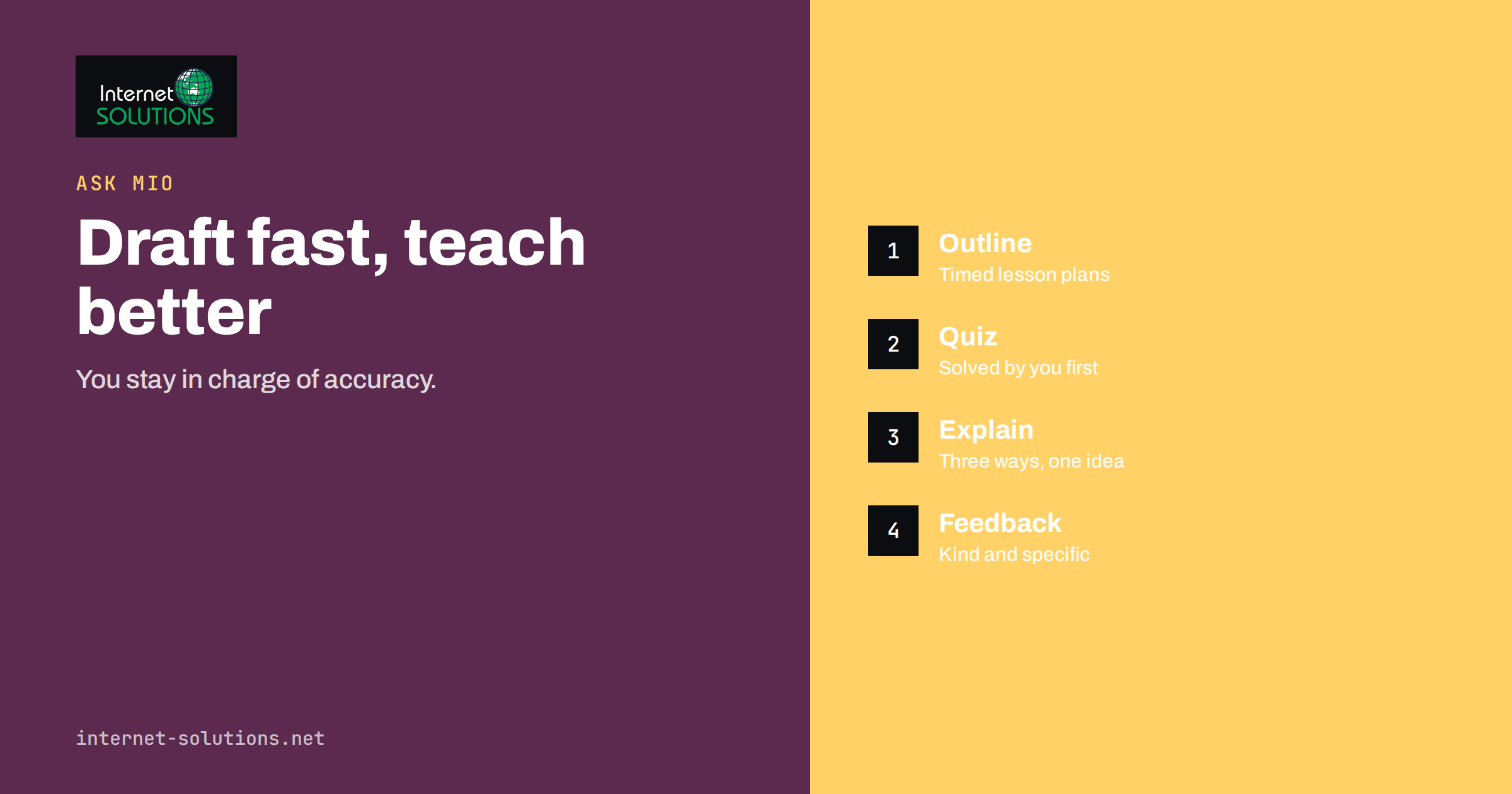
Ask Mio for teachers and trainers is about getting the slow, repetitive part of preparation done faster so that more of your time goes to the part only you can do: knowing the people in the room. A lesson plan, a set of practice questions, a worked example at two difficulty levels or a polite but honest paragraph of feedback all start with a blank page. An AI assistant can supply a first draft of each in seconds. What it cannot supply is your judgment about your learners, your curriculum or your standards, and the routine in this article is built around that division of labour.
The guidance applies to school teachers, corporate trainers, driving instructors, course creators and anyone who prepares learning material for others. It covers which parts of Ask Mio are useful for teaching work, how to ask for what you want, how to check the result, and how to keep personal data about learners out of the conversation.
What Ask Mio Offers a Teacher
Ask Mio is an AI assistant with five modes: Chat, Write, Research, Code and Design. For teaching work, three parts matter most. The first is the set of experts that you can switch on for a whole conversation, which includes a Teacher that explains things step by step with examples and checks, an Exam coach that builds study plans and practice questions, and a Language tutor for corrections and vocabulary practice. The second is the set of ready-made jobs, such as a study plan with weekly steps, materials and exercises, a slide deck, a flyer or one-pager and a spreadsheet. The third is memory and projects: you can group chats into a project with its own instructions and files, so each course keeps its own context.
The free plan includes Chat and Write modes with a monthly allowance of points, which is enough to try the workflow. Research mode with cited web sources, file uploads and document memory belong to paid plans, so check the current plans on the Ask Mio website before you plan around them. Our overview of which Ask Mio mode to use shows how the modes differ.
Six Teaching Tasks Worth Delegating
1. Lesson outlines
Give the topic, the age or level of the group, the time available and the outcome you want, then ask for an outline with timings. A good prompt names constraints: “Forty minutes, mixed ability, no projector, one practical activity.” The result is a skeleton. You change the order, drop what does not fit and add the local example only you know.
2. Practice questions and quizzes
Ask for questions at several levels, with an answer key and a short note on the common mistake behind each wrong option. Specify the format: multiple choice, short answer, matching or a scenario. Always solve a sample yourself before using the set, because plausible but wrong answer keys are the classic failure.
3. Worked examples and explanations
The Teacher expert is built to explain step by step. Ask for the same idea explained three ways: a plain definition, an everyday analogy and a numerical example. Then choose the one that suits your group. Ask for the typical misconception too, since naming it often teaches more than the correct version.
4. Differentiated material
Paste a text you are allowed to adapt and ask for a simpler version, a shorter version or a version with a glossary. This is one of the most time-saving uses, and one of the most sensitive: check that the simplified version has not changed the meaning.
5. Feedback drafts
Describe the strengths and the issues in your own words, without the learner’s name, and ask for a clear, kind paragraph that gives two specific next steps. You still edit and send it. The value lies in saving the re-phrasing, not in handing over the assessment.
6. Study plans for learners
The Exam coach and the study plan job turn a date, a topic list and the hours available into a weekly schedule with exercises. Share it as a starting point and let learners adjust it.
A Prompt Pattern That Works
Most weak results come from thin prompts. Use five parts: who you are, who the learners are, the exact task, the constraints and the format of the answer. For example: “I am a trainer for new warehouse staff. The group has no prior knowledge and about 20 minutes. Create a short briefing on safe manual lifting with five steps, one common mistake per step and three check questions. Plain language, no jargon, bullet points.” Our guide to writing better AI prompts at work expands on this pattern.
When you find a prompt that works, save it. Ask Mio lets you create your own skills with instructions, so a recurring task such as “quiz in my house style” becomes a one-click option. The article on Ask Mio skills describes how that works.
Task Planner
| Task | Best starting point | What you must check | Typical time saved |
|---|---|---|---|
| Lesson outline | Teacher expert in Chat mode | Fit with curriculum and time | Most of the first draft |
| Quiz with answer key | Exam coach | Every answer, solved by you | Writing and formatting |
| Simplified text | Write mode | That the meaning is unchanged | Rewriting by hand |
| Feedback paragraph | Write mode with your notes | Tone and accuracy about the learner | Phrasing time |
| Handout or one-pager | Ready-made flyer or one-pager job | Facts, spelling and layout | Design and drafting |
| Study plan | Study plan job or Exam coach | Realistic hours and deadlines | Planning and scheduling |
Check Everything Before It Reaches Learners
An AI assistant can sound sure and be wrong, and teaching material that is wrong is worse than none because learners trust it. Build a short verification routine and apply it every time.
- Solve it yourself. Work through every quiz question and numerical example before using it.
- Verify facts, dates and names against a source you trust, such as your textbook, a standard or an official publication.
- Ask for sources in Research mode when you need them, then open the sources and read the relevant passage rather than trusting the summary.
- Test it on a colleague when the material is new. A second reader finds ambiguity quickly.
- Keep the final say. If something does not match your curriculum or your standard, change it.
Our article on fact-checking AI answers at work gives a longer version of the routine.
Keep Learner Data Out of the Chat
Teachers handle personal data about children and adults: names, grades, behaviour notes, learning needs and sometimes health information. As a rule, do not paste identifiable information about learners into any AI tool. Replace names with labels such as “Learner A”, remove school names and dates of birth, and describe the situation in general terms. Ask Mio states that chats are not used to train AI models and that you can export or delete your data, which is helpful, but the safest data is the data you never entered.
Check your own organisation’s rules as well. Schools and training companies often have a policy on AI tools, and in many countries data protection law applies to learner records. The European Commission’s data protection pages are a good starting point for the rules in the EU, and UNESCO publishes guidance on artificial intelligence in education for teachers and institutions. Our own article on what to keep out of your prompts lists the categories to avoid.
Using Projects to Keep Courses Separate
A project in Ask Mio groups chats with their own instructions and files. Create one per course or class: add the learning outcomes, the style you want and a short description of the group in general terms. Every new chat in the project starts with that context, so you do not re-explain it. When the term ends, export what you need and archive or delete the rest. This also keeps a clear boundary between, for example, a beginner course and an advanced one, which prevents the assistant from mixing levels.
A Worked Example: One Lesson, Start to Finish
Imagine a trainer preparing a 45-minute session on handling difficult customer calls for a group of new call-centre staff. In the first message she describes the group, the time and the outcome, and asks for an outline with timings. The assistant returns a five-part plan: a short warm-up, a model call, a pair exercise, a group discussion and a closing checklist. She keeps the structure but swaps the model call for a real, anonymised example from her own team, because that is the detail the assistant cannot know.
In the second message she asks for six scenario cards at three difficulty levels, each with a one-line goal for the learner and a note on what a good answer includes. She reads every card aloud, rewrites two that sound unnatural and deletes one that does not match her company’s policy. In the third message she asks for a five-question check at the end of the session, with an answer key. She answers the questions herself, finds one ambiguous option, and fixes it. The whole preparation takes about twenty minutes instead of two hours, and every item that reaches the room has passed through her own judgment.
The pattern generalises. Ask for structure first, then content, then checks. Edit after each step instead of at the end, and keep the version you actually used so you can reuse and improve it next term.
Honest Limits
- It does not know your learners. Pacing, humour, local context and the one student who needs a different approach are yours to supply.
- It can reflect common but outdated or regional practice. Specify the country, curriculum and year when it matters.
- It is not an assessor. Use it to draft feedback and rubrics, not to decide grades.
- Learners may use it too. Design tasks that ask for reasoning, drafts and oral explanation, so that understanding is visible whether or not a tool was used.
A Weekly Routine for a Busy Teacher
- Monday: paste your topic list for the week and ask for outlines with timings. Edit them into your plan.
- Midweek: generate a short quiz for each topic, solve it yourself and fix any wrong keys.
- Friday: turn your notes about the week into a feedback paragraph for the group, then personalise it.
- Monthly: review what you saved as skills and prompts, and delete what you no longer use.
If you want to see what the assistant can do before committing, the Ask Mio page links to the free plan and describes the modes and experts.
Frequently Asked Questions
Can I use the free plan for lesson planning?
Yes, for many tasks. Chat and Write modes are included in the free plan with a monthly points allowance. Research with web sources, file uploads and memory are part of paid plans.
Is Ask Mio suitable for exam preparation material?
It can draft practice questions and study plans through the Exam coach, but you must verify answers and make sure the material matches your exam board or syllabus. Do not publish or sell it as official exam content.
Can I upload a worksheet or textbook page?
On plans that include file uploads you can attach documents such as PDF or Word files and ask questions about them. Only upload material you are allowed to use, and respect copyright.
Should I tell learners I used an AI tool?
Follow your institution’s policy. Many teachers find it simplest to be open about it, and to model how to check an AI draft.
Can it grade my learners’ work?
It can help draft feedback or a rubric, but grading is a professional judgment and often a formal responsibility. Keep that with you.
Does it work in my language?
Ask Mio works in many languages and answers in the language you write in. Quality varies by language and subject, so read the output carefully, especially for technical terms.
The Bottom Line
Use Ask Mio as a drafting partner for outlines, quizzes, explanations, simplified texts and feedback, and keep the decisions and the checking for yourself. Give it clear prompts, solve every question before you use it, keep names and sensitive details out of the chat, and set up one project per course so context stays tidy. Done this way, it gives back hours each week that you can spend on the learners themselves. To explore the assistant, modes and experts, visit the Ask Mio page.