

 English
 Lietuvių
 Latviešu
 Eesti
Eesti Русский
 Polski
 Українська
 Deutsch
 Italiano
 Español
 Français
 Português
 Čeština
 Magyar
 Română
 Ελληνικά
 Türkçe
 日本語
日本語 العربية
 हिन्दी
 Bahasa Indonesia
 Bahasa Melayu
 ไทย
ไทย Tiếng Việt
 বাংলা
বাংলাAsk Mio Quick Website Checks: Page Audit, DNS and Domain Lookups
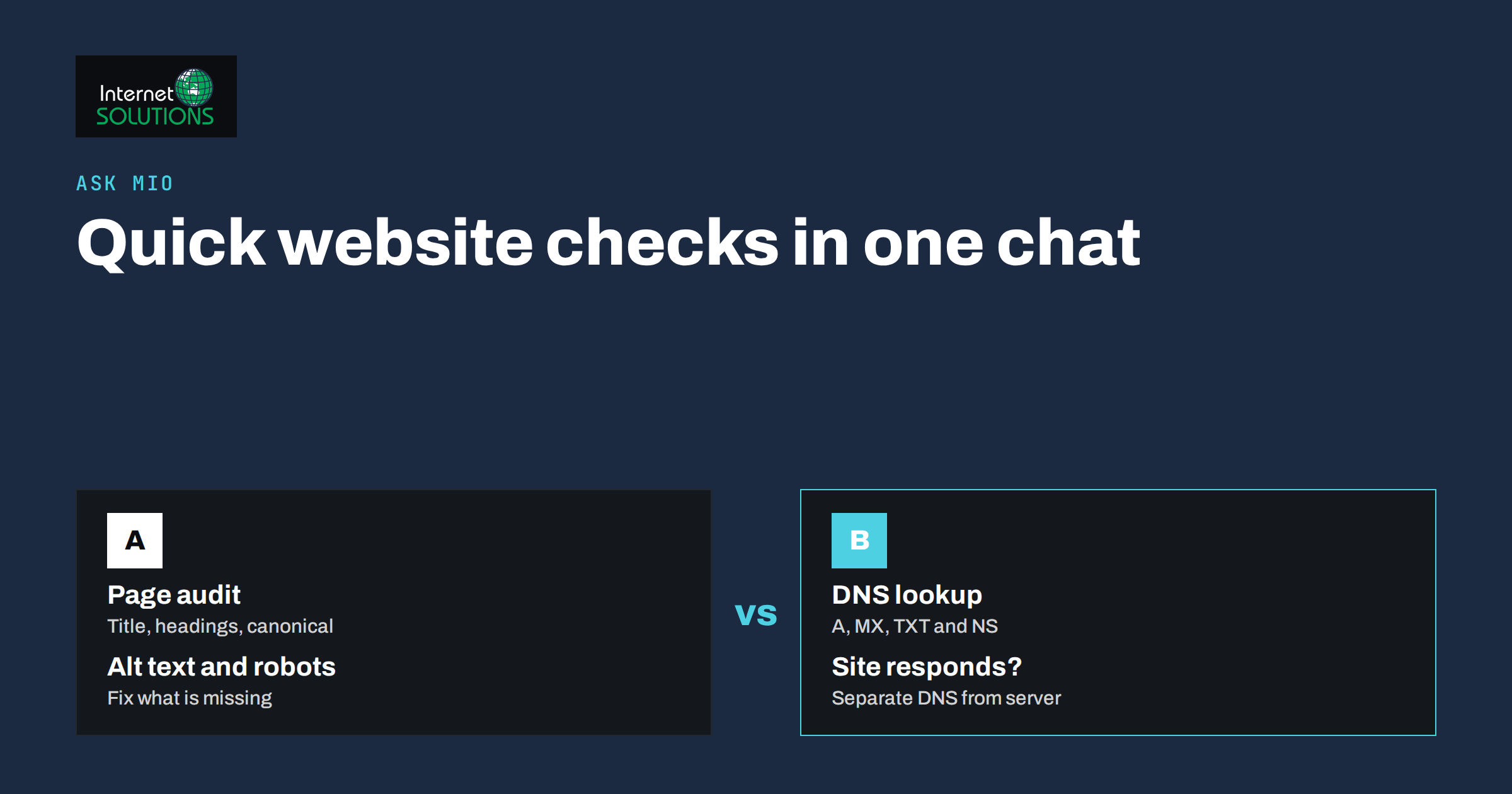
Website problems are rarely dramatic. A page loses its meta description after a theme update, a redirect points to the wrong address, an email record is missing after a move to a new provider, or an image has no alt text. Each issue takes seconds to find if you know where to look, and each can cost traffic or customers if it stays hidden for months. The usual routine, though, involves opening several browser tabs, a DNS lookup site, a view-source window and a spreadsheet. Ask Mio quick website checks bring those small inspections into one chat, so you can ask a question in plain language and get an answer based on a live look at the page or domain.
This guide explains what the page audit and domain tools in Ask Mio can check, how to read the results, how to combine them in simple routines for launches, migrations and email problems and what these quick checks cannot do. It is based on the tools described on the Ask Mio features page, and it complements our Ask Mio page. Tool details can change, so confirm the current list in your account.
The Tools Behind the Checks
Ask Mio is more than a text generator. The features page lists tools that Mio can use by itself while answering. Three of them are particularly useful for website work.
- Page and SEO audit: checks a web page for its title, meta description, Open Graph tags, headings, word count, images without alt text, robots directives and canonical address.
- Domain and DNS check: checks a domain’s A, AAAA, MX, TXT and NS records and whether the site responds.
- Web page reader: opens a URL and reads its text, such as an article, documentation or a product page.
Other tools on the same list, such as the live browser, web search and the date and time tool, can support the same work. For example, the live browser opens a page in a real browser so that scripts run, which matters for pages that build their content in the browser. You do not need to choose a tool manually. You describe what you want, and Mio decides when to use a tool.
What the Page Audit Looks At and Why It Matters
The page audit covers the on-page elements that most often go wrong. The table explains each item and what a healthy result looks like.
| Element | What it is | What to look for | Typical problem |
|---|---|---|---|
| Title | The page title shown in browser tabs and often in search results | Unique, descriptive, includes the main topic, not excessively long | Empty, default or duplicated across pages |
| Meta description | A summary that search engines may use under the title | A clear, accurate summary of the page | Missing, copied from another page, or too long |
| Open Graph tags | Information used when the link is shared on social networks | Title, description and image present | Missing image gives a bare link preview |
| Headings | The structure of the page content | One main heading, logical sub-headings | No main heading or several competing ones |
| Word count | The amount of text on the page | Enough content to answer the visitor’s question | Very thin pages with little useful text |
| Images without alt text | Pictures that lack a text alternative | Meaningful alt text for informative images | Missing alternatives harm accessibility and image search |
| Robots directives | Instructions that allow or stop indexing | Indexable if the page should rank | A leftover noindex from development |
| Canonical | The address that is treated as the main version of the page | Points to itself or to the intended main page | Points to the wrong page or to a staging address |
Google’s documentation on title links explains how titles appear in results, and the Open Graph protocol site describes the tags used for social previews. Those two pages are useful references when Mio flags something and you want to understand why it matters.
What the Domain Check Shows
The domain tool looks at DNS records, the public directory that connects a name to services. Each record type answers a different question.
- A and AAAA: the IPv4 and IPv6 addresses where the website lives. If they point to an old server after a migration, visitors see old content or errors.
- MX: the servers that receive email for the domain. Wrong or missing MX records mean incoming mail goes astray.
- TXT: text records used for verification and email security, including SPF, DKIM and DMARC policies, and for ownership checks by services.
- NS: the name servers that hold the domain’s records. If they do not match your provider, edits to DNS elsewhere have no effect.
- Does the site respond: a basic check that the address answers, which separates a DNS problem from a server problem.
If these terms are new, our explanation of how DNS works for business owners gives the background, and the guide to SPF, DKIM and DMARC explains why the TXT records matter for deliverability.
How to Ask: Examples That Work
The tools work best with specific requests that include the full address. Here are examples of effective questions.
- “Check https://example.com/services/ and tell me which on-page SEO items are missing or weak. List fixes in priority order.”
- “Audit these three URLs and compare their titles and meta descriptions in a table. Which ones are duplicated?”
- “Look up the DNS records for example.com. Does the mail setup look consistent with Microsoft 365, and is anything missing?”
- “I moved the site yesterday. Does example.com respond, and do the A records match the new server address 203.0.113.10?”
- “Read this competitor page and summarize its headings and the questions it answers, so I can see what my page lacks.”
Be honest about what Mio sees. If a page requires a login, or if content is shown only after user actions, the tool may see less than a visitor does. State your goal, because the same data leads to different advice for a landing page, a blog post and a product page.
Routine 1: Pre-Launch Check
Before a new page or site goes live, run a short sequence.
- Ask for a page audit of each key URL, such as the home page, main service pages and the contact page.
- Check that titles and descriptions are unique and complete, headings are logical and informative images have alt text.
- Confirm that no page carries a leftover noindex directive and that canonical addresses point to the live domain, not to a test address.
- Run the domain check to verify that records point to the right server and that email records exist.
- Record the findings in a short list with an owner and a date.
Forgotten noindex tags and wrong canonical addresses are a classic cause of a new site that never appears in search, so this routine can save weeks of confusion.
Routine 2: After a Migration or Redesign
Moves and redesigns break things quietly. After the change, compare a sample of important pages with their pre-move versions if you saved them. Use the page audit on the most valuable pages and look for lost titles, changed headings, missing Open Graph images and new canonical addresses. Use the domain check to confirm that records, particularly MX and TXT, survived the change. For the broader process, see our guide to migrating a website without losing SEO rankings.
Routine 3: Email Not Arriving or Landing in Spam
When messages disappear, ask the domain tool for the MX and TXT records first. Check that MX records point to the mail provider you actually use, that a single SPF record exists rather than several, and that DKIM and DMARC records are present if your provider requires them. Then ask Mio to explain what each record means and what a corrected version should look like for your provider. Remember that any change to DNS affects live email, so write down the existing records before you edit and let a person confirm the final values with the provider’s own documentation.
Routine 4: Competitor and Content Review
The web page reader lets Mio read a competitor’s article or product page and summarize its structure. Ask for the headings, the questions answered and the type of evidence used. Then compare with your own page from the audit. The purpose is to find gaps in your coverage, not to copy. Use your own examples, data and tone, and do not reproduce another site’s wording.
A Worked Example
Imagine a small company that has just replaced its website. The owner asks Mio to audit the new services page and the domain. The audit reports that the title is simply the company name, that the meta description is missing, that the page has two main headings and that three images lack alt text. The domain check shows that the website address points to the new server, but the TXT records no longer contain the email policy that existed before the move.
That single conversation produces a clear action list: write a descriptive title and description, merge the headings into one, add alt text to the images and restore the email records after confirming the values with the mail provider. Nothing in the list required special software, and the owner could verify each finding in a browser. A week later the owner asks for the same checks again and sees the items cleared. That is the habit these tools make easy: inspect, fix, inspect again.
What Quick Checks Cannot Do
These tools are designed for fast, targeted inspections of a page or domain. They are not a replacement for a complete audit.
- They do not crawl the whole site. Problems that appear only across thousands of pages, such as duplicate content patterns, orphaned pages and redirect chains, need a crawler or a dedicated audit.
- They do not measure real performance. Speed under load, field data and server behaviour need monitoring tools.
- They see what is public. Pages behind logins and private systems are out of reach, and rightly so.
- They do not change your site. Mio reports and advises; you or your developer make the fix.
- Interpretation still matters. A short title is not always wrong, and a low word count is not always a problem. Judge each finding against the purpose of the page.
For deeper review, our SEO service covers technical audits, and you can contact us if you would like an expert to go through a site with you.
Good Habits for Reliable Results
- Give complete URLs including the https prefix and the exact path.
- Ask for evidence. Request the exact title text, record values and heading list so you can verify them yourself.
- Re-check after fixes. Run the same request again to confirm that the issue is gone.
- Keep a baseline. Save the results of important pages so you can compare after changes.
- Protect secrets. Do not paste passwords, private keys or personal data into the chat.
Frequently Asked Questions
What does the Ask Mio page audit check?
According to the features page, it checks a web page’s title, meta description, Open Graph tags, headings, word count, images without alt text, robots directives and canonical address.
Which DNS records can Ask Mio look up?
The domain check covers A, AAAA, MX, TXT and NS records and tests whether the site responds. That is enough to diagnose most website address and email delivery problems.
Can Ask Mio audit my whole website?
The quick checks are made for individual pages and domains. For a complete crawl of every page, use a dedicated audit or crawler and use Ask Mio to help interpret the results.
Will Ask Mio fix the problems it finds?
No. It reports findings and explains them, and it can draft improved titles, descriptions or record values for you to review. The change itself is made in your website or DNS panel.
Is it safe to change DNS records based on a chat answer?
Treat the answer as guidance. Save the current records, confirm the correct values in your provider’s documentation and make one change at a time, because DNS mistakes can interrupt websites and email.
How often should I run these checks?
Run them before launches, after migrations, redesigns and provider changes, and then on important pages every few months or when traffic unexpectedly changes.
The Bottom Line
Ask Mio quick website checks make routine inspections quick enough to do regularly. The page audit shows the title, description, headings, social tags, alt text, robots directives and canonical address of a page, and the domain check shows the DNS records and whether the site responds. Use them in short routines for launches, migrations, email problems and competitor reviews, ask for evidence you can verify and re-run the check after every fix. Remember their limits: they do not crawl the whole site, measure real performance or make changes for you. Used within those limits, they catch small problems before they become expensive ones.