

 English
 Lietuvių
 Latviešu
 Eesti
 Русский
 Polski
 Українська
 Deutsch
 Italiano
 Español
 Français
 Português
 Čeština
 Magyar
 Română
 Ελληνικά
 Türkçe
 日本語
 العربية
 हिन्दी
 Bahasa Indonesia
 Bahasa Melayu
 ไทย
 Tiếng Việt
 বাংলা
Ask Mio Setup Assistant and Automatic Skill: What to Turn On Next
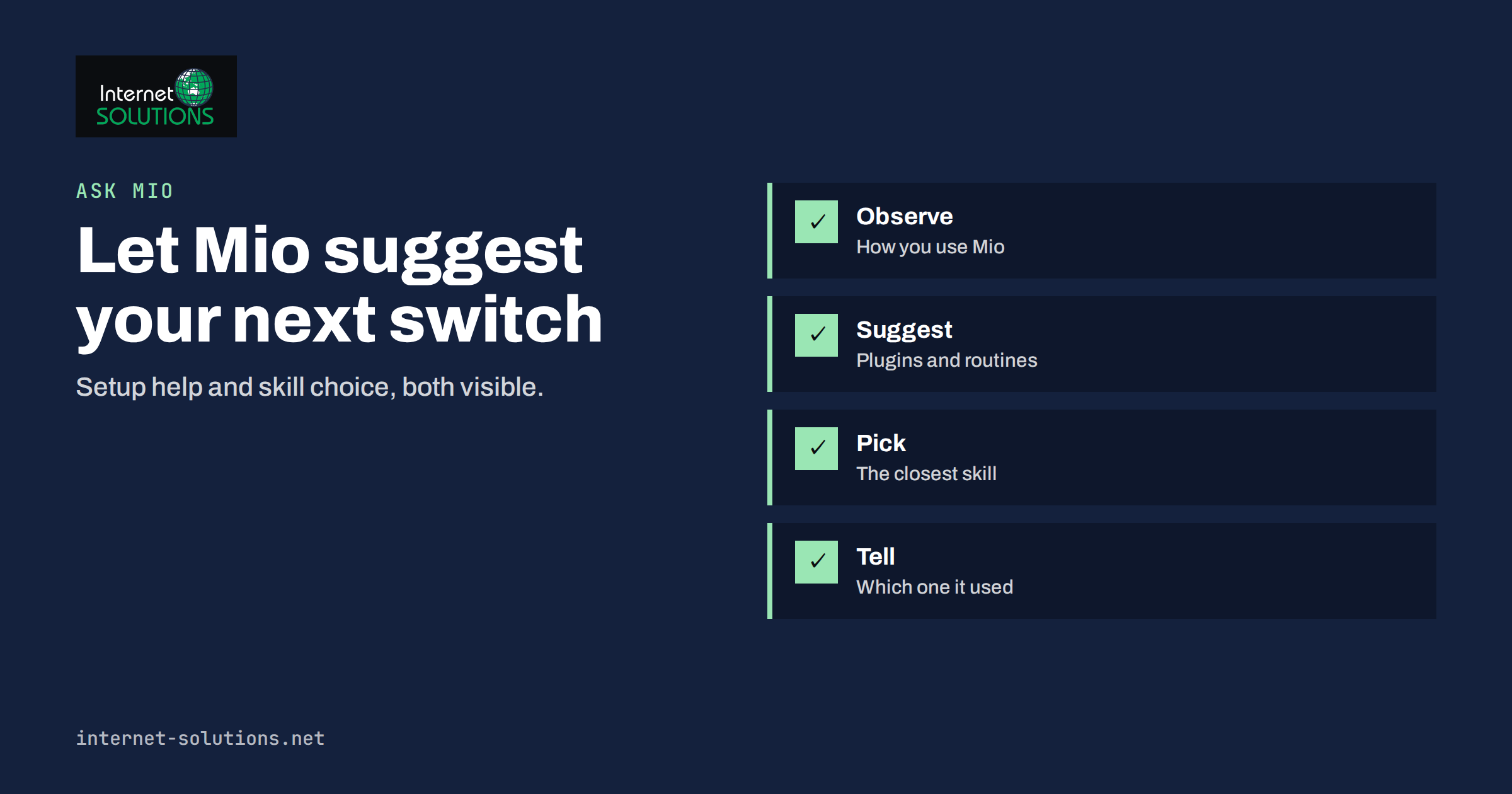
The Ask Mio setup assistant exists for a simple reason: a capable assistant has many options, and most people never find them. Ask Mio offers five modes, dozens of experts, tools, ready-made jobs, connectors to your own accounts and nine larger parts that can be switched on or off. Reading all of that before you start is unrealistic. The setup assistant takes a different route. According to the Ask Mio product page, it looks at how you use Mio and suggests what to turn on next, whether that is a plugin, a connector, a routine or a skill.
Its companion, the automatic skill, deals with a related problem: what happens when you ask a question without choosing a specialist. This guide explains both features as they are described today, how to use them well, what to check before accepting a suggestion and how they fit with the rest of Ask Mio. Features and screens evolve, so confirm details in your account.
The Problem They Solve
New users of AI assistants tend to use them in the narrowest way. They type a question, read the answer and close the tab. Weeks later they discover that the same assistant could have read their files, followed a company procedure, searched the web with sources or prepared a slide deck. The tool did not hide those functions; the person simply had no reason to look for them.
Ask Mio addresses this in two places. The setup assistant works at the account level, suggesting what to enable based on your habits. The automatic skill works at the chat level, choosing a suitable specialist for the question at hand. Between them, they reduce the amount of configuration you need to do by hand.
What the Setup Assistant Does
The product page describes the setup assistant in one sentence: it looks at how you use Mio and suggests what to turn on next, and it names four kinds of suggestion.
- Plugins. Extra capabilities you can switch on for your account.
- Connectors. Links to your own accounts and files, such as Drive, mail or a code repository, used only when you ask.
- Routines. Repeating tasks that Mio can run for you.
- A skill. A procedure or specialist that fits the kind of work you do.
The key word is “suggests”. The assistant proposes; you decide. A suggestion is a prompt to consider, not a change made on your behalf. That keeps control with you, which matters because some options give Mio access to your data or let it act. The product page lists the nine larger parts as things you can switch on or off for your account, so any choice can be reversed.
What the Automatic Skill Does
A skill in Ask Mio is a specialist way of working, such as an expert in accounting, SEO or law, or a procedure you define yourself. The product page notes that Ask Mio supports skills in the open SKILL.md format and lets you create your own. The automatic skill handles the case where you have not picked one: when a chat has no skill chosen, Mio picks the closest one for the question and says which, instead of answering as a generalist.
The phrase “and says which” is important. You can see what Mio chose, judge whether it fits and change it if it does not. For example, if you ask how to word a polite payment reminder, Mio may choose a writing-oriented skill and tell you so. If you actually wanted a legal view, you can select the relevant expert yourself and ask again.
How They Work Together
| Question | Setup assistant | Automatic skill |
|---|---|---|
| Level | Your account | A single chat |
| Based on | How you use Mio | The question you ask |
| Output | Suggestions to turn on plugins, connectors, routines or a skill | The closest skill, named in the reply |
| Who decides | You accept or ignore | You can keep it or choose another |
| Best for | Discovering features over weeks | Getting a better answer right now |
A natural sequence is that the automatic skill reveals a specialist that works well for your questions, and the setup assistant later suggests making that skill part of your routine or adding the connector it needs.
Using Suggestions Wisely
A suggestion is only useful if you evaluate it. Ask yourself a few questions before turning anything on.
- Does it match real work? Choose options that serve tasks you do weekly, not ones that merely sound impressive.
- What does it access? For connectors, check which account and which data Mio can read, and when.
- Is it reversible? The options are described as switchable, so try one at a time and note the effect.
- Does it affect cost? Each answer costs a few points, and bigger jobs use more; see the guide to spending your monthly points wisely.
- Does it fit company rules? If you work in a team, follow your policy on connecting work accounts and handling personal data.
Accept one suggestion per week at most, and use it for a week before accepting another. This builds habits instead of clutter.
Skills: From Automatic to Your Own
The automatic skill is a good way to learn which specialists exist. Once you notice that you use the same one repeatedly, make it explicit by choosing it at the start of a chat. If none fits, the product page describes a skill creator in which you name an expert, describe when to use it and what it must do. The result appears in your list of skills and can be exported in the SKILL.md format. Our guide to teaching your assistant your own procedures walks through how to write a good one.
It also helps to understand the modes and tools around skills. The explanation of which Ask Mio mode to use and the overview of how tools and experts extend one assistant show how the pieces fit.
Connectors and Privacy
Among the suggestions you may see are connectors to your own files and accounts. The product page lists services such as Google Drive, Gmail, Google Calendar, Microsoft 365, GitHub and Dropbox among twelve connectors, all used when you ask. Treat each as a permission decision. Connect only the account you need, review what Mio can read and revoke access when the project ends. The page also states that Ask Mio runs on EU servers and that chats are never used to train AI models. Our article on using your Drive, mail and calendar with permission covers the practical steps.
A Worked Example
A freelance consultant starts with the free plan and uses Mio mainly to tidy emails. After some weeks, the setup assistant suggests turning on a connector for her calendar and a skill for writing proposals, because she often pastes meeting notes and asks for follow-ups. She considers the calendar connector, decides it is useful for scheduling summaries and enables it, but ignores a suggestion that does not match her work.
In the meantime, when she asks, “How should I price a three-month retainer?” in a chat with no skill, Mio selects a close specialist, tells her which one it used, and answers in that role. She likes the style, so she starts new pricing chats with that skill chosen. Later she builds her own skill for her proposal template. The whole setup grows from use rather than from a long configuration session, and every step stays reversible.
A Four-Week Plan for Using Suggestions
A structured approach prevents the common situation where a user switches on many options at once and cannot tell which one changed the experience. Try the following plan on a free or paid account.
- Week one: observe. Use Mio normally for your real work and notice which tasks repeat. Do not change settings yet. Write down three tasks you perform every week.
- Week two: take one suggestion. Look at what the setup assistant proposes, choose the one that matches a repeated task and turn it on. If it is a connector, review exactly what it can access before you confirm.
- Week three: pick a skill on purpose. Notice which skill the automatic skill chooses most often and try selecting it yourself at the start of those chats. Compare the answers with the automatic choice.
- Week four: review and prune. Check which options helped. Switch off what you did not use, and note the points you spent so that you can judge value.
At the end of the month you should know which of the larger parts earn their place. Some users find that one connector and one skill cover most of their needs; others add routines for weekly reports. Both outcomes are fine. What matters is that every active option has a reason, and that you could explain it to a colleague in a sentence. If you work in a team, write down the chosen setup and the reasons, so that new members can copy it instead of rediscovering it.
Common Mistakes
- Accepting every suggestion at once and losing track of what changed.
- Connecting accounts without checking what they can access.
- Assuming the automatic skill is always right; check the one it names.
- Never choosing a skill yourself, even for repeated tasks.
- Ignoring points usage after enabling larger jobs and routines.
- Skipping team rules when connecting work accounts.
- Forgetting to switch off options that you no longer use.
The full list of options is on the Ask Mio overview page, and for the idea behind open skill formats, the article on software agents gives general background, while the page on personalization explains why systems adapt to behaviour.
What Good Suggestions Look Like
A useful suggestion connects directly to something you already do. If you often paste meeting notes, a suggestion to use a calendar connector or a note-taking skill makes sense. If you regularly ask for the same weekly report, a routine is a natural fit. If you never work with code, a suggestion about a code-related plugin can safely wait. Judge each suggestion by asking what task it would shorten, how often you do that task and what it would cost in points or access. If you cannot answer in one sentence, skip it for now; the assistant will keep observing how you work, and a better-timed suggestion will follow.
It also helps to repeat the same question with and without a chosen skill from time to time. Comparing the two answers shows how much a specialist adds and teaches you where the automatic choice is enough. Keep the comparisons short, and record the winner in your notes.
Frequently Asked Questions
What is the Ask Mio setup assistant?
It is an option that looks at how you use Mio and suggests what to turn on next, such as plugins, connectors, routines or a skill. You decide whether to accept each suggestion.
What is the automatic skill?
When a chat has no skill chosen, Mio picks the closest skill for your question and tells you which one it used, instead of answering as a generalist.
Can I choose a different skill than the one Mio picked?
Yes. You can select a skill yourself and ask again. Choosing explicitly is also useful when you repeat the same type of task.
Can I create my own skills?
Yes. The product page describes a skill creator where you name an expert, describe when to use it and what it must do. Skills can be exported in the SKILL.md format.
Does turning on suggestions cost extra?
The options are part of the product, but each answer costs a few points depending on the task. Larger jobs use more points, so watch usage on your plan.
Is my data used to train AI models?
According to the product page, no: Ask Mio runs on EU servers, and chats are never used to train AI models.
The Bottom Line
The Ask Mio setup assistant and the automatic skill reduce the effort of finding what an AI assistant can do. The setup assistant suggests plugins, connectors, routines and skills based on your usage, the automatic skill picks and names the closest specialist for each question and you stay in control of both. Accept suggestions one at a time, check what each connector can access, choose skills explicitly for repeated work and review usage. Used this way, Mio gradually adapts to your work without a long setup.