

 English
 Lietuvių
 Latviešu
 Eesti
Eesti Русский
 Polski
 Українська
 Deutsch
 Italiano
 Español
 Français
 Português
 Čeština
 Magyar
 Română
 Ελληνικά
 Türkçe
 日本語
日本語 العربية
 हिन्दी
 Bahasa Indonesia
 Bahasa Melayu
 ไทย
ไทย Tiếng Việt
 বাংলা
বাংলাAsk Mio Slides and Spreadsheets: From Brief to Deck or Table
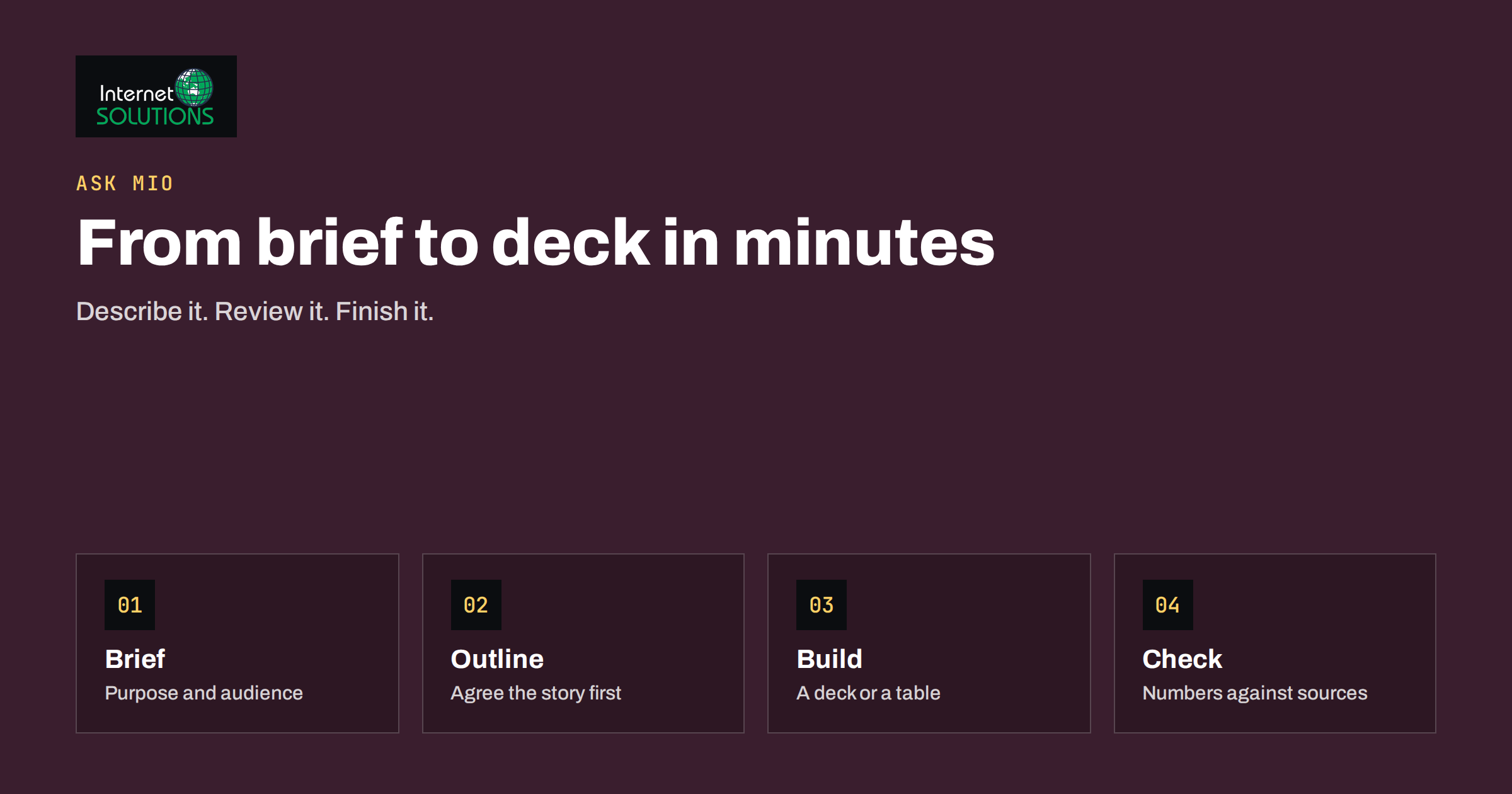
Ask Mio slides and spreadsheets are among the most practical things an AI assistant can do for an office worker, because so much working time disappears into building decks and tables from scratch. A sales presentation, a monthly report for the board, a price comparison, a content calendar or a budget starts as a few notes and ends, hours later, as something that has to be formatted, checked and corrected. Ask Mio shortens the middle of that journey. You describe what you need, fill in a short form, and Mio produces a first version that you can review and finish.
This guide shows how to get good results from the slide and table jobs. It covers what to put in a brief, how to choose between a PowerPoint deck and interactive slides, how to ask for spreadsheets that are structured properly, how to check what Mio produces and how to avoid the mistakes that waste points. It assumes no technical skill. If you can explain a task to a colleague, you can brief Mio.
What Ask Mio Offers for Presentations and Tables
Ask Mio is an AI assistant with five modes: chat, write, research, code and design. Alongside them it has a set of ready-made jobs. A ready-made job is a short form that asks for the information a particular output needs, and then builds the result. Among the ready-made jobs are a slide deck for PowerPoint, interactive slides in HTML and a spreadsheet or table. You do not choose an underlying model. Mio picks the model that suits the task and answers in your language.
Because the jobs are built around forms, the quality of the result depends mostly on the quality of what you type into them. Mio can also read files you attach, such as a PDF, a document or an image, and can use projects and memory so that instructions persist between chats. Every answer costs a few points, and the free plan includes a monthly allowance; current plans and prices are shown on the Ask Mio site. The main idea of this guide is to spend those points on a good brief rather than on repeated corrections.
Choosing the Right Output
| Need | Best choice | Why | Watch out for |
|---|---|---|---|
| A presentation you will edit and share as a file | Slide deck (PowerPoint) | Familiar format that colleagues can edit | Check layout and fonts after opening on your computer |
| A presentation viewed in a browser, with a modern look | Interactive slides (HTML) | Opens from a link or file without PowerPoint | Test on the device you will present from |
| A table of data, prices or a plan | Spreadsheet or table | Columns, formulas and sorting | Verify the figures and formulas |
| A one-page summary or handout | Flyer or one-pager (PDF) | Fixed layout, ready to print | Fit the message on a single page |
| A comparison for a decision | Table in chat, then a spreadsheet | Quick to review before you commit to a file | Ask for sources of the numbers |
| A long report with sections | Write mode, then slides for the summary | Text first, visuals second | Keep one version of the facts |
If you are unsure, start with a short outline in chat. It costs little, shows whether Mio has understood the task and gives you a structure to approve before the full deck is built.
Writing a Brief That Works
A good brief answers the questions a colleague would ask before starting. Put these into the form or the chat message.
- Purpose. What should the audience do or decide after seeing it? “Approve a budget” gives a different deck from “learn about the product”.
- Audience. Who are they, how much do they know and what do they care about? A board needs numbers and decisions; a customer needs benefits and proof.
- Length. The number of slides or the size of the table. Ten to twelve slides suit a twenty-minute talk.
- Key messages. Three to five points that must be in it, in order of importance.
- Source material. Facts, figures, quotes and documents Mio should use. Attach files or paste the text. Do not expect it to know your internal numbers.
- Tone and style. Formal or friendly, brand colours or neutral, the language of the output.
- Constraints. What to exclude, required sections, deadlines or legal wording.
Compare two briefs. The weak one says “Make a presentation about our new service.” The strong one says “Eight slides for local business owners, in plain English, explaining our new monthly website care plan: what is included, three price tiers from the attached sheet, two customer quotes, a comparison with one-off repairs and a final slide inviting them to book a call. Friendly tone, dark blue and white colours.” The second takes a minute longer to write and saves several rounds of revision. Our guide to writing better AI prompts at work goes deeper into this skill.
Building a Deck Step by Step
Presentations are easier to get right in stages than in one leap.
- Agree the storyline first. Ask for a slide-by-slide outline with a headline for each slide. The classic structure starts with the answer, supports it with three reasons and ends with a clear request, a pattern known as the pyramid principle, popularised by Barbara Minto. Edit the outline in chat: remove, reorder, merge.
- Provide the facts. Add the numbers and sources that belong on each slide. If you do not have a figure, say so, and mark the slide for later completion. Never let a deck contain a number that nobody can trace.
- Generate the deck. Use the slide deck job for a PowerPoint file, or the interactive slides job for an HTML presentation.
- Review slide by slide. Read headlines first. Each should state the point of the slide in a sentence, not a topic label. Check that every claim has support.
- Request targeted changes. “Shorten slide 4 to three bullets”, “replace the quote on slide 6 with the one from the attached email” or “make the closing slide a clear call to action”. Specific requests cost fewer points than general ones such as “improve it”.
- Add speaker notes. Ask for short notes for each slide, with the main message and a transition. They help you rehearse, and you can edit them to match your voice.
- Final polish by hand. Open the file, check fonts, alignment, images and the order. Add your logo and company details if needed.
Good slides carry few words. If a slide has more than about thirty, it is probably a document, not a slide. Ask Mio to move the detail to the notes or an appendix and keep the slide itself clean. For more on the general idea of presentation software, see the overview of presentation programs.
Spreadsheets and Tables That Are Actually Useful
A table is only as good as its structure. Before you ask for one, decide what each row and each column represents.
- One row per item. One product, one task, one month, one customer. Avoid mixing different kinds of things in the same sheet.
- One column per attribute. Name, category, price, date, owner, status. Use clear headings.
- Consistent formats. Dates in one style, currencies in one unit, no text in number columns.
- Totals and formulas. Say which columns need sums, averages or percentages, and ask Mio to use formulas, not typed results, so that the sheet recalculates when data changes.
- Separate input from output. Keep assumptions, such as tax rate or growth, in labelled cells at the top, and refer to them in formulas.
Typical jobs include a content calendar with dates, channels and owners, a price comparison of suppliers, a project plan with tasks and deadlines, a simple budget with monthly columns, a stock list or a lead tracker. To start a table from data you already hold, attach the file and describe what you want to learn from it. Our article on turning CSV and Excel files into answers with Ask Mio shows that route. For the general concept of the format, see the description of the spreadsheet.
A short test confirms that a spreadsheet is sound: change one input and see whether the totals change as expected; sort the data and check that rows stay together; filter for a category and compare the count with what you know to be true.
Checking the Output Before You Share It
An assistant can produce a polished slide that is wrong. Treat the first version as a draft written by a capable but unfamiliar colleague, and review it accordingly.
- Numbers. Compare every figure with the source. Recalculate totals and percentages for a sample of rows.
- Names and claims. Check spellings, titles, dates, product names and any statement about a competitor or a regulation.
- Quotes and references. Verify that each quote is real and correctly attributed, and that links work.
- Tone and fit. Read it aloud. Does it sound like you and suit the audience?
- Consistency. The same term, the same number and the same date on every slide.
- Confidential data. Remove anything that should not leave the company.
Our guide to fact-checking AI answers at work sets out a routine that fits this stage. When a claim needs evidence, ask Mio to use research mode with cited sources, then open the sources yourself.
Using Projects and Memory for Recurring Reports
Many presentations and tables repeat: a monthly sales report, a weekly status, a quarterly review. Instead of explaining the format every time, keep the work in a project in Ask Mio with its own instructions and files. Put the template, the style rules and last month’s version into the project, and then each month you only provide the new data. You can see and control what Mio remembers, so you can keep the instructions up to date. The article on projects and memory in Ask Mio explains how to set this up.
Saving Points and Time
- Get the outline right in chat before building the full deck.
- Give complete source material in the first request.
- Make specific edit requests, not vague ones.
- Ask for one slide or one section to be redone, not the whole file.
- Do the final formatting by hand when it is quicker than another round.
- Reuse a good brief as a template for similar jobs.
To try the tool with a real task, you can start with a free account on the Ask Mio page. A good first exercise is to turn a meeting summary into a five-slide update for your team, then compare the time spent with your usual method.
Frequently Asked Questions
Can Ask Mio create a PowerPoint file?
Yes. The ready-made jobs include a slide deck for PowerPoint, as well as interactive HTML slides and a spreadsheet or table. Fill in the short form with your purpose, audience and material.
Do I need to choose an AI model?
No. Mio chooses the model that suits each task, so you can concentrate on the brief and the review.
Can I base the slides on my own documents?
Yes. Attach the files or paste the text, and ask Mio to use them. Always check that the figures and quotes in the output match your documents.
How do I keep the same style every month?
Create a project with your template, style rules and previous version, then supply only the new data each time. This saves points and keeps reports consistent.
Are the numbers in a generated spreadsheet reliable?
They are only as reliable as the data and instructions you give, so verify them. Ask for formulas instead of typed totals, test with a changed input and compare a sample against the source.
How many points does a deck use?
Each answer costs a few points, depending on the task. Longer or more complex jobs cost more, so plan the outline in chat first and request focused edits.
The Bottom Line
Ask Mio will not decide what your presentation should say, but it can do much of the slow work of building it. Start with a clear purpose and audience, agree the outline in chat, supply the facts and then let the ready-made jobs create the deck or table. For spreadsheets, define rows, columns and formulas up front. Review everything as you would a colleague’s draft, check numbers against sources and keep recurring work in a project. With a good brief and a careful review, a task that once took an afternoon can become a first draft in minutes and a finished document in an hour.