

 English
 Lietuvių
 Latviešu
 Eesti
Eesti Русский
 Polski
 Українська
 Deutsch
 Italiano
 Español
 Français
 Português
 Čeština
 Magyar
 Română
 Ελληνικά
 Türkçe
 日本語
日本語 العربية
 हिन्दी
 Bahasa Indonesia
 Bahasa Melayu
 ไทย
ไทย Tiếng Việt
 বাংলা
বাংলাBusiness Laptop Buying Guide: RAM, Storage, Warranty and Security
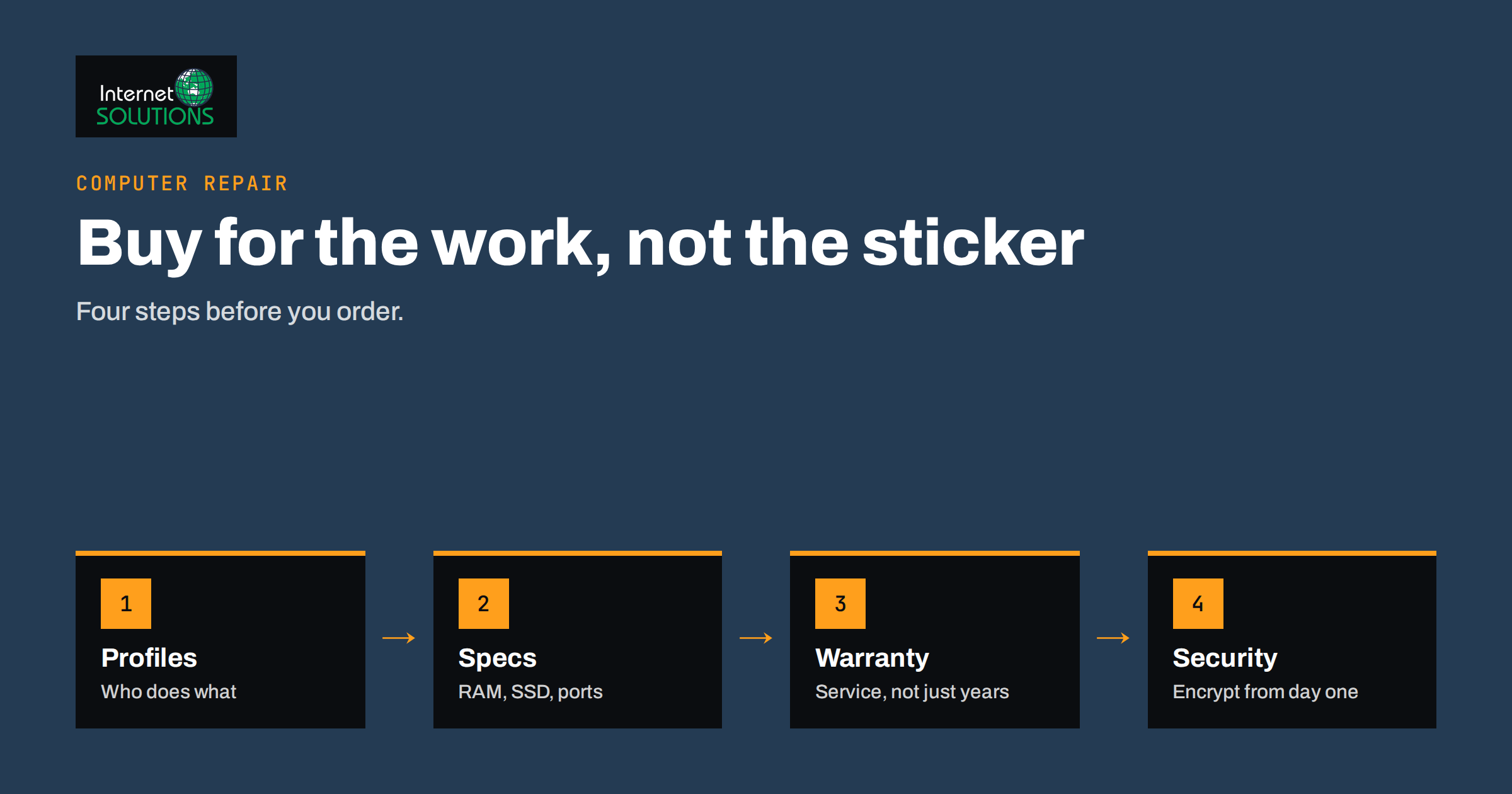
A business laptop buying guide should start with a simple idea: the cheapest machine is rarely the least expensive one to own. A laptop that is slow, fragile, hard to repair or impossible to secure costs money every day in lost time, support calls and replacement. A well-chosen one lasts four to five years, keeps people productive and protects company data. This guide explains how to choose a business laptop: how to decide what you actually need, which specifications matter, what to look for in build and warranty, how to handle security, and how to buy in a way that makes later support easier.
It deliberately avoids brand recommendations, because models change every few months. Instead it gives you a method and a checklist that stay useful whatever the catalogue looks like today.
Start with the Work, Not the Specification
Before comparing models, write down what each group of employees does. A laptop that is perfect for an accountant may be wrong for a designer or a field technician. Group your people into a few profiles.
- Office and communication. Email, documents, spreadsheets, web applications, video calls. These users need a reliable, light machine more than raw power.
- Heavy multitasking. Many browser tabs, large spreadsheets, several applications open together, several screens connected. Memory and a capable processor matter here.
- Creative and technical. Image, video and design work, software development, virtual machines, data analysis. These users need more memory, faster storage, a stronger processor and often a better display.
- Mobile and field work. Frequent travel, use in vehicles or on site, poor lighting. Battery life, weight, a tougher chassis and a bright display become priorities.
- Executive and client-facing. Light, quiet, good camera and microphone for calls, long battery life.
Define two or three standard configurations rather than letting every purchase be unique. Standardisation lowers cost, simplifies spare parts and makes it easier for a technician to help anyone in the company.
The Specifications That Matter
| Component | What to look for | Practical guidance |
|---|---|---|
| Memory (RAM) | Capacity, and whether it can be upgraded | Many offices now treat 16 GB as a comfortable standard; 8 GB is a minimum for light use; heavier work needs more. Check whether memory is soldered, as it cannot be added later. |
| Storage | Solid-state drive, adequate capacity | An SSD is essential. 256 GB suits light use with cloud files; 512 GB or more is safer for local files and large applications. |
| Processor | Current generation, suitable class | Compare within one manufacturer’s range and generation; a mid-range current processor outperforms an old high-end one for many tasks. |
| Display | Size, resolution, brightness, finish | Full HD is a good baseline; brighter, matte screens help in offices with windows and on the move. |
| Battery | Capacity and realistic life | Ignore maker claims; look for independent reviews that test real use. Replaceable batteries are a plus. |
| Ports and connectivity | USB-C, display output, network | Check that it connects to your monitors, docking stations and projectors without a bag of adaptors. Current Wi-Fi support matters for busy offices. |
| Keyboard and trackpad | Comfort and reliability | Staff spend hours on them. Try them in a shop if possible. |
| Camera and microphone | Quality for video calls | Important for sales and meetings; a privacy shutter is useful. |
How much memory is enough?
Modern browsers, collaboration tools and video calls use a surprising amount of memory. A laptop that felt fast with 8 GB a few years ago can struggle with the same tasks today. For a machine you intend to keep for four years, choosing 16 GB for general office work is a sensible investment, and the extra cost is small compared with the productivity gained. Where memory is soldered to the board, you must choose the right amount at purchase. If it can be upgraded, you have more flexibility.
Why storage type matters more than size
A solid-state drive makes starting, opening files and updating far faster than a spinning hard disk, and it is more resistant to knocks. Avoid laptops that rely on a slow disk, even if they are cheap. Capacity matters too: a nearly full drive slows down and leaves no space for updates. If your staff keep most files in cloud storage or on a server, a smaller drive can be enough, but remember offline files, email archives and local copies of large attachments.
Choosing a processor
Processor names and numbers are confusing. Rather than memorising model codes, compare the machines in the same family and generation, and look at independent benchmark results for the kind of work you do. Also consider efficiency. A more efficient processor usually means longer battery life, less fan noise and less heat on the lap.
Build Quality, Repairability and Support
Business-class laptops usually cost more than consumer models for reasons that matter in the office: stronger chassis, better keyboards, more ports, better support options and more consistent components across production runs. Look at the following details.
- Chassis and hinges. Laptops are carried, dropped and opened thousands of times. Metal or reinforced frames and robust hinges prolong life.
- Repairability. Can a technician replace the battery, memory, drive and keyboard without destroying the machine? Manufacturers often publish service manuals and sell spare parts. Machines that are glued together are cheaper to produce but costly to repair.
- Spare part availability. Ask how long parts are offered after a model is discontinued.
- Driver and firmware updates. Look at how long the manufacturer supports a model with updates.
- Standard components. Common chargers and docking options simplify life.
Good local repair support matters too. When a laptop fails, the difference between a same-day fix and a two-week wait is significant. Our computer repair and IT support service handles diagnosis, repairs and replacements for business machines, and can advise before you buy.
Warranty and Service Plans
The warranty is part of the price. Compare these points rather than only the length.
- Duration. One year is typical for consumer products; business models often offer three years or allow extension.
- Service type. Does the manufacturer collect the laptop, send a technician or ask you to ship it? How long does a repair usually take?
- Accidental damage. Standard warranties cover defects, not spills and drops. Accidental damage cover costs extra and may be worth it for mobile staff.
- Battery cover. Batteries wear with use, and some warranties treat them as consumables. Check the terms.
- Data handling. If a drive is replaced, what happens to the old one? Encryption helps, and some providers offer a service in which you keep the failed drive.
- Who is the contact. A reseller or managed service provider may handle claims for you, which saves your staff time.
Calculate the cost of downtime. If one employee without a laptop costs the company a day of work, the price of next-day on-site service is often small by comparison.
Operating System and Software Considerations
Most businesses choose between Windows, macOS and, for specialist users, Linux. Match the choice to the software you rely on and to the skills of whoever supports it. A few practical points:
- Windows editions. Business editions add management features such as joining a company domain or a managed directory and controlling encryption centrally. Consumer editions lack some of them, so check before buying.
- Hardware requirements. Current versions of Windows have specific requirements, including a security chip called TPM 2.0 and a supported processor. Support for Windows 10 ended in October 2025, so any machine you buy now should run a currently supported system. Check the manufacturer’s information and the Microsoft Windows support pages when you compare models.
- Existing licences. Count Office suite, antivirus and other licences you will transfer or need to purchase.
- Management tools. If you manage devices centrally, confirm that your chosen laptops work with your management system.
Security Built In
The laptop is the most likely device to be lost or stolen, so its security features should be part of the choice, not an afterthought.
- Full-disk encryption. Ensure the machine and the operating system edition support it, and plan to turn it on and store recovery keys safely. With encryption, a stolen laptop is a hardware loss, not a data breach.
- TPM and secure boot. These protect the start-up process and enable encryption features.
- Biometric login. A fingerprint reader or face recognition camera makes strong sign-in convenient.
- Firmware updates. Manufacturers that publish regular security updates for firmware reduce risk.
- Privacy features. A camera shutter and microphone mute key are inexpensive and welcome.
- Remote management. The ability to locate, lock or wipe a lost device.
The UK National Cyber Security Centre publishes practical device security guidance that suits small businesses. Our articles on endpoint protection and remote device management explain what to configure after you buy.
Total Cost of Ownership
A cheap laptop can cost more over its life. To compare fairly, add up:
- the purchase price, including tax and accessories such as a dock, charger and bag;
- the warranty or service plan;
- setup time, including imaging, software installation and data transfer;
- expected repair costs and downtime;
- energy use, which differs between models and is a visible part of the cost for large fleets;
- the resale or recycling value at the end.
Divide the total by the years of expected use. A machine that costs 20 percent more but lasts one year longer, or saves a few hours of support a year, is often cheaper per year. Energy labels and certifications can help compare efficiency; the US Environmental Protection Agency’s ENERGY STAR computer listings are one place to start. Our article on hardware lifecycle planning shows how to schedule replacements so that you do not need to buy everything at once.
New, Refurbished or Leased?
New machines are the simplest option and come with a full warranty. Refurbished business laptops from reputable suppliers can offer excellent value, particularly for lighter roles, provided they have a proper warranty, a recent processor generation and a battery in good condition. Leasing spreads cost and often includes replacement at the end of the term, but costs more in total and ties you to a provider. Whatever you choose, buy from suppliers who provide clear invoices, warranty registration and support, and avoid grey-market sellers who offer no recourse.
A Buying Checklist
- Define two or three user profiles and what each does all day.
- Choose a standard configuration for each profile, with memory and storage with headroom.
- Shortlist models from business ranges with good repair support and spare parts.
- Check ports against your docks, monitors and projectors.
- Confirm operating system edition, security features and management compatibility.
- Compare warranty and on-site service terms, and consider accidental damage cover for mobile staff.
- Order one sample unit and let a typical user try it for a week before buying the lot.
- Prepare an image or setup checklist so each laptop arrives configured and encrypted.
- Record each device’s serial number, user and warranty date in your asset register, as described in our IT asset inventory guide.
Frequently Asked Questions
How much RAM does a business laptop need?
For general office work, 16 GB is a comfortable standard today, and 8 GB is a minimum for light use. Heavier tasks such as design, development and data analysis need more. Check whether memory can be upgraded.
Is an SSD necessary?
Yes. A solid-state drive is far faster and more robust than a mechanical disk. Choose a capacity that leaves space for updates and local files.
How long should a business laptop last?
Plan for three to five years, depending on use and build quality. Replace sooner if it can no longer run supported software or has become unreliable.
Is a business-class laptop worth the extra cost?
Often yes, because of the stronger build, better keyboards, longer support and easier repairs. Compare total cost over the expected life rather than the purchase price alone.
Should we buy refurbished laptops?
It can be a good option from a reputable supplier with a proper warranty. Check the processor generation, battery condition and the length of remaining software support.
What security features should I insist on?
Full-disk encryption support, a TPM, secure boot, regular firmware updates and a strong sign-in method. Add central management so lost devices can be locked or wiped.
The Bottom Line
Choose a business laptop by starting with the work people do, then pick a small number of standard configurations with enough memory and fast storage, a build that can be repaired and a warranty that fits the cost of downtime. Make sure encryption and management features are in place from the first day, compare total cost over the whole life rather than the shelf price, and test a sample before you buy in bulk. A little care at purchase saves years of small frustrations.