

 English
 Lietuvių
 Latviešu
 Eesti
Eesti Русский
 Polski
 Українська
 Deutsch
 Italiano
 Español
 Français
 Português
 Čeština
 Magyar
 Română
 Ελληνικά
 Türkçe
 日本語
日本語 العربية
 हिन्दी
 Bahasa Indonesia
 Bahasa Melayu
 ไทย
ไทย Tiếng Việt
 বাংলা
বাংলাEmail Migration: Moving Business Mailboxes Without Losing Messages
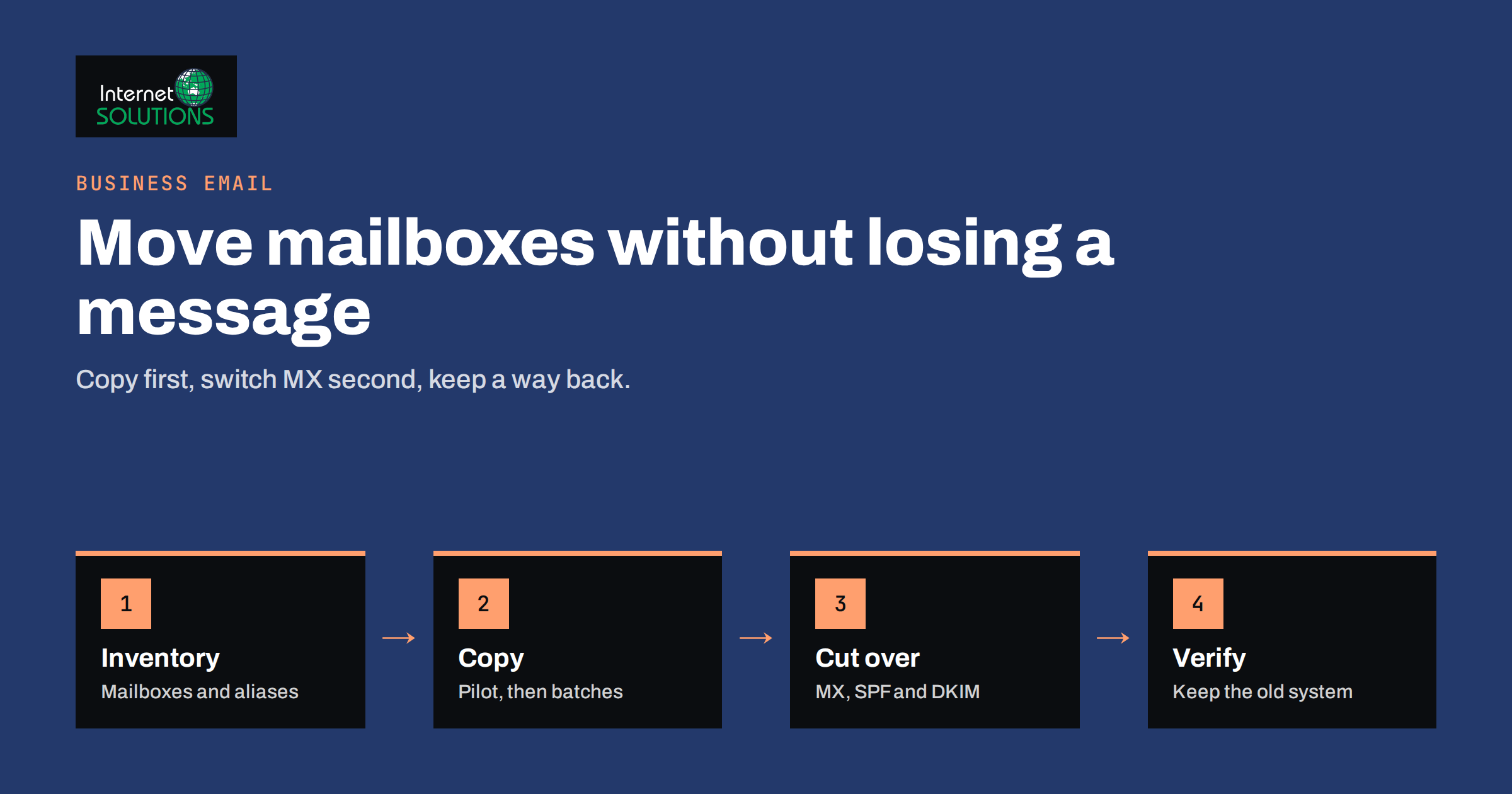
Email migration means moving mailboxes, folders, contacts and calendars from one email system to another, for example from an old hosting package to Google Workspace or Microsoft 365, or from one provider to another after a price increase or a poor experience. Done carefully, it takes a few days and nobody notices. Done carelessly, it loses messages, interrupts incoming mail for hours and leaves staff hunting for old attachments. Because email is where invoices, contracts and customer conversations live, a migration deserves a proper plan.
This guide covers the planning, the technical steps, the order of work and the checks that keep a business mailbox migration safe. It is written for owners, office managers and IT contacts at small and medium businesses. It builds on our comparison in business email hosting: Workspace, Microsoft 365 or self-hosted, which helps you choose the destination.
Why Mailbox Migrations Go Wrong
The same few problems cause most failed migrations.
- DNS changes made at the wrong moment. The MX records, which tell the world where to deliver your mail, are switched before the new mailboxes are ready, and messages bounce or land in the wrong place.
- Old and new systems running side by side without a plan. Some people read the old mailbox while others use the new one, and messages are split between the two.
- Incomplete copying. Large attachments, archives, shared folders, contacts and calendar items are missed, or the copy stops at a size limit.
- Authentication forgotten. SPF, DKIM and DMARC are not updated, so mail from the new provider is flagged as suspicious.
- Devices not reconfigured. Phones, tablets and mail clients keep pointing to the old server, and users think mail has disappeared.
- No rollback. There is no written plan for returning to the old system if something fails.
Every one of these can be prevented with preparation, as the next sections show.
Step 1: Take an Inventory
List everything that exists today. You cannot migrate what you have not counted.
- Mailboxes. Every individual mailbox, with its size, owner and whether it is still in use.
- Aliases and forwarding rules. Addresses that deliver into other mailboxes, such as info@ or sales@, and any automatic forwards to outside addresses.
- Shared and group mailboxes. Team inboxes, distribution lists and shared calendars.
- Contacts and calendars. Whether they are stored in the mail system or elsewhere.
- Connected systems. Websites, online stores, CRM tools, printers, scanners and monitoring services that send mail through the old server.
- Domains. Every domain that receives mail, including old brand names and redirected domains.
- Storage and retention. How much data there is and whether legal or business rules require you to keep it.
Remove mailboxes of people who left, but archive their data first. Our checklist for employee onboarding and offboarding explains how to handle accounts of departing staff.
Step 2: Choose the Migration Method
There are several ways to move data, and the right one depends on the size, the systems and the time available. The table compares the common methods.
| Method | How it works | Best for | Limitations |
|---|---|---|---|
| Provider migration tool (IMAP) | The new provider connects to the old mailbox and copies mail, often folder by folder | Moving from a standard hosting mailbox to Workspace or Microsoft 365 | Usually copies mail only; contacts and calendars may need separate steps |
| Full-system migration (Exchange or similar) | Mailboxes, calendars and contacts are moved in batches, sometimes with a staged cutover | Larger organizations with an existing Exchange or compatible server | Needs admin access and more planning |
| Third-party migration service | A specialized tool or consultant handles the transfer | Complex setups or many mailboxes | Cost, and you must trust the tool with access to the data |
| Manual export and import | Users export mail to files and import it into the new account | Very small teams or a few mailboxes | Slow, error-prone and easy to forget items |
| Keep old mail as an archive | New mail goes to the new system; the old mailbox stays read-only for a period | Cases where only recent mail must be available daily | Two places to search until the archive is retired |
Microsoft documents several routes in its guide to mailbox migration to Microsoft 365, and Google explains how to import your organization’s data to Google Workspace. Read the instructions for your destination before you decide.
Step 3: Prepare the New System
Create the new environment before any mail moves.
- Verify the domain. Add your domain to the new provider and complete the ownership check without yet changing the MX records.
- Create the users and aliases. Match the addresses exactly, including aliases and group addresses.
- Set up security. Turn on multi-factor authentication, set password rules and review admin roles from the start.
- Prepare authentication records. Draft the new SPF record and note where to publish the DKIM key. Then decide on a DMARC policy. Our article on SPF, DKIM and DMARC explains each record.
- Lower the DNS time to live. A day or two before cutover, reduce the TTL on the MX records to something like 300 seconds, so the change spreads quickly when you make it.
- Plan a quiet window. Choose an evening or weekend when mail volume is low.
Step 4: Copy the Existing Mail
Start the copy before the cutover so that the bulk of the data is already in place. Most tools do an initial copy and then a second pass that picks up new items.
- Pilot with one or two mailboxes. Choose people who are tolerant of problems, and check folder structure, attachments, dates, sent items and calendar entries.
- Migrate in batches. Move a department at a time instead of everyone at once, so support is manageable.
- Watch the logs. Look for items that failed to copy, usually because of size limits, corrupt messages or permission problems, and decide how to handle them.
- Compare counts. After copying, compare message counts per folder between the old and new mailboxes. Small differences can be explained, but large gaps need investigation.
- Keep the source untouched. Do not delete anything from the old system during the migration.
Step 5: Cut Over the Mail Flow
The cutover is the moment when incoming mail starts arriving in the new system. It is a short, well-defined change if you have prepared.
- Announce the change. Tell staff what will happen, when, and what they must do afterwards.
- Run a final sync. Copy any mail that arrived since the last pass.
- Change the MX records. Point them to the new provider and remove the old values, so there is no competing priority.
- Update SPF and publish DKIM. Authorize the new provider to send for your domain, and remove outdated senders you no longer use. Add or confirm your DMARC record.
- Test inbound and outbound mail. Send messages from outside addresses to several mailboxes and check that they arrive. Send from the new system to major providers and check headers for passing authentication.
- Run another sync. Some servers cache the old MX for a while, so a final pass a few hours later collects stragglers.
During the propagation window, messages may reach either system. Keep the old mailboxes active until you are sure that all delivery has moved.
Step 6: Reconnect People and Devices
Technical success does not equal user success. People must be able to reach their mail the next morning.
- Reconfigure clients. Update or recreate accounts in desktop programs and on phones, using the new settings, or sign in through the provider’s app.
- Give simple instructions. A one-page guide with screenshots for each device type saves many support calls.
- Move contacts and calendars. Confirm that meeting invitations, recurring events and shared calendars survived.
- Update connected systems. Point your website forms, online store, scanners, CRM and monitoring tools to the new sending settings or to a dedicated sending service.
- Offer help on day one. Be available for the first morning, since this is when most questions arise.
Step 7: Verify, Then Retire the Old System
After the cutover, check carefully before turning anything off.
- Confirm that every mailbox receives and sends mail, including shared and group addresses.
- Review spam folders and bounce messages for signs of misrouted or rejected mail.
- Compare final message counts and spot-check older mail and attachments with users.
- Keep the old mailboxes and hosting for a safe period, commonly two to four weeks, in case something is found missing.
- Export an archive of the old data for compliance or future reference, and store it securely.
- Only then cancel the old service and remove forwarding rules and legacy DNS records.
If you need help planning a move or running the migration, our IT maintenance team handles business email projects, and you can contact us to discuss it.
Special Cases to Plan For
Some situations need extra care beyond the standard steps.
- Very large mailboxes. Mailboxes of tens of gigabytes take a long time to copy and may exceed limits in the new service. Start early, archive old years separately and consider keeping a read-only archive of older mail.
- Shared mailboxes and delegated access. Permissions often do not move with the mail. Record who can read or send as each shared address, and recreate those rights on the new side.
- Mail rules and signatures. Server-side rules are sometimes migrated, but client-side rules and signatures usually are not. Ask users to note their important rules before the move.
- Multiple domains and catch-all addresses. Make sure each domain is added and verified, and decide consciously whether a catch-all address is still wanted, since it attracts a lot of spam.
- Compliance and retention. If you must keep email for a legal period, take a full export before the old service is closed and store it securely with access control.
- Staff who are away. People on leave still need their mailbox moved, and their devices reconfigured when they return.
Communicate openly about the timetable. A short note a week before, a reminder the day before and a confirmation after the cutover prevent confusion and reduce the number of “where did my email go” calls.
A Rollback Plan
Even a good migration needs an exit. Write down, before you start, what counts as failure, who decides and what the steps are to return. In most cases, rollback means switching the MX records back to the old provider, which is quick if the TTL is low and the old mailboxes are still active. Keep admin access to the DNS and to both systems available during the migration window, and document where the credentials are stored.
Frequently Asked Questions
How long does an email migration take?
For a small business with a handful of mailboxes it can be done in a day or two of active work, though the copy of large mailboxes may run longer in the background. Larger organizations plan over weeks, using batches and a pilot.
Will I lose emails during migration?
You should not, if you copy before the cutover, run a final sync after it, and keep the old system active for a few weeks. Messages are lost mainly when MX records are changed too early or when the old mailbox is deleted prematurely.
What are MX records and why do they matter?
MX records are DNS entries that tell the internet which servers receive mail for your domain. Changing them is what actually moves incoming email to the new provider, so the timing of that change is the most critical step.
Do I need to update SPF, DKIM and DMARC after moving?
Yes. These records tell receiving servers which systems may send mail for your domain. If they still list only the old provider, mail from the new one may be rejected or marked as spam.
Can I migrate without downtime?
Mail does not need to stop. With a lowered TTL, a pilot, an initial copy and a final sync, most migrations cause no visible interruption. Users may need a short period to sign in to the new system.
What should I do with the old mailboxes afterwards?
Keep them for a few weeks as a safety net, then archive the data if you need to retain it and delete the mailboxes. Remember to remove old forwarding rules, DNS entries and unused accounts.
The Bottom Line
A safe email migration follows a clear order. Take an inventory of mailboxes, aliases, shared inboxes and connected systems, choose the migration method that fits, and prepare the new system, including security and authentication records, before any mail moves. Copy existing mail first, test with a pilot, then switch the MX records during a quiet window, run a final sync and verify that mail flows in both directions. Support people and devices on the first day and keep the old system for a few weeks with a written rollback plan. With that discipline, moving mailboxes is a routine project and not a risk to the conversations your business depends on.