

 English
 Lietuvių
 Latviešu
 Eesti
Eesti Русский
 Polski
 Українська
 Deutsch
 Italiano
 Español
 Français
 Português
 Čeština
 Magyar
 Română
 Ελληνικά
 Türkçe
 日本語
日本語 العربية
 हिन्दी
 Bahasa Indonesia
 Bahasa Melayu
 ไทย
ไทย Tiếng Việt
 বাংলা
বাংলাGoogle Postmaster Tools: Reading Spam Rate and Domain Reputation
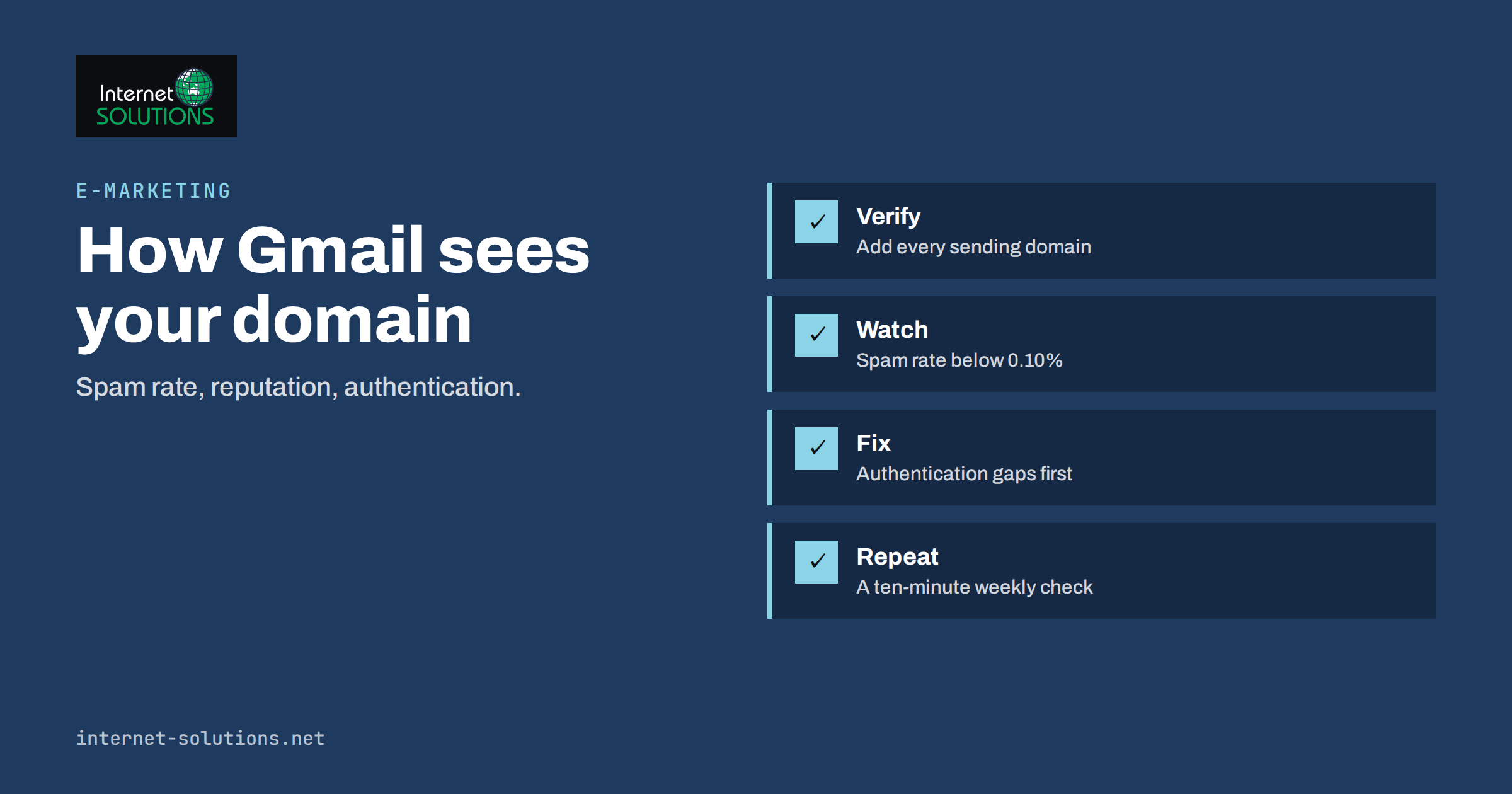
Google Postmaster Tools is the closest thing a sender gets to a window into how Gmail sees a domain. Most email problems arrive silently: open rates slide, replies thin out, and a campaign that used to reach the inbox starts landing in spam without any bounce message to explain why. Google Postmaster Tools turns part of that silence into charts, showing the share of your mail that recipients mark as spam, how Gmail rates your domain, and whether your authentication and encryption are in order.
This guide explains what the tool shows, how to verify a domain, how to read each report, what the numbers should look like, and what to do when they go wrong. It is written for the person who sends newsletters, order confirmations or sales email from a business domain and wants to catch trouble early, before a sender reputation problem becomes a revenue problem.
What Google Postmaster Tools Actually Measures
Postmaster Tools is a free service from Google for people who send mail to Gmail users. It does not read anyone’s messages. It reports aggregated signals about the mail that Gmail receives from your domain: user spam complaints, authentication results, encryption and delivery errors. Because Gmail is one of the largest mailbox providers, those signals are a useful proxy for how other providers may treat you too, although each provider keeps its own opinion.
Two points matter before you open the dashboard. First, the data is only shown when your domain sends enough mail to Gmail users to produce a meaningful sample. A small business sending a few dozen messages a day will often see empty charts, which is not a fault. Second, Google has revised its Postmaster dashboards over time, so the names of panels may differ slightly from the ones described here. The underlying ideas stay the same, and the checks in this article apply whichever layout you see.
Verify Your Domain First
You prove ownership of the domain, not of a single mailbox. The usual route is a DNS TXT record that Google gives you, added at the DNS host for the domain you send from. If your mail is sent from a subdomain such as mail.example.com, add and verify that domain as well, because reports are organised by the domain in the visible From address and in the DKIM signature.
- Add every sending domain. Your main domain, any marketing subdomain and any transactional subdomain that you use for receipts and notifications.
- Keep the TXT record in place. Removing it later can remove access to the data.
- Give access to the right people. Use a shared account or a role mailbox instead of one person’s personal login, so the data survives staff changes.
- Be patient. Data can take a few days to appear after verification, and gaps are normal on days with low volume.
If you are unsure how DNS records are edited, our guide to DNS for business owners explains the basics, including why a change can take time to appear.
The Reports and How to Read Them
Spam rate
This is the most important chart. It shows, as a percentage, how many of the messages delivered to inboxes were marked as spam by recipients. Google’s published sender guidance asks senders to keep the rate below 0.10 percent and to avoid ever reaching 0.30 percent. That sounds tiny, and it is meant to be: one complaint per thousand messages is already a visible signal. A sudden step up usually points to a specific campaign, a purchased or old list, or a mismatch between what people signed up for and what you sent.
Domain and IP reputation
Older versions of the tool grade the domain and the sending IP addresses on a scale from bad to high. Domain reputation follows you across providers and servers, so it is the one to protect. IP reputation matters most when you send from a dedicated address, and much less when an email service provider shares addresses between many customers. If you see a low grade, treat it as a lagging indicator: it reflects weeks of behaviour, and it recovers slowly.
Authentication
This report shows the share of your mail that passes SPF, DKIM and DMARC alignment. Anything below almost 100 percent for mail you actually sent deserves an investigation. Common causes are a newsletter platform that sends on your behalf without a DKIM key for your domain, a CRM that was added later, or a forgotten server that still sends system messages. Our article on SPF, DKIM and DMARC explains how to find and fix each of these.
Encryption
This chart shows the share of mail delivered over TLS. For almost every modern sender it should sit at or near 100 percent. A drop usually means a legacy server or a third-party system that is not negotiating encryption.
Feedback loop and delivery errors
If you add a Feedback-ID header to your messages, the feedback loop view can group spam complaints by campaign or customer segment, which is far more useful than a single domain-wide number. The delivery errors view lists temporary and permanent rejections, such as rate limiting or content-based refusals. Together they show whether a problem is spread across all your mail or concentrated in one stream.
Target Numbers at a Glance
| Signal | Healthy | Investigate | Typical cause when it slips |
|---|---|---|---|
| Spam rate | Below 0.10 percent | Consistently above 0.10 percent; never reach 0.30 percent | Old or bought lists, hard-to-find unsubscribe link, unexpected content |
| Domain reputation | High or medium | Low or bad | Weeks of complaints, sudden volume jumps, mixed streams |
| Authentication | Close to 100 percent of your own mail | Any visible failure | Missing DKIM for a new platform, SPF too long, forwarding |
| Encryption (TLS) | Close to 100 percent | Visible drops | Old servers, misconfigured relays |
| Delivery errors | Rare and temporary | Repeated rejections | Rate limits, blocked content, reputation problems |
The Rules Behind the Numbers
Since early 2024 Google has applied stricter requirements to senders who deliver large volumes to personal Gmail accounts. The published guidance calls for authenticating mail with SPF and DKIM, publishing a DMARC policy, keeping spam rates low, and making unsubscribing easy for marketing and subscribed messages. Marketing mail should support one-click unsubscribe through the List-Unsubscribe headers described in RFC 8058, and unsubscribe requests should be honoured promptly. The full and current wording is in Google’s email sender guidelines, and it is worth reading directly because details and thresholds can change.
Even if you send far less than the volume that triggers the strictest rules, following them is cheap insurance. Small senders are judged by the same signals, just with less data, which means a few complaints can weigh heavily.
A Weekly Routine That Takes Ten Minutes
- Open the spam rate chart for the last 30 days. Look for steps and spikes, then match each one to a send date in your email platform.
- Check authentication. A single failing source is easier to fix this week than next month.
- Look at delivery errors. Repeated temporary errors suggest you are sending too fast or too much at once.
- Compare with your own metrics. If Postmaster shows a rise in complaints and your open rates fell in the same week, you have a consistent story. Remember that open rates are less reliable after privacy changes, as covered in our article on email marketing metrics after Apple Mail Privacy Protection.
- Write down what you changed. A short log of list imports, template changes and new senders turns the charts into evidence.
What to Do When the Numbers Turn Bad
Spam rate is rising
Pause the least engaged segment first. Send only to people who opened, clicked or purchased recently, and put a clear reason to stay subscribed in the message. Check that the unsubscribe link is visible and works in one step, because recipients who cannot find it press the spam button instead. Review where the addresses came from: a list collected years ago, or by a method the subscribers do not remember, will produce complaints at almost any volume. Our guide to email list hygiene covers the cleaning steps.
Domain reputation is low
Recovery is a matter of consistent good behaviour. Reduce volume, send only to engaged contacts, keep sending patterns regular, and avoid mixing transactional and promotional mail on the same stream if you can separate them. Expect weeks, not days.
Authentication fails for a source
Identify the sending system from the report or from message headers, then add or correct its DKIM key and SPF include. Do not tighten your DMARC policy until you have confirmed that all legitimate sources pass.
Reputation looks fine but mail still goes to spam
Postmaster Tools measures domain-level behaviour. A single message can still be filtered for its content, links or attachments. Test a plain version of the message, check that links point to reputable domains, and make sure the visible sender name matches the domain. A blocklist listing on a different network is a separate problem, which we cover in email blacklists: how to check, get delisted and stay off them.
Limits of the Tool
- It covers Gmail only. Outlook, Yahoo and corporate filters have their own signals and, in some cases, their own sender tools.
- Small senders see little. Lack of data is not a clean bill of health, only a lack of data. Use seed tests and your own platform’s reports instead.
- It does not tell you which message caused a complaint. Feedback-ID headers and good campaign naming are what let you connect numbers to sends.
- It lags. Reputation moves slowly in both directions, so judge by trends across weeks.
Connecting the Tool to Your Sending Setup
The best use of Postmaster Tools is as part of a deliberate setup. Separate your streams so a newsletter problem cannot damage order confirmations. Warm up new domains and ramp volume gradually, as described in our guide to email warm-up. Keep SPF, DKIM and DMARC aligned for every sending platform you add. And make unsubscribing as easy as subscribing, because a recipient who leaves politely never becomes a complaint. If you want help auditing the whole chain, from DNS records to campaign design, our e-marketing team can review it with you.
Common Mistakes
- Verifying only the main domain and ignoring the subdomain that actually sends the mail.
- Treating empty charts as proof that everything is fine.
- Importing an old list right before a big campaign.
- Hiding the unsubscribe link in tiny grey text.
- Tightening DMARC before every legitimate sender is aligned.
- Checking the dashboard only after a problem is obvious.
- Sending transactional and promotional mail from the same address and domain.
Frequently Asked Questions
Is Google Postmaster Tools free?
Yes. It is a free service from Google. You need a Google account and the ability to add a DNS record to the domain you want to monitor.
Why do I see no data?
Usually because your domain does not send enough mail to Gmail users to produce a reliable sample, or because verification is incomplete. Check the DNS record, confirm you added the correct sending domain and wait a few days.
What is a good spam rate?
Google’s guidance asks senders to stay below 0.10 percent and never reach 0.30 percent. Treat anything above 0.10 percent as a prompt to review list quality and content.
Does it show which campaign caused the problem?
Not by default. If you add a Feedback-ID header to your messages, the feedback loop can break complaints down by campaign or segment. Otherwise match dates on the chart to your send log.
Do I need Postmaster Tools if I use a newsletter platform?
It is still worthwhile. The platform can show opens and clicks, but Postmaster shows how Gmail judges your domain independently. It is a useful second opinion.
Can it fix my deliverability?
No. It only reports. The fixes are in your list quality, content, authentication and sending habits.
The Bottom Line
Verify every domain that sends your mail, review the spam rate and authentication charts once a week, and keep a short log of what you send and change. Aim for a spam rate below 0.10 percent, near-complete authentication and encryption, and clean opt-in lists with an obvious unsubscribe. When a number moves, act on the cause, whether it is an old list, a missing DKIM key or a rushed campaign, rather than waiting for the inbox to tell you. A few minutes of attention each week protects every email you send afterwards. If you would like a second pair of eyes on your setup, start with our e-marketing page.