

 English
 Lietuvių
 Latviešu
 Eesti
Eesti Русский
 Polski
 Українська
 Deutsch
 Italiano
 Español
 Français
 Português
 Čeština
 Magyar
 Română
 Ελληνικά
 Türkçe
 日本語
日本語 العربية
 हिन्दी
 Bahasa Indonesia
 Bahasa Melayu
 ไทย
ไทย Tiếng Việt
 বাংলা
বাংলাLive Chat for Several Websites: Multiple Sites in One Talkmio Account
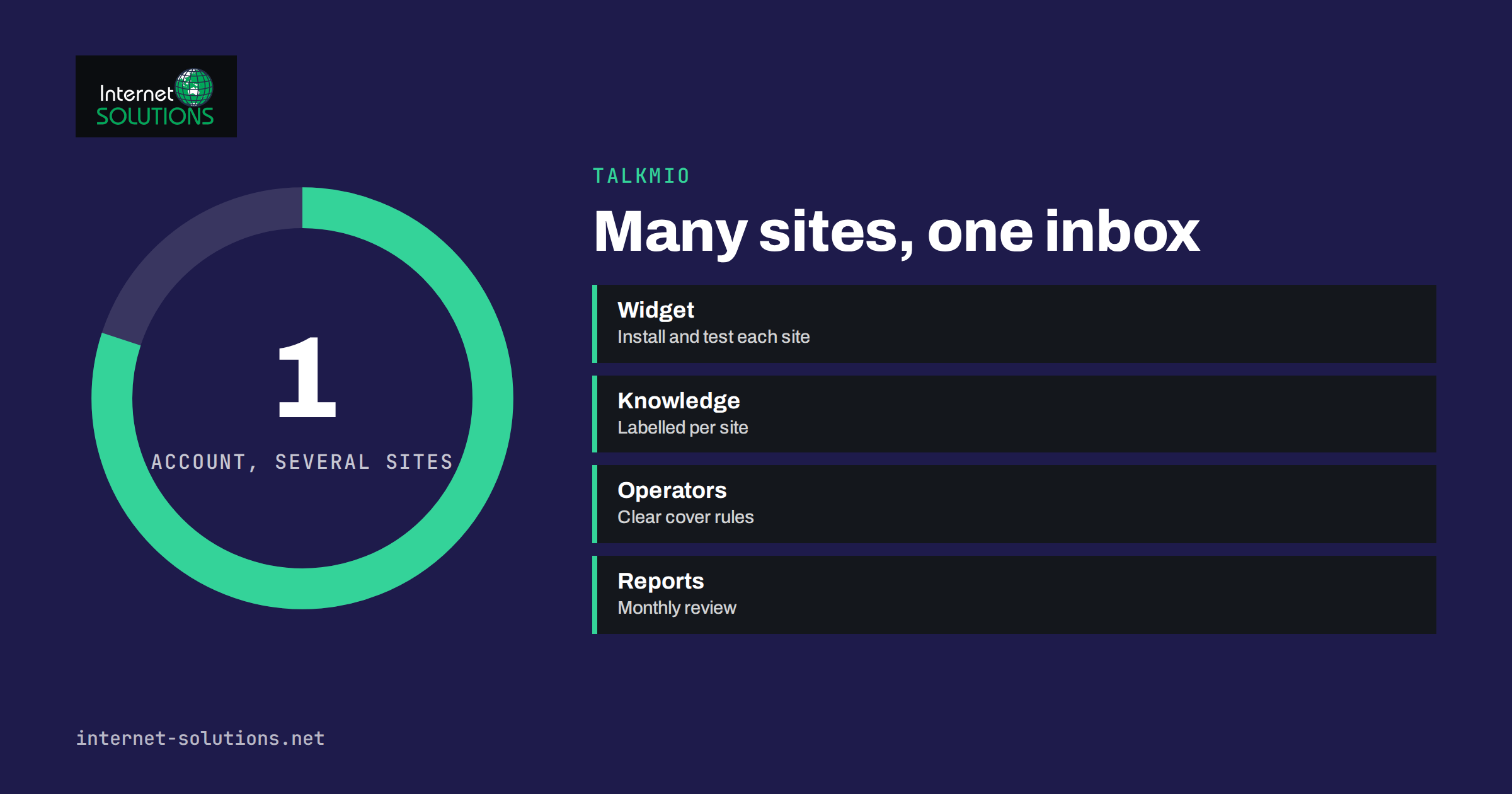
Running live chat for several websites is a different job from running it for one. A company with a main site, a web shop and a regional site, an agency with a dozen client sites, or a founder with two or three brands all face the same questions: can one account serve every site, how do the chats arrive in one place, who answers what, and how do you stop one site’s answers leaking into another? This guide looks at how to plan live chat for several websites with Talkmio. It uses the facts published on the Talkmio website and pricing page, and it points out where you should test behaviour yourself instead of assuming it.
The aim is a setup that is easy to start, easy to hand over and honest with visitors, whether you manage three sites or thirty.
Why Combine Sites in One Account
Separate accounts for every site look tidy at first and become a burden quickly. You log in and out, you repeat the same settings, and your team sees only part of the picture. One account with several websites is simpler to run: Talkmio describes a single inbox where live chats, e-mails and tickets arrive together, and the pricing page lists the number of websites as one of the limits of each plan. The Free plan includes one website, Pro three, Ultimate ten, and the larger Enterprise plans fifty, one hundred and five hundred. Check the pricing page for the current figures before you plan.
The main benefits of combining sites are practical:
- One place for your team to answer customers, with the full history of each conversation.
- One set of operators, so a person can help on several sites without extra logins.
- One bill and one place to export or delete data when you need to.
- Reports in a single account, so you can see how the chat performs overall.
There are good reasons to keep accounts separate too, and we cover them near the end.
What Counts Against Your Plan
Before you add sites, count what each plan limits. The Talkmio pricing page lists these items per plan: operators, websites, AI answers per month, tickets per month, knowledge base pages and the length of history. Some features, such as the e-mail channel with tickets, Facebook, Instagram and WhatsApp channels, reports export and API access, belong to particular plans.
| Limit | What to estimate | Why it matters with several sites |
|---|---|---|
| Websites | How many sites will carry the widget now and within a year | Decides the minimum plan |
| Operators | How many people answer chats across all the sites, not per site | One person on several sites uses one seat |
| AI answers per month | Visitor questions per month, summed across sites | A busy shop can use up an allowance that a quiet site would never touch |
| Knowledge base pages | The pages, answers and documents Mio needs for every site | Several sites need several sets of content |
| Tickets per month | E-mails and follow-ups across sites | Free has a monthly allowance; higher plans list unlimited tickets |
| History | How long you need old conversations | Matters for agencies that report to clients |
A simple way to estimate AI answers is to take the number of monthly visitors on each site, assume a small share start a chat, and then add a margin. Start on a plan that fits your first few sites and move up when the numbers show you need to. Our guide to Talkmio plans explained shows how to do that estimate step by step.
Adding the Widget to Each Site
Talkmio asks for one line of code before the closing body tag, or the WordPress plugin, and it works with WordPress, Shopify, Wix, Squarespace, Webflow and custom sites, as the pricing page says. For several sites, the process repeats: add the website in the account, install the widget, and confirm it loads. Do it in a consistent order and keep a checklist so nothing is skipped.
- Add the website in your account with its correct domain and a clear name that your team will recognise.
- Install the widget using the platform’s normal method: a script tag, a theme setting or the plugin. Our guide to adding live chat to Shopify, Wix, Webflow and Squarespace covers the common ones.
- Test it on the live site in a private browser window, and on a phone.
- Set the look, greeting and hours for that site, as described below.
- Teach Mio using that site’s pages, questions and documents.
- Run a test conversation and check how it appears in the inbox.
Keep a simple register with one line per site: domain, platform, who installed the widget, the date, the plan limit used and any special settings. When someone asks why a widget is missing from the checkout page of the regional shop, this register answers it in seconds.
Give Each Site Its Own Voice
Visitors of different brands expect different tones, and visitors of one brand in different regions expect different languages. Configure each website separately. The widget’s colours, greeting, pre-chat form and business hours can be set to match each site; our article on widget setup lists the options. Talkmio’s Mio replies in the language the visitor writes in, and the chat window itself is translated, so a multi-country setup does not need a separate widget per language, though you should still check that the greeting and hours read well in your main languages.
Consider these site-level decisions:
- Name and avatar. A shop and a consultancy might want a different welcome, even if the same team answers.
- Business hours. A shop may promise evening replies, a B2B site only office hours. State the hours honestly in the greeting.
- Pre-chat form. Ask for an e-mail address where you need to follow up, and nothing more where you do not.
- Pages where chat appears. Perhaps prominent on pricing and contact pages and quieter elsewhere.
Teaching Mio Without Mixing Sites
The knowledge you give Mio is the heart of the setup. Talkmio states that Mio reads your website, FAQ and uploaded documents, that every answer comes from that content, and that it hands the conversation to your team when it is not sure. With several sites, the risk is accuracy: an answer about delivery times correct for one shop could be wrong for another.
Reduce the risk with a few habits:
- Keep content per site clearly labelled. Name documents and Q&As with the site they belong to, for example “Shop A returns policy”.
- Do not upload shared documents blindly. A price list for one brand should not be the source for another.
- Test with questions that differ between sites, such as delivery times, prices, opening hours and returns, on each site, and read the answers.
- Review conversations in the first weeks, especially those where Mio handed off, and add the missing answers.
- Keep a list of common facts per site and update it whenever offers change.
Our guide to the Talkmio knowledge base describes what to teach and how to test answers. If you manage client sites, make the test results part of your onboarding, and share the list of facts with the client so they can confirm it.
Organising Operators and the Inbox
Operators are the people who answer, and the plan sets how many you can have. Decide who covers which site and when. A small team often shares everything; an agency may give each client a main contact and a backup. Write the rules down: who takes over when someone is absent, what response time you promise, and which topics go to which person.
Talkmio’s inbox offers quick replies, internal notes and assignments, and our article on the inbox workflow explains how to use them. With several sites, create quick replies that are specific to each site, since the greeting, signature and policy details differ. Use internal notes to record promises made to a customer so the next person sees them.
Before you add client sites, open a test conversation from each site and check how it appears in the inbox, so your team can tell the sites apart at a glance. If anything is unclear, add the site name to your quick replies or to the pre-chat greeting so that nobody answers a shop customer with the wrong brand’s policy.
Measuring Each Site
Talkmio reports include conversations per day, how much Mio solves alone, first-reply time and ratings. With several sites, set a simple monthly routine: review the numbers, list the questions Mio could not answer, and decide what to teach next. Keep a short log with the site, the period and the main finding. If you report to clients, a brief monthly note with these figures and the improvements you made demonstrates value. Our article on live chat metrics explains how to read them without drawing the wrong conclusions.
When you compare sites, compare like with like. A site with few visitors and complex products will show fewer chats and more handoffs than a simple shop. Compare each site with its own history, not with a different site.
Privacy and Client Data
Chats contain personal data, so treat them carefully. Talkmio states that conversations belong to you and that you can export or delete them at any time. For your own sites, tell visitors in your privacy notice that a chat tool is used and what happens to the conversations. Our guide to live chat and GDPR covers the points to include. If you manage chat for clients, agree in writing who is responsible for what: who owns the conversations, who may export them, how long they are kept and what happens when the contract ends. The European Commission’s pages on data protection are a good starting point for the rules that apply.
Single Account or Separate Accounts?
| Situation | Single account | Separate accounts |
|---|---|---|
| One company, several sites | Best choice: one team, one inbox | Rarely needed |
| Agency managing client sites | Works if the client accepts you as the data holder | Better if clients want to own their data and billing |
| Brands with different teams | Possible, with clear assignments | Better when teams must not see each other’s chats |
| Clients who may leave | You must export and hand over data on exit | Handover is simpler: transfer the account |
| Strict confidentiality between sites | Check that your access rules suffice | Safer |
If you are an agency, a good compromise is to start each client in their own account while the relationship is new, and consolidate only when the roles and the data responsibilities are clear. If you also run client websites with us or build them elsewhere, our Talkmio page summarises what the product offers, and the pricing page at talkmio.com always shows the current plans.
A Rollout Plan for Several Sites
- Week 1. Choose a plan that fits the first sites. Add the first site fully, with knowledge, hours and a test conversation.
- Week 2. Review the first conversations. Add missing answers. Write the quick replies for that site.
- Week 3. Add the second and third sites using the same checklist. Test the differences in answers.
- Week 4. Review limits: answers used, operators needed, pages in the knowledge base. Decide whether to upgrade.
- Every month. Review reports, update the knowledge, and check that each widget still loads after site changes.
Frequently Asked Questions
How many websites can I add to one Talkmio account?
It depends on the plan. The pricing page lists one website on the Free plan, three on Pro, ten on Ultimate and more on the Enterprise plans. Check the page for current limits before you plan.
Do I need a separate operator seat for each site?
The plan limits operators, as people who answer chats. The pricing page lists operators and websites as separate limits, so one operator can cover several sites within the plan’s allowance.
Will Mio answer in the visitor’s language on every site?
Talkmio says Mio replies in the language the visitor writes in, and the chat window is translated too. Still, test the greeting and a few answers in your main languages on each site.
How do I stop answers from one site appearing on another?
Keep each site’s content clearly labelled, avoid uploading shared documents unless they apply to every site and test questions that differ between sites. Review early conversations and fix gaps.
Can I use the same account for client websites?
You can, if the client accepts it and you agree on data ownership, export and exit terms. Many agencies prefer separate accounts so that handover is simple.
What if I outgrow my plan?
You can move to a larger plan; the Internet Solutions page about Talkmio says you can upgrade or cancel at any time. Review your usage each month so the change is planned rather than a surprise.
The Bottom Line
Live chat for several websites works best from one account when one team serves the sites, and from separate accounts when data, billing or confidentiality must stay apart. Count the plan limits across all sites, install and test the widget with a checklist, give each site its own greeting and hours, keep knowledge labelled and tested per site, and review reports monthly. A tidy register and a few clear rules make three sites as easy to run as one, and thirty sites manageable.