

 English
 Lietuvių
 Latviešu
 Eesti
Eesti Русский
 Polski
 Українська
 Deutsch
 Italiano
 Español
 Français
 Português
 Čeština
 Magyar
 Română
 Ελληνικά
 Türkçe
 日本語
日本語 العربية
 हिन्दी
 Bahasa Indonesia
 Bahasa Melayu
 ไทย
ไทย Tiếng Việt
 বাংলা
বাংলাPhoto Privacy: Removing Location and Camera Data Before You Publish
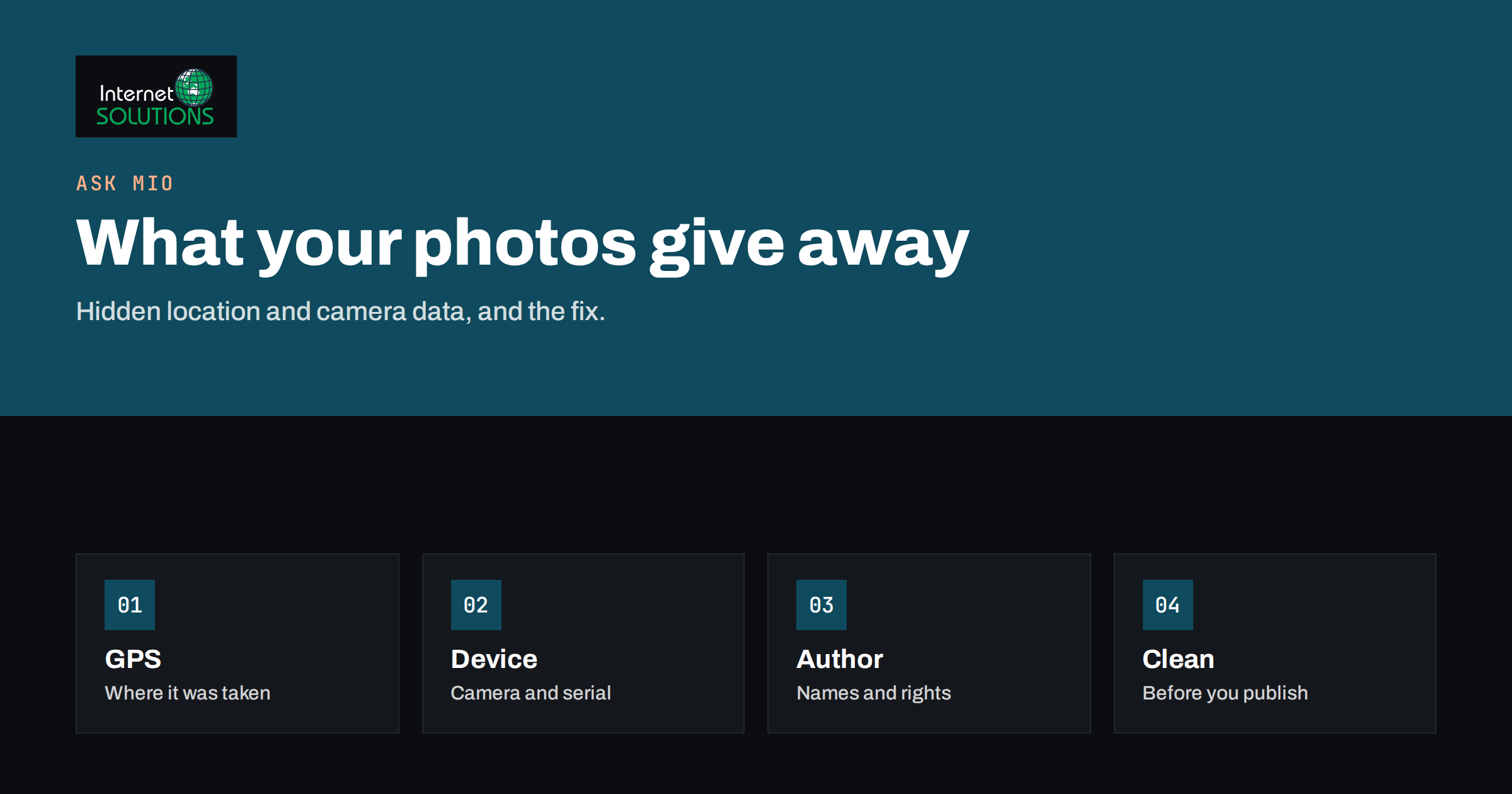
Photo privacy is easy to overlook because the problem is invisible. A picture you take on your phone and upload to your website, a social post or a classified ad can carry more than pixels: it may include the GPS coordinates of where you stood, the make and serial number of the camera, the time to the second and sometimes the name of the person who took it. Most visitors never see this data, but anyone who downloads the file and opens it in a metadata viewer can read it in a moment.
This guide explains what that hidden data is, which situations carry real risk for a business, how to check a photo, how to remove metadata with simple tools and how to build the habit into your publishing routine. It also covers the visible side of photo privacy, such as faces, number plates and screens, because cleaning the file is not enough when the picture itself shows too much. It supports our work on website development, where image handling is part of everyday publishing.
What Is Hidden Inside a Photo File
Most photos contain a block of metadata in a format known as EXIF. Camera and phone makers write it automatically when the picture is taken. Other metadata standards, such as IPTC and XMP, are added by editing software, photo libraries and agencies. Together they can hold a surprising amount of information.
- Location. If location services were on when the picture was taken, the file can contain latitude and longitude, often accurate to a few metres, and sometimes altitude and direction.
- Device details. The make and model of the camera or phone, the lens and sometimes a serial number of the body.
- Date and time. When the picture was taken and modified, often with seconds and a time zone offset.
- Settings. Exposure, aperture, focal length and flash, which are harmless but show how the picture was made.
- Author and rights. A name, a copyright line, a contact address or a software name entered in a camera setting or in an editing program.
- Edit history and thumbnails. Some editors keep a history of changes and an embedded preview that may even show the uncropped original.
Not all of these fields are present in every file. Phones typically write location, device and time. Professional cameras write more camera details. Editing software may add its own. The only way to know what your file contains is to look.
Why It Matters for a Business
For a private person, a location in a photo can reveal a home address. For a business, the risks are more varied, and some are less obvious.
A home-based business that posts product photos taken in the kitchen could expose the owner’s home location. A tradesperson who photographs a finished job could publish the exact address of a customer’s house without the customer’s knowledge. A company that shows pictures of a new office, a warehouse or a delivery vehicle may give away security-relevant details. A staff member who uploads a photo from a private event can expose the place and time to anyone who downloads the file.
There is also a data protection angle. Location data and images of identifiable people can be personal data. If your website publishes photos of customers, staff or children, you are responsible for how that data is handled, and stray metadata adds to the data you hold and share. Our article on cookie consent, GDPR and website privacy covers the wider compliance picture.
Finally, there are practical business reasons. Competitors can see which camera or software you use, which is minor, but also when pictures were taken, which can reveal that a “new” product photo is a year old. Metadata can contradict a claim you make in your copy, and that damages trust.
Where Photos Get Published Without Being Cleaned
Many social platforms remove most metadata when you upload, but practice differs between platforms, and it can change. Do not assume that a service strips everything, and never rely on it for sensitive material. Metadata that is removed from the public copy may still be stored by the platform.
Your own website is a different case. When you upload a photo to a WordPress media library, the original file is stored as it is, and it may be served to visitors at its full address. The platform may read some metadata fields to fill in details in the media library, but it does not promise to clean the file for you. Resized versions may be handled differently from the original, so check actual files rather than trusting a general statement.
Email attachments, messaging apps that send “original quality”, cloud links to a shared folder, classified ad sites, product listings on marketplaces and press kits all carry files that may include full metadata. The more control you give to others to download the original, the more important it is to clean it first.
How to Check a Photo
Looking at a file’s metadata is simple. On most computers, right-click the file and open its properties or information window; the details tab shows fields such as camera model, date taken and, if present, GPS coordinates. On a phone, the photo viewer usually offers an information view that shows the location and device. For deeper inspection, free tools such as ExifTool read every field in the file. The ExifTool FAQ explains what it can read and write.
The best test is to check what is actually served from your website. Download an image from your live page, using the original file address rather than a screenshot, and inspect that file. Do the same with a few images from different dates, because your process may have changed over time. If you find location data in files that are public, treat it as an incident: remove or replace the files, and consider whether anyone could have used the information.
Removing Metadata: Options Compared
| Method | How it works | Good for | Watch out for |
|---|---|---|---|
| Disable location on the camera | Turn off location tagging in the phone’s camera settings | Preventing the problem for all future photos | Does not clean old photos or other fields such as device details |
| Built-in file properties | Use “remove properties and personal information” in the operating system | Occasional single files | Slow for many files and may leave some fields |
| Export from an editor | Choose the option to strip metadata when exporting | Teams that already edit photos | Settings differ; test the exported file |
| Command-line tools | For example, ExifTool with an option to remove all tags | Batches and automated routines | Removing everything also removes colour profiles and rights information |
| Upload-time cleaning on your website | A plugin or server step that strips metadata from new uploads | Sites where many people upload | Test that original and resized files are both cleaned |
| Photo privacy option in an assistant | Ask Mio has a photo privacy function that removes personal data such as GPS location, camera serial number and author from photos you upload | Quick checks without installing tools | Confirm in the app how the cleaned file is returned, and check the result |
The Ask Mio entry comes from the product description on our Ask Mio page, which lists photo privacy among the options that remove personal data from photos you upload. As with any tool, check the result by inspecting the cleaned file yourself.
A Command-Line Example
For batches, a command-line tool is the most reliable. With ExifTool installed, a command such as exiftool -all= photo.jpg removes all writable metadata from a file, and by default it keeps a backup copy named with an _original ending. Always work on copies, and move the backups out of the folder you publish from, so that the originals with location data do not end up on your website by accident.
Removing everything is the safest default for privacy, but it has a side effect. A colour profile is also metadata, and removing it can make colours look slightly different in some browsers. Rights information is metadata too, so you lose the embedded copyright line. If these matter, use more selective options that remove location and personal fields and keep the profile, and test the result on screen.
Then verify. Run the tool in read mode on the cleaned file and confirm that no GPS tags, serial numbers or author names remain. Keep a short note of the command you used, so that everyone on the team cleans files the same way.
Privacy Versus Search Visibility
There is a tension worth knowing about. Some metadata helps search engines and image users: a creator name, a credit line and licensing details. Google documents how it can use image license metadata to show creator and license information with images in search results. If you want that, you can add such fields deliberately, after cleaning the file of everything else.
The safe approach is to strip first, then add only what you choose. A clean file with a copyright line and a creator name that you wrote on purpose is better than a raw file with whatever the camera and the editing history left behind. For ranking and accessibility, descriptive file names and alt text matter much more than embedded metadata, as explained in our guide to image SEO.
The Visible Side of Photo Privacy
A file with no metadata can still reveal too much in the picture. Before you publish a photo, look at it as a stranger would.
- Faces and people. Do you have permission from everyone who is identifiable, especially customers, staff and children? Crop or blur if you do not.
- Number plates and house numbers. These identify vehicles and homes. Blur them in pictures of customer jobs, deliveries and street scenes.
- Screens and papers. Monitors, whiteboards, letters and documents in the background can show names, prices, passwords and customer data.
- Reflections. Windows, glasses and shiny surfaces can reveal people and places behind the camera.
- Documents and cards. Photos of invoices, ID cards, boarding passes and parcels carry names, addresses and barcodes.
- Context clues. Street signs, landmarks and distinctive buildings can reveal a location even without GPS data.
Get written permission for photos of customers’ premises and of people, and keep it with your records. If a customer later asks you to remove a picture, you should be able to do it quickly, from your site and from any places where it was shared.
Build It Into Your Publishing Routine
- Switch off location tagging in the camera app of every phone that takes business photos, unless you need it for a specific reason.
- Agree a standard cleaning step for any photo that leaves the company: a tool, a command or an upload filter, written in a short procedure.
- Keep originals in a private folder, and publish only cleaned copies from a separate folder.
- Check the visible content: faces, plates, screens, documents and reflections.
- Name files descriptively without personal details, and write alt text for accessibility.
- Spot-check live images each quarter by downloading a few and inspecting their metadata.
- Train new staff and freelancers, and include photo handling in your onboarding checklist, alongside the rest of your website maintenance plan.
This routine takes minutes per photo once it is set up, and it removes a category of risk that most businesses never think about until something goes wrong.
Frequently Asked Questions
Do social networks remove location data from my photos?
Many remove most metadata from the public version, but practice varies and can change, and the platform may still store the original data. Do not rely on it. Clean sensitive photos yourself before uploading.
Does WordPress remove metadata from uploaded images?
Do not assume it does. The original file is stored as uploaded, and you can often open it at its direct address. Inspect files from your live site, and consider cleaning photos before upload or adding an upload filter.
Will removing metadata make my photos look different?
Usually not, but removing the colour profile can slightly change how colours appear in some browsers. Use selective removal if colour accuracy matters, and compare the result on screen.
Is turning off location in my phone camera enough?
It prevents location data from being added to new photos, which is a good first step. Old photos may still contain it, and other fields such as device details and timestamps remain, so a cleaning step is still useful.
Can I remove metadata from many photos at once?
Yes. Command-line tools such as ExifTool can process a whole folder. Always work on copies, check a sample of the results and keep the originals in a private location.
Does Ask Mio have a photo privacy option?
The Ask Mio product page lists a photo privacy option that removes personal data, including GPS location, camera serial number and author, from photos you upload. Check the current options in the app and inspect the result.
The Bottom Line
Photo privacy means thinking about two layers: the hidden metadata inside the file and the visible content of the picture. Switch off location tagging, clean every photo that leaves your organisation, keep originals private, publish only cleaned copies and check what your live website actually serves. Add the few fields you want, such as a creator or copyright line, on purpose. A short written routine and a quarterly spot check are enough to turn a hidden risk into a solved problem.