

 English
 Lietuvių
 Latviešu
 Eesti
 Русский
 Polski
 Українська
 Deutsch
 Italiano
 Español
 Français
 Português
 Čeština
 Magyar
 Română
 Ελληνικά
 Türkçe
 日本語
 العربية
 हिन्दी
 Bahasa Indonesia
 Bahasa Melayu
 ไทย
 Tiếng Việt
 বাংলা
Remote Desktop (RDP) Security: Closing the Door Attackers Use Most
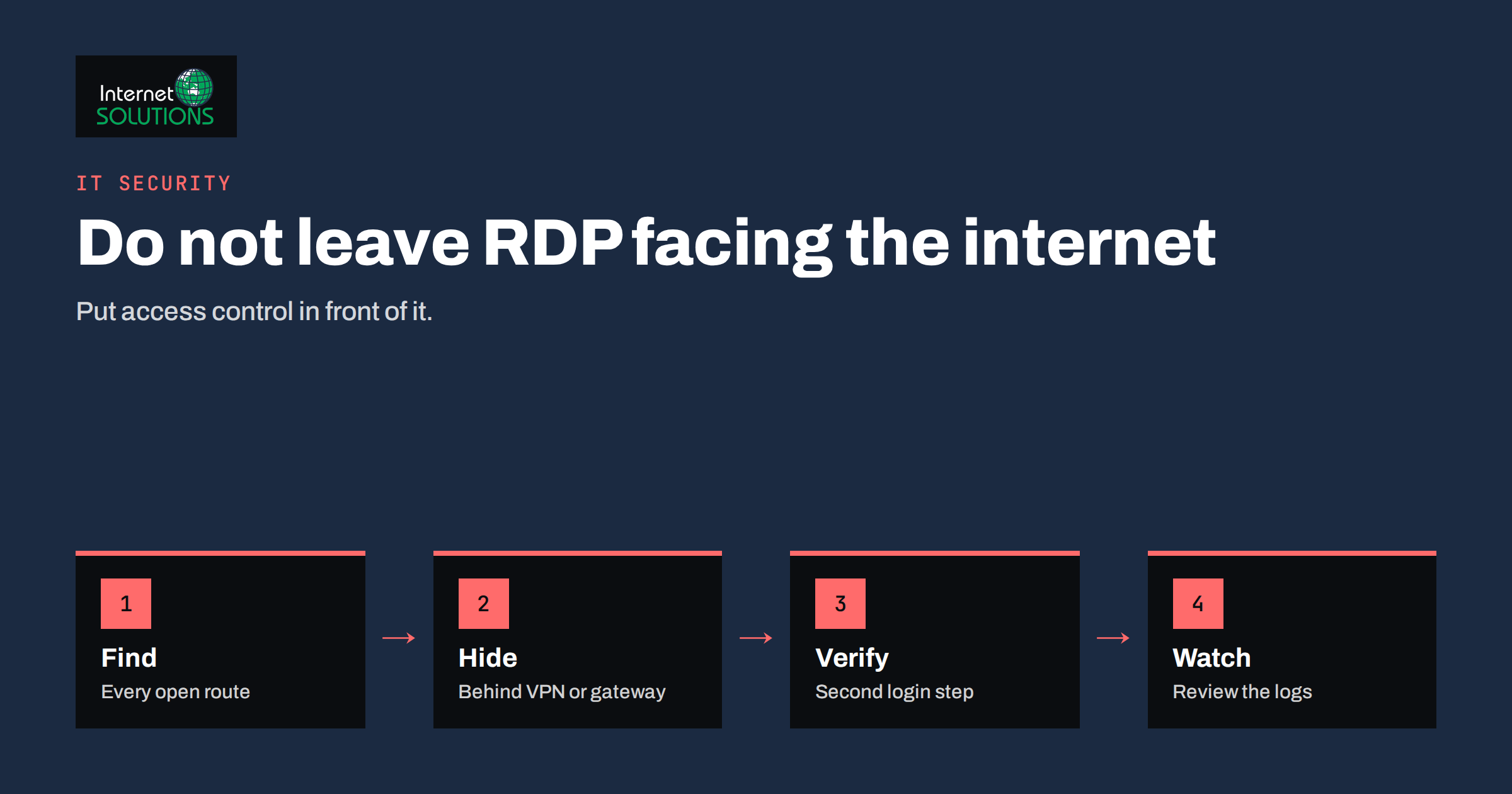
Remote Desktop lets a person sit anywhere and use a Windows computer or server as if they were in front of it. It is convenient for small offices, for IT support and for staff who work from home, and that convenience is exactly why attackers love it. An exposed Remote Desktop Protocol (RDP) service is one of the most common ways criminals reach a business network, and it has been a frequent starting point for ransomware incidents.
This guide explains why RDP is targeted, how to check whether your business exposes it, and how to replace risky setups with safer ones. You will find a practical hardening checklist, a comparison of access options and a short plan for monitoring. The advice is written for small offices without a dedicated security team, but every step is also used on larger networks.
Why Attackers Target Remote Desktop
RDP is attractive for three reasons. First, it gives full interactive control: a successful login is like sitting at the keyboard, with access to files, mapped drives, mail and any system that machine can reach. Second, it is easy to find. Internet-wide scanners look for the default port, 3389, and list every responding address within hours. Third, it is easy to attack automatically, because login attempts can be repeated by software at high speed against weak or reused passwords.
The result is that an RDP service open to the internet usually begins receiving login attempts within minutes of appearing. Most of them fail, but one weak password, one forgotten test account or one unpatched flaw is enough. Once inside, an intruder can disable protection, copy data and spread to other computers. This is why security agencies repeatedly list exposed remote access among the first things to fix, and why insurers ask about it in questionnaires.
It is important to understand that the protocol is not “broken” by design. The danger comes from exposure and weak controls around it: a direct internet connection, simple passwords, no second step at login, old software and no one watching the logs. Remove those conditions and RDP becomes a reasonable tool inside a protected network.
Check Whether You Are Exposed
Many small businesses are exposed without knowing. A router forwarding port 3389 to a desktop “so the boss can work from home” is a classic example, and it often outlives the person who set it up. Start by listing every way people connect remotely today, then verify each one from outside your network.
- Review the router. Log in to the router or firewall and look at port forwarding, virtual servers and any rules that allow inbound traffic. Note every forwarded port and where it points.
- Test from outside. From a mobile connection that is not on your office network, try to reach your public address on the RDP port. A response means the service is exposed.
- Check cloud servers. For virtual machines at a hosting provider, review the firewall or security group rules. A rule that allows RDP from “any address” is the one to remove.
- Ask staff and suppliers. Contractors sometimes request temporary access that becomes permanent. Ask who connects and how.
- Check the logs. On Windows, failed logins appear in the security log. A long run of failures from unfamiliar addresses confirms that scanning is happening.
Write down what you find, including the owner of each connection and the reason it exists. Anything without a clear owner or reason is a candidate for removal.
Safer Ways to Provide Remote Access
The single most effective change is to stop exposing RDP directly to the internet. Put something in front of it that authenticates the user first and hides the service from scanners. The table compares the usual options for a small business.
| Option | How it works | Strengths | Watch out for |
|---|---|---|---|
| VPN into the office network | Staff connect to a VPN first, then open RDP to the internal address | Hides RDP from the internet; one entry point to protect | Needs a maintained VPN and strong login with a second step |
| Remote Desktop Gateway | A gateway server brokers RDP over HTTPS with its own authentication | Central control and logging; works through firewalls | Needs a hardened, updated server and certificates |
| Zero-trust access service | A cloud service checks identity and device before connecting to the machine | No inbound ports; per-user rules | Subscription cost and setup effort |
| Direct RDP on the internet | The port is forwarded to a computer | Simple | Heavily attacked; avoid it |
For most small offices, a VPN with a second login step is the most practical choice. Our guide to VPN and secure remote access for small teams compares the options in more detail. Whatever you choose, close the forwarded RDP port on the router after the new route is tested.
Harden the Computers That Accept RDP
Even behind a VPN, the target machines should be treated as sensitive. Apply these measures to every computer or server that accepts remote desktop connections.
- Require Network Level Authentication. It forces the user to authenticate before a full session is created, reducing exposure to some attacks and resource abuse.
- Limit who can connect. Add only the specific users or a dedicated group to the remote desktop users list, not every account on the machine.
- Use strong, unique passwords and a second step. Multi-factor authentication on the access layer, whether VPN or gateway, is the best protection against stolen passwords. See our article on multi-factor authentication and password managers.
- Disable shared and default accounts. Remove generic names such as “admin” or “user1” and avoid logging in daily with an administrator account.
- Set account lockout. Lock an account for a period after a number of failed attempts to slow guessing.
- Keep Windows updated. Remote Desktop components receive security fixes; delaying them leaves known flaws open.
- Restrict clipboard and drive redirection. If staff do not need to copy files between their home computer and the office machine, disable it to reduce data leakage.
- Set session time limits. Disconnect idle sessions and log off disconnected ones so that forgotten sessions do not stay open for days.
Microsoft documents how to allow and configure remote access safely in its Remote Desktop Services documentation. Review it when you change policies, because settings and names differ between Windows versions.
Changing the Port Is Not Protection
A common tip is to move RDP from port 3389 to a different number. It reduces noise from the simplest scans, but it is not a security control. Scanners check many ports, and anything that answers like an RDP service is identified by its response. If you change the port, do it only as a way to reduce log clutter, never as a replacement for the measures above. Similarly, hiding the computer name or relying on a hard-to-guess address does not stop determined attackers.
The same caution applies to allowing connections only from certain countries. Geographic filters may remove a lot of automated attempts, but attackers rent addresses almost anywhere. Treat filters as an extra layer, with authentication, patching and monitoring doing the real work.
Monitor and Respond
Hardening reduces the chance of a break-in; monitoring tells you when something is wrong. At a minimum, review the security event log weekly for repeated failed logins, successful logins at unusual hours and logins from unfamiliar addresses. If you have a firewall with alerting, set a notification for new inbound connections to remote access services.
Know what you will do if you suspect misuse. Disconnect the machine from the network, preserve the logs, change the passwords for accounts that were used, and check whether other computers show unusual activity. Prepare this in advance, because the first hours matter. Our security incident response plan guide provides a template for those first steps.
Backups complete the plan. If an attacker encrypts files, tested offline or immutable backups are the difference between a bad day and a business-threatening event. Read our ransomware protection plan for backup and recovery steps that fit a small budget.
National security agencies publish current guidance on securing remote access. The UK National Cyber Security Centre offers advice for small organisations that is worth reading alongside your IT supplier’s recommendations.
A Simple Rollout Plan
You do not have to do everything in one afternoon. A reasonable order is: first, close any directly exposed RDP port after setting up a VPN or gateway; second, enable a second login step on the access layer; third, restrict the user list and remove shared accounts; fourth, apply updates and set lockout and session limits; fifth, add log review to your weekly routine. If you manage servers for several clients or locations, our server administration service covers this kind of access review and ongoing monitoring.
Common Mistakes That Undo Good Settings
Even careful setups drift. The most frequent problem is the temporary exception: a rule opened for a supplier on a Friday afternoon that is never closed. Give every exception an owner and an end date, and review the list of open rules each quarter. A second problem is the forgotten machine, such as an old workstation or test server that still accepts remote logins but no longer receives updates. Your asset list should show every computer that can accept remote connections, and anything unsupported should be retired or isolated.
Password reuse is the third trap. If a staff member uses the same password for a personal shopping account and for their office login, a breach elsewhere becomes a breach of your network. A password manager and a second login step remove most of that risk. A fourth mistake is giving everyone administrator rights “to avoid problems”. Administrator accounts used for daily work make every phishing click more dangerous, because the attacker inherits the same rights. Keep a separate administrator login for maintenance and use standard accounts for ordinary tasks.
Finally, do not forget third-party tools. Remote support programs installed by suppliers, remote management agents and old screen-sharing utilities all create paths into the network. List them, confirm that each is still needed, and make sure each one has its own strong authentication and is kept up to date. If a program has no owner, remove it and see whether anyone notices.
Document the final arrangement in one page: who may connect, through which route, from which devices, with which login steps, and who approves changes. A short, current document is what lets a new employee, a replacement IT supplier or an insurer understand your setup without guesswork, and it makes the quarterly review quick enough that people actually do it.
Frequently Asked Questions
Is it ever safe to expose RDP directly to the internet?
It is strongly discouraged. Even with strong passwords, an exposed service is attacked constantly and any unpatched flaw becomes an immediate risk. Use a VPN, a gateway or a zero-trust service instead.
Does changing the RDP port make it safe?
No. It may reduce log noise, but scanners find services on any port. Authentication, a second step, patching and an access layer in front of RDP are what protect you.
What is Network Level Authentication?
It is a setting that requires users to authenticate before a full remote session is established. It reduces the attack surface and resource use, and it should normally be enabled.
Can I use RDP over a VPN safely?
Yes, provided the VPN is kept updated, uses strong authentication with a second step and gives each user only the access they need. The target computers should still be hardened and monitored.
How do I know if someone has already tried to break in?
Check the Windows security log for failed logon events and successful logins from unfamiliar addresses or at unusual times. Many failures from outside addresses show that your service has been found.
What should staff use instead of RDP for working from home?
Many tasks can move to cloud applications and shared storage. When a remote desktop is still needed, connect through the VPN or gateway your IT provider has configured, using the account issued to you.
The Bottom Line
Remote Desktop is a useful tool that becomes dangerous when it faces the open internet. Find every remote access route, close direct exposure, put a VPN, gateway or zero-trust service in front, require a second login step and harden the target computers. Add weekly log review and a tested backup, and you remove one of the most common ways attackers enter a small business network.