

 English
 Lietuvių
 Latviešu
 Eesti
Eesti Русский
 Polski
 Українська
 Deutsch
 Italiano
 Español
 Français
 Português
 Čeština
 Magyar
 Română
 Ελληνικά
 Türkçe
 日本語
日本語 العربية
 हिन्दी
 Bahasa Indonesia
 Bahasa Melayu
 ไทย
ไทย Tiếng Việt
 বাংলা
বাংলাRemote Device Management: Laptops, Phones and Security for Teams
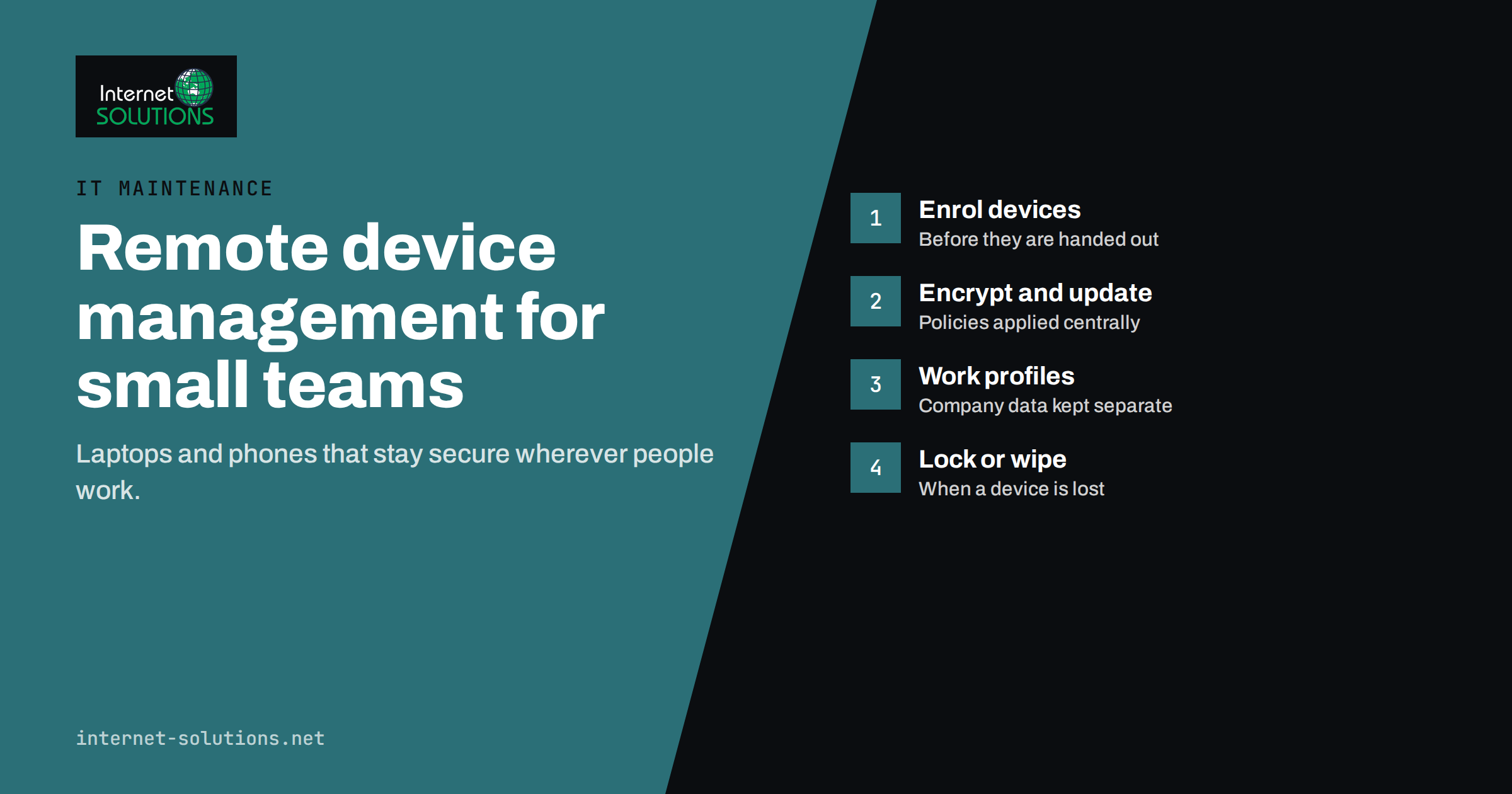
Remote device management has become a basic need for small teams. Laptops travel between the office, home and client sites; phones carry company email, chat and files; and many people work on devices that IT never physically touches. When one of those devices is lost, stolen, infected or simply out of date, the business needs to know what was on it and be able to act. Without central management, the honest answer is often “we don’t know”, and the response is a scramble.
This guide explains what remote device management involves for a small business, which policies matter most, how to handle company-owned and personal devices, what to do when a device is lost, and how to choose tooling that fits a team of five to fifty people. It focuses on practical decisions rather than enterprise theory.
What Remote Device Management Means
Remote device management, often called mobile device management (MDM) or unified endpoint management, is the practice of enrolling laptops, desktops, phones and tablets in a central system that lets you configure, secure and monitor them over the internet. Once a device is enrolled, administrators can:
- Apply security settings such as encryption, passcodes and screen lock.
- Install, update and remove applications.
- Enforce operating system updates.
- Configure Wi-Fi, email, VPN and other connection settings.
- See an inventory of devices, their owners, operating system versions and compliance status.
- Lock a lost device, or erase it entirely or partially.
The UK National Cyber Security Centre’s device security guidance treats central management as a foundation for keeping devices secure, because policies that depend on each user remembering to apply them are rarely applied consistently.
Why Small Teams Need It
Small companies often assume device management is something for large enterprises. In practice, the risks are the same and the cost of an incident is relatively higher:
- Lost and stolen devices. A laptop left in a taxi with an unencrypted disk can expose client data, passwords and email. With management, you can confirm encryption was on and lock or wipe the device.
- Unpatched systems. Devices that postpone updates for months are easy targets. Management lets you enforce update deadlines.
- Inconsistent setup. Without a standard configuration, every laptop is different, which makes support slow and security uneven.
- Staff changes. When someone leaves, management lets you remove company data and accounts from their devices immediately, even if the device is not returned on time.
- Customer and insurer expectations. Clients, partners and cyber insurers increasingly ask whether devices are encrypted and centrally managed.
Lost devices and unpatched systems are also common entry points for ransomware. Our guide to ransomware protection for small businesses shows how device management fits into a wider defence plan.
Company-Owned Versus Personal Devices
The first decision is how to handle different kinds of devices. Most small teams have a mix.
| Aspect | Company-owned device | Personal device (BYOD) |
|---|---|---|
| Management level | Full: settings, apps, updates, full wipe | Limited: work profile or managed apps only |
| Enrolment | Before handover, ideally automatic | By the user, with consent |
| Data separation | Whole device is a work device | Work data in a separate container or managed apps |
| If lost or person leaves | Lock or full wipe | Remove work data only, personal data untouched |
| Privacy | Company policy applies to the device | Company must not access personal content |
| Best for | Laptops, roles handling sensitive data | Phones used for email and chat |
Modern phone platforms support work profiles on Android and user enrolment on Apple devices, which keep company apps and data in a separate space. That allows a business to protect its data on personal phones without seeing or controlling personal photos, messages or apps. Explain this clearly to employees; resistance to device management usually comes from fear that the company will see private content.
The Policies That Matter Most
Device management tools offer hundreds of settings. For a small team, a short baseline covers most of the risk:
- Full-disk encryption on every laptop and phone. On modern devices this has little performance cost, and it turns a lost device from a data breach into a hardware loss.
- Passcode or biometric lock with automatic screen lock after a few minutes of inactivity.
- Automatic operating system and application updates with a deadline, after which the user is required to restart.
- Endpoint protection enabled and reporting, whether built into the operating system or a separate product.
- Firewall on for laptops.
- No local administrator rights for everyday accounts on company laptops, so malware cannot install itself silently.
- Approved apps installed centrally, with a simple process for requesting others.
- Multi-factor authentication for company accounts on every device. Our article on multi-factor authentication and password managers explains which methods to use.
Start with these, check compliance reports for a few weeks, and only then add more specific settings.
Enrolment and Handover
The easiest moment to manage a device is before anyone uses it. A good process for new devices:
- Use automatic enrolment where possible. Major platforms offer programmes that link devices bought through business channels to your management system, so they configure themselves when first switched on.
- Prepare devices before handover with the standard apps and settings, so the employee can start working immediately.
- Record each device in the inventory with its serial number, owner, purchase date and warranty.
- Have users acknowledge the device policy, including what management can and cannot see.
For existing devices, plan a short enrolment campaign: explain the reasons, give a deadline, offer help, and track progress in the management console.
When a Device Is Lost or Stolen
A written procedure turns a stressful moment into a routine:
- The employee reports immediately, without fear of blame. Speed matters more than anything else.
- Locate and lock the device through the management console if location services are enabled.
- Revoke sessions for the user’s accounts and change passwords if there is any doubt.
- Wipe the device if recovery is unlikely. For personal devices, remove only the work profile or managed apps.
- Check encryption status in the console. If the device was encrypted and locked, the risk of data exposure is low. If not, assess what data may be affected and whether you have notification obligations under data protection law.
- Report theft to the police where appropriate and record the incident.
- Issue a replacement and restore the user’s work from cloud services and backups.
Keeping Devices Healthy Over Time
Device management is not only about security incidents. It also keeps the fleet in good shape:
- Compliance reports show devices that are missing updates, have encryption disabled or have not checked in for weeks.
- Inventory data shows ages and warranty dates, which supports replacement planning. Our article on the computer replacement cycle explains how to plan hardware renewal.
- Software inventory reveals unlicensed or unwanted applications.
- Remote support tools let a technician help users without visiting them.
Review the compliance dashboard monthly and follow up on devices that stay non-compliant. A device that has not checked in for a long time may be lost, broken or simply in a drawer, and each of those situations needs a different response.
Writing a Short Device Policy
Technology enforces rules, but people need to understand them. A one-page device policy, written in plain language, prevents most misunderstandings. It should cover:
- Which devices may access company data, and whether personal phones and computers are allowed.
- What management means for each type of device, including exactly what the company can and cannot see.
- Basic user responsibilities: keep the device locked, install updates when prompted, do not disable security software, report loss immediately.
- Acceptable use: for example, no sharing of work devices with family members and no installing unapproved software on company laptops.
- What happens when someone leaves, including the return of company devices and removal of work data from personal ones.
- Who to contact for help, questions and incident reports.
Ask every employee to read and acknowledge it, and revisit it once a year. When the policy and the technical settings match, support requests drop and enforcement feels fair rather than arbitrary.
Remote Work and Travel
Devices that leave the office face extra risks: public Wi-Fi, shoulder surfing, theft from cars and border inspections in some countries. Remind travellers to use a trusted connection or a company VPN where one exists, to use a privacy screen in public places, never to leave laptops visible in vehicles, and to carry only the data they need. For high-risk trips, some companies issue a clean loaner laptop that is wiped on return. Device management makes all of this easier, because a lost device on the road can be locked or wiped from anywhere.
Choosing Tooling for a Small Team
There are three common routes:
- Management included in your office suite. Many business productivity subscriptions include basic device management for phones and sometimes laptops. For example, Google Workspace offers endpoint management for its users, described in its admin help. This is often enough for teams that mainly need to protect email and files on phones.
- A dedicated management platform such as Microsoft Intune, an Apple-focused tool for Mac fleets or a cross-platform product. These offer deeper control of laptops, application deployment and update enforcement.
- A managed IT provider that runs the platform for you, prepares devices and monitors compliance.
When comparing options, check which operating systems your team uses, whether automatic enrolment is supported for your devices, how personal phones are handled, what reporting is available and the per-device or per-user cost. Choose the simplest tool that covers your baseline policies; a powerful platform that nobody configures properly protects less than a basic one that is used well.
If you prefer not to manage this in-house, our IT maintenance service installs and maintains company computers and software and can advise on the right approach for your team.
Measuring Whether It Works
A few simple numbers show whether device management is doing its job: the share of devices that are enrolled, the share that are compliant with the baseline, the average age of operating system updates and the time it takes to lock or wipe a device after a loss is reported. Track them monthly. Rising enrolment and compliance mean the programme is working; devices that stay non-compliant for weeks show where help or follow-up is needed.
Common Mistakes
- Managing phones but not laptops, even though laptops usually hold far more data.
- Full control over personal phones, which creates privacy problems and employee resistance. Use work profiles instead.
- Enrolling devices but never reviewing compliance, so problems remain invisible.
- Shared administrator accounts for the management console without multi-factor authentication. The console can wipe every device, so it must be well protected.
- No offboarding link, so devices of former employees remain enrolled and active.
Frequently Asked Questions
Can device management see employees’ personal data?
On company-owned devices, administrators can see device information and installed apps, but not personal messages or photos in normal configurations. On personal devices with work profiles, the company manages only the work area.
Is device management worth it for a team of five?
Yes, especially if devices hold client data. Basic management included in many office suites costs little and covers encryption, passcodes and remote wipe.
What is the difference between MDM and endpoint protection?
MDM configures and controls devices. Endpoint protection detects and blocks malware. They complement each other, and management can ensure that protection is enabled.
Can we wipe a laptop that is not connected to the internet?
The wipe command is executed when the device next connects. That is why encryption matters: it protects data even if the device never comes online again.
Should every employee have local administrator rights?
No. Everyday accounts should be standard users. Provide a process for installing approved software instead.
How do we start if devices are already in use?
Choose a tool, define a short baseline, enrol devices in a planned campaign with a deadline and support, then review compliance reports.
The Bottom Line
Remote device management gives a small team control over the laptops and phones that hold its data, wherever people work. Enrol company devices before handover, protect personal phones with work profiles rather than full control, enforce a short baseline of encryption, screen lock, updates and protection, and have a clear procedure for lost devices and departing employees. Review compliance regularly and keep the management console itself well secured. The effort is modest, and it turns many potential data breaches into simple hardware replacements. If you would like advice on setting this up, contact our team.