

 English
 Lietuvių
 Latviešu
 Eesti
Eesti Русский
 Polski
 Українська
 Deutsch
 Italiano
 Español
 Français
 Português
 Čeština
 Magyar
 Română
 Ελληνικά
 Türkçe
 日本語
日本語 العربية
 हिन्दी
 Bahasa Indonesia
 Bahasa Melayu
 ไทย
ไทย Tiếng Việt
 বাংলা
বাংলাRobots.txt and XML Sitemaps: A Practical Crawl Control Guide
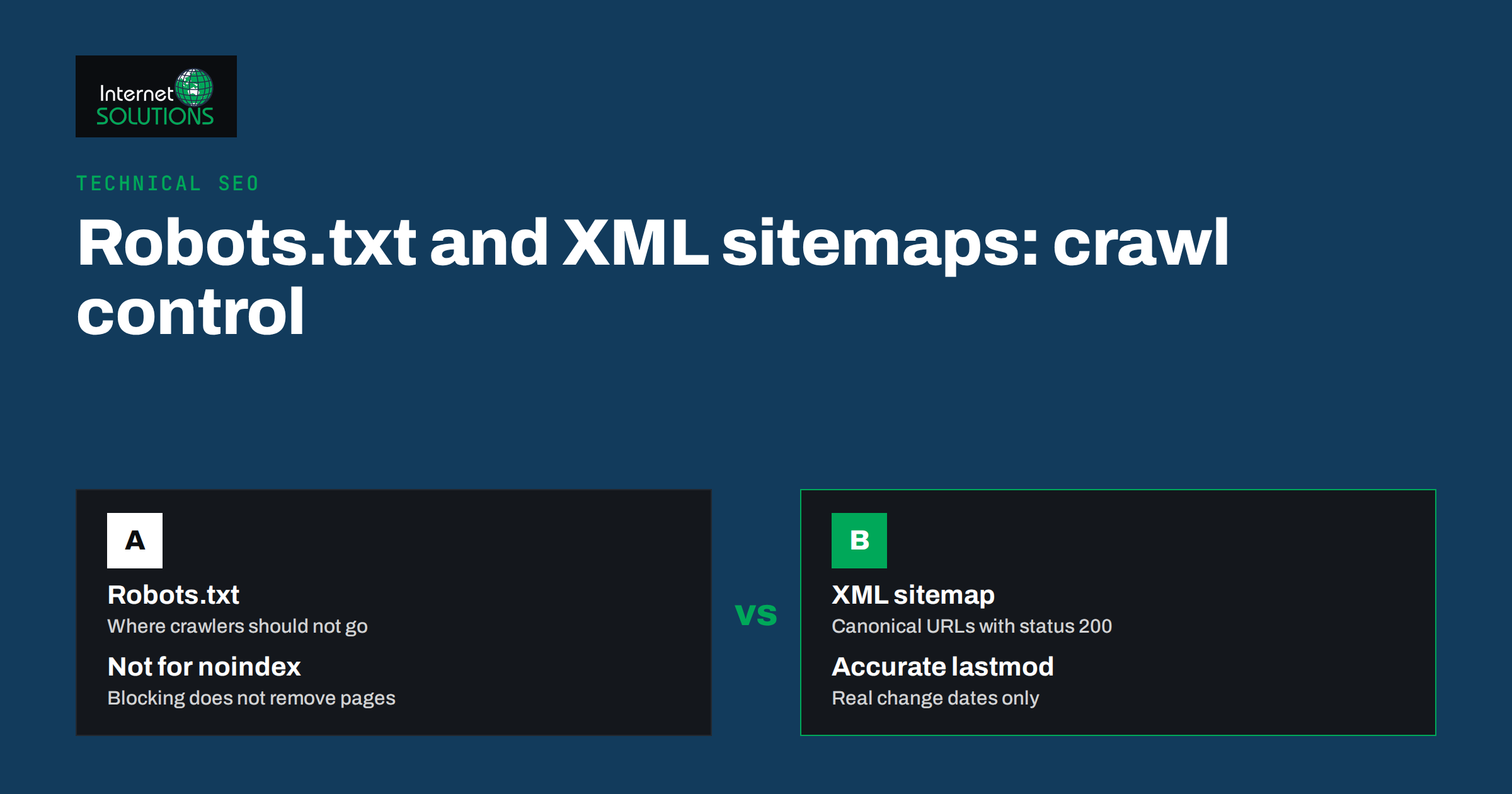
Robots.txt and XML sitemaps are two small files that quietly decide how search engines move through your website. One tells crawlers where they should not go; the other lists the pages you want them to find. When both are set up well, nobody notices them. When one of them is wrong, the damage can be severe: a single misplaced line in robots.txt has removed entire online shops from Google, and a sitemap full of redirects and deleted pages wastes the attention crawlers give your site.
This guide explains what each file actually controls, how they work together, the mistakes we find most often in technical audits, and a simple routine for testing changes before they cost you traffic. It is written for business owners, marketers and developers who want practical crawl control rather than theory.
What Robots.txt Does and What It Does Not Do
Robots.txt is a plain text file at the root of your domain, for example https://example.com/robots.txt. It follows the Robots Exclusion Protocol, which was formally standardised as RFC 9309 in 2022 after decades as an informal convention. Well-behaved crawlers read it before fetching other URLs on the host and follow its rules.
The most important thing to understand is that robots.txt controls crawling, not indexing. A Disallow rule tells a crawler not to fetch a URL. It does not tell a search engine to remove that URL from its index. If other pages link to a blocked URL, Google can still index the address and show it in results, usually with a note that no description is available because of robots.txt.
This leads to a counterintuitive rule: if you want a page removed from search results, you must allow crawling and add a noindex robots meta tag or an X-Robots-Tag HTTP header. A crawler that is blocked from the page can never see the noindex instruction.
Robots.txt is also not a security tool. The file is public, anyone can read it, and malicious bots ignore it. Listing a secret admin path in robots.txt simply advertises it. Protect private areas with authentication, not with crawl rules.
The Basic Syntax
A robots.txt file is made of groups. Each group starts with one or more User-agent lines and continues with Allow and Disallow rules. A typical WordPress site might use:
User-agent: *
Disallow: /wp-admin/
Allow: /wp-admin/admin-ajax.php
Disallow: /?s=
Disallow: /cart/
Disallow: /checkout/

Sitemap: https://example.com/sitemap.xml
A few details matter in practice:
- Paths are case-sensitive.
/Cart/and/cart/are different rules. - When rules conflict, Google applies the most specific match, meaning the longest matching path. That is why the
Allowline foradmin-ajax.phpwins over the broaderDisallow: /wp-admin/. - The wildcard
*matches any sequence of characters and$marks the end of a URL.Disallow: /*.pdf$blocks PDF files only. - A crawler follows the most specific
User-agentgroup that names it and ignores the others. If you add a group for Googlebot, repeat every rule Googlebot needs in that group. - The
Sitemapline is independent of groups and can appear anywhere in the file. It must be a full absolute URL.
What an XML Sitemap Is For
An XML sitemap is a machine-readable list of URLs you want search engines to discover, following the format described at sitemaps.org. Each entry contains the URL and, optionally, the date it last changed. A single sitemap file can hold up to 50,000 URLs and must stay under 50 MB uncompressed; larger sites use a sitemap index file that points to several sitemaps.
A sitemap is a hint, not a command. Listing a URL does not guarantee that it will be crawled or indexed, and leaving a URL out does not prevent indexing. What a good sitemap does is help search engines find new and updated pages faster, especially on large sites, new sites with few external links, and sites where some pages are deep in the navigation.
It also gives you a measuring tool. When you submit a sitemap in Google Search Console, the indexing report can be filtered by that sitemap, so you can see how many of the URLs you consider important are actually indexed and why the others are not. Our guide to finding quick wins in Google Search Console shows how to use those reports.
What Belongs in a Sitemap
The rule is simple: list only canonical URLs that return status 200 and that you want to appear in search. In practice that means:
- No redirected URLs, because they send crawlers on an extra hop.
- No URLs that return 404 or 410.
- No pages with a
noindextag. Asking Google to find a page and then telling it not to index it sends mixed signals. - No duplicate versions such as parameter URLs, print views or alternate sort orders. List the canonical version only; our article on canonical tags and duplicate content explains how to choose it.
- Accurate
lastmoddates. Google has said it useslastmodwhen it is consistently accurate and ignores it when a site sets every date to today. Thepriorityandchangefreqfields are ignored by Google, so there is no benefit in tuning them.
How Robots.txt and Sitemaps Work Together
The two files answer different questions. Robots.txt says “do not spend time here”. The sitemap says “these are the pages that matter”. Used together, they focus crawler attention on the content that earns traffic.
| Question | Robots.txt | XML sitemap |
|---|---|---|
| Main purpose | Prevent crawling of selected paths | Help discovery of important URLs |
| Is it binding? | Respected by reputable crawlers, ignored by bad bots | A hint; search engines decide what to crawl |
| Removes pages from the index? | No, use noindex instead | No, omission does not deindex |
| Typical content | Admin areas, internal search, carts, endless filters | Canonical, indexable pages with status 200 |
| Location | Root of each host and protocol | Anywhere, referenced in robots.txt and Search Console |
| Biggest risk | Blocking the whole site or CSS and JavaScript | Listing redirects, 404s and noindex pages |
The files must never contradict each other. If your sitemap lists a URL that robots.txt blocks, Search Console reports it as an error, and you have effectively told Google both to visit and not to visit the same page. A quick consistency check after every change prevents this.
What to Block and What to Leave Open
Most small and medium websites need very few robots.txt rules. Crawl budget, the number of URLs a search engine is willing to crawl on your site in a given period, only becomes a real constraint on large sites or sites that generate huge numbers of URLs automatically. For a typical company website with a few hundred pages, the goal is mainly to avoid wasting crawls on useless URLs and to avoid blocking anything important.
Good Candidates for Disallow Rules
- Internal search results. Pages like
/?s=shoescan multiply without limit and rarely deserve to rank. - Cart, checkout and account pages. They are personal to each visitor and have no search value.
- Faceted navigation combinations. In online stores, filter combinations such as colour, size and price can create millions of near-duplicate URLs. Block the parameter patterns that do not represent real search demand, and keep the category pages themselves crawlable.
- Staging or test areas that accidentally live on the public domain. These should really be protected by a password, but a disallow rule limits the damage until that is fixed.
Things You Should Never Block
- CSS, JavaScript and image files that your pages need to render. Google renders pages like a browser. If it cannot load your stylesheets and scripts, it may judge the page as broken or not mobile-friendly.
- Pages you want removed from the index. As explained above, allow crawling and use noindex until they drop out.
- The entire site, unless it really is a private staging copy. The classic
Disallow: /left over from development is still one of the most common causes of sudden traffic loss after a website launch.
Common Mistakes Found in Audits
When we run technical SEO audits for clients through our SEO services, crawl control issues appear again and again. The most frequent ones are:
- A leftover development block. The site was built with
Disallow: /or with the WordPress setting that discourages search engines, and nobody switched it off at launch. - Blocking a whole folder that contains important pages. For example,
Disallow: /blogwritten without a trailing slash also blocks/blog-news/and every URL that starts with those characters. - Using robots.txt to hide duplicate content. Blocked duplicates cannot pass their signals to the canonical page. Canonical tags or redirects are the correct tools.
- Sitemaps generated by several plugins at once. An SEO plugin, the WordPress core sitemap and an e-commerce extension all publish their own versions, often with different URL sets. Pick one source and disable the others.
- Sitemaps that never update. A static file exported years ago still lists deleted pages and misses new ones.
- Wrong host or protocol in the sitemap. URLs listed with
http://or withoutwwwwhen the site actually uses the other version, so every listed URL redirects. - A robots.txt file that returns a server error. If robots.txt responds with a 5xx status, Google may stop crawling the site for a while because it cannot tell what is allowed. A 404 for robots.txt is treated as “everything allowed”, but a server error is treated far more cautiously.
Indexing problems often look similar from the outside. If pages are missing from search, our article on why Google is not indexing your pages walks through the other causes to rule out.
A Testing Routine Before and After Changes
Crawl control mistakes are expensive because their effects arrive slowly. A bad rule can take days to show up as lost rankings, and recovery can take weeks. A short routine reduces the risk:
- Keep a copy of the current file. Before editing robots.txt, save the existing version so you can restore it in seconds.
- List your most important URLs. Home page, main service or category pages, top articles and key product pages. Test every one of them against the new rules before publishing.
- Use the robots.txt report in Search Console. It shows which version of the file Google last fetched, when it fetched it, and whether any lines were ignored as invalid.
- Inspect a few URLs live. The URL Inspection tool tells you whether a specific page is blocked by robots.txt and whether Google can render it.
- Validate the sitemap. Fetch it in a browser, confirm it returns status 200 with XML content, and check a sample of listed URLs for status codes, canonical tags and noindex directives.
- Watch the reports for two weeks. Compare crawl stats and indexed page counts with the period before the change. A sudden drop in crawled pages or a jump in “blocked by robots.txt” means something needs attention.
On sites with frequent releases, it is worth adding an automated check to the deployment process that fails if robots.txt contains Disallow: / on the production host. It takes minutes to set up and prevents the most damaging mistake entirely.
Special Cases Worth Knowing
Multilingual and Multi-Domain Sites
Robots.txt applies per host. A site with www.example.com, shop.example.com and example.de needs a separate file on each host. For multilingual sites in subfolders, one file covers all languages, and the sitemap can include hreflang annotations that link language versions of each page.
AI Crawlers
Many companies now ask whether they should block crawlers used to train AI models or to power AI answers. Several of these crawlers publish their own user-agent names and respect robots.txt. Blocking them is a business decision: it may keep your content out of training data, but it can also reduce your visibility in AI-generated answers. Decide deliberately rather than copying a list from another site, and review the decision as these products change.
Large Sites and Crawl Budget
For sites with hundreds of thousands of URLs, crawl efficiency becomes a real ranking factor in practice, because pages that are not crawled cannot be updated in the index. Here, robots.txt rules for parameter patterns, clean internal linking, fast server responses and segmented sitemaps by section all work together. Server logs show exactly which URLs crawlers request, which makes them the most reliable data source for this kind of optimisation.
Frequently Asked Questions
Does every website need a robots.txt file?
No, but it is good practice. Without the file, crawlers assume everything is allowed. A short file that blocks internal search and admin areas and points to your sitemap is useful for almost every site.
Can robots.txt remove a page from Google?
No. It only stops crawling. To remove a page, allow crawling and add a noindex meta tag or X-Robots-Tag header, or delete the page so it returns 404 or 410.
How often should my XML sitemap update?
Automatically, whenever content is published, changed or removed. Most modern content management systems and SEO plugins regenerate the sitemap on the fly, which is far more reliable than a manually exported file.
Should images and videos have their own sitemaps?
They can. Image and video sitemap extensions help search engines discover media that is loaded in ways crawlers may miss. For most business sites with standard image tags, a regular page sitemap is enough.
Is it a problem if my sitemap lists fewer pages than my site has?
Not necessarily. The sitemap should list the pages you want in search. Utility pages, thin archives and duplicates are better left out.
How long does Google take to notice a robots.txt change?
Google generally caches robots.txt for up to 24 hours, so changes are usually picked up within a day. The effect on rankings and indexing then follows as pages are recrawled.
The Bottom Line
Robots.txt and XML sitemaps are simple files with outsized consequences. Use robots.txt sparingly to keep crawlers away from internal search, carts and endless filter combinations, never to hide pages from the index or to protect private areas. Keep your sitemap clean, automatic and limited to canonical, indexable URLs that return status 200. Make sure the two files never contradict each other, test every change against your most important pages, and watch Search Console for two weeks afterwards. If you would like a second pair of eyes on your crawl setup or a full technical audit, contact our team.