

 English
 Lietuvių
 Latviešu
 Eesti
Eesti Русский
 Polski
 Українська
 Deutsch
 Italiano
 Español
 Français
 Português
 Čeština
 Magyar
 Română
 Ελληνικά
 Türkçe
 日本語
日本語 العربية
 हिन्दी
 Bahasa Indonesia
 Bahasa Melayu
 ไทย
ไทย Tiếng Việt
 বাংলা
বাংলাSingle Sign-On for Small Teams: One Login, Fewer Passwords
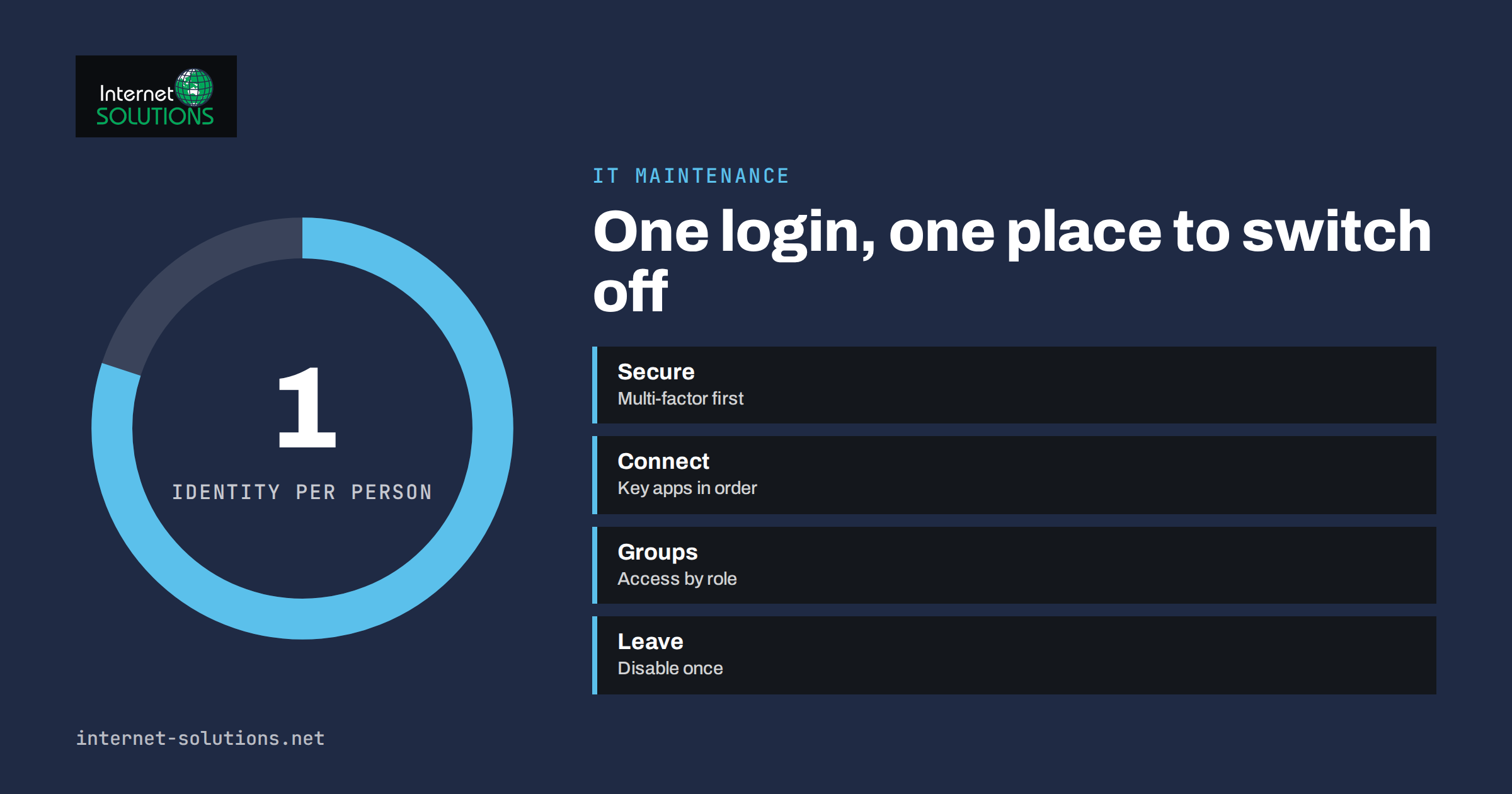
Single sign-on is a way of logging in once and then reaching many work applications without typing a new password for each one. For a small team it can turn a messy set of separate accounts, shared passwords and forgotten logins into one managed identity per person. When someone joins, you create one account and give access to what they need. When someone leaves, you disable one account and their access to everything connected disappears at once. That simplicity is the main reason single sign-on has moved from large corporations into companies of ten or twenty people.
This guide explains how single sign-on works in plain language, what it costs and where it fits, which tools you may already own, how to roll it out step by step without disrupting work, and what mistakes to avoid. It is written for owners and office managers rather than security specialists, and it focuses on decisions rather than protocol details.
The Problem Single Sign-On Solves
A typical small business uses a dozen or more online tools: email, file storage, accounting, a customer database, project management, a website admin, social media accounts, advertising platforms and more. Each one has its own login. Over time the same predictable problems appear.
- Password reuse. People use the same or similar passwords everywhere because remembering twenty is impossible. One leaked password then opens many doors.
- Shared accounts. To avoid paying for extra seats, teams share one login, so nobody knows who did what and nobody can be removed individually.
- Slow offboarding. When an employee leaves, someone must remember every tool they used. Forgotten accounts stay active for months.
- Slow onboarding. New hires wait days for access, or are sent passwords in chat messages.
- Constant resets. Staff waste time on password resets, and your helper or agency handles the same requests again and again.
Single sign-on addresses all five by moving the login to one trusted place.
How Single Sign-On Works
You choose an identity provider, which is the service that holds your people’s accounts and checks who they are. Applications that support single sign-on, called service providers, do not keep their own passwords for your staff. Instead, when someone opens the application, it sends them to the identity provider to prove who they are. If they are already signed in, they go straight through. If not, they log in once, ideally with a second factor, and the provider tells the application who they are.
The technical agreements that make this possible have names such as SAML and OpenID Connect. You do not need to know their internals, but you will see the terms in settings pages, so it helps to know that both are standard ways for an application to trust an identity provider. For a general definition and background, see the article on single sign-on.
A related idea is “social login”, meaning “sign in with Google” or similar buttons. That is a form of single sign-on, but for staff, work accounts are better because the company controls them and can remove them.
Benefits for a Small Team
- Fewer passwords to remember, which reduces reuse and resets.
- Central control of access. You see who can reach what, from one place.
- Fast, complete offboarding. Disable one account and access ends across connected tools.
- Consistent security. Require multi-factor authentication once, at the identity provider, instead of hoping every application supports it. Our article on multi-factor authentication and password managers explains the second factor in detail.
- Audit trail. Sign-in logs show unusual activity, such as logins from unexpected countries.
- Smoother onboarding. New staff get a working set of applications on their first day.
What It Does Not Do
Single sign-on is not a complete security programme, and setting it up carelessly can create new risks.
- It concentrates risk. If an attacker takes over one identity, they reach everything connected to it. That is why strong authentication on the identity provider is essential.
- It does not cover every application. Some tools support it only on expensive plans, and some not at all.
- It does not protect devices. A staff laptop with malware can still leak a signed-in session.
- It does not decide who should have access. You still need a sensible rule for permissions.
The United States National Institute of Standards and Technology publishes digital identity guidelines that discuss authentication strength and federation in depth. They are written for organisations of all sizes and are a useful reference if you want to justify decisions to a client or an auditor.
Where to Get Single Sign-On
Many small businesses already have an identity provider without realising it. The usual sources are:
- Your email and office suite. Business accounts from the major office suites double as identity providers, and thousands of applications can accept them.
- A dedicated identity service. Paid products exist that sit across all your tools and add policies and reporting. They suit growing teams with many applications.
- A self-hosted open-source solution. Possible for teams with technical staff, but you take on the maintenance and the responsibility for keeping it secure.
- A password manager with sharing features. Not true single sign-on, but for tools that cannot connect, it controls who sees the credentials and lets you change them centrally.
If you are choosing a business email platform at the same time, our guide on business email hosting helps you weigh the options, because that decision often determines which identity provider you will use.
Comparing the Options
| Option | Best for | Cost level | Admin effort | Main limitation |
|---|---|---|---|---|
| Office suite accounts as identity provider | Teams already on one suite | Included in subscription | Low | Tied to that vendor’s ecosystem |
| Dedicated identity service | Teams with many applications and compliance needs | Per user per month | Medium | Another subscription and learning curve |
| Self-hosted open source | Teams with in-house technical skills | Software free, time not | High | You carry updates, uptime and security |
| Password manager only | Tools without single sign-on support | Per user per month | Low | Still separate accounts in each tool |
| Separate logins everywhere | Teams of one or two people | None | Grows with every tool | Weak control, slow offboarding |
A Step-by-Step Rollout
Step 1: List your applications
Make a simple table with each tool, who uses it, what data it holds, whether it supports single sign-on and on which plan. A shared spreadsheet is enough. Our guide to IT asset inventory and software licences shows how to keep such a list useful.
Step 2: Choose the identity provider
Prefer the one you already pay for unless there is a reason to change. Fewer tools is better.
Step 3: Secure the identity first
Before connecting anything, require multi-factor authentication for every account, protect administrator accounts with extra care, keep two emergency administrator accounts with strong credentials stored offline and turn on sign-in alerts. A single sign-on built on weak logins is worse than separate logins.
Step 4: Connect the most valuable applications first
Start with email, files, accounting and the customer database. Test with one volunteer, then a small group, then everyone. Keep the old login working for a short transition period for tools where lock-out would be serious.
Step 5: Handle the tools that cannot connect
Store their credentials in the password manager, use unique passwords and assign each tool an owner. Ask suppliers whether single sign-on is on their roadmap; sometimes an upgrade adds it.
Step 6: Update your joiner and leaver routine
Write a short checklist: create the account, assign groups, enrol the second factor, confirm access. For leavers: disable the account, revoke sessions, transfer ownership of files and mailboxes, recover devices. See our employee onboarding and offboarding checklist for a full version.
Step 7: Review quarterly
Check who has administrator rights, remove unused accounts, read the sign-in report and see whether new tools have appeared outside the system.
Permissions and Groups
Single sign-on makes it easy to give access, which also makes it easy to give too much. Use groups that match roles rather than assigning applications to individuals. A group for sales might include the customer database and the quoting tool; a group for finance includes the accounting software. People can belong to several groups, and when someone changes role you change groups, not dozens of individual settings. Apply the principle of least privilege: each person should have the access they need to do their job and no more. Review administrator roles most carefully, because those accounts can change everything else.
Costs and Pitfalls to Check Before Committing
- The single sign-on surcharge. Some software vendors reserve single sign-on for their top plans. Compare that cost against the benefit for each tool.
- Licensing per user. Count the occasional users, contractors and shared mailboxes that may need accounts.
- Lock-out risk. If the identity provider is unreachable, nobody can log in. Know the supplier’s reliability and keep break-glass accounts.
- Contractors and clients. Decide how external collaborators sign in, and whether they get accounts in your identity system at all.
- Recovery. Define what happens when a person loses their second factor, and who verifies their identity before resetting it.
Before and After: A Typical Morning
Picture an employee on a Monday morning before single sign-on. She opens email with one password, the accounting tool with another, the customer database with a third and the project board with a fourth. The project board asks her to reset a forgotten password, which takes ten minutes and a message to the office manager. By nine she has lost a quarter of an hour and has written a password on a sticky note.
After single sign-on she signs in once, approves a prompt on her phone and opens each tool with a click. When she changes role in the autumn, the office manager moves her to a different group and her access follows within minutes. When a contractor’s project ends, one account is disabled and every tool closes to them together. Nothing about the work has changed; only the friction and the risk have.
A Short Access Policy You Can Adopt
A policy does not have to be long to be useful. Five sentences are enough to start with: every employee has one named work account; multi-factor authentication is required for all accounts; applications that support single sign-on must use it; credentials for other applications live in the company password manager; and access is reviewed every quarter and removed on the last working day. Add the names of the people responsible for administration and recovery, and the date of the next review. Share the policy at onboarding and ask each new colleague to confirm they have read it.
Common Mistakes
- Enabling single sign-on without enforcing multi-factor authentication.
- Using personal accounts as the identity for business tools.
- Leaving a single administrator who holds all the knowledge.
- Forgetting to disable old direct logins after moving to single sign-on.
- Giving everyone administrator rights for convenience.
- Skipping documentation, so nobody else can recover the setup.
Frequently Asked Questions
Is single sign-on worth it for a team of five?
Often yes, if you already pay for an office suite that includes it. The setup is small and the gains in offboarding and password hygiene are real. If you have only a handful of tools, a password manager with multi-factor authentication may be enough.
Is it less secure to have one login for everything?
It concentrates risk, but it also lets you apply strong protection in one place. With multi-factor authentication and monitoring, it is usually safer than many separate weak logins.
What if the identity provider goes down?
Logging in to connected tools may fail until it recovers. Reduce the risk by choosing a reliable provider, keeping emergency accounts and knowing which tools offer a local fallback login.
Does every application support it?
No. Check the settings or the supplier’s documentation, and note that support may depend on the plan you pay for.
What is the difference between single sign-on and a password manager?
Single sign-on removes separate passwords by trusting one login. A password manager stores separate passwords securely. Many teams use both, with the manager covering tools that lack single sign-on.
Who should be administrator?
At least two trusted people, using separate named accounts with strong authentication, and one documented emergency account. Avoid using administrator accounts for daily work.
The Bottom Line
For a small team, single sign-on means fewer passwords, faster joining and leaving and clearer control of who can reach what. Use the identity provider you already have, secure it with multi-factor authentication before connecting anything, start with the tools that matter most and keep a password manager for those that cannot join. Review access every quarter, and document the setup so recovery does not depend on one person. If you want help turning the checklist into a working routine, our IT maintenance page describes the support we provide.