

 English
 Lietuvių
 Latviešu
 Eesti
Eesti Русский
 Polski
 Українська
 Deutsch
 Italiano
 Español
 Français
 Português
 Čeština
 Magyar
 Română
 Ελληνικά
 Türkçe
 日本語
日本語 العربية
 हिन्दी
 Bahasa Indonesia
 Bahasa Melayu
 ไทย
ไทย Tiếng Việt
 বাংলা
বাংলাTalkmio First Week: A 7-Day Plan From Empty Widget to Useful Answers
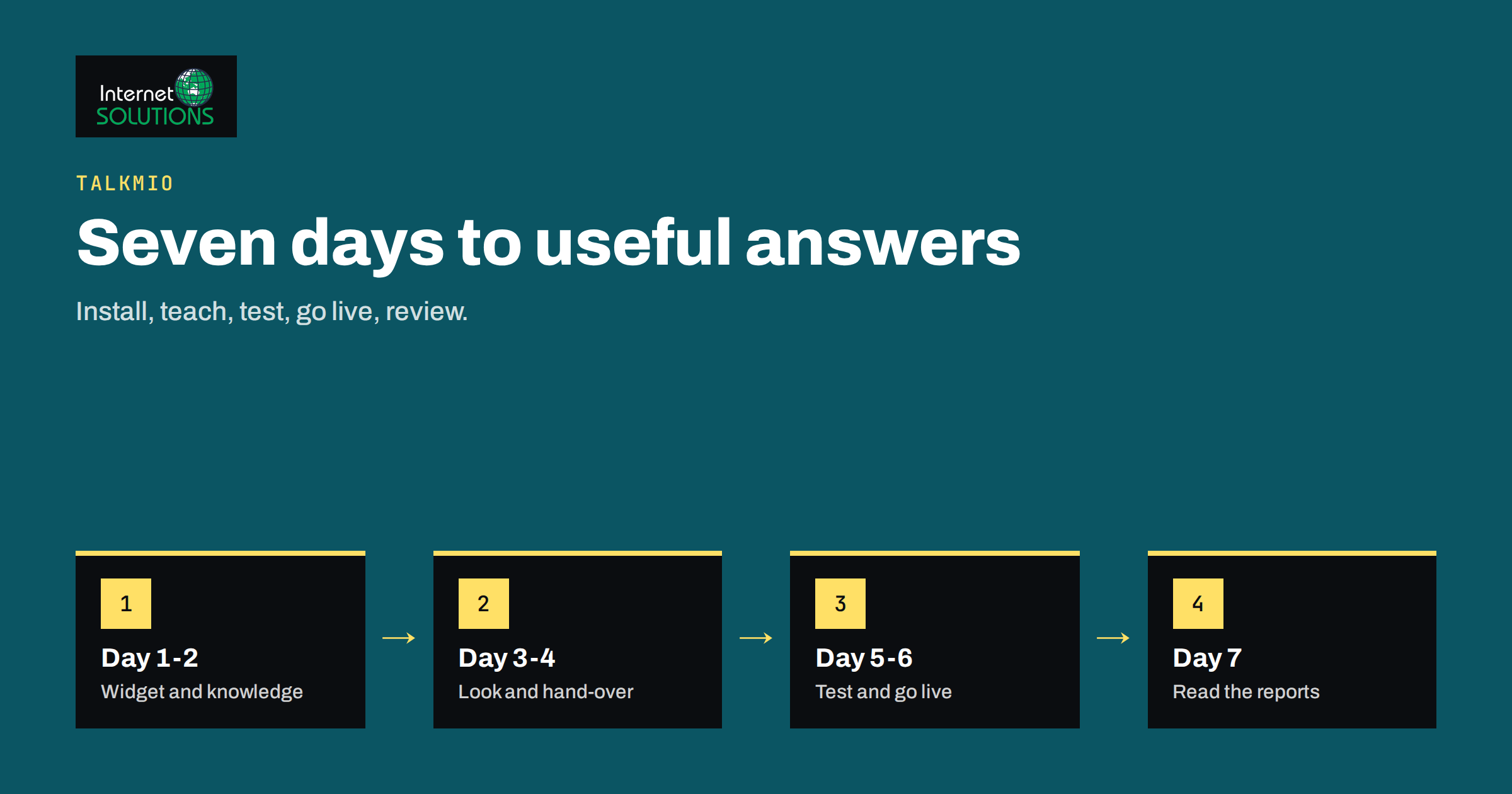
Talkmio first week is the stretch that decides whether live chat becomes a useful part of your business or a widget that nobody trusts. Installing the chat takes about two minutes: you create a free account, add your website and paste one line of code, or install the WordPress plugin. What takes more care is everything after that, because the quality of a chat assistant depends on what it knows, how it hands over to your team and whether you read the conversations and improve it. This guide gives you a seven-day plan that takes you from an empty widget to answers you can stand behind.
Talkmio is an AI live chat and inbox for websites. Mio, its assistant, reads your website, the questions and answers you add and the documents you upload, then answers visitors around the clock in their own language, and hands the difficult ones to your team with the full history. The plan below works for a small business that wants good results quickly without hiring anyone. It does not promise particular numbers; it describes a way to learn from real conversations while limiting risk.
Before You Start: Decide What Success Means
Spend ten minutes writing down three things. First, the main reason you want chat: more enquiries, fewer repeated emails, faster answers after hours or better support for customers. Second, the five questions visitors ask most often. Third, who will read the inbox and how often. These notes give the week a direction and make it easier to judge the results on day seven.
Be realistic about scope. In week one you are not trying to automate everything. You are building a reliable base: correct answers to common questions, a clear route to a person for everything else and the habit of reviewing conversations.
Day 1: Install and Check the Basics
Add the widget
Create the account, add your website and install the widget with the script tag or the WordPress plugin. Our Talkmio setup guide walks through the steps in detail.
Check it everywhere
Open your homepage, a product or service page, the contact page and a page in another language if you have one. Test on a phone and a desktop computer, in a private window so that cached files do not mislead you. Confirm that the widget appears, opens, does not cover important buttons and does not make the page jump.
Do not publicise it yet
If your platform allows you to limit where the widget appears, start with a few pages or with a test environment. A small start is a safe start.
Day 1 result
The widget loads correctly on key pages on both desktop and mobile.
Day 2: Teach Mio Your Business
Point Mio at your website and let it read the pages. Then review what it learned. Ask the ten questions you wrote down on day zero, and for each answer decide: correct, incomplete or wrong. Wrong answers usually trace back to missing or contradictory information on your site.
- Add Q&As for questions the website does not answer clearly: delivery times, opening hours, returns, payment methods, service areas, how to book.
- Upload documents such as a price list, a policy or a product sheet, and check that it quotes them correctly.
- Write down what Mio must not do: no discounts that are not on the site, no legal or medical advice, no promises of delivery dates beyond the published ones.
The page for Talkmio states that Mio never invents prices or policies and hands off when it is not sure, but that only works when your source material is clear. Our article on the Talkmio knowledge base explains how to test answers properly.
Day 2 result
At least eight of your ten test questions get a correct answer, and you know where the gaps are.
Day 3: Look and Feel, Greeting and Hours
Set the widget’s colours, greeting and any pre-chat form so that it fits your site and tells the visitor what to expect. A good greeting is short and honest: say who they are talking to, what you can help with and when a person is available. Keep the form minimal. Asking for an email address before the first message loses conversations; asking for it later, when a person will follow up, is usually better. Set your business hours, and decide what visitors see outside them. Our guide to widget setup covers each option.
Day 3 result
The widget looks like part of your site and sets honest expectations.
Day 4: Handover and Inbox
The assistant is only half of chat. The other half is what happens when a conversation needs a person. Decide who receives handed-over chats, how they are notified, and what target response time you will promise yourself. Talkmio’s web inbox lets your team take over any conversation with the full history, use quick replies and AI-suggested replies and translate instantly. Emails can become numbered tickets in the same inbox.
- Write ten quick replies for the answers you give most often.
- Agree on who covers when. One person, with a named backup, is better than “everyone”.
- Test a handover. Ask a question you know Mio cannot answer, then check that the conversation arrives where expected and that the visitor is told a person will respond.
- Check notifications. Make sure you will actually see a handed-over chat, by email or in the inbox, without checking constantly.
Our guide to the Talkmio inbox workflow shows how to use quick replies, notes, assignments and targets.
Day 4 result
A test question reaches a human, with context, in the time you set.
Day 5: Test Like a Customer
Ask a colleague, friend or family member who does not know your business to try the chat with real questions and tell you where it was confusing. Watch silently if possible. Give them tasks: find the price of a service, ask about delivery to another country, complain about a late order, ask something silly. Test in another language if you serve international visitors, since Mio answers in more than thirty. Note every answer that is wrong, vague or too long.
Fix the causes rather than the symptoms. If an answer is wrong because the website is unclear, improve the page. If it is wrong because the knowledge base lacks the information, add it. If the greeting misleads, change the greeting.
Day 5 result
A list of fixes made, and an outside person who could use the chat without help.
Day 6: Go Live on More Pages and Watch
Switch on the widget across the whole site, or at least on the pages that matter most. Then watch. Read every conversation of the day, both the ones Mio solved and the ones it passed on. For each, ask three questions: was the visitor helped, was the answer correct and what would have made it better? Add Q&As for the questions that recur. Check the live visitor view if you have it, to see which pages visitors are on when they start chatting, because the page often explains the question.
Pay attention to timing. Do visitors chat at night, on weekends or only at lunchtime? The pattern helps you set staffing, and shows the value of an assistant that answers when you cannot. Our article on after-hours live chat explains how to use it.
Day 6 result
Live on key pages, with the first real conversations reviewed and corrected.
Day 7: Review the Numbers and Decide
Open the reports. Talkmio shows conversations per day, how much Mio solves on its own, first-reply time and ratings. Combine them with what you know from the inbox.
- Volume: how many conversations, and from which pages.
- Solved by Mio: what proportion needed no person, and which topics are in the rest.
- Handover quality: were handed-over chats answered in the time you wanted?
- Ratings and comments: what do visitors say?
- Business signals: enquiries, leads or sales that began in chat, and emails you no longer receive.
Be careful with early numbers. One week is a small sample, and a single busy day can distort averages. Use the numbers to find problems and decide next steps, not to judge success or failure. For the broader set of measures, see the guidance from the Nielsen Norman Group on chatbots and user expectations, which stresses honesty about what a chat can do and an easy route to a person.
Day 7 result
A short list of three improvements for week two, and a clear decision about the plan that suits you.
The Seven Days at a Glance
| Day | Focus | Main actions | Done when |
|---|---|---|---|
| 1 | Install | Add widget, test on desktop and phone | Widget works on key pages |
| 2 | Knowledge | Let Mio read the site, add Q&As and documents | Most test questions answered correctly |
| 3 | Appearance | Colours, greeting, form, business hours | Widget fits the site and sets expectations |
| 4 | Handover | Assign owners, quick replies, test escalation | A test chat reaches a person with history |
| 5 | Testing | Outside tester, other languages, fixes | Fixes made for each failure found |
| 6 | Go live | Wider rollout, read all conversations | Real chats reviewed and corrected |
| 7 | Review | Reports, business signals, plan week two | Three clear improvements chosen |
Privacy and Trust
Treat chat as part of your privacy responsibilities from the first day. Tell visitors in your privacy notice that you use a chat service and what happens with conversations. Avoid asking for sensitive information in chat. Decide how long you keep conversations and who can read them. Our guide to live chat and GDPR covers the practical points, and the European Commission’s overview of data protection is a good general reference.
What Comes After Week One
Once the base is stable, make improvement a routine rather than a project. Set aside twenty minutes twice a week to read the conversations that Mio passed on, add the missing answers, and retire quick replies nobody uses. Review the reports monthly and compare with the previous month. Add languages, pages and channels one at a time. Share the most common questions with whoever maintains your website, because a question that keeps coming up in chat is a sign that a page should explain it better. Over a few months, the chat becomes a map of what your customers really want to know.
Common Mistakes in the First Week
- Installing the widget and walking away.
- Never testing a handover and discovering during a real enquiry that nobody is notified.
- Fixing wrong answers one by one without fixing the unclear page behind them.
- Asking for personal details before the visitor has received any value.
- Testing only in your own language and on your own computer.
- Judging the whole project by one slow day.
Frequently Asked Questions
How long does installation really take?
About two minutes for most sites: add the website, then paste one line of code or install the WordPress plugin. The rest of the week is about quality, not installation.
Do I need to write many answers by hand?
No. Mio reads your website first, and you add Q&As and documents where the site is silent or unclear. Most businesses need a modest set at the start and add more from real conversations.
What happens if Mio does not know the answer?
It tells the visitor it is connecting them with a person, and the chat appears in your inbox with the full history.
Can I try it without paying?
Yes. Talkmio has a free plan that needs no card. Current plans and prices are always on talkmio.com.
Which channels can I connect?
Besides website chat, Talkmio lists email and tickets, and Facebook, Instagram and WhatsApp among the channels it works with. Start with website chat and email before adding more.
When should I add more pages or languages?
After the first review shows that the answers are accurate and handovers work. Extend gradually, and test each new language with a native speaker.
The Bottom Line
A good first week with Talkmio is mostly about preparation and learning. Install the widget on day one, teach Mio your business on day two, set the look and hours, build a reliable handover, test as a customer, go live more widely and then read the reports and the real conversations. By the end you will have an assistant that answers the common questions correctly, a team that knows how to step in and a short list of improvements for week two. The Talkmio page has the overview and the link to start free.