

 English
 Lietuvių
 Latviešu
 Eesti
 Русский
 Polski
 Українська
 Deutsch
 Italiano
 Español
 Français
 Português
 Čeština
 Magyar
 Română
 Ελληνικά
 Türkçe
 日本語
 العربية
 हिन्दी
 Bahasa Indonesia
 Bahasa Melayu
 ไทย
 Tiếng Việt
 বাংলা
Upgrading an Old PC: SSD, RAM and What Is Worth the Money
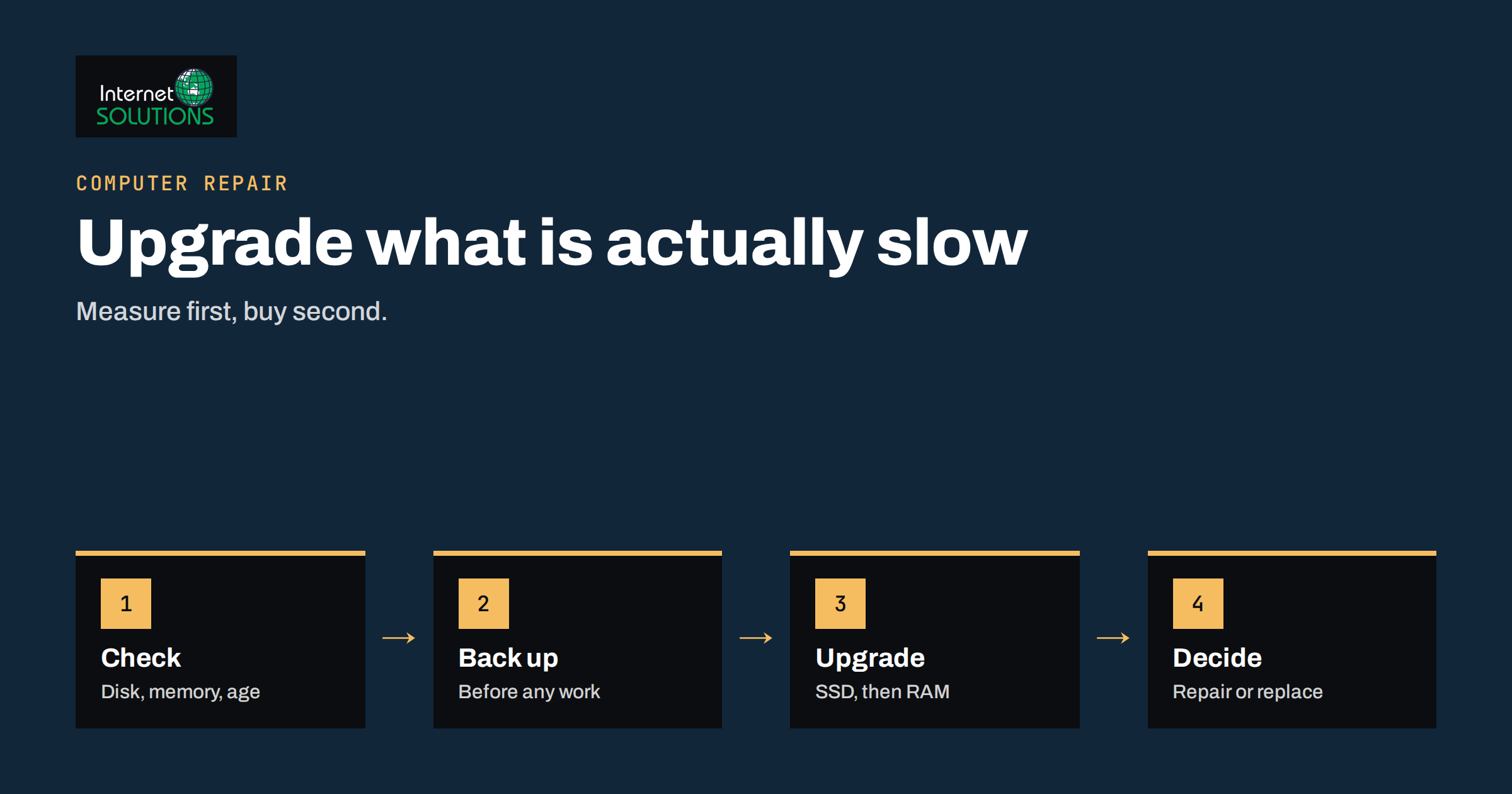
Upgrading an old PC is often the cheapest way to get another few years of useful work out of a machine that has started to feel slow. A computer that took two minutes to start and froze whenever three programs were open can behave very differently after one well-chosen change. The difficulty is knowing which change. Some upgrades transform a machine, some do almost nothing, and some cost more than they are worth because the rest of the computer cannot keep up.
This guide is written for small business owners, office managers and anyone who looks after a handful of computers without a dedicated IT department. It explains how to find the real bottleneck, why a solid state drive is usually the first upgrade to consider, when extra memory helps, what to leave alone, how to prepare safely and how to decide between an upgrade and a replacement.
Start With the Bottleneck, Not the Shopping List
A slow computer is a symptom, and the cause can sit in the storage drive, the memory, the processor, the software or the operating system. Buying parts before measuring is the most common and most expensive mistake. Spend fifteen minutes on a few checks first.
- Open the task manager during normal work. Watch disk, memory and processor use while you start a browser, open a large spreadsheet and join a video call. A disk that sits near one hundred per cent while the processor is quiet points at the storage drive. Memory that is nearly full and a disk that is busy at the same time points at too little RAM.
- Check the drive type. A traditional hard disk has spinning platters and is far slower than a solid state drive. Many computers sold ten years ago, and plenty of cheap ones since, shipped with a hard disk even though the rest of the machine was acceptable.
- Check the age and model. The processor generation sets a ceiling. A machine from the early part of the last decade may not support the current Windows version (check the Windows 11 specifications), and spending money on it may only delay the inevitable.
- Clean up the software side. Remove programs nobody uses, trim start-up items and scan for malware. Our slow computer troubleshooting checklist covers the steps, and they cost nothing.
- Look at the health of the drive. Most drives report health data that free tools can read. A drive with warnings should be replaced, whatever else you decide.
Write down what you find. If the processor is quiet, memory is not full and the disk is saturated, you already know the answer. If everything is saturated, the machine is simply too weak for the job.
The Solid State Drive: Usually the Best First Upgrade
A solid state drive, or SSD, stores data on flash memory instead of spinning platters. It has no moving parts, starts programs far faster and responds almost instantly when the system reads many small files, which is exactly what an operating system does. For a machine that still has a hard disk, replacing it with an SSD is typically the most noticeable improvement per euro spent. Start-up that took minutes can fall to well under a minute, and programs open without the long pause that makes an old computer feel broken.
There are a few practical points to understand before buying.
- Physical format. Older desktops and many laptops use a 2.5-inch drive connected by a SATA cable. Newer machines may use a small M.2 card. Check the manual or the manufacturer’s specification page for the model, because buying the wrong format is a waste.
- Capacity. Choose enough space for the current data plus growth. Running any drive almost full slows it down, so leave a comfortable margin.
- Quality. A drive from an established manufacturer with a clear warranty is a better choice than the cheapest unbranded one, because the drive holds the business data.
- Cloning or fresh install. You can copy the existing installation to the new drive with cloning software, or install the operating system from scratch. A fresh installation is cleaner on a machine with years of clutter, but it takes longer because programs must be installed again.
- Keep the old drive. After the upgrade, keep the old disk untouched for a few weeks as a safety net, then erase it securely before disposal.
An SSD does not make the processor faster, and it cannot fix a machine whose software is outdated. It simply removes the largest delay in most older computers.
Memory: When More RAM Helps
Memory, or RAM, is the workspace a computer uses for everything that is open at the moment. When it is full, the system moves data to the drive and back, which is slow, especially on a hard disk. Adding memory helps when you regularly keep many browser tabs, large documents and communication tools open together, and the task manager shows memory use close to its limit.
Before buying, find out what the machine accepts. Memory comes in different types and speeds, and laptops often have limited slots or memory soldered to the board. The manufacturer’s support page and the free scanning tools that read the existing modules tell you the type, the maximum capacity and how many slots are free. Matching modules in pairs usually gives better performance than a single module, because the system can use them together.
As a rough guide for office work, a few years ago eight gigabytes was workable and sixteen gigabytes comfortable for people with many applications open. Today the demands of browsers and collaboration tools have grown. Treat these numbers as a starting point and trust your measurements instead. If memory is rarely more than half used, more RAM will not help at all, and the money is better spent elsewhere.
What Is Usually Not Worth the Money
Some upgrades sound attractive but rarely repay the cost on an old machine.
- A new processor in an old board. The socket and chipset usually limit the choice, and the gain is small compared with the cost and the risk of a failed install.
- A new graphics card for office work. It matters for design, video editing and some engineering software, not for email and spreadsheets.
- Expensive cooling accessories. Cleaning dust and renewing thermal paste often does the job. Our guide to computer overheating explains how to measure first.
- Software that promises to speed up the computer. Most of it does little, and some of it is unwanted software in disguise.
- Premium parts on a machine near the end of its life. If the case, screen or battery is failing, a fast drive will not rescue it.
The question to ask of every part is whether the rest of the machine will still be good enough in two years. If the answer is no, put the money towards a replacement instead.
Upgrade Options Compared
| Upgrade | Best for | Typical effect | Main risk |
|---|---|---|---|
| SSD replacing a hard disk | Slow start-up and slow program loading | Large and immediate improvement | Wrong drive format, data loss without a backup |
| More RAM | Many programs open, memory nearly full | Fewer freezes and less waiting when switching tasks | Incompatible modules, soldered memory |
| Fresh operating system installation | Years of clutter, repeated errors | Cleaner, more stable system | Lost settings and licences if not documented |
| New battery (laptop) | Short battery life, otherwise healthy laptop | Restores portability | Wrong part, swollen battery handled unsafely |
| Cleaning and new thermal paste | Loud fans, heat, throttling | Lower temperatures and steadier speed | Damage when opening a laptop |
| Faster processor | Rarely sensible on an old machine | Small for the cost | Socket limits, high cost |
| Replacement computer | Old, unsupported, several weak parts | Biggest overall improvement | Higher cost, migration work |
Prepare Safely Before You Open Anything
Hardware work is simple when it goes well and painful when it does not, so prepare as if something could go wrong.
- Make a full backup. Copy documents, mail archives, browser bookmarks and any local databases to external storage, and check that a few files open from the copy. Backing up is the step that turns a mistake into a delay rather than a disaster.
- Record licences and settings. Note product keys, account sign-ins and printer or network settings that will need to be restored. Use a password manager rather than a sheet of paper.
- Find the service documentation. Many manufacturers publish a manual with photographs of the exact steps for opening the case and fitting parts.
- Gather the right tools. A small screwdriver set, an anti-static wrist strap or at least a habit of touching bare metal before handling parts, and a clean workspace.
- Disconnect power completely. Unplug the machine, and remove the laptop battery where the design allows it.
- Take photographs as you go. Pictures of cable positions and screw locations make reassembly easier.
If any of this feels uncomfortable, especially on a thin laptop with glued parts and fragile ribbon cables, hand the job to a technician. Our computer repair service covers upgrades, and the article on when to call a technician helps you decide.
After the Upgrade: Check That It Worked
Do not assume that the upgrade did its job. Repeat the same measurements you took at the start: start-up time, the time to open your most used programs and the memory and disk use during a typical working hour. Compare them with your notes. On a drive upgrade, confirm that the operating system sees the full capacity and that automatic updates are working. On a memory upgrade, confirm that the full amount is recognised and run a memory test overnight if the machine is critical, because faulty modules cause random crashes that are hard to trace.
Update the firmware and drivers, run the system update and check the backup routine. A refreshed machine that has no working backup is still a risk. Record the date and the parts fitted in your asset list, so that the next person knows what is inside.
Upgrade or Replace? A Simple Decision Rule
A useful rule is to compare the cost of the upgrade with the cost of a suitable replacement, and to consider how long each would last. Suppose an SSD and extra memory cost a fraction of a new machine and the processor is still adequate. The upgrade is sensible. Suppose the machine is old enough that the current operating system will not install, the battery is worn, the screen is dim and the hinges are loose. In that case, the same money would buy a better outcome as a deposit on a new computer.
Think also about support. Software and operating systems eventually stop receiving security updates for old hardware, and a computer that cannot be kept secure is a business risk, however fast it feels. Our planning guide for Windows 11 upgrades on business PCs explains how to check compatibility, and the business laptop buying guide lists what to look for when you do replace. For basic background on the drive technology, the encyclopedia article on solid state drives is a good starting point.
A Worked Example
A small design studio has six desktop computers bought six years ago. Staff complain that the machines take several minutes to start and that large files take a long time to open. The office manager measures one machine: the processor is mostly idle, memory use peaks at about seventy per cent, and the hard disk is saturated whenever a program starts. The diagnosis is clear: the drive is the bottleneck.
She backs up all six machines, buys six reasonably sized SSDs from a reputable manufacturer and has a technician clone the existing installations one evening. Start-up falls to under a minute, and the staff notice the difference on the first morning. Two machines with only four gigabytes of memory also receive an extra module, while the processors are left as they are. The total cost is a small fraction of replacing six computers, and the studio schedules a proper replacement cycle for the following year, keeping the old drives sealed in a drawer until then.
Common Mistakes
- Buying parts before measuring what is slow.
- Skipping the backup because “it is only a drive swap”.
- Choosing a drive in the wrong format or a memory module of the wrong type.
- Spending on a fast processor or a graphics card for an office machine.
- Forgetting to update firmware, drivers and the operating system afterwards.
- Throwing the old drive away without erasing it securely.
- Upgrading a machine that is already out of support and too weak for current software.
Frequently Asked Questions
Will an SSD make my old computer as fast as a new one?
No, but it can make it feel dramatically better. An SSD removes the storage delay, which is the biggest slowdown on many older machines, while the processor and memory still set limits for demanding work.
Can I upgrade the memory in any laptop?
Not always. Some laptops have memory soldered to the board, and others have only one slot. Check the specification for your exact model before buying anything.
Should I clone my drive or reinstall Windows?
Cloning is quicker and keeps everything in place. A fresh installation takes longer but removes years of clutter and is better when the system already has repeated errors.
How do I know if the hard disk is failing?
Warning signs include clicking sounds, files that will not open, repeated disk errors and health tools reporting problems. Back up immediately and replace the drive, whatever else you decide.
Is it worth upgrading a machine that cannot run the latest Windows version?
Usually it is not, unless it will be replaced soon. A computer that no longer receives security updates is a risk to the business, so plan the replacement and use a cheap upgrade only as a bridge.
Can I do the upgrade myself?
On many desktops, yes, with care and a backup. On thin laptops with glued parts and fragile cables, it is better to ask a technician, since a small mistake can cost more than the upgrade.
The Bottom Line
Upgrading an old PC pays off when you fix the real bottleneck. Measure first, back up everything, and start with an SSD if the machine still uses a hard disk. Add memory only when the numbers show that the machine runs out of it, and avoid spending on a processor or graphics card that the rest of the computer cannot use. Repeat your measurements afterwards, keep the backup routine working and compare the total cost with a replacement. When the machine is old, unsupported and weak in several places, put the money into a new one and use the old machine’s life as a bridge, not a project.