

 English
 Lietuvių
 Latviešu
 Eesti
Eesti Русский
 Polski
 Українська
 Deutsch
 Italiano
 Español
 Français
 Português
 Čeština
 Magyar
 Română
 Ελληνικά
 Türkçe
 日本語
日本語 العربية
 हिन्दी
 Bahasa Indonesia
 Bahasa Melayu
 ไทย
ไทย Tiếng Việt
 বাংলা
বাংলাVideo Meetings for Small Teams: Cameras, Audio and Secure Settings
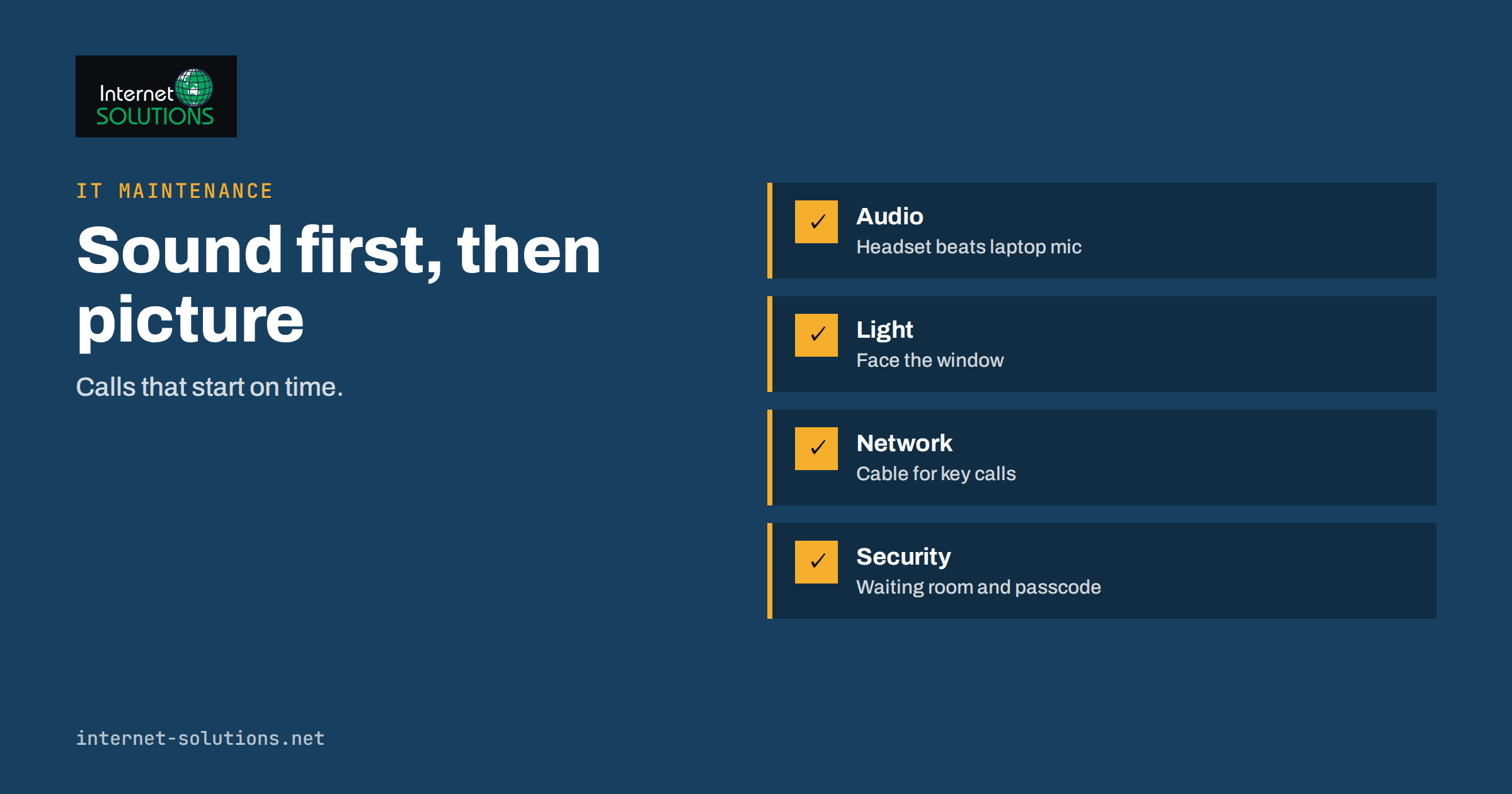
Video meetings are now a normal part of running a small business, and most of the problems people complain about are not caused by the software. A colleague sounds like they are speaking from the bottom of a bucket, a client cannot see your face because the window is behind you, a call freezes every time someone starts a download, and a link meant for one customer ends up in the wrong hands. Almost all of this can be fixed with a few inexpensive choices about audio, camera, lighting, network and settings, plus some simple habits.
This guide explains how to set up video meetings for a small team so they look and sound professional, work reliably and stay secure. It covers audio first, because poor sound ruins a meeting far more than poor video, then camera and lighting, network and devices, security settings, accessibility, meeting habits and a short checklist. The advice applies to any of the common meeting platforms.
Start With Audio, Not Video
People forgive a grainy picture but not a voice they cannot understand. If you can improve only one thing, improve how you sound.
Use a dedicated microphone or headset
Laptop microphones pick up keyboard noise, fans and room echo. A wired or wireless headset with a boom microphone, or a good USB microphone placed close to your mouth, makes a bigger difference than any camera upgrade. A microphone close to the speaker captures more voice and less room.
Prevent echo and feedback
Echo appears when your speakers play the other person’s voice and your microphone picks it up again. Headphones solve this immediately. In a meeting room, use a conference speakerphone designed for the job rather than a laptop with speakers turned up.
Choose the right room
Hard, empty rooms echo. Soft furnishings, curtains, carpets and bookshelves absorb sound. If you work in an open office, agree on quiet times for calls or use a small room that can be booked.
Mute by habit
Mute when you are not speaking in meetings with more than three people. It removes background noise and the sound of typing. Use the push-to-talk or temporary unmute shortcut that most platforms provide.
Check before every important call
Use the platform’s audio test to confirm that the correct microphone and speaker are selected. Many “I cannot hear you” problems are simply the wrong device chosen after a headset was plugged in.
Camera and Lighting
You do not need studio equipment. You need a camera at the right height and light in the right place.
- Raise the camera to eye level. A laptop on a stack of books looks better than a laptop looking up your nose. A separate webcam on top of a monitor is even better.
- Light your face, not the background. Sit facing a window or place a lamp behind the screen. Avoid sitting with a bright window behind you, because the camera will turn you into a silhouette.
- Keep the background tidy. A plain wall or a neat shelf is enough. Blur or virtual backgrounds can help, but they use processing power and can look odd around the edges.
- Look at the lens when you speak to create the feeling of eye contact, and position the video window close to the camera.
- Frame yourself well. Your head and shoulders should fill a reasonable part of the picture, not a tiny figure in a large room.
A camera that is a few years old is perfectly adequate if the light is good. Spend on a headset and lighting before a more expensive camera.
Network and Devices
Reliable video depends on a stable connection, not just a fast one.
- Use a cable where you can. A wired connection avoids the dropouts of Wi-Fi. If you must use wireless, sit close to the access point. See our guide to office Wi-Fi troubleshooting for common causes of poor signal.
- Check upload speed as well as download. Sending video needs upload capacity, and many broadband plans have far less upload than download.
- Stop competing traffic. Large backups, cloud syncs and software updates can saturate a connection. Schedule them outside meeting times or limit their bandwidth.
- Close unneeded applications. Heavy programs and many browser tabs can make a computer struggle with video encoding.
- Keep devices updated and charged. Plug in laptops for long calls and install platform updates before an important meeting, not during it.
- Have a fallback. Know how to join by phone audio or from a phone’s mobile data if the main connection fails.
For the office as a whole, a sound setup of equipment is covered in our article on small business network setup.
Security Settings That Matter
Meetings can expose information if they are set up carelessly. The UK National Cyber Security Centre has published guidance on using video conferencing services securely, and its main points translate into a short list for a small team.
- Use accounts, not shared logins. Each host should sign in with their own account protected by multi-factor authentication, as described in our article on multi-factor authentication and password managers.
- Do not post meeting links publicly. A link on social media or a public web page invites uninvited guests.
- Require a waiting room or lobby for external meetings, and admit people deliberately.
- Use a passcode for meetings that are not tied to a signed-in guest list.
- Limit who can share the screen and who can record. Set the default to host only for large or public sessions.
- Know when a meeting is being recorded and tell participants. Store recordings securely and delete them according to your policy.
- Lock the meeting once everyone expected has arrived, if the platform allows it.
- Keep the software updated. Updates fix security flaws that attackers actively look for.
- Check what is visible before sharing a screen. Close private tabs, email and notifications, or share a single window instead of the whole desktop.
Be careful with chat links and files in a meeting. A link posted in the chat by someone you do not recognise should be treated like any unexpected link, and our guide to phishing awareness for small teams explains what to watch for.
Privacy and Recording
Recording a meeting captures personal data: voices, faces, names and anything shared on screen. In many places, you must tell participants and have a legal reason to record. Do not record by default. Record when there is a clear purpose, such as training or a meeting for people who cannot attend, announce it at the start, restrict access to the recording and delete it when it is no longer needed. Be especially careful with meetings about customers’ personal matters, health, employment or finance. If you use automatic transcription or summaries, apply the same rules and check the service’s data handling terms.
Comparing Meeting Equipment Options
| Item | Basic option | Better option | Why it matters |
|---|---|---|---|
| Microphone | Laptop built-in | Headset or USB microphone | Clearer voice, less room noise |
| Speakers | Laptop speakers | Headphones or conference speakerphone | Prevents echo and feedback |
| Camera | Built-in webcam | External webcam at eye level | Better angle and picture quality |
| Lighting | Room light | Lamp or window in front of you | Face visible, less grain |
| Connection | Wi-Fi | Wired Ethernet | Stable calls without dropouts |
| Meeting room | Laptop on the table | Room kit with camera and speakerphone | Everyone seen and heard |
Running a Good Meeting
Technology gets people into the room; habits make the meeting useful.
- Have an agenda and a purpose. If a meeting can be an email, make it an email.
- Start on time and keep it short. Twenty-five minutes with a clear end beats an hour that drifts.
- Name a host and a note-taker. Someone should keep the time, and someone should record decisions and actions.
- Invite participation. In mixed meetings, ask remote participants first, because they are easily overlooked.
- Share materials in advance, so the meeting is for discussion, not reading.
- End with decisions, owners and dates, and send a short summary the same day.
Mixed rooms, where some people are together and some are remote, need extra care. Make sure the remote participants can hear everyone in the room, keep side conversations out, and use the chat to collect questions.
Accessibility
Good meetings include everyone. Turn on captions when available, speak one at a time and describe what is on the screen for participants who cannot see it. Share the agenda and materials in advance in accessible formats, give people time to respond and avoid relying on colour alone in slides. The W3C accessibility principles explain the thinking behind this. If a participant has a hearing, vision or concentration difficulty, ask what would help instead of assuming.
A Quick Pre-Meeting Checklist
- Headset or microphone connected and selected.
- Camera at eye level, face lit, background tidy.
- Wired connection or good Wi-Fi, background downloads paused.
- Software updated and the meeting link tested.
- Waiting room and passcode set for external guests.
- Screen-sharing content prepared and private windows closed.
- Agenda sent and a phone number or backup link ready.
Setting Up a Small Meeting Room
If your office has one room used for client calls, it is worth a one-time setup so nobody needs to improvise. Mount or place a camera that can see all seats, ideally at eye level on the wall facing the table, rather than on a laptop at one end. Add a speakerphone or conference microphone in the centre of the table, because that is the position that picks up everyone equally. Place the display where participants can see remote colleagues while looking toward the camera. Treat the room’s computer or small PC as shared equipment: use a dedicated account, keep it updated and sign out after each meeting.
Write a one-page guide and place it in the room: how to start a meeting, which input to choose, how to share a screen and who to call for help. Label cables and keep spares. Test the room monthly with a quick call to a colleague at home, since equipment that is rarely used is often found to be broken at the worst moment. When someone new joins, show them the room as part of onboarding.
Working With Clients and Guests
Meetings with outsiders carry extra expectations. Send the invitation with a clear title, a time zone, the agenda and the link, and mention whether a passcode or a sign-in is needed. Join a few minutes early so you can handle any technical trouble before the client arrives. If you use a waiting room, greet people promptly so they do not feel ignored. Share only what the client needs to see, and prepare your presentation in a clean window. After the call, send notes with decisions and next steps, which doubles as a record if a disagreement arises later. If a client cannot use your platform, accept theirs for the call rather than losing time, but keep your security practices in mind.
Common Mistakes
- Spending on a camera but not on audio.
- Sitting in front of a bright window.
- Posting meeting links publicly.
- Recording without telling participants.
- Sharing the whole screen with notifications switched on.
- Letting every meeting run to the default hour.
- Ignoring the people who are remote in a mixed room.
Frequently Asked Questions
What is the cheapest upgrade that improves meetings most?
A decent headset. It fixes echo, reduces noise and puts the microphone close to your mouth.
Do I need an expensive webcam?
Usually not. Place the camera at eye level and light your face, and a modest webcam will do. Upgrade only if you present to customers often.
Is Wi-Fi good enough for video calls?
It can be, with a strong signal and little competing traffic. For important or long calls, a wired connection is more reliable.
How do I stop uninvited people joining?
Do not publish links, use a waiting room and a passcode, restrict who can share, and lock the meeting when everyone has arrived.
Should I record meetings?
Only when there is a clear purpose, with participants informed and access to the recording limited. Delete recordings that are no longer needed.
How can I make a meeting room work for remote participants?
Use a camera that shows everyone, a speakerphone that picks up the whole room and a host who watches the remote participants and invites them to speak.
The Bottom Line
Good video meetings come from sound first, then light and camera position, a stable connection, secure settings and disciplined habits. A headset, a lamp, a cable and a few minutes of configuration will improve most small teams’ calls more than any new software subscription. Protect meetings with accounts, waiting rooms and careful sharing, be open about recording, make them accessible and keep them short and purposeful. If you would like help with the equipment and network behind your meetings, our IT maintenance page describes what we do.