

 English
 Lietuvių
 Latviešu
 Eesti
Eesti Русский
 Polski
 Українська
 Deutsch
 Italiano
 Español
 Français
 Português
 Čeština
 Magyar
 Română
 Ελληνικά
 Türkçe
 日本語
日本語 العربية
 हिन्दी
 Bahasa Indonesia
 Bahasa Melayu
 ไทย
ไทย Tiếng Việt
 বাংলা
বাংলাWebsite Launch Checklist: What to Verify Before You Go Live
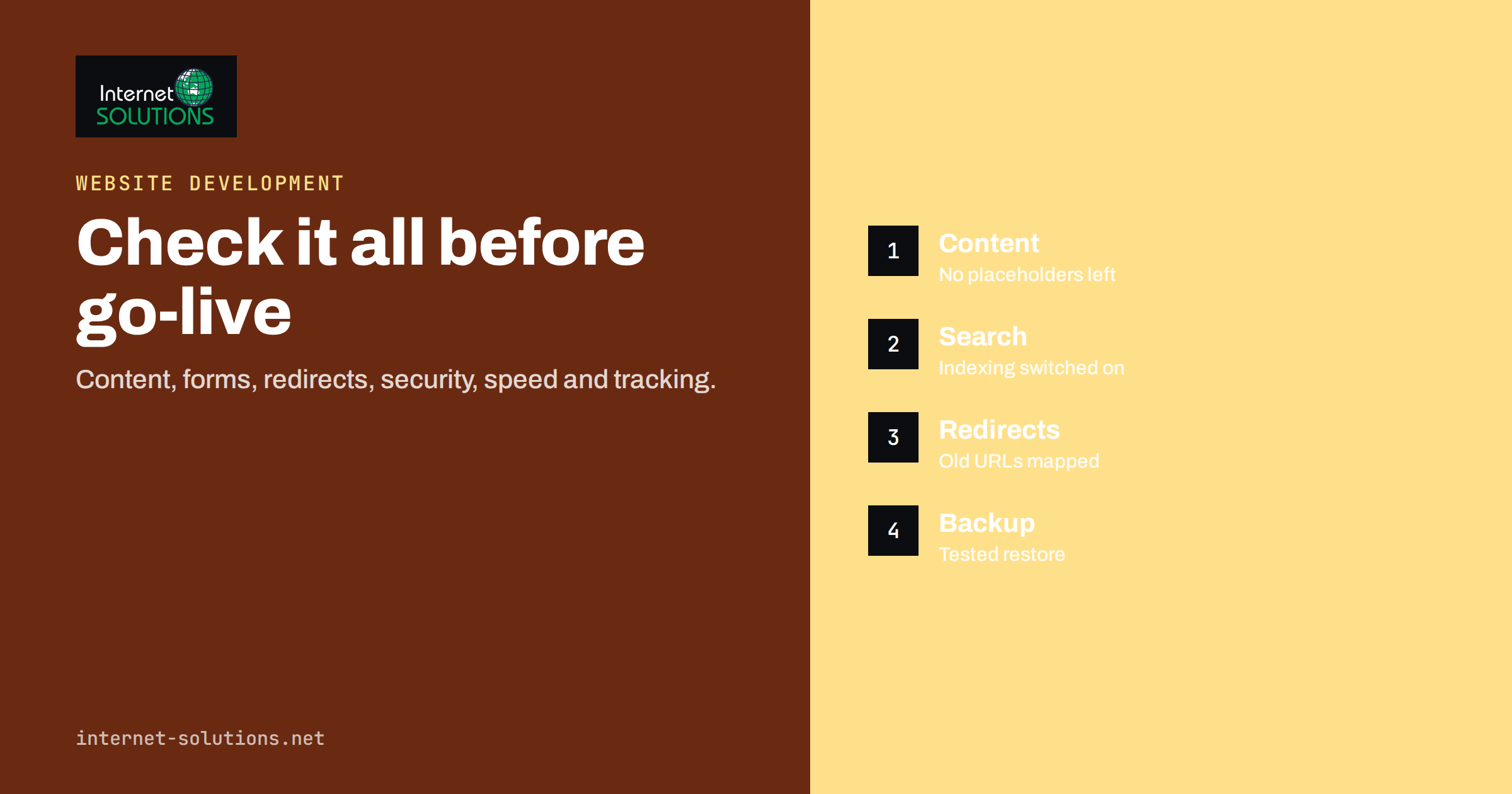
Launch day is when a new website meets the real world, and it is also when small oversights become expensive. A site left set to “discourage search engines”, a contact form that sends to the developer’s old address, a missing redirect that sends hundreds of old links to an error page: each is easy to fix before launch and painful to discover afterwards. A good website launch checklist turns those risks into a routine of checks that you can run calmly, one by one, before you press the button.
This guide gives a practical checklist grouped by area: content, forms and functions, search visibility, redirects, security, speed, tracking, backups and the launch itself, plus what to do in the first week. It works for a new site and for a redesign, and it fits into the planning process described in our guide to planning a website project from brief to launch. If you would like a team to run it with you, our website development service includes a pre-launch review.
Set Up the Launch Like a Small Project
Before running any checks, decide who is responsible for what. Name one person to make the go or no-go decision, one to own the technical switch-over and one to check content. Agree a date and time with a margin, choose a quiet period for the business rather than the busiest day of the week, and avoid launching late on Friday when nobody will be around to fix problems.
Write the checklist in a shared document, with an owner and a status against every line. Run it first on a staging copy, and then again on the live site immediately after the switch. Having the same list for both stages catches the problems that only appear when the real domain, certificates and configuration are in place. Keep a rollback plan in case something serious breaks: know how to restore the old site or the previous version, and who can do it.
| Area | Key checks | Typical mistake |
|---|---|---|
| Content | Spelling, contact details, legal pages, images, placeholder text | Lorem ipsum left on a page |
| Forms and functions | Every form, button, search, checkout and email notification | Notifications go to the wrong address |
| Search visibility | Indexing allowed, titles, descriptions, sitemap, robots.txt | Site still blocked from search engines |
| Redirects | Old addresses mapped to new ones, no chains or loops | Old pages return errors |
| Security | HTTPS, updates, admin access, backups, spam protection | Default admin account still active |
| Speed and mobile | Page weight, image size, phone layout, key pages | Uncompressed hero images |
| Tracking | Analytics, conversion events, consent, search console | Tracking code missing or duplicated |
| Backups and handover | Backup schedule, restore test, passwords, documentation | No backup before launch |
Check the Content Line by Line
Read every page on a phone and on a desktop, as a visitor would. Look for spelling and grammar errors, outdated prices, leftover placeholder text, broken or low-quality images and wrong contact details. Check that names, addresses, telephone numbers, opening hours and company registration details are correct and consistent, because they appear in many places. Search for typical placeholders such as lorem ipsum, “test”, “TBD” and the old company name.
Check legal and trust pages: privacy policy, cookie information, terms of sale, returns and delivery information where relevant, and any mandatory company details required in your country. Make sure that the policies describe what the site actually does, for example the cookies and tools it really uses. Our guide to cookie consent, GDPR and website privacy compliance explains what to have in place.
Check images and files: every image should have a sensible alternative text, downloadable files should open and be the right version, and videos should play. Review the 404 error page too, since visitors will see it eventually, and make sure it helps people get back to useful pages.
Test Every Form, Button and Function
Use the site like a customer. Submit every contact, quote and newsletter form with real data and confirm three things: the visitor sees a clear success message, the right person receives the notification and the entry is stored where it should be. Check spam protection works without blocking real people, and check the auto-reply message. Email delivery often fails after launch because of changes to DNS or sending settings, so test with several address types.
If the site sells anything, run test orders through the whole path: product page, cart, delivery options, payment, confirmation email and the order record in the back office. Test failed payments, discount codes, tax and shipping rules, and refunds. Use the payment provider’s test mode first, then complete one small real transaction after the site goes live and refund it.
Test navigation and search, language switchers, filters, maps, embedded videos, booking widgets, chat and any third-party tools. Click every menu item and footer link, and check that external links open as intended. Test in at least the main browsers and on a real phone and tablet, not only in a desktop browser with a narrow window. Our guide to mobile-first web design lists the usual phone problems to look for.
Make the Site Visible to Search Engines
The most damaging launch mistake is also the simplest: leaving the site blocked from indexing. Development sites are often hidden on purpose, through a setting in the content management system, a noindex tag, a password or a blocking rule in robots.txt, and these must all be removed at launch. Check each of them on the live site, and then confirm in the page source that no noindex tag remains.
Review the basics on the important pages: a unique title and meta description, one clear main heading, canonical tags pointing to the correct live address, readable URLs and social sharing images. Create or check the XML sitemap, make sure it lists only the live, indexable pages and submit it in Google Search Console after launch. Review the robots.txt file carefully, using the guidance in Google’s documentation on robots.txt and our own guide to robots.txt and XML sitemaps.
Check structured data on key pages, such as organisation details, and test internal links so that none point to the staging address. Search the site for the staging domain, because references to it often survive in menus, images and scripts.
Handle Redirects for Old Addresses
If the website replaces an older one, redirects decide how much of your existing visibility survives. List every old URL that has traffic, links or rankings, using analytics, Search Console and a crawl of the old site, and map each one to the most relevant new page. Use permanent redirects, avoid sending everything to the home page and avoid chains in which one redirect leads to another.
Test the redirect map before launch on staging if possible and again on the live site straight afterwards. Check a sample of the most important addresses by hand, then crawl the full list to find errors and loops. Our guide to 301 redirects for SEO explains the types and the common mistakes, and Google’s page on site moves with URL changes describes the process step by step.
Keep the redirects in place for a long time, ideally for as long as the old addresses are still linked from somewhere, which is often years. Removing them early can quietly lose traffic that you worked hard to earn.
Review Security Before Anyone Else Does
Confirm that the site loads over HTTPS on every page, that the certificate is valid and set to renew, and that the non-secure version redirects to the secure one. Check that images and scripts are loaded securely too, because mixed content produces browser warnings. Remove sample content, test accounts and default administrator logins, give every user a named account with the minimum permissions they need and require strong sign-in for administrators.
Update the platform, themes and plugins to current versions, and remove those you do not use. Check that debugging output and error messages are switched off on the live site, that directory listings are disabled, that upload forms accept only the file types they should and that spam and bot protection is active on forms and logins. For WordPress sites, our guide to user roles and permissions and the advice on choosing plugins safely help here.
Confirm that you can restore the site. Take a full backup of files and database immediately before the switch, keep it somewhere separate from the server and test that it can be restored. A backup that has never been restored is an assumption, not a safeguard.
Check Speed and the Experience on Phones
Test the key pages with a speed tool such as PageSpeed Insights and on a real phone over a normal mobile connection. Look for oversized images, unnecessary scripts, slow server response and layout shifts as the page loads. The usual quick wins are properly sized and compressed images in modern formats, caching, compression and removing unused plugins and scripts.
Check usability as well as raw speed. Can people tap buttons easily, read text without zooming, fill forms comfortably and reach the telephone number in one tap? Check accessibility basics too: sufficient colour contrast, keyboard navigation, descriptive link text and labels on form fields. The W3C has a helpful overview of how to test and evaluate accessibility.
Test under load if you expect a rush, for example after a campaign or a press mention. Even a simple test that opens many pages at once can show whether the hosting plan copes.
Set Up Tracking and Measurement
You cannot judge a launch without data, so install analytics and test it before launch. Confirm that page views are recorded once, not twice, that the important actions such as form submissions, calls, purchases or downloads are tracked as events or conversions, and that consent settings behave correctly. Add the site to Google Search Console and any other webmaster tools you use, and verify ownership of the final domain.
Record a baseline: current traffic, rankings of key pages, conversion rates and speed scores for the old site. After the launch, you will compare against these numbers to see whether the new site improved, held steady or lost ground. Without a baseline, every argument after launch is guesswork.
Prepare the Switch Itself
Many launches fail on the DNS and configuration steps rather than on the site. Lower the DNS time-to-live for the relevant records a day or two beforehand so that changes spread quickly, note the current values so you can revert, and confirm who controls the domain registrar and the DNS. Make sure the certificate is installed for the final domain and the version with and without the www prefix redirects to one preferred address.
Check email separately. Changing DNS records can break mail if the MX, SPF and DKIM records are overwritten by accident, so compare them before and after the switch and send test messages in both directions. Agree a freeze on content changes for the launch window, and tell staff and key customers when it will happen.
After You Go Live: The First Week
Run the checklist again on the live site as soon as the switch is complete. Test the home page, the main forms, a test order if relevant, the redirects and the sitemap. Check that analytics shows real visits, that Search Console accepts the sitemap and that no noindex or password remains. Watch the server for errors, and check uptime monitoring.
During the first week, review crawl errors, 404 pages and search impressions daily, fix broken links and add missing redirects. Collect feedback from staff and a few customers, and keep a short list of issues with owners and dates. Do not make large design changes immediately; first confirm that the site is stable. Then plan the improvements that the first real data suggests.
Frequently Asked Questions
How long before launch should I start checking?
Start at least a week before the planned date, and earlier for large sites. Content, redirects and forms take time to review, and you will want a margin to fix problems without rushing.
What is the most common launch mistake?
Leaving the site blocked from search engines. Check for a noindex tag, a password, a blocking rule in robots.txt and the discourage-indexing setting in your platform, and confirm each is removed on the live site.
Do I need redirects if the domain stays the same?
Yes, if page addresses change. Map each old address that has traffic or links to its closest new page with a permanent redirect, and test the list before and after launch.
Should I launch on a weekend?
Choose a time when the team can respond and when traffic is low. For many businesses that is early in the working week rather than late Friday, but the right moment depends on your visitors.
How do I test forms without spamming my team?
Tell the team beforehand, use a clearly labelled test address, and run each form once. Delete the test entries afterwards and confirm that notifications reach the intended recipients.
What should I do if something breaks after launch?
Fix small issues quickly and keep a log. If a serious problem appears, such as checkout failing or the site being unavailable, use the rollback plan you prepared and restore the last known good version before investigating further.
The Bottom Line
A calm launch is the result of a boring list followed carefully. Check the content, test every form and function, open the site to search engines, map and test the redirects, secure and back up the site, check speed and phones, set up tracking and prepare the switch with a rollback plan. Run the same list again on the live site, watch closely for the first week and fix what you find. The time you spend before launch is always cheaper than the traffic, leads and trust you would lose by finding the problems afterwards.