

 English
 Lietuvių
 Latviešu
 Eesti
 Русский
 Polski
 Українська
 Deutsch
 Italiano
 Español
 Français
 Português
 Čeština
 Magyar
 Română
 Ελληνικά
 Türkçe
 日本語
 العربية
 हिन्दी
 Bahasa Indonesia
 Bahasa Melayu
 ไทย
 Tiếng Việt
 বাংলা
Windows Update Problems: Fixing Stuck, Failed and Looping Updates
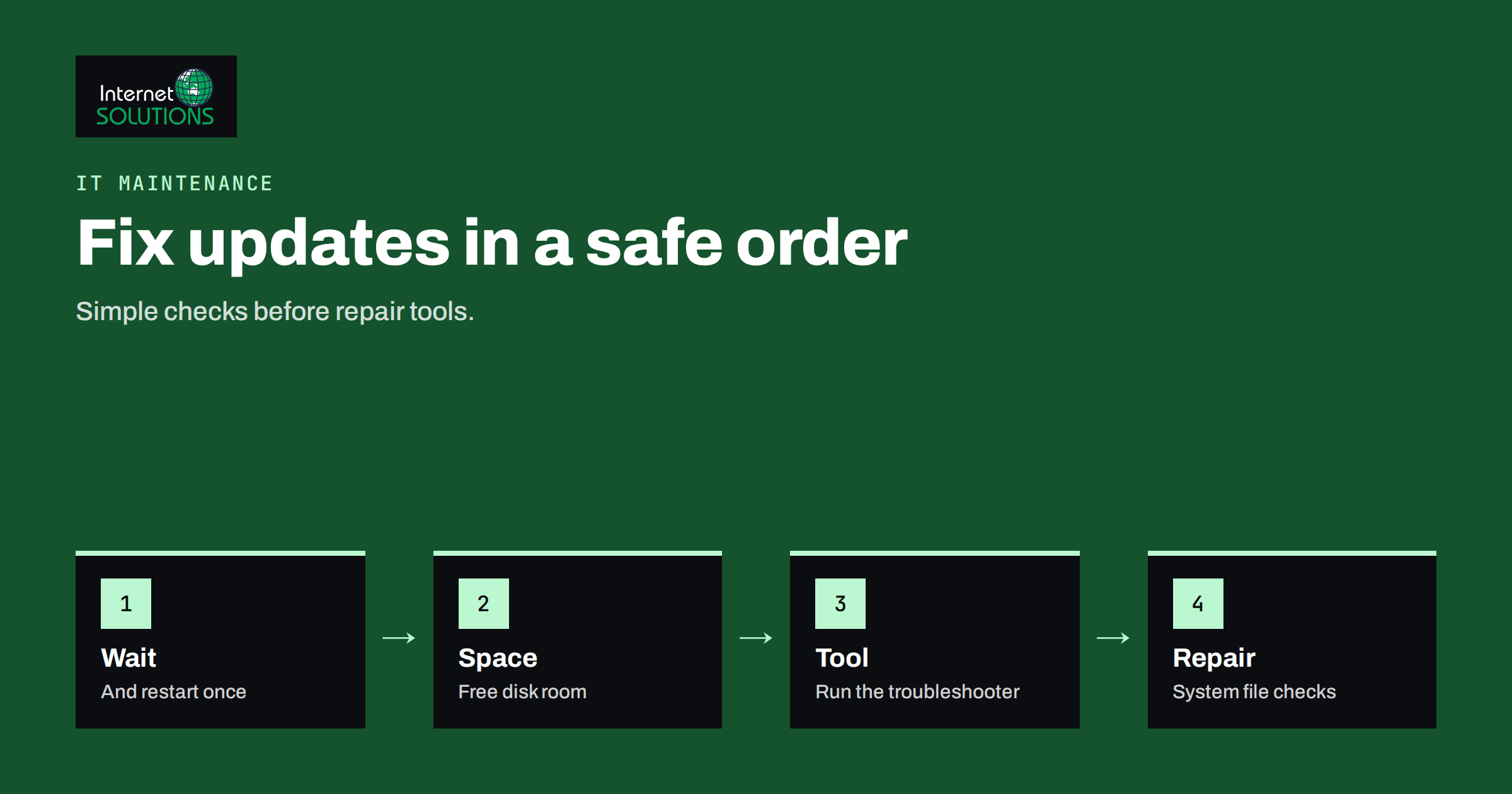
Windows Update problems are among the most common reasons a business computer stops being useful for an hour or a day: an update that sits at the same percentage for hours, a restart loop, a failed installation with an error code that means nothing to most people or a machine that keeps offering the same update that never installs. The reassuring fact is that most of these problems have ordinary causes, such as too little disk space, a service that has stopped, a corrupted download or a driver that conflicts with the new version, and most of them can be fixed with a short sequence of checks. This guide explains that sequence in a safe order, from waiting and rebooting to repair tools, and tells you when to stop and call for help.
It is written for owners and office managers who look after a few Windows computers. The menus change between Windows versions and builds, so use the steps as a map and check current instructions on the Microsoft support site for details. Before any repair, make sure important files are backed up, because a failing update can sometimes leave a machine unable to start.
Is It Really Stuck? Wait First
Many “stuck” updates are just slow. Large feature updates can take a long time on older computers with traditional hard disks, and the progress counter can sit at one number for a long time while work continues in the background. Before doing anything drastic, check these points.
- Look at disk activity. If the disk light flashes or the task manager shows disk or processor activity, the update is working.
- Give it a reasonable time. For a monthly update, an hour is usually plenty. For a major version update on an old machine, several hours may be normal. Overnight is a sensible limit before intervening.
- Do not switch off during “Working on updates” or “Do not turn off your computer”. Interrupting a step that rewrites system files is the most common cause of a damaged installation.
- Check the power. A laptop should be plugged in, and the charger should be the correct one.
If there is no sign of activity for many hours, and the screen has not changed, a forced restart is justified. Hold the power button until the machine switches off, wait a few seconds and start it again. Windows normally rolls back an incomplete update on the next start, and many times a second attempt succeeds.
Step 1: Restart, Free Space and Simple Checks
Start with the cheap and safe steps, and try the update again after each one.
- Restart the computer and check for updates again. Pending restarts block new installations.
- Check free disk space. Updates need working room, often several gigabytes for monthly updates and more for feature updates. Remove unneeded files, empty the recycle bin and use the built-in disk cleanup tool, including the option to clean system files.
- Disconnect extra hardware. Unplug USB drives, docking stations, printers and other devices that are not needed. A driver for one of them may be the cause of a failure.
- Check date, time and region. A wrong clock can break the secure connection to the update servers.
- Check the network. A weak connection, a VPN or a proxy can interrupt downloads. Try a wired connection, or turn off the VPN temporarily.
- Pause and resume. Pausing updates for a few days and resuming them forces a new check in some cases.
Our slow computer troubleshooting checklist covers general maintenance that reduces the chance of failed updates, such as freeing space and removing unwanted start-up items.
Step 2: Run the Built-In Troubleshooter
Windows includes automated troubleshooters that check the update components and can reset some settings. Open the settings app, search for troubleshooters and run the one for Windows Update. It checks the services, folders and settings and tries to repair what it can. It is not a cure for everything, but it takes a few minutes and often fixes simple cases. Write down any message it shows, because it may name the problem, such as a service that could not be started or a pending restart. Microsoft maintains documentation about troubleshooting Windows Update, which explains common error codes.
Step 3: Read the Error Code
When an update fails, the history under Windows Update settings shows an error code, usually starting with 0x. The code points to the area of the problem. The meanings below are common, but different Windows versions may use them differently, so treat them as hints and check Microsoft’s current documentation.
| Typical error pattern | Likely cause | First thing to try | Next step |
|---|---|---|---|
| Files not found (for example 0x80070002 or 0x80070003) | Missing or damaged update files, a stopped service | Reset update components | System file check |
| Corrupted component store (for example 0x80073712) | Damaged system image | DISM repair, then system file check | In-place repair install |
| Source files not found (for example 0x800f081f) | Missing installation source for a feature | Run update again with internet access | DISM with a repair source |
| Cannot connect or timeout | Network, proxy, VPN, time or firewall | Check network and clock | Try another network |
| Not enough space | Full disk or small system partition | Free space | Move data, expand storage |
| Driver or app conflict message | Incompatible driver or old software | Update or remove the named item | Check the manufacturer’s page |
| Rollback loop after restart | Failed installation step | Disconnect hardware, try again | Repair install or clean install |
Step 4: Reset the Update Components
Windows keeps downloaded updates in a folder and uses a few services to manage them. A corrupted download or a service stuck in the wrong state can stop everything. Resetting these components clears the problem in many cases. The process is: stop the update services, rename the folders that hold downloaded updates so that Windows creates fresh ones, then start the services again and check for updates. Microsoft and several reputable guides describe the exact commands, and they require an administrator command prompt. If you are not comfortable with commands, ask a technician. Renaming rather than deleting the folders keeps a copy if something goes wrong. After the reset, restart and try again.
Do not use random “update fixer” programs from the internet. Many are useless, and some are malware in disguise. Stay with tools from Microsoft and the instructions published by your hardware manufacturer.
Step 5: Repair System Files and the Component Store
If the update still fails, the operating system itself may have damaged files. Two built-in tools repair most such problems, run from an administrator command prompt in this order.
- DISM image repair. The deployment image servicing tool checks the component store, which is the source Windows uses to repair itself, and downloads good files from Windows Update if needed. It needs an internet connection and can take a long time.
- System file checker. After DISM, run the system file checker, which verifies the protected system files and replaces damaged ones.
Restart after both finish, and check for updates again. These tools are safe to run and do not remove your files. If they report errors they cannot repair, or the update still fails, you are in the territory of repair installs.
Step 6: Repair Install, Reset or Reinstall
When simpler steps fail, there are three heavier options, from least to most disruptive.
- In-place repair install. Running the installation from official media while keeping files and apps reinstalls the system files over the existing system. It fixes many deep problems and keeps your data, although a backup is still wise.
- Reset this PC. The reset feature reinstalls Windows, with an option to keep personal files. Installed apps are removed, and you will need to reinstall them.
- Clean installation. Wipe the drive and install from scratch. It is the most reliable and most work, and it suits machines with long histories of trouble. Back up data first, and record licences and settings.
Before choosing, consider the machine’s age and role. A computer that needs frequent repairs and cannot run supported versions may be better replaced; our guide to Windows 11 upgrade planning for business PCs explains how to check compatibility, and for stop errors during or after updates, see blue screen troubleshooting.
When an Update Breaks Something
Sometimes an update installs but causes new problems: a printer stops working, a program crashes or the network behaves differently. First confirm that the update is the cause, by checking the timing. Then try these steps: restart, update the driver or the application involved, check the vendor’s support page for known issues and use system restore if you have a restore point. As a last resort, uninstall the specific update from the update history, and pause updates for a short time until the vendor releases a fix. Do not leave a machine permanently without updates, because security fixes matter, and a problem update should be removed only until a corrected version is available. If you manage several machines, test updates on one or two first. Our article on patch management describes the same principle for servers and websites.
Prevention: Make Updates Boring
The best update problem is the one that never appears. A few habits make updates routine.
- Keep at least twenty per cent of the drive free. It helps updates and general speed.
- Restart weekly. Machines that run for weeks accumulate pending changes.
- Back up before major updates. A tested backup turns any failure into a delay.
- Use a regular maintenance window. Install updates at a fixed time, such as an evening, when people are not working.
- Stagger the rollout. Update one or two machines first, then the rest after a few days.
- Keep drivers and firmware current. Old drivers cause many failures.
- Retire machines that cannot be updated. Hardware that no longer receives support is a security risk.
A managed approach also saves time. Our computer repair and maintenance service includes update monitoring and repairs for business machines.
A Worked Example
A small law office has a reception computer that has been offering the same monthly update for two weeks. Each night it tries to install, fails with a “files not found” style error and rolls back. The office manager checks disk space and finds that only a few gigabytes are free on an old drive. She clears downloads and temporary files, runs the built-in update troubleshooter and restarts, but the update fails again.
A technician resets the update components, runs the DISM repair and the system file checker, which finds and fixes several damaged files, and restarts. This time the update installs. The technician notes that the drive is old and nearly full, recommends moving archives to the server and adds an SSD upgrade to the replacement plan. The manager also adds a weekly restart reminder and schedules updates for the evening. The problem does not return.
Common Mistakes
- Switching off the computer in the middle of an update that is still working.
- Ignoring a nearly full disk.
- Installing “update fixer” programs from unknown websites.
- Deleting system folders instead of renaming them.
- Skipping the backup before repair steps.
- Turning off updates permanently to avoid trouble.
- Repeating the same failing step without reading the error code.
Frequently Asked Questions
How long should a Windows update take?
A monthly update often takes from several minutes to an hour, and a major version update can take longer, especially on older machines. If there is no activity for many hours, investigate.
Is it safe to force a restart on a stuck update?
Only as a last resort, after waiting a reasonable time and checking for activity. Windows usually rolls back an incomplete update, but an interrupted installation can sometimes damage the system, so keep backups.
Will I lose my files if I run a repair install?
An in-place repair install is designed to keep files and apps, and the reset feature can keep personal files. Even so, make a backup first.
What does an error code like 0x80070002 mean?
It generally points to missing or damaged files. Resetting update components and running the system repair tools often fix it, but check Microsoft’s documentation for your version.
Should I turn off automatic updates?
No, not permanently. Updates include security fixes. You can schedule them for a convenient time or pause them briefly while a known problem is investigated.
When should I call a technician?
If the machine will not start, loops through restarts, shows disk errors or the update still fails after the repair tools, ask for help so that data is protected.
The Bottom Line
Windows Update problems are usually fixable in a calm sequence: wait and check for activity, restart, free disk space, run the troubleshooter, read the error code, reset the update components and repair system files with the built-in tools. Keep a backup before each heavier step, avoid unknown fixer programs and use an in-place repair, a reset or a clean installation only when the lighter steps fail. Afterwards, make updates routine with free space, weekly restarts, maintenance windows and a staged rollout. A little discipline makes updates uneventful again.