

 English
 Lietuvių
 Latviešu
 Eesti
 Русский
 Polski
 Українська
 Deutsch
 Italiano
 Español
 Français
 Português
 Čeština
 Magyar
 Română
 Ελληνικά
 Türkçe
 日本語
 العربية
 हिन्दी
 Bahasa Indonesia
 Bahasa Melayu
 ไทย
 Tiếng Việt
 বাংলা
WP-CLI: Managing WordPress From the Command Line Safely
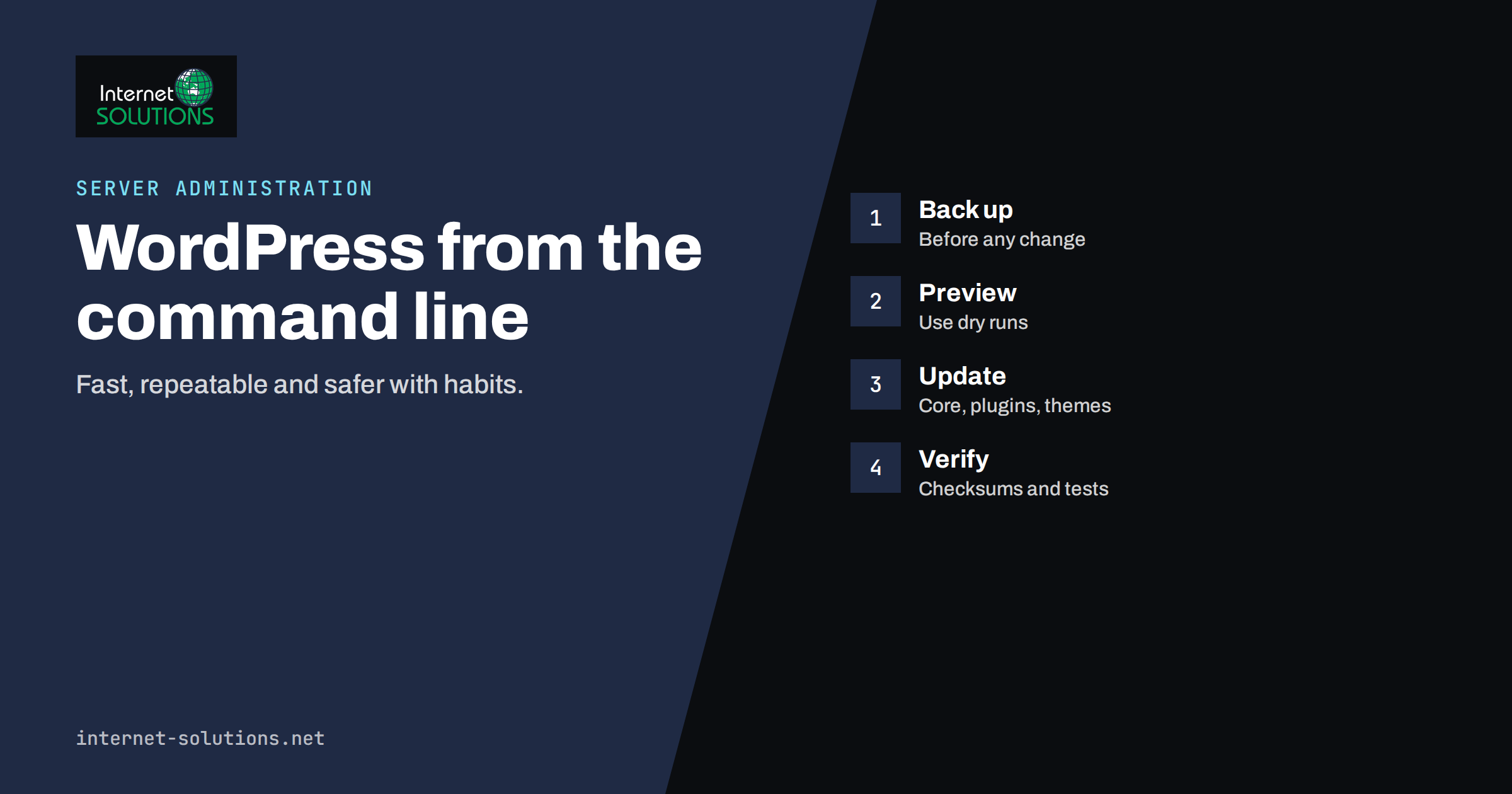
WP-CLI is the official command-line interface for WordPress. Instead of clicking through the dashboard, an administrator types short commands to list plugins, update the core, export the database, change a setting or check the health of a site. It is fast, repeatable and scriptable, which makes it the preferred tool for anyone who looks after more than one WordPress installation or who needs to work on a site that is too broken to open the dashboard.
This guide introduces WP-CLI for small businesses and their administrators. It explains what the tool does, how to run it safely, which commands solve everyday problems, how to use it for updates and backups, and which mistakes cause outages. You do not need to be a programmer, but you do need server access and a habit of checking before you change. Every example here can first be tried on a staging copy of your site.
What WP-CLI Is and Why It Helps
WP-CLI runs on the server where WordPress lives and talks to the site directly through WordPress’s own code. Because it does not go through a web page, it is not limited by browser timeouts, and it can work when the dashboard is unavailable because of a plugin conflict or a login problem. It is also precise: each command does one clear thing, and the output can be saved to a file as a record of what happened.
For a small business, the benefits are practical.
- Speed. Updating ten plugins or exporting a large database takes one command instead of many clicks.
- Repeatability. The same command works on every site, so routine maintenance becomes a checklist.
- Recovery. When a faulty plugin breaks the site, you can deactivate it from the command line and regain access.
- Visibility. You can inspect versions, users, settings and scheduled tasks without opening the admin screens.
- Automation. Commands can be placed in scripts and scheduled jobs for checks and reports.
The tool is documented on the WP-CLI website, and a detailed reference for every command is in the WP-CLI handbook. Check the handbook for the exact options in your installed version, because commands evolve.
Before You Type Anything: Safe Habits
Power cuts both ways. A command line has no “are you sure?” dialog for most actions, so build habits that protect you.
- Run as the site’s user. Use the same system user that owns the WordPress files, not the superuser. Running as the wrong user can create files with wrong ownership and break uploads and updates later.
- Change to the site directory or use the path option, and confirm which site you are on. The command that shows the site address is a quick check before any change.
- Take a backup first. Export the database and copy the files before updates, replacements or bulk changes.
- Use dry runs. Many commands that change data offer a preview mode. Use it, read the result and only then run the real command.
- Test on staging. Rehearse risky steps on a copy; see our guide to a WordPress staging site.
- Keep a log. Save the commands you ran and the output, with dates, in your maintenance notes.
Never paste commands from the internet without understanding them, and never put passwords on the command line where they can be stored in shell history. If a command needs a secret, prefer a prompt or a protected file.
Everyday Commands
The table shows commands that cover most routine work. They are described by purpose so that you can look up the exact syntax in the handbook.
| Task | Command family | What it tells or does |
|---|---|---|
| Check the setup | wp –info and wp core version | Versions of PHP, WP-CLI and WordPress, plus paths |
| See available updates | wp core check-update, wp plugin list, wp theme list | Lists what needs updating and the current status |
| Update safely | wp plugin update, wp theme update, wp core update | Applies updates one item or all at once |
| Verify files | wp core verify-checksums, wp plugin verify-checksums | Compares files with official copies to spot modifications |
| Back up the database | wp db export | Writes the database to a file |
| Check the database | wp db check | Reports table problems |
| List users and roles | wp user list | Shows accounts, roles and emails |
| Inspect scheduled tasks | wp cron event list | Lists scheduled events and next run times |
| Clear caches | wp cache flush, wp transient delete | Removes stored temporary data |
Start with read-only commands, such as listing plugins, users and events, to learn how the site looks from the command line. You will often find surprises: abandoned plugins, old administrator accounts and scheduled tasks that nobody remembers.
Updating Core, Plugins and Themes
Updates are the most common reason to use WP-CLI. The safe sequence is short.
- Back up the database and files.
- List what is outdated and read the changelogs of anything important.
- Update on staging first if the site is a shop or has many plugins.
- Update one component at a time for risky plugins, or all of them for simple sites, using the preview option where available.
- Test the site by loading key pages, submitting a form and checking the admin area.
- Roll back if needed from the backup, and note the problem plugin.
This fits into a wider routine described in our article on patch management. WP-CLI makes it quick, but it does not remove the need for testing. A plugin that updates in a second can still break checkout in a way that only a real test reveals.
Verifying Integrity and Finding Problems
The checksum commands compare WordPress core files, and plugins from the official directory, with the originals. If a file differs, the command lists it. Differences are not always malicious, since some sites customise files, but unexpected changes in core files deserve investigation. They can indicate a compromised site, and the right response is to find how the change happened before simply restoring the file. Pair integrity checks with the practices in our guide to WordPress user roles and permissions to reduce the chance of unwanted changes.
When a site shows a white screen after an update, WP-CLI offers a way back. List the active plugins, deactivate the suspected one or all of them, and reload the page. If the site returns, reactivate plugins one by one to find the culprit. You can also switch to a default theme the same way. These steps can be done in minutes without dashboard access, which is why many administrators learn WP-CLI during their first emergency.
Search and Replace Without Breaking Data
When you move a site to a new domain or change from HTTP to HTTPS, addresses stored in the database must be updated. WordPress stores some data in serialised form, which breaks if you edit it with a simple text replacement. WP-CLI’s search-and-replace command understands serialised data and handles it correctly.
- Always export the database first.
- Run it as a dry run to see how many replacements would be made in each table.
- Be specific. Replace full addresses, not short strings that may appear elsewhere.
- Skip columns that should not change, such as the identifiers of posts, where the command offers a way to do so.
- Flush caches and test pages afterwards.
The same principle applies to every bulk operation: preview, back up, run, check. For migrations in general, see moving to a new hosting provider.
Scheduled Tasks and Automation
WordPress has its own scheduler, which normally runs when visitors load pages. On busy sites this is wasteful, and on quiet sites it can be unreliable. A common improvement is to disable the visitor-triggered scheduler and run the events from a system scheduled job that calls WP-CLI at a fixed interval. The listing command shows which events exist and when they will run, which helps you to find stuck or duplicate events. For general guidance on scheduled jobs, read our article on cron jobs and scheduled tasks.
You can also write small scripts that check update status weekly and email a summary, or that export the database nightly to a protected location. Keep scripts simple, log their output and test failure paths. A backup script that silently fails is worse than none.
A Practical First Session
If you have never used the tool, plan a first session of thirty minutes on a staging copy. Connect to the server, change to the site directory and ask for the version information. Then list the plugins and themes and note which are inactive. Inactive plugins that you do not plan to use should be removed, because they still need updates and can carry vulnerabilities. List the users and check that every administrator is a real person who still needs access. List the scheduled events and look for anything unfamiliar.
Finish by exporting the database to a dated file and downloading it to a safe place. In those thirty minutes you will have produced a mini audit: versions, unused plugins, user accounts, scheduled tasks and a backup. Write down the findings and the decisions that follow, such as which plugins to delete and which accounts to remove. Repeating the same session every month builds confidence and keeps the site tidy, and each repetition makes the next real emergency less frightening.
Finally, share what you learn. Put the commands you use most in a short internal page, with the site paths and the user name each site runs under. A new colleague, or you in six months, will save an hour. Mark clearly which commands are read-only and which change data, so that nobody runs a destructive example by accident while trying to learn.
Common Mistakes
- Running as the superuser. This creates files with the wrong owner. Run as the site’s user.
- Skipping the backup. The quickest command is the one that ruins your afternoon.
- Updating everything on a live shop at lunchtime. Choose a quiet period and test checkout.
- Ignoring multisite. Installations with several sites need the right site address specified; otherwise commands apply to the wrong site.
- Leaving the tool open to everyone. Limit shell access and use keys, as in our guide to SSH keys and server access.
If you would rather have an administrator handle this regularly, our server administration service covers WordPress maintenance, updates and monitoring.
Treat the command line as a tool that rewards patience. Read each command before pressing Enter, keep the previous output visible so you can compare it, and stop at the first unexpected message instead of pushing on. Most disasters begin with a second command typed to fix the first.
Frequently Asked Questions
Do I need WP-CLI if I use the dashboard happily?
Not necessarily, but it becomes valuable for large updates, recovery from errors, bulk changes and managing several sites. Many administrators use both.
Is WP-CLI safe to use on a live site?
Yes, if you follow safe habits: back up first, use dry runs, run as the correct user and test afterwards. Rehearse risky operations on a staging copy.
Can I use WP-CLI on shared hosting?
Some hosts provide it and give shell access; others do not. Ask your provider, and check whether it is available for your plan.
How do I recover when a plugin breaks the dashboard?
Deactivate the suspected plugin, or all plugins, from the command line, reload the site, and then reactivate plugins one by one to find the cause.
Will search and replace damage serialised data?
Not when you use the WP-CLI command, which handles serialised values correctly. Avoid editing the database dump with a plain text editor for this purpose.
How do I learn the exact syntax?
Use the built-in help for each command and the WP-CLI handbook. Start with read-only commands, then progress to changes on a staging site.
The Bottom Line
WP-CLI turns WordPress administration into a set of short, repeatable commands. Learn the read-only ones first, run as the site’s user, back up before changing anything and use dry runs for bulk operations. Use it for updates, integrity checks, emergency recovery, migrations and scheduled tasks, and keep a log of what you did. With these habits, the command line makes maintenance faster and safer than clicking through screens.