

 English
 Lietuvių
 Latviešu
 Eesti
Eesti Русский
 Polski
 Українська
 Deutsch
 Italiano
 Español
 Français
 Português
 Čeština
 Magyar
 Română
 Ελληνικά
 Türkçe
 日本語
日本語 العربية
 हिन्दी
 Bahasa Indonesia
 Bahasa Melayu
 ไทย
ไทย Tiếng Việt
 বাংলা
বাংলাScreenshots and Images in Ask Mio: Charts, Receipts and Errors
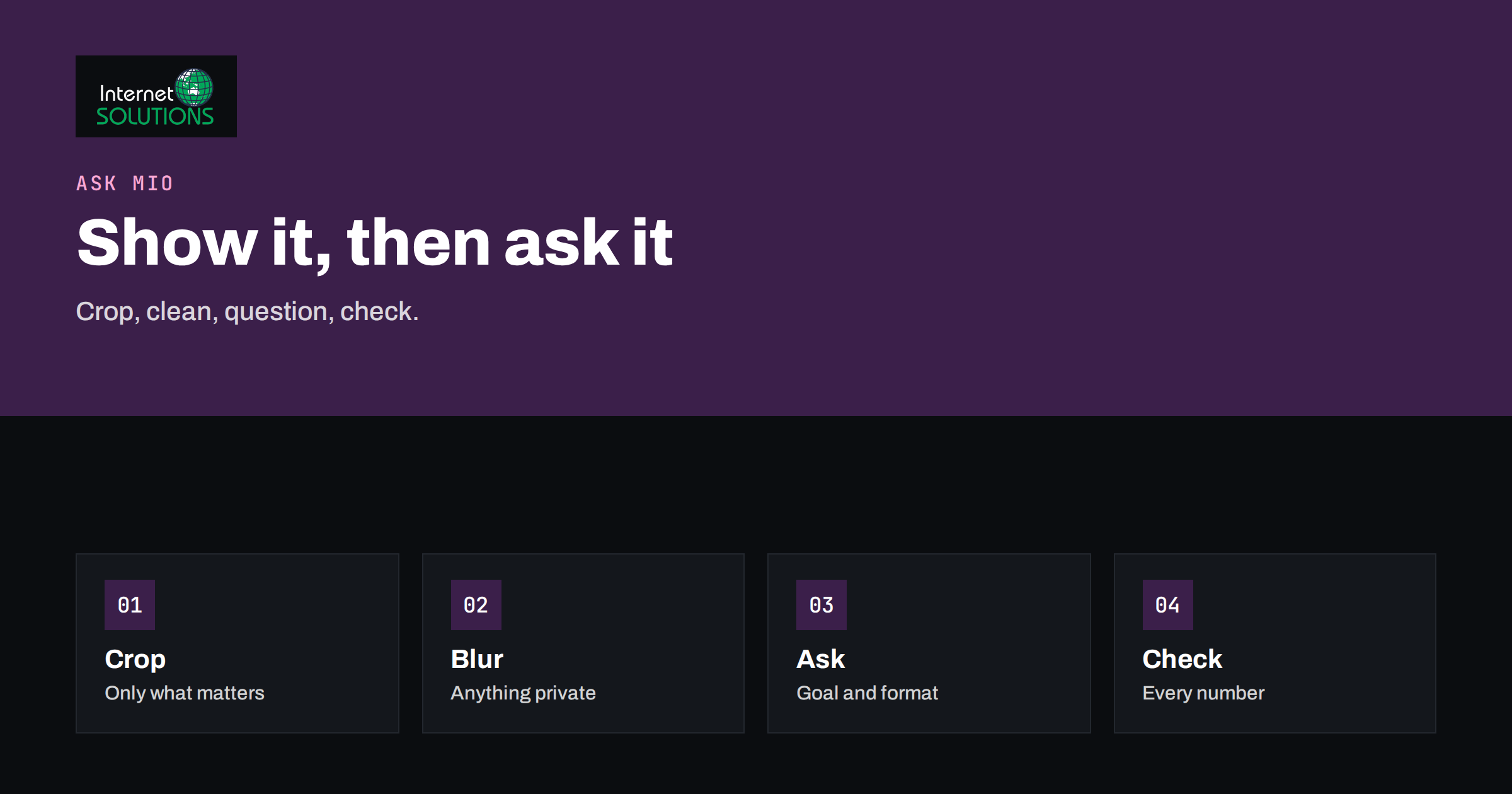
Working with images in Ask Mio turns a whole category of awkward questions into easy ones. Anyone who has tried to describe an error dialog over email, explain a confusing chart in words or retype a receipt into a spreadsheet knows how much time is wasted converting what you can see into what you can type. Ask Mio lets you attach files and images to a conversation, so you can show the assistant what you are looking at and ask a direct question about it.
This guide covers the practical side: the kinds of images that work well, how to prepare them, how to phrase the questions, what to check in the answers, and what you should keep out of an image entirely. It is written for people who use an AI assistant at work and want reliable results rather than impressive-looking guesses. As with any AI-generated answer, the output is a draft for you to verify, not a verdict.
What You Can Do With an Image
An image gives the assistant context that is slow to type. Typical uses for a small business or team include:
- Error messages and screenshots. Show a failing dialog, a log excerpt or a settings screen and ask what it means and what to try.
- Charts and dashboards. Ask for a plain-language summary of a graph, what the trend suggests and what to check next.
- Receipts, invoices and forms. Extract the visible fields into a table for your own records, then check the numbers yourself.
- Whiteboards and handwritten notes. Turn a photographed whiteboard into a tidy list of actions.
- Design and layout feedback. Ask for observations on a page layout, an email design or a banner, such as clarity, hierarchy and readability.
- Products and objects. Ask for help writing a description from a photograph, then correct whatever the assistant got wrong.
- Documents as pictures. Sometimes a table or a page is only available as a screenshot. The assistant can read it, though you should double-check anything numerical.
The Ask Mio product page lists attaching files and images among its features; see the Ask Mio overview for the current capabilities. If you want to work with full PDFs and documents rather than pictures, our guide to document analysis covers that.
Which Images Work Best
| Image type | What works | What causes trouble |
|---|---|---|
| Screenshot of an error | The full dialog, readable text, the application name visible | Cropping out the exact message, tiny text, several overlapping windows |
| Chart or graph | Titles, axis labels and legend visible; one chart per image | Unlabelled axes, dense charts with many series, cut-off legends |
| Receipt or invoice | Flat, well-lit, straight-on photo or scan | Creases, shadows, angled photos, faded thermal paper |
| Whiteboard | Even lighting, no glare, photographed straight on | Reflections, faint markers, writing at the very edge |
| Design or layout | Full-page screenshot at a readable size | Tiny thumbnails, text blurred by compression |
| Table in a picture | Clear gridlines and headers | Merged cells, tiny fonts, skewed photos |
The general rule is simple: if you struggle to read the image comfortably at normal size, the assistant may struggle too. A sharper, cleaner image usually matters more than any clever wording of the question.
How to Prepare an Image
- Crop to what matters. Remove unrelated windows, toolbars and tabs. This also removes information you did not intend to share.
- Keep the text readable. Do not shrink an image so far that characters blur. If the screen is large, capture only the relevant area.
- Remove sensitive details. Blur or cover names, account numbers, addresses, passwords, access keys and anything personal before uploading. Cropping is better than relying on a thin marker line.
- Straighten and light photographs. Take photos square on, in good light, without glare or shadows.
- Use one image per question. If you need several, say how they relate, for example “image one is before, image two is after”.
- Add context in text. Name the application, the version if you know it, and what you were trying to do when the screenshot was taken.
The privacy step deserves emphasis. Screenshots often include much more than you realise: browser tabs, notification pop-ups, file names, email previews and customer data in the background. Our article on photo privacy explains how pictures can carry hidden information such as location and device data, which is another reason to review an image before sharing it anywhere.
Asking Good Questions About an Image
The image supplies the content; your question supplies the purpose. Compare a weak and a strong request.
- Weak: “What is this?” The assistant must guess what you want.
- Strong: “This is a screenshot of an error from our accounting software when I export a report. What does the message mean, and what are three things I can check before contacting support?”
Useful patterns:
- State the goal. “Summarise the trend”, “extract the line items”, “explain this error”.
- State the audience. “Explain it to someone who is not technical.”
- Specify the output. “Put the line items in a table with date, supplier, net amount, tax and total.”
- Ask for uncertainty. “Tell me which values you could not read clearly.”
- Ask for steps, not just answers. “List the checks in order from most to least likely.”
Asking the assistant to flag what it could not read is particularly valuable. It turns silent errors into visible questions you can resolve.
Worked Examples
Decoding an error screenshot
Capture the whole dialog, add the name of the program and what you did just before. Ask for the meaning, the likely causes and a short checklist of safe checks. If the problem involves code or a log, switch to code-oriented help; our guide to debugging code with Ask Mio shows how to go from an error to a fix. Before following any instruction that changes settings, deletes data or runs commands, read it carefully and apply it first to a copy or a test environment.
Summarising a chart
Upload the chart with visible axes and legend. Ask for a description of what the chart shows, the main trend and anything that looks unusual. Then ask the follow-up question that matters: “What should I check in the underlying data before drawing a conclusion?” Charts can mislead through truncated axes or selective periods, and the assistant can help you notice such things, though you should confirm against the source data.
Capturing a receipt
Photograph the receipt flat. Ask for a table of date, supplier, items, net amount, tax and total. Compare the totals with the receipt yourself. If the sum of the lines does not match the total, that is a signal that a number was misread or an item was missed. Keep the original for your records; the extracted table is a convenience, not a replacement for the document.
Reviewing a layout
Upload a screenshot of a landing page or an email and ask for observations on clarity: is the main action obvious, is the text readable, what competes for attention? Treat the response as a fresh pair of eyes, not an authority. Accessibility checks deserve real testing; the W3C’s guidance on images and alternative text and the success criterion on non-text content explain what accessible images need.
Checking the Answers
Reading an image is a perceptual task, and AI systems can make mistakes in ways that look confident. Build a short verification habit, as we describe in fact-checking AI answers at work.
- Numbers. Verify every figure against the image. Digits such as 3, 5, 6 and 8 can be confused in poor images.
- Totals. Recalculate sums and percentages.
- Names and identifiers. Check spelling of names, product codes, reference numbers and dates.
- Interpretations. Treat explanations of errors and trends as hypotheses to test, not facts.
- Missing items. Ask the assistant to list what it could not read, then scan the image for anything omitted.
- Consistency. Ask the same question in a second way and see whether the answers agree.
For anything with legal, financial or safety consequences, use the output only as a starting point and confirm with the source or a qualified person.
What to Keep Out of Images
Treat uploads with the same care as any information you share with a service. Do not upload:
- Passwords, recovery codes, private keys or access tokens, including ones visible in the corner of a screen.
- Payment card numbers or full bank details.
- Identity documents and personal records, unless you have a clear purpose and permission.
- Confidential customer data, contracts under non-disclosure agreements or anything your company policy restricts.
- Images of people who have not agreed to be photographed.
When in doubt, crop, blur or recreate the situation with dummy data. Know your organisation’s rules about which tools may handle which information, and follow them.
Common Mistakes
- Sending a tiny, compressed screenshot. Detail is lost before the assistant sees it.
- Cropping out the one line that mattered. Leave the whole message visible.
- Asking a vague question. The image is context, not a question.
- Trusting extracted numbers blindly. Always reconcile with the original.
- Uploading more than needed. Extra windows leak extra information.
- Pasting several unrelated images at once. Split them into separate conversations or label them clearly.
- Skipping follow-up questions. Ask what the assistant is unsure about and why.
A Quick Routine for Everyday Use
If you only remember one workflow, make it this five-step routine. It takes about two minutes and prevents most of the problems described above.
- Capture. Take the screenshot or photograph, making sure the relevant text is large enough to read comfortably.
- Clean. Crop to the relevant area and remove or blur anything private.
- Ask. Write a sentence of context, the goal, the audience and the format you want, and add “list anything you could not read clearly”.
- Check. Compare numbers, names and dates against the original, and recalculate totals.
- Keep. Save the original image and the final answer together, so that you can explain later where a figure or a decision came from.
Teams can turn the routine into a short internal note and share it with new colleagues. A shared habit of cropping, naming the goal and verifying results makes the difference between an assistant that saves time and one that quietly introduces errors. It also builds trust: when everyone checks the same things, colleagues can rely on each other’s output without repeating every step.
Frequently Asked Questions
Can Ask Mio read text in a screenshot?
You can attach files and images to a conversation and ask about them. Clear, well-lit images with readable text give the best results, and you should always check the extracted text against the original.
Is it safe to upload screenshots with private information?
Avoid it. Crop or blur sensitive details before uploading and never include passwords, keys, card numbers or confidential customer data. Follow your organisation’s policy on what may be shared with external tools.
Why did the assistant misread a number?
Blurry, small, skewed or low-contrast images are hard to read for people and software alike. Improve the image, ask the assistant to list unclear values and verify every figure yourself.
Can I upload several images in one conversation?
Yes, but explain how they relate and ask clear questions about each. For unrelated tasks, separate conversations keep things tidy and reduce confusion.
Can the assistant give feedback on a design?
It can offer observations on clarity, hierarchy and readability, which is useful as a quick second opinion. It does not replace testing with real users or an accessibility review.
Should I trust an explanation of an error message?
Treat it as a lead. Use it to narrow the possibilities, test safe steps first and check the application’s documentation before changing anything important.
The Bottom Line
Images save time because they carry context that is tedious to type. Get the best results by supplying a clear, cropped, readable picture, stating your goal, asking for the output you need and checking every number and interpretation against the original. Keep sensitive information out of what you upload, and treat answers as drafts to verify rather than facts. Used with those habits, screenshots and photographs make everyday questions about errors, charts, receipts and layouts quicker to answer.