

 English
 Lietuvių
 Latviešu
 Eesti
Eesti Русский
 Polski
 Українська
 Deutsch
 Italiano
 Español
 Français
 Português
 Čeština
 Magyar
 Română
 Ελληνικά
 Türkçe
 日本語
日本語 العربية
 हिन्दी
 Bahasa Indonesia
 Bahasa Melayu
 ไทย
ไทย Tiếng Việt
 বাংলা
বাংলাFile Sharing for Small Teams: Folders, Permissions and Backups
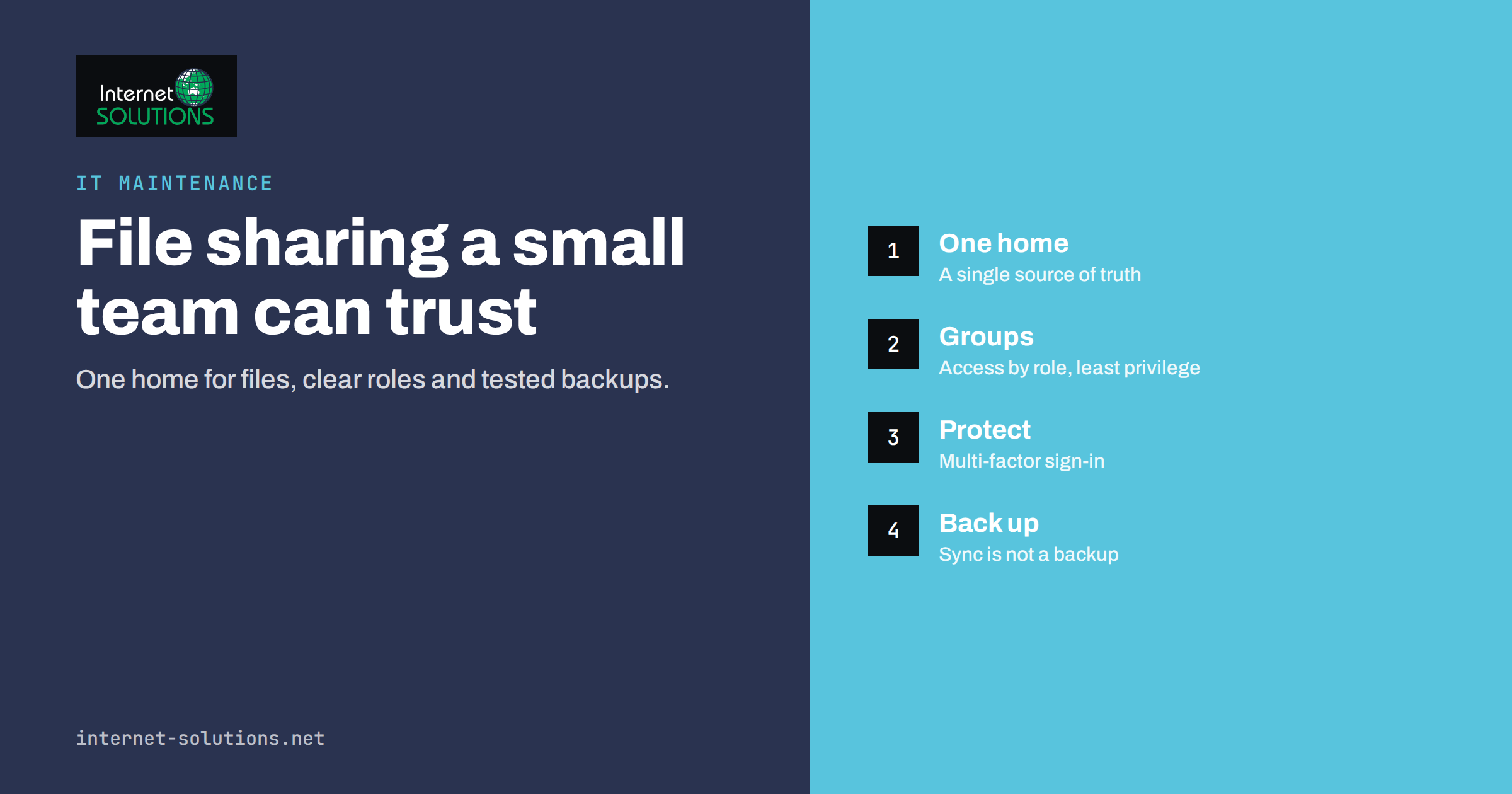
In a small business, files tend to grow without a plan. Contracts sit in someone’s email attachments, price lists exist in four versions on three laptops, and the one spreadsheet everyone needs lives on a computer that is switched off when its owner is on holiday. The cost is rarely visible in a single moment, but it adds up: time lost searching, mistakes caused by outdated versions, and a serious risk if a laptop is lost, a person leaves or ransomware locks a drive.
File sharing for a small team does not require an enterprise system. It requires a few clear decisions: where the files live, how they are organised, who may see and change them, and how they are protected and recovered. This guide walks through those decisions for teams of roughly three to fifty people. It is written for owners and office managers, and it ties into our wider guidance on disaster recovery planning and ransomware protection.
Decide Where the Files Live
Every team needs one agreed home for shared files. The main options are cloud storage, a local server or network storage device, or a mix.
| Option | Strengths | Weaknesses | Best for |
|---|---|---|---|
| Cloud storage (for example a business workspace suite) | Access from anywhere, built-in sharing and version history, no hardware to maintain | Ongoing subscription, depends on internet access, needs careful sharing settings | Most small teams, remote and hybrid work |
| Local file server or NAS | Fast on the local network, one-time hardware cost, full control | Needs maintenance, backups and secure remote access, vulnerable to local disasters | Offices with large files, such as design or video, and good IT support |
| Hybrid | Local speed for big files plus cloud access and off-site copies | More to manage and explain to staff | Teams with mixed needs |
| Email attachments and USB sticks | Familiar | Uncontrolled copies, no history, easy to lose or leak | One-off exchanges only |
For most small businesses, a cloud storage service tied to the business email account is the simplest and safest choice. It gives version history, access controls and sharing features without the need to run a server. If you have not chosen a platform for email and documents yet, our comparison of business email hosting options will help with the wider decision.
Whatever you choose, make it the single source of truth. A rule such as “if it is not in the shared drive, it does not exist” prevents most chaos. Personal folders and desktops should hold only temporary work.
Design a Folder Structure People Will Use
The best structure is the one your team follows without thinking. Keep it shallow, predictable and based on how the business works.
- Start with a small number of top-level folders, usually by department or function: Administration, Finance, Sales, Marketing, Operations, Projects, HR.
- Use a consistent pattern below that, such as Client name, then Year, then Project. Consistency matters more than the particular order.
- Limit depth. If a file sits more than four or five levels down, people stop looking for it and start saving elsewhere.
- Separate active from archived. Move completed projects into an Archive folder with restricted access, so the working area stays clean.
- Avoid a “Misc” or “New folder” culture. Give people a clear place for unsorted items, such as an Inbox folder that is emptied weekly.
Write the structure on one page and keep it where everyone can see it. When a new person joins, show them the structure during their first week.
Name Files So They Can Be Found
A naming convention costs nothing and saves hours. A good pattern includes the date in a sortable format, the subject and a version or status where needed. Examples:
2026-10-17_Client-Name_Proposal_v2.pdf2026-Q3_Sales-Report_final.xlsxBrand-Guidelines_2026.pdf
Use dates in year-month-day order so files sort chronologically. Avoid spaces and special characters if files will be used in scripts or shared externally, and avoid words such as “final”, “final2” and “really-final”. With a platform that keeps version history, you do not need version numbers in every file name, because the system keeps earlier versions automatically.
Set Permissions by Role
Permissions decide who can see, edit and share each folder. The principle to apply is least privilege: people get the access their job requires and no more. Our article on least privilege for teams explains the idea in the context of WordPress, and it applies equally to files.
- Assign access to groups, not individuals. Create groups such as Finance, Sales and Management, and give each folder to a group. When someone changes role, you move the person between groups instead of editing dozens of folders.
- Use three levels most of the time: view only, edit and manage. Few people need to manage.
- Protect sensitive areas. Payroll, contracts, HR records and financial data should be visible only to the people who need them.
- Limit who can share outside the company. Allow external sharing from specific folders and require expiry dates and passwords for links where the platform supports it.
- Review access every quarter. Check who has access to the sensitive folders and remove what is no longer needed.
Be careful with “anyone with the link” sharing. It is convenient, but links can be forwarded, indexed or left active forever. Prefer sharing with named people, and use link sharing only for material that is safe to be public.
Share With Clients and Suppliers Safely
Sharing files with outsiders is where many leaks happen. Instead of attaching documents to emails, share a link to a specific file or a dedicated client folder, so you can control and revoke access. Keep each client in a separate folder so that no one sees another client’s material. Set an expiry date for temporary shares and remove access when a project ends. For sensitive documents, require sign-in rather than open links, and avoid sending passwords in the same message as the link.
Protect Accounts, Not Just Files
The strongest folder rules are useless if someone’s account is taken over. Protect access with multi-factor authentication and a password manager for every user, as described in our guide to multi-factor authentication and password managers. Add device protections: screen locks, disk encryption on laptops, and the ability to remove company data from a lost phone. The UK National Cyber Security Centre publishes practical guidance on cloud security that is useful when evaluating a provider.
Back Up Shared Files Properly
A common and costly misunderstanding is to treat cloud storage as a backup. Sync is not backup. If a file is deleted, encrypted by ransomware or overwritten by mistake, the change can sync to every device, and the damage spreads quickly. Version history and the recycle bin help within a limited time, but they are not a complete protection.
A sound approach follows the 3-2-1 idea: keep at least three copies of important data, on two different types of storage, with one copy off-site or offline. For a small team using cloud storage, that might mean the live data in the cloud, a scheduled backup to a separate backup service or storage account, and a periodic offline or immutable copy for the most critical material. Then test the restore. A backup you have never restored is a hope, not a plan. Our guide to uptime, backups and monitoring covers restore testing in more detail, and the NCSC lists backup and recovery among its 10 steps to cyber security.
Handle People Joining and Leaving
File access should follow the lifecycle of a person. When someone joins, add them to the right groups and show them the structure. When someone changes role, adjust their groups. When someone leaves, remove their access the same day, transfer ownership of their files to a manager and review any external shares they created. Without a routine, former employees keep access for months, and files owned by their accounts can vanish when the account is deleted. Our onboarding and offboarding checklist includes these steps.
Working With Large Files and Remote Staff
Large files, such as video, design source files and CAD drawings, behave differently from documents. On slow connections, cloud sync can be painful, and two people editing the same binary file can cause conflicts. Options include keeping large project files on a local server with a good connection and offering remote access through a secure VPN, or using a cloud service with selective sync, so that only the folders a person needs are stored on their device. Set a rule about who edits a large file at a time, and use a check-out or locking feature if the platform supports one.
For remote staff, make sure shared drives are reachable without a complicated setup. If people have to ask IT for help each time they connect, they will start using personal accounts, which is the beginning of shadow IT.
Retention and Cleanup
Keeping everything forever feels safe but creates cost and risk. Decide how long each kind of document must be kept, based on legal and business needs: accounting records, contracts, employee files and client data usually have specific retention periods in your country. After that period, archive or delete them in a controlled way. Schedule a cleanup once or twice a year to remove duplicates, empty folders and obsolete drafts, and to check that the structure still fits the business.
A Starter Plan for a Small Team
- Choose the platform and make it the single home for shared files.
- Draft the folder structure on one page, with the naming convention.
- Create groups and assign folder access by group.
- Turn on multi-factor authentication for every account.
- Set up backups that are separate from sync, and test a restore.
- Move existing files in stages, department by department, and retire old locations.
- Train the team in half an hour: structure, naming, sharing and what to do when unsure.
- Review quarterly: access, external shares and storage use.
If you would like this done with minimal disruption, our IT maintenance service can plan the structure, migrate the data, configure permissions and backups and support the team afterwards.
Frequently Asked Questions
Is cloud storage safe enough for business files?
Reputable business cloud services are generally secure when configured well. The usual risks come from weak passwords, missing multi-factor authentication, careless sharing links and lack of backups. Fix those and cloud storage is a sound choice for most small teams.
Is cloud sync the same as a backup?
No. Sync mirrors changes, including deletions and ransomware encryption, across devices. A backup keeps separate, restorable copies that survive such events. Use both, and test the restore.
How should I organise folders for a small team?
Use a few top-level folders by function, a consistent pattern below them such as client, year and project, and a limited depth. Separate active work from archives, and document the structure on one page for everyone.
Who should be allowed to share files outside the company?
Limit it to people who need to, and to designated folders. Prefer sharing with named recipients over open links, use expiry dates where possible and review external shares regularly.
What happens to files when an employee leaves?
Remove the person’s access the same day, transfer ownership of their files to a manager before the account is deleted and review shares they created. A written offboarding checklist prevents files from being lost or left exposed.
Do small teams need a file server?
Usually not. A cloud service is simpler to run and works from anywhere. A local server or NAS makes sense for very large files or special requirements, but it needs maintenance, secure remote access and off-site backups.
The Bottom Line
Good file sharing for a small team rests on a handful of decisions made once and followed consistently: a single home for files, a simple folder structure with clear names, permissions granted to groups on the least-privilege principle, protected accounts with multi-factor authentication, and real backups that are tested. Add routines for people joining and leaving and a quarterly review of access, and the system will stay tidy as the team grows. The investment is small compared with the time lost to searching, the risk of leaks and the damage of losing data that the business cannot do without.