

 English
 Lietuvių
 Latviešu
 Eesti
Eesti Русский
 Polski
 Українська
 Deutsch
 Italiano
 Español
 Français
 Português
 Čeština
 Magyar
 Română
 Ελληνικά
 Türkçe
 日本語
日本語 العربية
 हिन्दी
 Bahasa Indonesia
 Bahasa Melayu
 ไทย
ไทย Tiếng Việt
 বাংলা
বাংলাNAS or Cloud Storage for a Small Office: Choosing and Backing Up
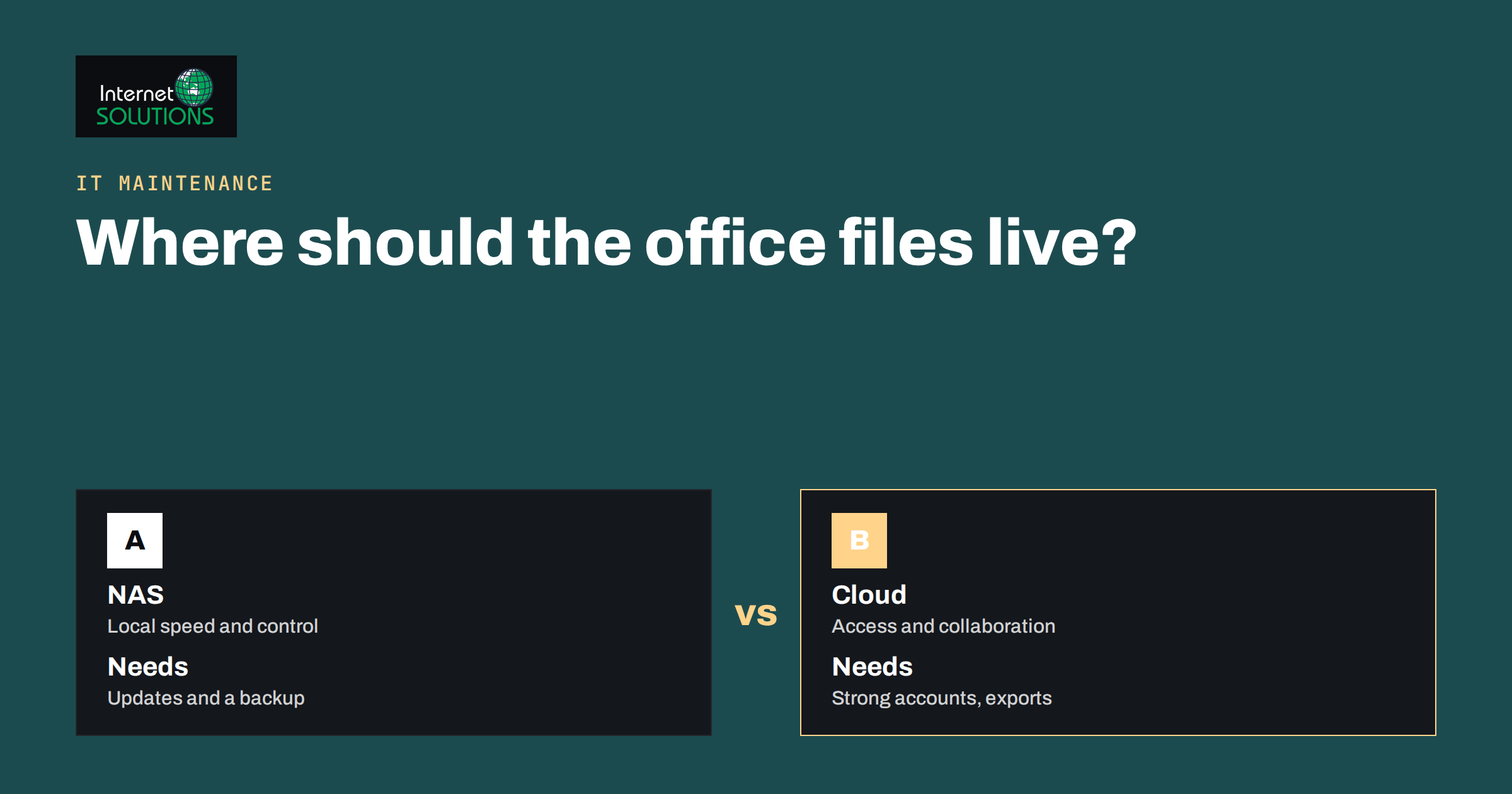
NAS or cloud storage is one of the first infrastructure decisions a small office faces once files start to pile up on individual laptops. A network-attached storage device, usually called a NAS, is a small server with disks that sits in your office and shares files over your network. Cloud storage keeps files on a provider’s servers, reached through the internet, and often comes bundled with an email and office suite. Both can work well. Both can fail badly when they are chosen for the wrong reasons or left without backups. This guide compares them in plain language and helps you decide, set up and protect the choice.
It is written for owners and office managers of teams of two to thirty people, without a dedicated IT department. It covers what each option is, how they differ in cost, speed, control, security and reliability, how to back up either one, which mistakes to avoid and how to migrate without losing files.
What Each Option Is
Network-attached storage
A NAS is a device, typically a small box with two to eight drive bays, that connects to your office network and acts as a shared file store. It offers folders with permissions per user or group, and often extras such as photo galleries, small websites, remote access and built-in backup tools. Its general concept is described in the article on network-attached storage. You own the hardware, you decide where it sits and you are responsible for keeping it running and updated.
Cloud storage
Cloud storage means that your files live in a provider’s data centres and are accessed through an app, a browser or a folder on your computer. Collaboration features such as shared editing, version history and link sharing are usually included. You pay a subscription, and the provider takes care of the hardware, the capacity and the availability. The United Kingdom’s National Cyber Security Centre gives practical advice in its cloud security guidance, which is useful whichever provider you choose.
The hybrid middle
Many offices end up using both: cloud for day-to-day collaboration and a NAS for large files, archives and local backups. The best choice depends less on technology than on how your team works.
Key Questions to Answer First
- How much data do you have and how fast does it grow? A few hundred gigabytes of documents is a different problem from several terabytes of video or design files.
- Who needs access, and from where? If staff work from home, on the road or at customer sites, remote access matters more than local speed.
- How large are the files and how often are they edited together? Large media files need fast local transfers; shared documents benefit from cloud collaboration.
- What is your internet connection like? Cloud storage depends on upload and download speed, and slow connections make large files painful.
- Who will look after it? A NAS needs updates, monitoring and disk replacement. If nobody will do that, cloud is safer.
- Do you have compliance or confidentiality obligations? Some clients or regulations restrict where data may be stored.
- What happens if it stops? Define how long you can work without access to files, which defines the recovery you need.
Comparing NAS and Cloud Storage
| Factor | NAS in the office | Cloud storage |
|---|---|---|
| Upfront cost | Hardware, disks and setup time | None or small |
| Ongoing cost | Electricity, replacement disks, your time | Per-user or per-capacity subscription |
| Speed in the office | Fast over a local network | Depends on your internet connection |
| Remote and mobile access | Possible, but needs secure configuration | Built in |
| Collaboration | Basic, file-based | Strong, with shared editing and version history |
| Control over data location | Complete | Set by the provider and your plan |
| Maintenance | You update, monitor and replace parts | The provider does it |
| Capacity growth | Add or replace disks, sometimes replace the unit | Change plan in minutes |
| Risk if the office has a fire, theft or flood | High unless a copy is held elsewhere | Low for the files, but accounts need protection |
| Risk if the internet is down | Local work continues | Offline access depends on synced copies |
When a NAS Makes Sense
- Large files and local speed: video, photography, architecture or design studios moving big files all day.
- Limited or slow internet: where upload speed makes cloud synchronisation impractical.
- Control and privacy requirements: where data must stay on premises.
- Predictable costs for large capacity: where the subscription for many terabytes would exceed the cost of hardware over several years.
- A person who can look after it, or a partner who will.
When Cloud Storage Makes Sense
- Distributed or hybrid teams who need access from anywhere.
- Collaboration on documents, with several people editing and a history of changes.
- No in-house technical skill, and a wish to avoid maintenance.
- Quick growth or changes in team size.
- A need for easy sharing with clients and partners through links with permissions.
- A desire to reduce the physical risks of a single office.
Neither Option Is a Backup
This is the most important point in the article. A file share is not a backup. If someone deletes a folder, a synchronisation error overwrites a document or ransomware encrypts everything, the damage is copied to every connected device and, with many cloud sync tools, to the cloud itself. RAID disks inside a NAS protect against a disk failing, not against deletion, corruption or theft, a distinction we explain in our guide to RAID levels.
A sound approach is the well-known 3-2-1 rule: keep at least three copies of important data, on two different kinds of storage, with one copy somewhere else. For a small office that might mean the working files on the NAS or cloud, a second copy on an external disk or another cloud service, and a third copy stored in a different place. Add version history so you can go back to a time before a problem. Test restores regularly. Our guide to file sharing for small teams explains permissions and backups in more detail.
Protecting a NAS
- Update it. NAS devices run software that needs security updates. Turn on notifications and apply them.
- Do not expose it directly to the internet. Open ports and default remote access features are a common route for attackers. Use a VPN or a secure remote access service.
- Change default accounts and passwords, disable unused services and use multi-factor authentication where supported.
- Use disk redundancy so that a single disk failure does not stop work, and keep a spare disk.
- Replace disks proactively, before the end of their expected life, and watch the health reports.
- Protect against power problems with a suitable UPS so that a power cut does not corrupt the file system.
- Back it up off site or to the cloud, with versions and an immutable or separate copy that malware cannot reach from the NAS.
Protecting Cloud Storage
- Protect accounts first. Require multi-factor authentication for all users, and use unique passwords.
- Control sharing. Limit who can create public links, set expiry dates and review shared items regularly.
- Use groups and least privilege, so people can reach only the folders they need.
- Enable version history and recycle bins, and know how long deleted files are kept.
- Consider a separate backup of the cloud data to another service, because a deleted account or a mistaken bulk deletion can be hard to reverse.
- Review administrator rights and keep at least two trusted administrators.
- Plan the exit. Know how to export your data, in what format and how long it takes.
Ransomware is a threat to both. Our ransomware protection plan describes the controls that reduce the chance and the damage.
Costs Over Time
Compare the cost over three to five years rather than the first month. For a NAS include the unit, the disks, a UPS, an external backup, your time to set up and maintain it and the replacement of disks and eventually the device. For cloud storage multiply the monthly price per user by the number of people and the number of months, and add any extra storage or backup services. Cloud is usually cheaper at the start and for small data volumes, while a NAS can become cheaper for large volumes held for many years, provided somebody maintains it. Do not count only the purchase price: the time spent fixing problems is a cost too.
Migration Without Losing Files
- Clean up first. Remove duplicates and obsolete files before moving anything.
- Design the folder structure and permissions on paper, then build it.
- Make a full backup of the old location before you start.
- Move in stages, beginning with one department or a set of folders, and ask users to check.
- Keep the old location read-only for a few weeks as a safety net.
- Update shortcuts, scripts and applications that point to old paths.
- Train people in how to save, share and find files in the new system.
If you would like help planning storage and backups, see our IT maintenance page.
Three Example Offices
An eight-person accounting practice
Most files are documents and spreadsheets, staff work partly from home and clients need to receive and send files securely. Cloud storage with shared folders, version history and multi-factor authentication fits well. A separate backup of the cloud data to another service protects against account problems and mass deletion.
A five-person video production studio
Projects run to hundreds of gigabytes, and editors work together on the same footage in the office. A NAS on a fast local network gives the speed they need. The finished projects are archived to external disks and to a cloud archive, and a UPS protects the device during power cuts.
A twelve-person architecture firm
Large drawings and models, with several people on site and some at home. A hybrid approach works: a NAS for active large projects, replicated to a second location overnight, and cloud storage for correspondence, contracts and documents shared with clients. Clear rules say which data lives where, so nobody saves a contract on a laptop.
Remote Access Without Opening the Door
Staff who work away from the office need access to a NAS, and that is where many incidents begin. Avoid forwarding ports from the internet to the device. Instead, use a VPN to reach the office network, or a vendor-supplied secure relay that has been reviewed, with strong authentication and automatic updates. Limit remote access to the people who need it and review the list when someone changes role. For teams that mostly work away from the office, cloud storage, which is designed for remote access, is usually simpler and safer than building the same thing around a box in a cupboard.
Common Mistakes
- Treating a NAS or a cloud folder as a backup.
- Opening a NAS directly to the internet for convenience.
- Buying a NAS and forgetting to apply updates.
- Giving everyone access to everything.
- Never testing a restore.
- Ignoring the upload speed of the office internet connection before moving to cloud storage.
- Letting one person hold all passwords and knowledge.
Frequently Asked Questions
Is a NAS safer than the cloud?
Not automatically. A NAS gives you control but also responsibility for updates, security and physical risks. A reputable cloud provider has professional security, but your account settings and passwords still decide your safety.
Can I use both?
Yes, and many offices do. Cloud is used for collaboration and remote access, and a NAS for large files and local backups. Define clearly which data lives where.
How much storage do I need?
Add up current data, estimate yearly growth and plan for at least two to three years. Include space for backups and version history.
Does RAID protect my files?
It protects against a single disk failing in many configurations. It does not protect against deletion, corruption, theft, fire or ransomware, so you still need backups.
How often should I test backups?
At least quarterly for important data. Restore a few files and a whole folder, and time how long it takes.
What if the internet goes down?
With a NAS, local work continues. With cloud storage, work continues only on files that are synced to your device, so enable offline access for essential folders.
The Bottom Line
Choose a NAS when you need local speed, large capacity or on-site control and have someone to maintain it. Choose cloud storage when collaboration, remote access and low maintenance matter most. Use both when your work calls for it. Whichever you pick, protect accounts with multi-factor authentication, restrict access, keep software updated and, above all, keep separate backups that you have tested. A storage choice is only as good as your ability to recover from the day it fails.