

 English
 Lietuvių
 Latviešu
 Eesti
Eesti Русский
 Polski
 Українська
 Deutsch
 Italiano
 Español
 Français
 Português
 Čeština
 Magyar
 Română
 Ελληνικά
 Türkçe
 日本語
日本語 العربية
 हिन्दी
 Bahasa Indonesia
 Bahasa Melayu
 ไทย
ไทย Tiếng Việt
 বাংলা
বাংলাTalkmio on Joomla, Drupal, Magento, PrestaShop and OpenCart
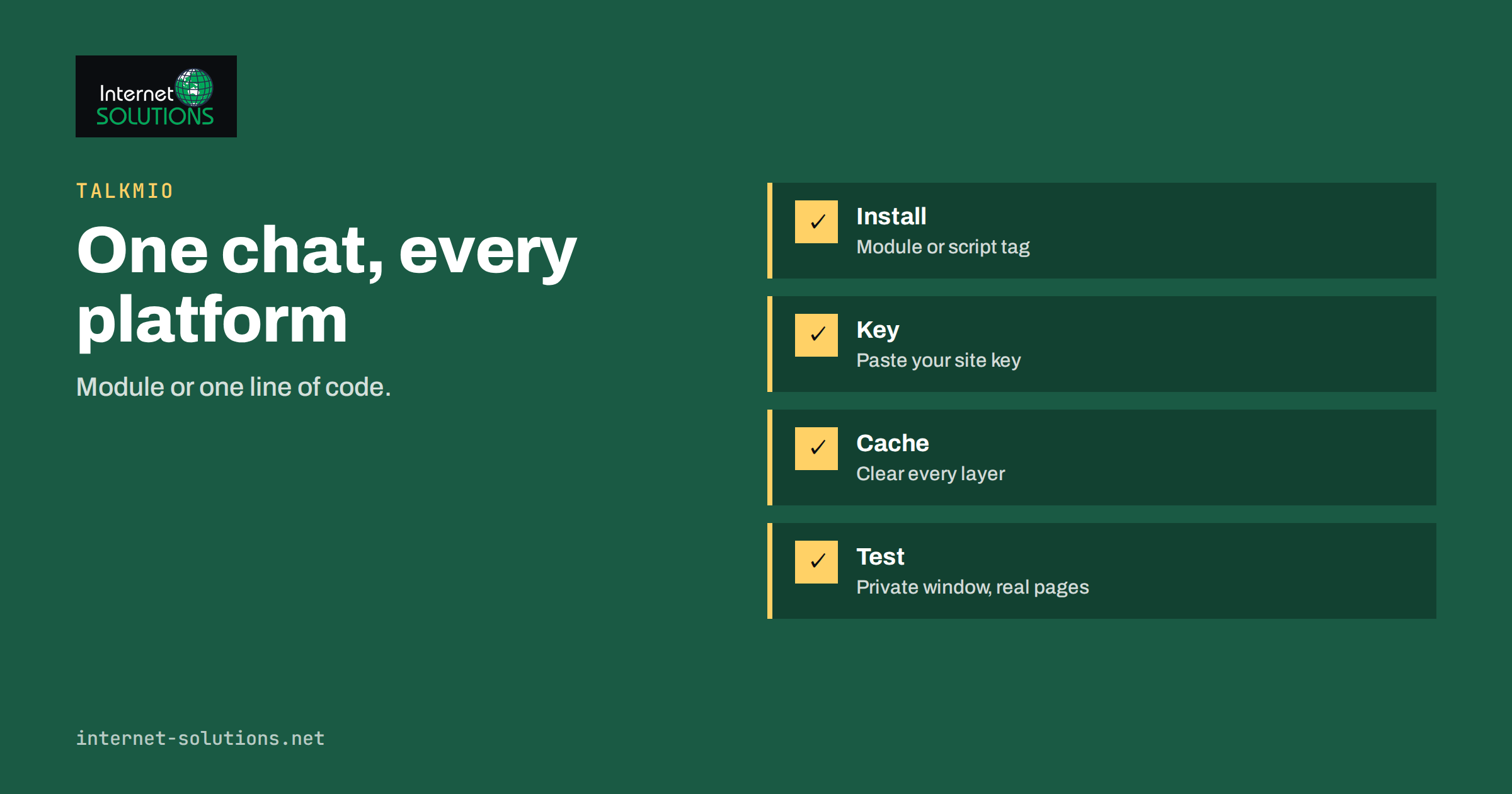
Talkmio on Joomla, Drupal, Magento, PrestaShop and OpenCart works the same way it does anywhere else: a small piece of code puts the chat bubble on your pages, Mio answers visitors from your own content and your team takes over when a person is needed. What differs is how that code reaches your pages. Some platforms have a ready-made module, plugin or extension, others take a snippet in a template, and each has its own habits around caching, themes and checkout pages.
This guide is for site owners, agencies and developers who run content management systems and shop platforms beyond the best-known website builders. It explains the general installation logic, the differences between a module and a snippet, the platform-specific points worth checking and a testing routine that catches the usual problems. It builds on the official Talkmio integrations page, which lists the supported platforms and states that most setups take about two minutes. For the major hosted builders, see our separate article on adding live chat to Shopify, Wix, Webflow and Squarespace.
What Talkmio Lists for These Platforms
The Talkmio integrations page names an installation method for each platform. For the systems covered in this guide, it lists the following.
| Platform | Method listed by Talkmio | What to check afterwards |
|---|---|---|
| Joomla | Plugin | Template positions and caches |
| Drupal | Module | Configuration export and caches |
| Magento 2 | Module | Deployment steps and full-page cache |
| PrestaShop | Module | Theme hooks and caches |
| OpenCart | Extension | Modification refresh and theme templates |
| Any website | One line of code | Where the script tag is loaded |
The page also says that if your platform is not listed, you can write to the team, because the widget is one script tag and modules can be built on request. That sentence explains the whole design: the plugin or module is a convenience, and the script tag is what actually runs. Understanding this makes every installation problem easier to solve.
How Installation Works in Principle
On every platform the sequence is the same, as the integrations page describes.
- Create a free Talkmio account and add your website to get a site key.
- Install the module, plugin or extension for your platform, or copy the snippet if you prefer code.
- Paste the site key where the module asks for it.
- Open the site in a private window and ask Mio two or three questions customers often ask.
The site key tells the widget which account and which website it belongs to. Treat it as an identifier for the widget rather than a password, but keep it out of public screenshots and shared tickets, and add each domain, including staging copies, in the Talkmio account only when you mean to use it. For the full account setup, our Talkmio setup guide walks through the first day.
Module or Snippet: Which Should You Use?
When the module is the better choice
- You want a supported way to install, with updates delivered through the platform’s usual extension system.
- Several people manage the site and should not need to edit templates.
- You want the chat to survive a theme change without anyone remembering to copy code.
When the snippet is the better choice
- Your platform version is not covered by a listed module.
- You want precise control over where the widget loads, for example on selected templates only.
- Your build process or tag manager already manages third-party scripts, as covered in the Talkmio integration list for Google Tag Manager.
Avoid doing both. A module and a pasted snippet on the same site can load two widgets or confuse your test results. If you move from one method to the other, remove the old one first and then test again.
Joomla
Joomla is flexible about templates and extensions, and sites often carry several of both. The listed method is a plugin, which is Joomla’s mechanism for adding behaviour across the site. After installing it, enter the site key in the plugin settings and enable it.
- Template overrides: a heavily customised template may remove the area where scripts are loaded. If the bubble does not appear, check that the template still outputs the standard head and footer positions.
- Caching: Joomla has system and page cache options. Clear them after enabling the plugin, and test while logged out.
- Multilingual sites: check each language version of the site, because menus and templates may differ by language. Mio answers visitors in their language, but the widget still has to be loaded on each page.
- Admin pages: confirm the widget is not displayed to your own administrators in the back end, unless you want it there.
Drupal
Drupal has a strong culture of configuration management and deployment pipelines, which affects how a module is installed.
- Install through your normal process. If the site uses Composer and configuration export, add the module the same way you add any other, then enable it and export the configuration so that all environments match.
- Keep the key per environment. A development copy should not use the live site key unless you want test conversations in your live inbox. Use separate configuration for each environment where possible.
- Caching: after enabling the module, clear caches, and remember that the page cache and any reverse proxy in front of Drupal may serve old pages for a while.
- Block placement and themes: if the widget loads through a theme region, a custom theme that omits it will hide the chat. The Drupal documentation explains regions and libraries if you need to check.
Magento 2
Magento stores are complex, with layered caches, compiled code and often a full-page cache or a CDN in front. The listed method is a module, installed the Magento way.
- Run the platform’s deployment steps after installation, including any required setup and cache steps, in a staging environment first. A module that is installed but not fully deployed will do nothing.
- Full-page cache and CDN: the chat script is loaded in the browser, so cached pages still show it once the page cache contains the new markup. Flush the caches after the change, and confirm that your CDN is not holding old HTML.
- Checkout: decide deliberately whether the chat should appear in checkout. Many shops keep it there so that customers can ask about delivery or payment, while others hide it to reduce distractions. Our article on Talkmio for e-commerce discusses the trade-off.
- Multiple store views: verify each store view and domain you want covered.
Adobe’s Commerce developer documentation describes deployment, caching and module handling for the platform.
PrestaShop
PrestaShop is common among small and medium shops, and many store owners are comfortable with its back office. The listed method is a module.
- Install from the back office following the module’s instructions, then enter the site key in the module’s configuration.
- Theme compatibility: if your theme was heavily customised, confirm that the hook where scripts are added is still in the theme. A missing hook is the most common reason a module appears active while nothing shows on the page.
- Performance settings: PrestaShop can combine and cache scripts. Clear the cache after the change and test with the settings you use in production. The PrestaShop developer documentation covers hooks and caching.
- Multistore: if you run several shops from one installation, configure the module for each shop and consider whether they should share one Talkmio website or have separate ones.
OpenCart
OpenCart is light and straightforward, and its extension system reflects that. The listed method is an extension.
- Install through the extension installer, then enable it and enter the site key.
- Refresh modifications: OpenCart may need its modification or theme caches refreshed after installing an extension, and skipping this step is the usual reason nothing appears.
- Custom themes: check that the theme uses the standard header and footer templates. If it does not, load the script where the theme assembles its final markup.
- Version differences: extensions are tied to platform versions. Confirm that the version you run is covered, and use the snippet if it is not. The OpenCart documentation explains the installer and extension handling.
Testing Checklist for Any Platform
After installing the module or snippet, work through the same short list. It takes about ten minutes and prevents most support questions.
- Private window: open the home page while logged out and without cookies and confirm that the bubble appears.
- Key pages: check a category or article page, a product page, the cart and, if wanted, the checkout.
- Phone and desktop: confirm the bubble does not cover important buttons on small screens. Our article on live chat on mobile websites gives guidance on placement.
- Ask real questions: ask Mio two or three questions customers often ask, and check that every answer comes from your own pages. If something is missing, add it to your website or knowledge base and ask again.
- Handoff: start a conversation that needs a person and confirm it appears in your inbox with the full history.
- Languages: repeat a question in another language you support.
- Consent and privacy: if your cookie banner controls third-party scripts, check that the chat loads according to your policy.
When the Bubble Does Not Appear
Work from the simplest cause to the most complicated, as in our troubleshooting checklist for Talkmio.
- Cache: clear the platform cache, any full-page cache, the CDN and the browser cache.
- Site key: confirm there are no extra spaces and that the key matches the website in your Talkmio account.
- Domain: make sure the domain you are testing on is the one added to the account.
- Template: check that the theme outputs the standard head or footer positions used by the module.
- Blockers: test without browser extensions, because ad and privacy blockers can hide chat widgets.
- Consent tool: confirm that a consent manager is not holding the script back until a choice is made.
- Conflicts: disable other chat or popup tools temporarily to see whether they interfere.
If you do not want to handle the work yourself, the team behind Talkmio and our website developers can install and test it on your platform.
Frequently Asked Questions
Does Talkmio have a module for every platform?
Talkmio lists modules or plugins for many platforms, including Joomla, Drupal, Magento 2, PrestaShop and OpenCart, and one line of code for any website. If your platform is not listed, the script tag still works, and you can write to Talkmio about other platforms.
Do I need a developer to install it?
Often not. Talkmio says most setups take about two minutes. A developer helps when the theme is heavily customised, when deployment is managed through a pipeline or when several environments need separate settings.
Will the chat slow down my shop?
Any added script has a cost, so measure your pages before and after. Compare load time and Core Web Vitals on real pages, and consider whether the chat should load on every page or only where it helps.
Can I show the chat only on some pages?
That depends on the module settings and your template. With a snippet you can load the script only in selected templates. Test that the chat appears where you want it and nowhere else.
Should I use the same Talkmio website for staging and live?
Usually not. Test conversations would mix with real ones in your inbox. Use a separate website entry or leave the chat off in staging, and add only the domains that you intend to serve.
What if my platform version is very old or very new?
Modules are tied to platform versions. If the module does not install cleanly, use the script tag in your theme or tag manager instead, and test the result in a private window.
The Bottom Line
Adding Talkmio to Joomla, Drupal, Magento, PrestaShop or OpenCart is a small job when you know where the script has to load. Use the module or plugin that Talkmio lists for your platform, or the single script tag when you need control, never both together. Clear every cache, test in a private window on real pages including mobile and checkout, and check that Mio answers from your own content before you announce the chat to customers.