

 English
 Lietuvių
 Latviešu
 Eesti
 Русский
 Polski
 Українська
 Deutsch
 Italiano
 Español
 Français
 Português
 Čeština
 Magyar
 Română
 Ελληνικά
 Türkçe
 日本語
 العربية
 हिन्दी
 Bahasa Indonesia
 Bahasa Melayu
 ไทย
 Tiếng Việt
 বাংলা
Ask Mio for Event Organizers: Agendas, Invitations and Follow-Ups
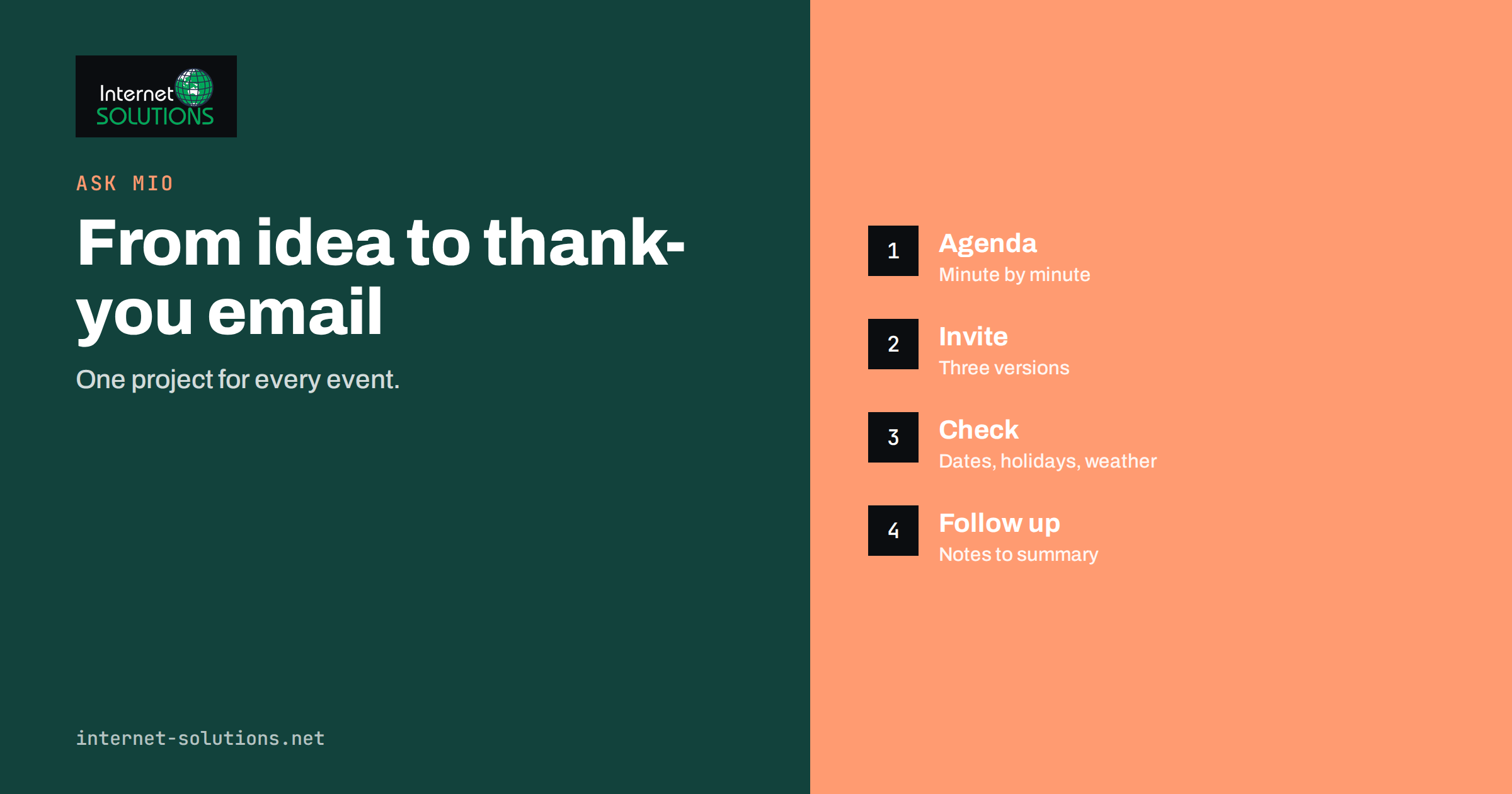
Ask Mio for event organizers is a practical match, because event work is mostly writing, scheduling and checking, repeated for every new date. A conference, a workshop, a charity dinner, a trade-show stand or a community open day all need an agenda, invitations, reminders, a run-of-show, a flyer, a speaker briefing, a catering list and a follow-up message to everyone who came. Each of those documents starts as a blank page, and each has to be accurate down to the minute. An AI assistant can produce a clean first draft of most of them in a few seconds, leaving the organizer free to deal with the part that actually breaks events: people, suppliers and the unexpected.
This guide shows how to use Ask Mio across the life of an event, from first idea to thank-you email, which of its tools help with dates and logistics, how to check what it produces, and how to handle attendee data responsibly. It is written for professional organizers and for people who run an event once or twice a year as part of another job.
What in Ask Mio Helps With Events
Ask Mio is an AI assistant with Chat, Write, Research, Code and Design modes. Several of its built-in tools and ready-made jobs map neatly to event work.
- Date and time tools. It can give the current date and time in any time zone and the difference between two dates in days or working days, which helps with countdowns, deadlines and international guests.
- Public holidays. It can list the public holidays of a country for a year, which matters when you choose a date or when speakers travel from abroad.
- Weather. It can look up current weather and a seven-day forecast for a place, useful for outdoor events in the final week.
- QR codes. It can create a QR code for a link, text, Wi-Fi details or a contact, handy for sign-in pages and schedules on signage.
- Ready-made jobs. Among them are a flyer or one-pager as a PDF, a social media pack, an email reply, a spreadsheet or tracker, a slide deck, a meeting-notes summary and a website page copy generator.
- Translation. It can translate invitations and programmes while keeping formatting, useful for international audiences.
The free plan includes Chat and Write modes with a monthly allowance of points. Other modes, file uploads and some additional features belong to paid plans, so check the current plans on the Ask Mio website before you plan a workflow around them. Our article on Ask Mio everyday business tools shows the date, holiday and QR helpers in more detail.
One Project per Event
The simplest way to stay organised is to create one project in Ask Mio for each event. A project groups chats with its own instructions and files, so every conversation starts with the context you have already provided: the name, date, location, audience, tone of voice, branding words and anything the assistant must never do. A short set of project instructions might say: “Corporate training day for forty people. Formal but friendly tone. Never invent times, prices or speaker names. If information is missing, ask me.” The last sentence is the most valuable, because it turns guessing into questions.
When the event ends, export what you want to keep, for example the final agenda and the follow-up emails, and archive or delete the project. Keeping events separate also prevents the assistant from mixing up a venue or a date from last year’s edition with this year’s.
From Idea to Event: A Workflow
1. Concept and brief
Describe the purpose, audience, size, budget range and constraints, and ask for three concept options with strengths and risks. Treat the options as prompts for your own thinking. Ask for a list of questions the client or committee should answer before decisions are made.
2. Agenda and run-of-show
Give the start and end times, the sessions, speakers and break lengths, and ask for an agenda and a minute-by-minute run-of-show with owners for each item. Add buffers on purpose: ask it to include five-minute margins around transitions and to flag sessions that look too tight. Then check the arithmetic yourself, since timetables are where small mistakes have large consequences.
3. Invitations and reminders
Ask for an invitation with a clear subject line, three lines of context and one call to action, then a reminder sequence, for example one month, one week and the day before. Specify the audience and the tone, and request versions for different groups, such as VIPs, speakers and general attendees. Use the email reply job for individual questions that arrive afterwards.
4. Promotion
The social media pack job can produce posts for several platforms from one idea, and the flyer job produces a designed one-page PDF. Add the facts yourself and check dates and addresses before anything is printed or posted. Our article on Ask Mio ready-made jobs for marketing explains how they work.
5. Logistics and checklists
Ask for a checklist tailored to your event type and venue, covering setup, signage, registration, technical rehearsal, catering, accessibility, safety and teardown. Compare it with your own list and add what you missed. The spreadsheet job can turn it into a tracker with owners and deadlines, as described in Ask Mio slides and spreadsheets.
6. On the day
Use a short briefing script for staff and volunteers, a one-page emergency information sheet and a QR code linking to the live schedule. Print the run-of-show; do not rely on a chat window during the event.
7. After the event
Turn your notes into a summary of what happened, decisions and follow-ups, and draft a thank-you message with a link to slides or photos. The meeting notes job can produce decisions, tasks and a follow-up email from raw notes. Ask for a short feedback survey, and a template for the internal review that records what to repeat and what to change next time.
What to Hand to the Assistant and What to Keep
| Task | Let the assistant draft | You must verify |
|---|---|---|
| Agenda | Structure, wording, timings | Arithmetic, speaker availability, venue limits |
| Invitations | Subject lines, body, variants | Dates, address, links, registration deadline |
| Flyer or poster | Layout and copy | Spelling of names, logos, legal text |
| Checklist | First list by event type | Local safety rules, permits, insurance |
| Budget table | Structure and formulas | Every number and contract term |
| Speaker briefing | Template and tone | Technical requirements and schedule |
| Follow-up email | Draft and personalisation fields | Links, attachments, recipients |
Be Careful With Facts and Logistics
An assistant may produce a confident answer about a venue, a regulation or a travel time that is simply wrong. For events, the cost of an error can be high: a guest at the wrong entrance, a missing permit, a catering order for the wrong date. Apply a routine.
- Never let it invent specifics. If you did not supply a time, name or price, the draft should contain a visible placeholder, not an invention.
- Check every date against a calendar, including the day of the week and time zone. Use the date tools for countdowns and working-day calculations, and confirm important results yourself.
- Verify safety and legal requirements with the venue, the local authority and your insurer. An assistant can remind you what to ask, but it cannot give a permit.
- Read the final version aloud. Errors in names, numbers and times are easier to hear than to see.
Sample Prompts You Can Adapt
Good prompts name the audience, the constraints and the format of the answer. These examples show the pattern, and you can replace the details with your own.
- Agenda: “Create an agenda for a half-day workshop for thirty marketing managers, starting at 09:00 and finishing at 13:00. Include a 20-minute coffee break, two 60-minute sessions and a 30-minute closing discussion. Show start and end times, and add a column for the person responsible. Use placeholders for speaker names.”
- Invitation: “Write an invitation email for the workshop above in a warm, professional tone, no more than 120 words, with the date, venue and registration deadline as placeholders, and one clear button text.”
- Run-of-show: “Turn this agenda into a minute-by-minute run-of-show for the day, including setup from 07:30, registration, technical checks and teardown. Mark anything that depends on a supplier.”
- Risk list: “List the ten most common problems at a workshop of this size, with a prevention step and a backup plan for each.”
- Follow-up: “Draft a thank-you email for attendees with three bullet points of key takeaways, a link placeholder for the slides and a two-question feedback request.”
After each draft, ask the assistant to list the assumptions it made. It is a fast way to spot invented details, and it turns a polished text into a checklist of things to confirm. You can also ask it to read the document as a nervous first-time attendee and say what is unclear, which often reveals missing directions, parking information or dress code.
Attendee Data and Privacy
Events involve personal data: names, email addresses, dietary needs, accessibility requirements, sometimes photographs. Keep lists of attendees out of the chat. When you need help with a template, use fields such as [First name] and [Dietary note], and perform the merge in your own registration or email tool. Collect only what you need, tell people why, and delete it when the purpose ends. Ask Mio states that your chats are not used to train AI models and that you can export or delete your data, but your obligations as the organizer stay with you. The European Commission’s data protection pages summarise the rules for organizations dealing with people in the EU, and our guide to what to keep out of your prompts lists the categories to avoid.
Small Events, Big Savings
For a one-person organizer running a monthly meetup, the gain is in repeatable templates. Save a working prompt as a skill, such as “monthly meetup announcement in our tone with date, venue, agenda and registration link”, and the next announcement takes two minutes. For larger events with several staff, the benefit is consistency: everyone works from the same wording, checklists and style, and new team members learn faster. If you manage many events, the general principles of event management still apply, and the assistant simply removes some of the drudgery.
If you want to see what the assistant can do, the Ask Mio page describes the modes, experts and the free plan.
Frequently Asked Questions
Can Ask Mio manage registrations?
No. It is an assistant, not a ticketing or registration system. Use it to draft the wording and structure, and use a proper registration tool to collect and store attendee details.
Can it check venue availability or book suppliers?
No. It cannot make bookings on your behalf. It can help you prepare enquiry emails, comparison tables and questions for suppliers.
Is the weather forecast reliable for planning?
It is a useful guide for the next few days, but forecasts change. Have a backup plan for outdoor events and check again on the day.
Can it translate for an international audience?
Yes, it can translate invitations and programmes and keep their formatting. Ask a native speaker to read important texts, especially legal notices and names.
Which plan do I need?
The free plan covers drafting in Chat and Write modes. If you want file uploads, memory or other modes, compare the paid plans on the Ask Mio website.
Will it remember last year’s event?
Only if you keep a project or provide the information again. Use one project per event, and save good templates as skills for reuse.
The Bottom Line
Use Ask Mio to draft agendas, invitations, flyers, checklists and follow-ups, to handle date and holiday checks and to create QR codes and summaries, while you keep full control of facts, safety and relationships. Keep one project per event, use placeholders instead of guesses, verify every time and date, and keep attendee data in your registration tools. The result is more time for the parts of an event that no tool can do for you. Explore the assistant and its free plan on the Ask Mio page.