

 English
 Lietuvių
 Latviešu
 Eesti
 Русский
 Polski
 Українська
 Deutsch
 Italiano
 Español
 Français
 Português
 Čeština
 Magyar
 Română
 Ελληνικά
 Türkçe
 日本語
 العربية
 हिन्दी
 Bahasa Indonesia
 Bahasa Melayu
 ไทย
 Tiếng Việt
 বাংলা
Google Ads Automated Rules and Scripts: Safe Automation
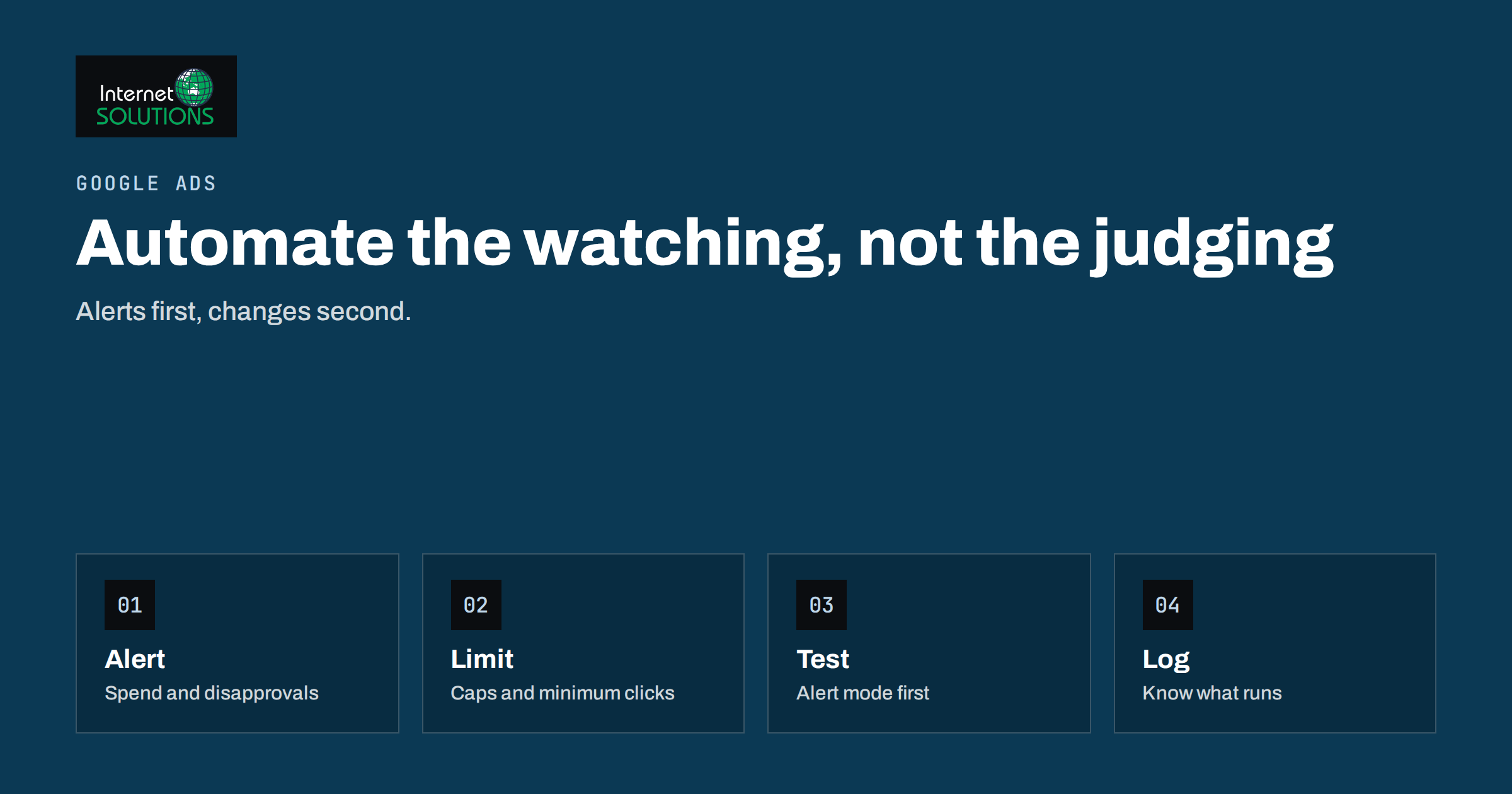
Google Ads automated rules are simple instructions that tell your account to make a change or send an alert when a condition is met. For example, pause a keyword that has spent a set amount without a conversion, email you when a campaign’s budget is exhausted early, or switch a promotion on and off on certain dates. Scripts go a step further: they are small programs that read your account data and act on it. Both save time, and both can quietly damage an account if they are set up carelessly.
This guide explains what each tool does, which tasks are safe to automate in a small account and which are not, how to design a rule so that it does what you meant, and how to monitor and switch off automation when results change. It is written for business owners and marketers who manage a modest account themselves. It avoids exact menu names, since the interface changes, and concentrates on principles that last.
Why Automate at All
A small account does not need much automation, but it does need regular attention, and attention is the first thing to run out. Weekly tasks such as checking for overspending, finding broken landing pages or pausing obviously poor keywords are repetitive and easy to forget. A rule that watches for the problem every day is more consistent than a person who checks on Fridays when they have time.
Automation is best at three jobs: noticing, reminding and applying a clear, low-risk change. It is poor at judgement. A rule cannot know that a keyword had no conversions because the landing page was down on Tuesday, or that a drop in clicks was caused by a public holiday. That is why the safest use of automation is to alert a person, who then decides. Changes that are applied automatically should be limited to cases where the right action is the same almost every time.
Automated Rules and Scripts Compared
The two tools solve different problems. The table helps you choose.
| Aspect | Automated rules | Scripts |
|---|---|---|
| Skill needed | Point-and-click setup | Basic programming knowledge |
| Typical use | Pause or enable items, change budgets or bids by a set amount, send alerts | Custom reports, complex checks, bulk edits, data from other sources |
| Flexibility | Limited to the options offered | Very high |
| Risk of mistakes | Moderate; conditions can be too broad | Higher; a bug can change many items at once |
| Maintenance | Low | Needs updating when the platform changes |
| Best for | Small accounts with routine tasks | Larger accounts or specific, repeated needs |
Google documents scripts, including examples, in its Google Ads Scripts overview. Read it before you run any code that you did not write yourself, and never paste a script from an unknown source into your account; a script has the same authority as you do.
What Is Safe to Automate
Use a simple test: if the automation did the wrong thing for a week, how bad would it be, and would you notice? Tasks with limited damage and quick detection are good candidates.
- Alerts for budget and spend. A message when a campaign has used most of its daily budget before noon, or when total spend jumps beyond a normal level.
- Alerts for disapproved ads. Telling you straight away saves days of lost impressions.
- Alerts for broken landing pages. A script that checks the final address of your ads and sends a message when a page returns an error.
- Scheduled switches. Enabling a seasonal campaign on a date and pausing it when the offer ends.
- Pausing clear losers. Pausing a keyword that has spent several times your target cost per lead with no conversions, after enough clicks to be meaningful.
- Reports. A weekly summary sent to you or your team.
Be more careful with automatic bid and budget changes. They interact with bidding strategies and learning periods, and a rule that raises bids because last week was good can overspend as soon as the market changes. If you use automated bidding, let the strategy do its work and avoid fighting it with rules; our guide to Google Ads bidding strategies explains the options.
Designing a Rule That Does What You Mean
Most failures come from conditions that are too loose or too short in time. Write the rule in plain words first, then translate it into settings.
- State the goal. “Stop wasting money on keywords that attract clicks but never produce enquiries.”
- Define the scope. Which campaigns, ad groups or keywords? Exclude brand campaigns and new items still learning.
- Choose a meaningful window. Use a period long enough to smooth out daily noise, such as the last thirty days, and require a minimum number of clicks before judging.
- Set the threshold from your numbers. Base it on your target cost per lead and typical conversion rate, not a round number.
- Choose the action. Prefer “send an email” over “pause” while you are testing the rule.
- Set the frequency. Daily is usually enough; hourly changes tend to cause instability.
- Add a limit. Cap the amount by which a bid or budget can change, and set a floor and ceiling.
- Name it clearly and note the date and purpose so that anyone can understand it later.
Run the rule in alert mode for two or three weeks and review what it would have done. If the list of affected items makes sense, switch the action from “alert” to “change”. If it flags items you would have kept, adjust the thresholds. This testing period is the cheapest insurance you can buy.
Conversion Delays and Seasonality: Where Rules Mislead
Two features of advertising data catch many rules out. The first is conversion delay. A person may click today and enquire three days later, so recent clicks can look like failures when they are not. Give any “no conversion” rule a window that covers your usual delay, and review whether your conversions are recorded promptly. The second is seasonality. Demand varies by weekday, month and event; a rule tuned during a quiet week will misfire during a busy one. Our article on seasonality adjustments and data exclusions explains how to tell the platform about unusual periods.
The same caution applies to tracking problems. If conversion tracking breaks, every keyword suddenly looks unproductive, and a rule that pauses poor performers could stop your whole account. Include a safety check: a rule or script that alerts you when conversions fall to zero across the account, and rules that never pause more than a small number of items per run.
Five Starter Rules for a Small Account
If you want a concrete starting point, these five rules fit most small lead-generation accounts. Adjust each threshold to your own figures, and begin in alert mode.
- Early budget exhaustion. Alert when a campaign has spent most of its daily budget before midday. It tells you that the budget, bids or targeting need a look.
- Zero conversions across the account. Alert when no conversions were recorded for a full day on weekdays. It is the quickest signal that tracking has broken.
- Costly keywords without leads. Alert, and later pause, when a keyword has spent a set multiple of your target cost per lead with no conversions over thirty days and enough clicks.
- Disapproved ads or sitelinks. Alert so that you can fix or appeal quickly.
- Offer dates. Enable a seasonal campaign on its start date and pause it on its end date, so that you never advertise an expired offer.
Notice that four of the five only send messages. The one that changes anything, pausing keywords, is limited by a minimum number of clicks and a long window. That balance of alerts and tightly limited actions is a good model for any small account.
Scripts: A Cautious Start
Scripts are valuable once you have routines that rules cannot express. Typical examples are a daily check that every final address in your ads loads without an error, a weekly report that combines data from several campaigns into one table, or a check that your negative keyword lists are applied to every campaign. If you decide to use them, follow a few practices. Read the code, or have someone you trust read it, before the first run. Use the preview mode that Google provides, so that you can see what would change without applying anything. Start with read-only scripts that only report. Keep the code in a document with comments and version notes, and record the date of every change.
Scripts can stop working when the platform changes, so check the logs regularly and set the script to send you an email when it fails, instead of failing silently. Remember that a script runs with the authority of the account user who authorised it. If that person leaves, access and authorisation must be reviewed. Treat scripts like any other piece of software that your business depends on: they need an owner, documentation and a plan for retirement.
Monitor, Log and Be Able to Undo
Automation without records is a mystery waiting to happen. Keep a simple register of every rule and script: what it does, who created it, when, and why. Check the change history in your account regularly; it shows which changes were made by rules or scripts, so you can connect a change in results to an automated action. Review the register each quarter, and delete anything that is obsolete.
- Test on a small scope first, such as one campaign.
- Keep a way back. Export the current state before a bulk change, so that you can restore it. Google Ads Editor, described in the Google Ads Editor help, is useful for reviewing and exporting many items at once.
- Limit access. Only trusted users should be able to create scripts or rules.
- Send alerts to a shared mailbox, not one person’s inbox, so that holidays do not leave you blind.
It also helps to include automation in your regular reviews. Our account audit checklist is a good place to add a line that asks, “Which automation is running, and is it still doing what we want?”
When to Get Help
For a small account, a handful of alert rules and one or two scheduled switches may be all that is needed. If you find yourself writing many rules to patch structural problems, such as a messy account, poor tracking or unclear goals, fix the underlying issue first. See account structure for how to organise campaigns so that rules apply cleanly. If you prefer to have an experienced specialist set up monitoring and reports, our Google Ads service includes automation with clear documentation.
Frequently Asked Questions
Are automated rules the same as automated bidding?
No. Automated bidding uses the platform’s own models to set bids toward a goal. Rules are your own instructions that act when a condition is met. They can conflict if used together carelessly.
Do I need to know how to code to use scripts?
Yes, some knowledge of JavaScript is needed to write or review them. If you use a script written by someone else, make sure you understand what it changes, or have it reviewed first.
How often should rules run?
Daily is enough for most tasks. Very frequent runs can overreact to normal fluctuations and make results unstable.
Can a rule overspend my budget?
A rule that raises bids or budgets can. Always set caps and limits, run in alert mode first and watch spend closely in the first weeks.
What should I automate first?
Alerts for spend, disapproved ads and broken pages. They are low risk and provide quick benefit.
How do I know if a rule hurt performance?
Check the change history for actions taken by the rule and compare results before and after. A register of rules and their dates makes this much easier.
The Bottom Line
Automation in Google Ads works best as a watchful assistant, not a decision-maker. Start with alerts for spend, ad approval and landing pages, design rules from your own numbers with sensible windows and limits, test in alert mode, and keep a register and a way back. Respect conversion delays and seasonality, and remove anything you no longer need. Used carefully, a few rules protect your budget and give you back hours every month.