

 English
 Lietuvių
 Latviešu
 Eesti
Eesti Русский
 Polski
 Українська
 Deutsch
 Italiano
 Español
 Français
 Português
 Čeština
 Magyar
 Română
 Ελληνικά
 Türkçe
 日本語
日本語 العربية
 हिन्दी
 Bahasa Indonesia
 Bahasa Melayu
 ไทย
ไทย Tiếng Việt
 বাংলা
বাংলাGoogle Ads Offline Conversion Import: Feeding CRM Sales Back to Ads
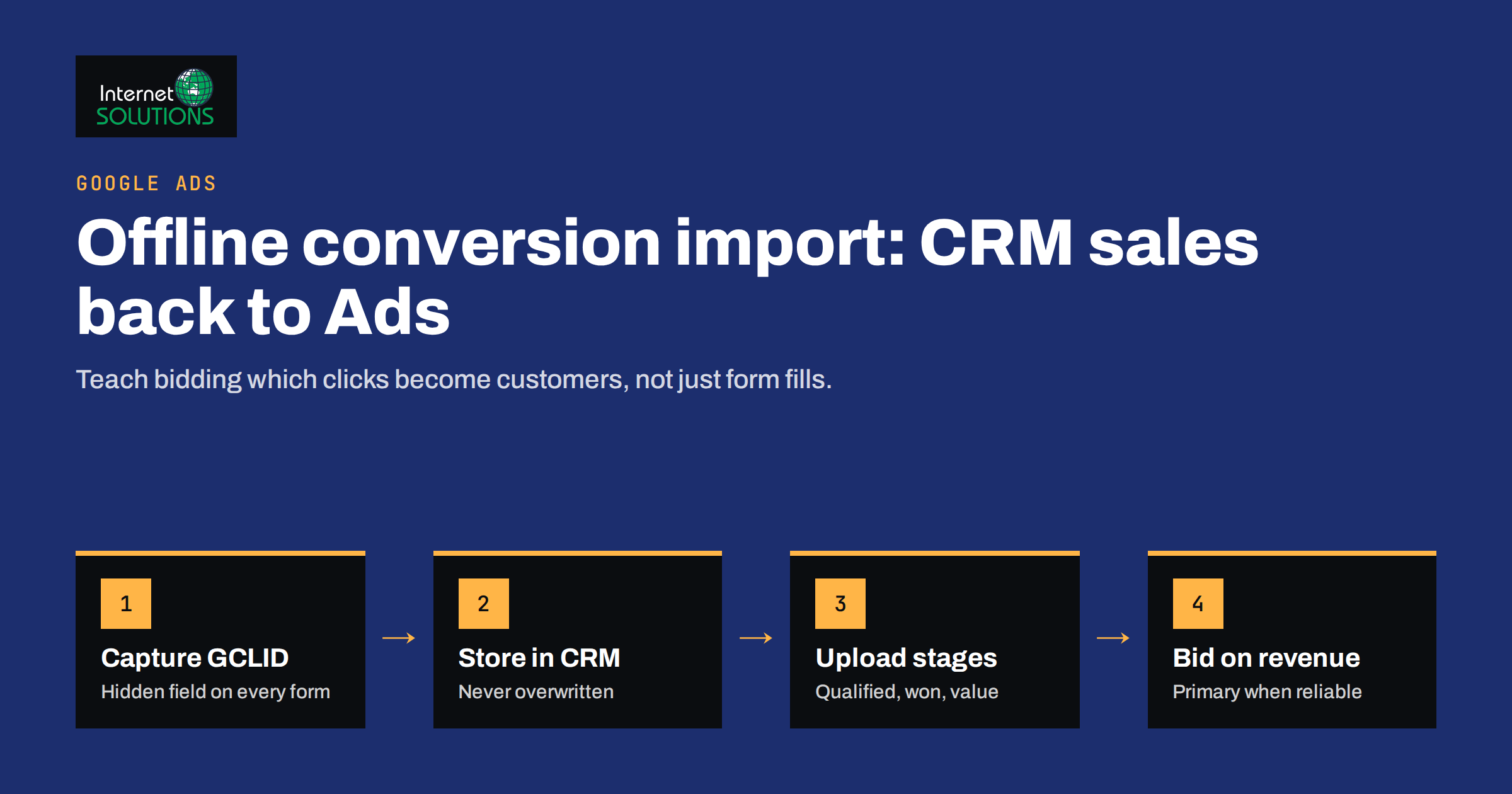
Google Ads offline conversion import solves a problem that every lead-generation business eventually runs into. The ad account sees form submissions and phone calls, but it never sees what happens next: which leads turned out to be real buyers, which were spam, and which signed a contract worth ten times the average. Without that information, smart bidding optimises for the cheapest form fills, not for revenue. Offline conversion import closes the gap by sending outcomes from your CRM back to Google Ads, so the algorithm learns which clicks actually make money.
This guide explains how offline conversion import works, what you need to capture on your website, how to choose between manual uploads, scheduled uploads and CRM integrations, and how to use the imported data in bidding without confusing the system. It is aimed at B2B companies, service businesses and anyone whose sales happen after the website visit.
Why Website Conversions Are Not Enough
A standard conversion tag fires when a visitor submits a form or reaches a thank-you page. That is a useful signal, but it treats every lead as equal. In practice, lead quality varies enormously. A campaign targeting broad keywords may produce many cheap leads that sales never closes, while a narrower campaign produces fewer, more expensive leads that become profitable customers.
If Google Ads only sees form submissions, it will move budget towards the campaign with cheaper leads, because that is what you asked it to optimise for. The more automated your bidding becomes, the stronger this effect is. Strategies such as Target CPA and Maximise Conversions are only as good as the conversion data behind them; our article on Google Ads bidding strategies explains how each one uses that data.
Offline conversion import lets you tell Google Ads: this click produced a qualified lead, this one produced a sale worth a specific amount, and these others produced nothing. Over time, bidding shifts towards searches, audiences and placements that resemble your real customers.
How Offline Conversion Import Works
The mechanism is straightforward. When someone clicks your ad, Google Ads appends a click identifier to the landing page URL if auto-tagging is enabled. This identifier, the GCLID, uniquely ties the visit to the ad click. Your website stores it with the lead. Later, when the lead becomes qualified or closes, you send the GCLID back to Google Ads together with the conversion name, time and, optionally, value. Google matches the identifier to the original click and records the conversion against the campaign, ad group and keyword that produced it.
Google’s own documentation on offline conversion imports describes the supported methods and requirements. The key building blocks are:
- Auto-tagging enabled in the Google Ads account settings, so that a GCLID is added to every ad click.
- A conversion action of the import type, created in Google Ads, for each stage you want to send, for example “Qualified lead” and “Closed deal”.
- Click identifier capture on your website, usually a hidden form field filled by a small script, plus a matching field in the CRM.
- An upload process that sends the outcomes back, either manually, on a schedule, through a CRM connector or through the Google Ads API.
Imported conversions must be uploaded within the conversion window of the conversion action, which can be set to a maximum of 90 days after the click. Sales cycles longer than that need an earlier milestone, such as a qualified opportunity, as the primary imported conversion.
Click Identifiers Beyond GCLID
Privacy changes on some devices mean that not every click carries a GCLID. Google uses additional identifiers, GBRAID and WBRAID, for certain app and iOS traffic. If you capture identifiers yourself, store all three parameters when present. Many teams also add enhanced conversions for leads, which match conversions using hashed first-party data such as the email address the lead submitted. This improves match rates when click identifiers are missing and is described in Google’s help pages on enhanced conversions.
Capturing the Click Identifier on Your Website
This is the part where most implementations fail, usually silently. If the identifier is not saved with the lead, nothing can be imported later. A reliable setup includes:
- A script that reads the identifier from the URL on the landing page and stores it in a first-party cookie or local storage, because visitors often browse several pages before converting.
- A hidden field in every lead form, filled from that stored value at submission time.
- A matching field in the CRM, mapped so that the value arrives with the lead record and is never overwritten by later visits from other channels.
- A record of consent where your consent setup requires it. In the European Economic Area, Google’s consent requirements apply to data used for advertising, so make sure your consent banner and tag configuration send the correct signals.
- Regular testing. Click one of your own ads in a test campaign or use a tagged test URL, submit a form and check that the identifier appears in the CRM record.
Phone leads need extra care. If many customers call rather than fill in forms, consider call tracking that records the click identifier for each call, or rely on enhanced conversions with the phone number as a matching key. Our guide to conversion tracking with GA4 and Google Tag Manager covers the website side of this setup in more depth.
Choosing an Upload Method
There are four common ways to send outcomes back. The right one depends on lead volume, your CRM and how much technical help you have.
| Method | How it works | Best for | Watch out for |
|---|---|---|---|
| Manual file upload | Export a CSV from the CRM with identifiers, conversion names, times and values, then upload it in Google Ads | Low volume, first tests | Easy to forget; delays reduce bidding value |
| Scheduled upload | Google Ads fetches a Google Sheet or a file on an HTTPS or SFTP location on a schedule | Steady volume without developers | The file must be kept current and correctly formatted |
| CRM connector | A built-in integration between the CRM and Google Ads maps lifecycle stages to conversion actions | Teams using a CRM with a native Google Ads integration | Stage definitions must be consistent in the CRM |
| Google Ads API | Your own system sends conversions automatically as stages change | Custom CRMs, high volume, multiple accounts | Needs development and monitoring |
For a first project, a scheduled upload from a regularly updated sheet is often the best balance. It is automated enough to keep data fresh and simple enough to debug. Teams with custom systems can later move to the API, which is documented in Google’s guide to uploading click conversions.
Deciding Which Stages to Import
You do not have to import only final sales. Most businesses benefit from sending two or three stages of the funnel:
- Qualified lead: the lead matches your target customer and sales agreed to pursue it. This stage happens quickly and gives bidding enough volume to learn.
- Opportunity or proposal sent: a stronger signal that arrives later and in smaller numbers.
- Closed won with value: the actual revenue or, better still, gross margin, so bidding can optimise for profit.
Set clear rules for each stage and write them down. If one salesperson marks every contact as qualified while another is strict, the data becomes noise. A short definition, such as “budget confirmed, decision maker identified and need matches our services”, keeps stages comparable over time.
Volume matters. Automated bidding needs a reasonable number of conversions per month for each conversion action it optimises towards. If you close only a handful of deals a month, use the qualified lead stage as the primary bidding signal and import closed deals as secondary conversions for reporting until volume grows.
Using Imported Conversions in Bidding
Once imports are flowing, decide how Google Ads should use them. Each conversion action can be marked as primary, meaning it counts in the Conversions column and is used for bidding, or secondary, meaning it is reported but not optimised for.
A typical transition looks like this:
- Weeks one to four: keep the website form submission as the primary conversion and import qualified leads as secondary. Check match rates and compare numbers with the CRM.
- Once data is reliable: make the qualified lead the primary conversion and set the form submission to secondary. Expect a learning period of one to two weeks while bidding adjusts.
- When values are available: import deal values and consider value-based bidding, such as Maximise Conversion Value or Target ROAS, so campaigns chase revenue rather than lead count.
Avoid switching bidding strategies, conversion actions and budgets all at once. Change one thing, give it time to settle, then measure.
Common Problems and How to Fix Them
- Low match rate. Check that auto-tagging is on, that redirects on your site do not strip URL parameters, and that the identifier survives multi-page visits.
- Uploads rejected for timing. Conversion times must be after the click time and inside the conversion window. Use the correct time zone format in your file.
- Duplicates. Sending the same conversion twice inflates results. Use an order or deal identifier and keep a log of what has already been sent.
- Delays. The value of imports for bidding drops when data arrives weeks late. Aim for daily uploads at least.
- Stage drift. If CRM stages are renamed or reorganised, the import mapping breaks. Review the mapping whenever the sales process changes.
Measuring the Impact
The point of the whole exercise is better business results, not prettier reports. Track a few metrics before and after the switch:
- Cost per qualified lead and cost per closed deal by campaign.
- Share of leads that sales qualifies, which should rise as bidding learns.
- Revenue or margin attributed to Google Ads compared with spend.
- Search terms that produce qualified leads, which often reveals new keyword opportunities and negatives.
Expect the number of total leads to fall in some campaigns while qualified leads hold or rise. That is the system working as intended. Explain this to the sales team in advance so a lower lead count is not mistaken for failure. Our Google Ads service covers keyword selection, ad texts, daily campaign optimisation and regular reports, and the data you import makes that optimisation more accurate.
Frequently Asked Questions
Do I need a developer to set up offline conversion import?
Not always. Many CRMs offer native Google Ads integrations, and scheduled uploads from a sheet need no code. You usually do need some technical help to capture the click identifier reliably on your website.
What is the maximum delay between the click and the upload?
The conversion must fall within the conversion window of the import conversion action, which can be set to up to 90 days after the ad click.
Can I import conversions without a GCLID?
Yes, enhanced conversions for leads can match conversions using hashed customer data such as an email address. Capturing click identifiers as well gives the most complete matching.
Should I import the deal value or the margin?
If margins differ a lot between products or services, importing margin lets bidding optimise for profit. If margins are similar, revenue is simpler and works well.
How many conversions do I need for automated bidding?
More is better. If closed deals are rare, use qualified leads as the primary bidding signal and keep closed deals as secondary conversions for reporting.
Will offline conversions show up in Google Analytics?
Not automatically. Offline conversion import sends data to Google Ads. If you need the same outcomes in analytics, they must be sent there separately.
The Bottom Line
Offline conversion import turns Google Ads from a lead counter into a system that learns from real sales. Capture the click identifier on every lead, store it safely in your CRM, define clear funnel stages, and send outcomes back at least daily. Start with qualified leads as a secondary conversion, switch them to primary once the data is reliable, and move to value-based bidding when deal values are available. The result is budget that flows towards the searches that produce customers, not just form fills. If you want help connecting your CRM to Google Ads, get in touch with our team.