

 English
 Lietuvių
 Latviešu
 Eesti
 Русский
 Polski
 Українська
 Deutsch
 Italiano
 Español
 Français
 Português
 Čeština
 Magyar
 Română
 Ελληνικά
 Türkçe
 日本語
 العربية
 हिन्दी
 Bahasa Indonesia
 Bahasa Melayu
 ไทย
 Tiếng Việt
 বাংলা
Computer Virus and Malware Removal: Signs, Safe Mode and Clean-Up
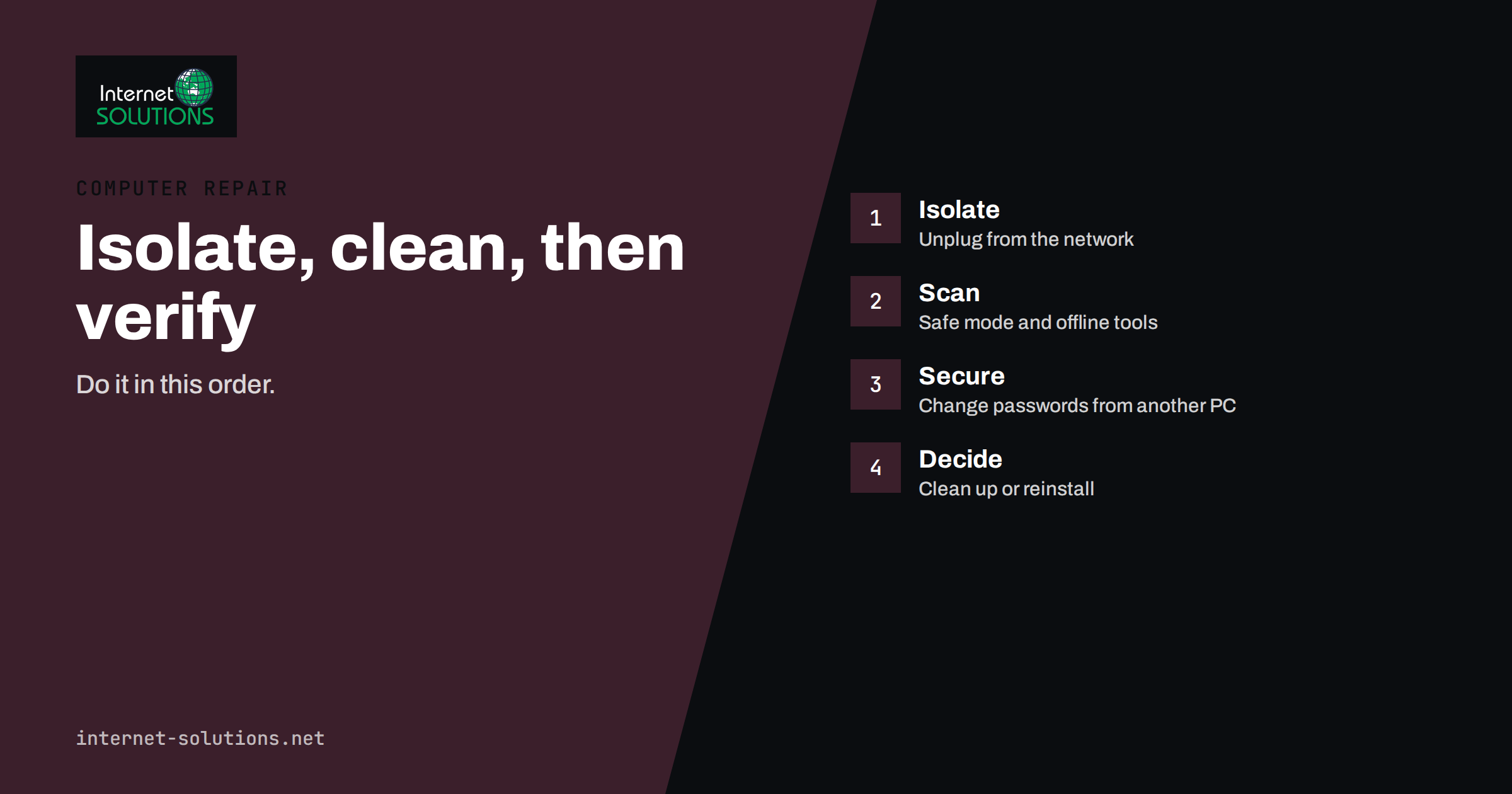
Malware removal is the process of finding and cleaning out malicious software from a computer: viruses, spyware, ransomware, adware, remote-access tools and the many unwanted programs that arrive bundled with something else. A business computer that behaves strangely is a worry for two reasons. The machine itself may be unusable, and whatever is on it, including saved passwords, customer files and access to company accounts, may be exposed. This guide explains the warning signs, the first steps to take, how to clean a machine in safe mode, what to do about passwords and data and when it is wiser to reinstall the system than to keep cleaning.
It is written for owners and office managers who handle computer problems without a full IT department. It describes a calm and orderly process, because most of the damage in malware incidents comes from panic, delay and clicking on the wrong thing while trying to fix it.
Warning Signs of an Infection
Malware does not always announce itself, and some of it is designed to stay hidden. Still, a few signs should make you suspicious.
- A sudden slowdown that cannot be explained by updates or a full disk, especially with the fan running at high speed while the computer seems idle.
- Pop-ups and new toolbars in the browser, a changed home page or search engine, or ads that appear on sites that normally have none.
- Programs you did not install, or security software that has been turned off and cannot be started again.
- Files that cannot be opened, have new extensions or are replaced with a ransom note. This is an emergency, and our guide to ransomware protection explains what to do.
- Unexpected messages sent from your accounts, friends or customers reporting strange emails from you, or password reset emails you did not request.
- Unusual network activity, such as high upload traffic when nobody is working.
- Warnings from security tools or from your browser about dangerous sites.
Many of these signs can also point to a failing disk or a software problem, so a calm diagnosis is better than assuming the worst. Our slow computer troubleshooting checklist helps separate ordinary problems from infections.
The First Ten Minutes: Contain, Do Not Clean Yet
What you do first matters more than what tool you run. Follow this order.
- Disconnect from the network. Unplug the cable or switch off Wi-Fi. This stops the malware from spreading to other machines, from sending your data out and from receiving new instructions.
- Do not log in to anything else on that machine. If it has a keylogger, every password you type is being recorded.
- Do not keep working. Save nothing new, and do not plug in external drives or backup disks, because they can be infected.
- Tell the people responsible. If the computer is used by several people or holds business data, inform the owner or the IT contact right away. If an incident plan exists, follow it; our article on the first 24 hours of a security incident describes one.
- Note what happened. Write down when the problem began, what was opened or installed and what warnings appeared. A photograph of a message is helpful.
From a different, clean device, start changing important passwords, beginning with email and banking, once you know the infected machine is isolated. Do not change them from the infected computer.
Cleaning in Safe Mode
Safe mode starts the operating system with a minimal set of drivers and services, which prevents many kinds of malware from loading. That makes it easier to scan and remove them. The details differ between Windows versions, so check the manufacturer’s current instructions. The general steps are:
- Start in safe mode, with or without networking. Prefer safe mode without networking at first, to keep the machine isolated. Use networking only if you need to download a scanner and you are sure the machine is otherwise contained.
- Update or obtain a scanner. If the installed security software works, update it and run a full scan. If it does not, download a reputable on-demand scanner on a clean computer and transfer it by a freshly formatted USB drive.
- Run a full scan, not a quick one. It may take hours. Let it finish and quarantine what it finds.
- Remove unwanted programs. In the list of installed programs, remove anything you did not install, sorting by install date to see recent additions.
- Check browser extensions and settings. Remove unknown extensions and reset the home page and search engine.
- Check start-up items and scheduled tasks. Malware often adds a way to start again after a reboot. Disable entries you cannot explain.
- Restart normally and scan again. A second scan with a different tool gives a useful second opinion.
Some malware resists this, for instance rootkits that hide from the operating system. An offline scan, run from a bootable disk before the system starts, can find these. Governments and security agencies publish guidance for cleanup and recovery; the UK National Cyber Security Centre has advice for individuals and businesses, and the US Cybersecurity and Infrastructure Security Agency publishes alerts and recovery resources.
Passwords, Accounts and Data
Cleaning the machine is not the end. Treat everything the machine could reach as possibly exposed.
- Change passwords from a clean device. Start with email, since attackers use email to reset the rest, then banking, payment, hosting, domain and admin accounts. Enable multi-factor authentication.
- Sign out all sessions. Most services have a “sign out everywhere” option that removes stolen session tokens.
- Review account activity. Look for forwarding rules in email, new connected apps, unfamiliar sign-ins and changes to bank or payment details.
- Check shared files and mapped drives. If the machine had access to a server, check that nothing was encrypted or copied.
- Consider legal duties. If personal data of customers or employees may have been exposed, data protection laws in many countries require an assessment and sometimes a notification. Ask a qualified adviser early, since deadlines can be short.
Our guide on endpoint protection for small businesses explains the tools that reduce the chance of a repeat.
Clean Up or Reinstall? Making the Decision
Cleaning is faster when the problem is adware or a potentially unwanted program. For serious infections, reinstalling is safer, because you can never be fully certain that every trace has gone.
| Situation | Suggested action | Reason | Extra steps |
|---|---|---|---|
| Browser pop-ups and adware | Clean in safe mode | Low risk, easy removal | Reset browser, remove extensions |
| Unwanted bundled software | Uninstall and scan | Usually not malicious | Watch installers in future |
| Spyware or keylogger suspected | Reinstall and change all passwords | Credentials may be stolen | Change passwords from a clean device |
| Remote-access tool found | Reinstall, review network | Someone had control | Check other machines and the router |
| Ransomware | Isolate, restore from backup | Data is encrypted or stolen | Report, assess data exposure |
| Scan finds nothing but signs remain | Offline scan, then reinstall if needed | Hidden malware possible | Check disk health |
A reinstall means wiping the drive and installing the operating system again from trusted media, then applying updates before restoring files. Restore data only from a backup made before the infection, and scan the files before opening them. Do not restore programs and settings from the infected installation. If you do not have a recent backup, ask a technician to copy only the needed documents from the old drive, and scan them. Our computer repair service handles cleanups and reinstalls, and keeping a regular backup turns a disaster into a minor delay.
Preventing a Repeat
Most infections come through a short list of routes: a phishing email, a malicious download, a fake update message, an infected USB device or an unpatched system. Prevention follows the same list.
- Keep the system updated. Turn on automatic updates for the operating system, browsers and key applications.
- Use reputable security software and keep it switched on.
- Do not run as administrator for daily work. A standard account limits what malware can change.
- Train people. A short session on spotting suspicious emails and attachments prevents more incidents than any tool. See our guide to phishing awareness.
- Back up regularly, test restores and keep one copy disconnected from the network.
- Download from official sources, and avoid cracked software, which is a common route for infection.
Phones, Tablets and Personal Devices
Modern work does not stop at the office computer. If staff read company email on phones or use a personal laptop for work, the same principles apply there. A phone with unknown apps, strange battery drain, pop-ups outside the browser or settings that changed by themselves may be infected. Remove apps that you did not install, update the system, run the built-in security checks and change passwords from a clean device. If a device cannot be cleaned, a factory reset after backing up only the essential data is a reasonable step. For personal devices that touch company data, agree rules in advance about updates, screen locks and what happens when someone leaves. Our article on BYOD policy for small businesses covers these rules in detail.
Keep a Record of the Incident
After the machine is clean, spend ten minutes writing down what happened: when it was noticed, what the first sign was, what was done in which order, which accounts were changed and what the cause probably was. This note helps if the problem returns, supports any report to an insurer, a customer or an authority and gives you material for a short training session. Store it with your IT documentation. Patterns across incidents often show the real weakness, such as one department that receives most phishing attempts.
A Worked Example
An accountant’s office notices that a receptionist’s computer opens strange websites and that two clients have received emails with a link that nobody sent. The office manager unplugs the network cable, tells the receptionist to stop working on that machine and asks a colleague to change the receptionist’s email password from another computer, enabling multi-factor authentication at the same time.
A technician starts the computer in safe mode without networking, finds a browser extension and a program installed three days earlier that nobody recognises, and runs two scanners. The scans find a keylogger. Because credentials may have been captured, the manager decides to reinstall the system. The technician copies only the documents to a clean drive, scans them, wipes the machine and applies all updates. The manager reviews mailbox rules, finds an automatic forward to an unknown address and removes it. The office adds a short training session on suspicious links and moves all staff to standard user accounts.
Common Mistakes
- Continuing to work on the machine while “just checking”.
- Changing passwords from the infected computer.
- Installing several security tools at once, which can conflict.
- Trusting a pop-up that claims to remove a virus, which is often the malware itself.
- Restoring programs or settings from the infected installation.
- Ignoring email forwarding rules and connected apps after the cleanup.
- Failing to find out whether personal data was exposed.
Frequently Asked Questions
Can I remove malware without reinstalling Windows?
Often yes, for adware and common unwanted programs. For spyware, remote-access tools and serious infections, reinstalling is safer because you cannot be sure that every trace is gone.
Should I disconnect the computer from the internet right away?
Yes. Disconnecting stops the spread to other machines and prevents data from leaving the computer, and it gives you time to plan the cleanup.
Is a free scanner good enough?
Reputable free scanners can find many problems, and a second opinion from a different tool is useful. For business machines, keep a maintained security product running as well.
How do I know the malware is really gone?
Run repeated scans with more than one tool, check start-up items and network activity and watch the machine for several days. If doubt remains, reinstall.
Do I need to tell customers?
If personal data may have been accessed, many data protection laws require an assessment and sometimes a notification within a short time. Seek qualified advice quickly.
Can a Mac or a phone get malware too?
Yes. The risks and tools differ, but the same principles apply: isolate the device, update it, remove unknown apps and change passwords from a clean device.
The Bottom Line
Malware removal works best as an orderly process. Contain the machine first by disconnecting it, change passwords from a clean device, then clean in safe mode with up-to-date scanners and review what the machine could reach. Reinstall when spyware, remote access or ransomware is involved, restore only from clean backups and check email rules and connected apps. Afterwards, close the door that was used: keep systems updated, limit administrator rights, train people on phishing and keep tested backups. A calm and methodical response turns an alarming incident into a manageable job.